Fire TV App Not Finding Your Device? Fix “No Devices Found”
Quick answer: If the Fire TV app is not finding your device, start with the local network connection. Make sure the Fire TV is awake on the television and that your phone and Fire TV are connected to the same trusted home network. On an iPhone or iPad, also check Settings > Privacy & Security > Local Network and allow access for the Fire TV app if it appears there.
This guide is for a phone remote app that shows no available Fire TV device or a similar “No Devices Found” message. It is not a guide to pairing a physical remote, and it does not assume that signing in to the same Amazon account makes local discovery work across different networks.
Why the Fire TV app cannot see your device
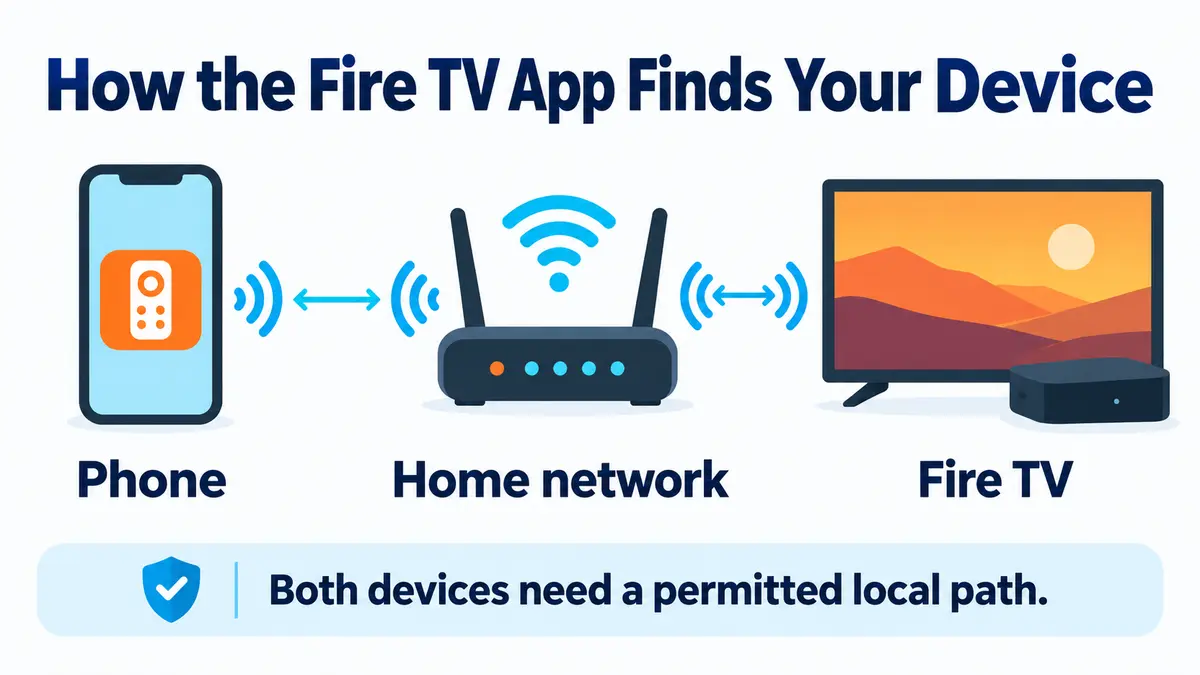
The Fire TV app normally discovers a Fire TV over the local network. Amazon’s mobile remote instructions begin by connecting the mobile device to the same Wi-Fi network as the Fire TV, opening the app, and selecting an available device.
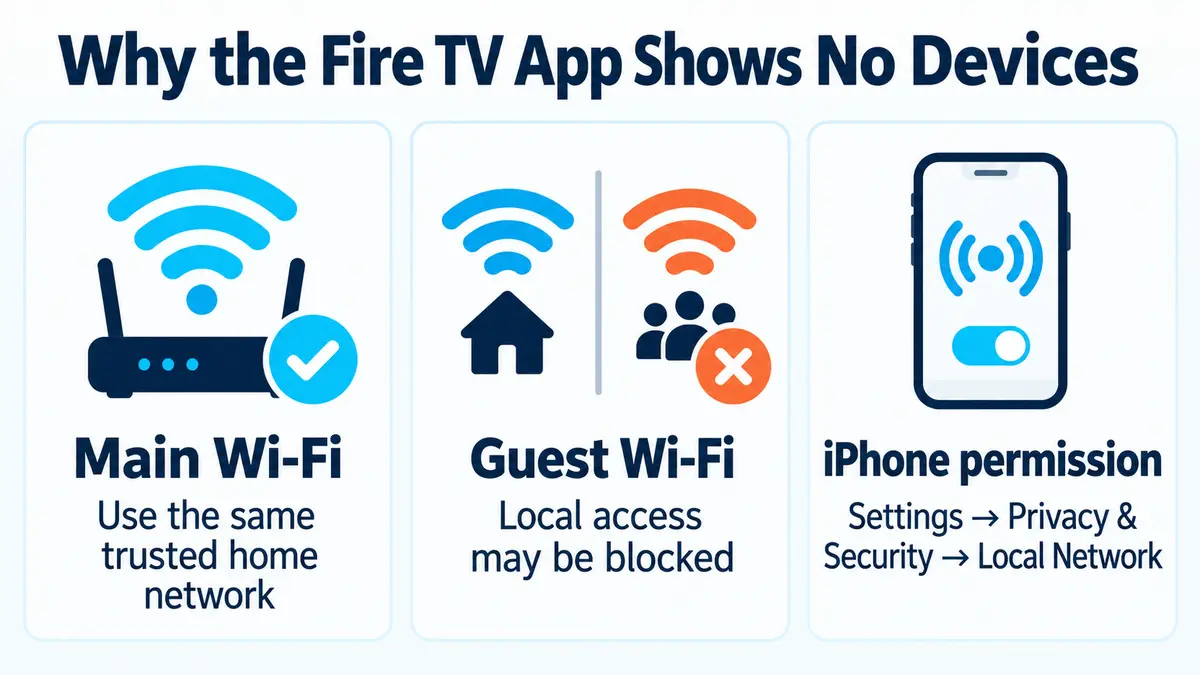
That means both devices can have internet access and still fail to see each other. A guest network, device-isolation feature, denied iPhone local-network permission, or a Fire TV that is asleep or offline can interrupt discovery without breaking ordinary web access on the phone.
1. Confirm that the Fire TV is awake
Look at the television before changing phone settings. The Fire TV should be powered on, awake, and showing its interface or an active input. If the screen is blank, on the wrong HDMI input, or the Fire TV is still starting, wait until the device is available and then reopen the phone app.
If you do not have a working physical remote, remember that some troubleshooting steps require another way to control the screen. A compatible television remote through HDMI-CEC may help on supported equipment, but availability varies. Do not remove the saved Wi-Fi network until you have the password and a usable control method.
2. Put both devices on the same home network
Open the Wi-Fi details on your phone and confirm the network name. Then check the network selected on the Fire TV if you can access Settings > Network. Use the same trusted main home network for both devices.
Do not focus only on whether one device says 2.4 GHz and the other says 5 GHz. Many routers allow local communication across bands. The important question is whether the router permits the two clients to communicate on the local network.
If the phone is connected to a guest network, move it to the main network and retry. Some routers isolate guest clients from the main LAN or from one another. TP-Link’s guest-network guide, for example, documents separate guest permissions for seeing other guests and accessing the local network; names and locations differ on other routers.
3. Check Local Network permission on iPhone or iPad
Apple explains that apps browsing the local network must request permission. On an iPhone or iPad running a supported recent version of iOS or iPadOS, open:
Settings > Privacy & Security > Local Network
If the Fire TV app is listed, confirm that access is turned on. If it is not listed, reopen the app and attempt device discovery so the permission request can appear. Do not copy this exact path to Android instructions; Android permissions and menu names vary by version and phone maker.
4. When both devices have internet but cannot see each other
This pattern usually points back to local discovery rather than an internet outage. Temporarily connect both devices to the same trusted main SSID, then close and reopen the Fire TV app. Avoid public Wi-Fi, hotel networks, and guest networks while testing because they may restrict device-to-device traffic.
Do not disable the router firewall or wireless security. If your router includes settings named client isolation, AP isolation, wireless isolation, or guest access to the local network, consult the router’s official manual before changing them. A safer first test is simply moving both devices to the normal home network.
5. Restart the app, update it, and restart only what is needed
- Fully close the Fire TV app and open it again.
- Check the Apple App Store or Google Play for an update to the official Amazon Fire TV app.
- Restart the phone if discovery still fails.
- Restart the Fire TV if you have a working control method, or disconnect its power briefly and reconnect it.
- If several local devices are also behaving incorrectly, restart the router according to its manufacturer’s instructions.
Each step is diagnostic, not proof of a particular cause. Check the device list after each one so you know which change mattered.
6. Device missing versus pairing-code failure
| What you see | Where to focus |
|---|---|
| No Fire TV appears in the app | Power, same network, local permission, and network isolation |
| Fire TV appears, but the code never appears on the television | Fire TV screen state and the latest on-screen pairing instructions |
| A code appears, but entry fails | Reopen the app and follow the current on-screen prompt |
| Fire TV itself has no internet | Fire TV network diagnostics and internet troubleshooting |
If the device appears in the app, local discovery has already succeeded. A later pairing-code failure is a different stage. Follow the code shown on the television and Amazon’s current instructions rather than repeatedly changing router settings.
7. If the Fire TV itself is offline
If the Fire TV cannot open online services or its network status reports no internet, use our Fire TV connected to Wi-Fi but no internet guide. That article separates a router connection from actual internet access.
If the phone app is only a temporary workaround for a physical remote, use the relevant guide instead: Fire TV remote not working after new batteries or Fire TV remote blinking orange and not pairing.
Frequently asked questions
Why does the Fire TV app say no devices found?
A Fire TV app “No Devices Found” message can appear when the Fire TV is asleep, connected to another network, blocked from local communication, or hidden from an iPhone app that lacks Local Network permission. Check those conditions before reinstalling or resetting devices.
Does the phone need the same Amazon account?
Amazon may ask you to sign in, but account matching does not replace the same-network requirement for local discovery. Keep the phone and Fire TV on the same permitted home network.
Should I factory-reset the Fire TV?
Not for an app-discovery problem as an early step. A reset removes settings and may leave you unable to complete setup without a working remote, network password, or other control method.
Where to go from here
When the Fire TV app is not finding a device, verify the local path first: Fire TV awake, both devices on the same trusted home network, and iPhone Local Network permission enabled when applicable. Guest-network isolation can explain why both devices reach the internet but cannot discover each other. Save network removal and resets for later, when you have the password and a reliable way to control the screen.
Official references: Amazon: Use your mobile device like a Fire TV remote, Apple: Local Network privacy controls, and TP-Link: Guest Network permissions example.
Fire TV and Fire TV Stick are trademarks of Amazon.com, Inc. FixTheClick is an independent troubleshooting site and is not affiliated with Amazon.