Fire TV Remote Blinking Orange but Not Pairing? What It Means and How to Fix It
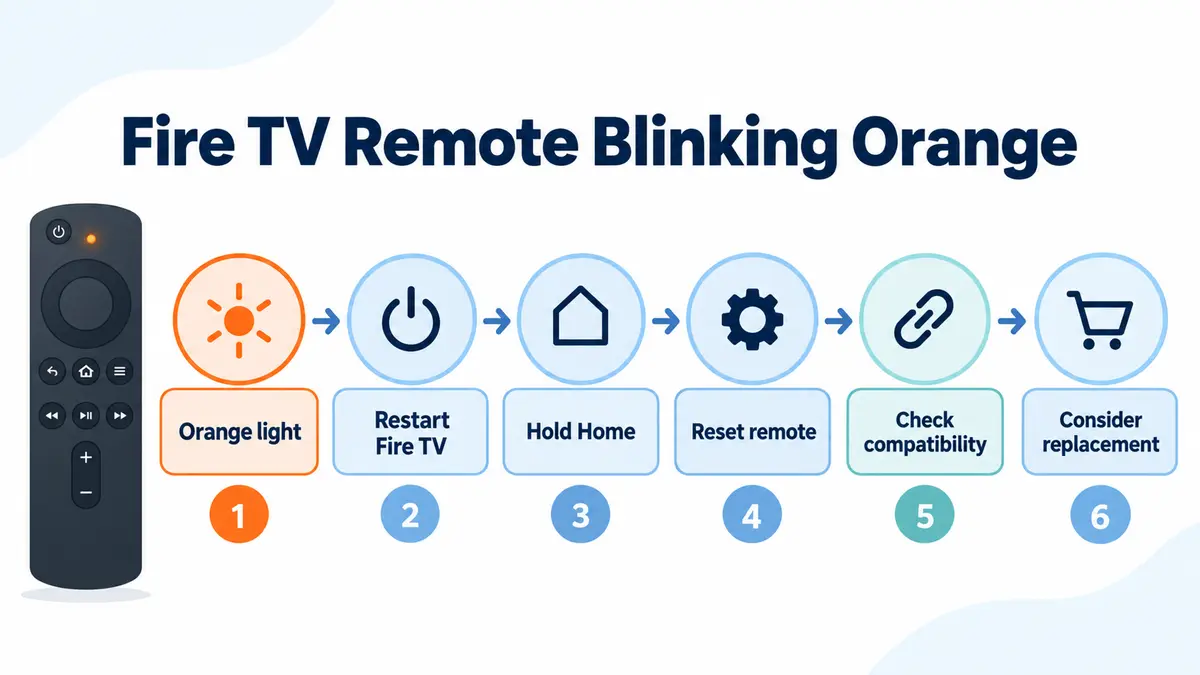
Quick answer: A Fire TV remote blinking orange usually means the remote is not paired with the Fire TV device. Move within 10 feet, restart the Fire TV, and hold the Home button for about 10 seconds. If it still will not pair, reset the remote using the correct instructions for your model and try again.
Not every Fire TV remote has the same LED diagnostic feature, so the absence of an orange light does not rule out a pairing problem. This guide focuses specifically on an orange light and failed pairing—not a remote that is completely dead after installing new batteries.
First, confirm this is a pairing problem
If the remote has no response after installing known-good batteries, use our guide for a Fire TV remote that does not work after new batteries. That problem has a different starting point from an orange pairing indicator.
If navigation works but only volume, power, or mute fails, the remote is usually still connected. Use our Fire TV volume and power button troubleshooting guide instead of repeatedly pairing it.
Check that the Fire TV itself is powered on and showing its interface. A blank TV or an unpowered player cannot confirm whether the remote is paired. If Home and navigation do not respond but the device is running, continue with the pairing checks below. A missing LED alone is not a battery diagnosis.
What does the blinking orange light mean?
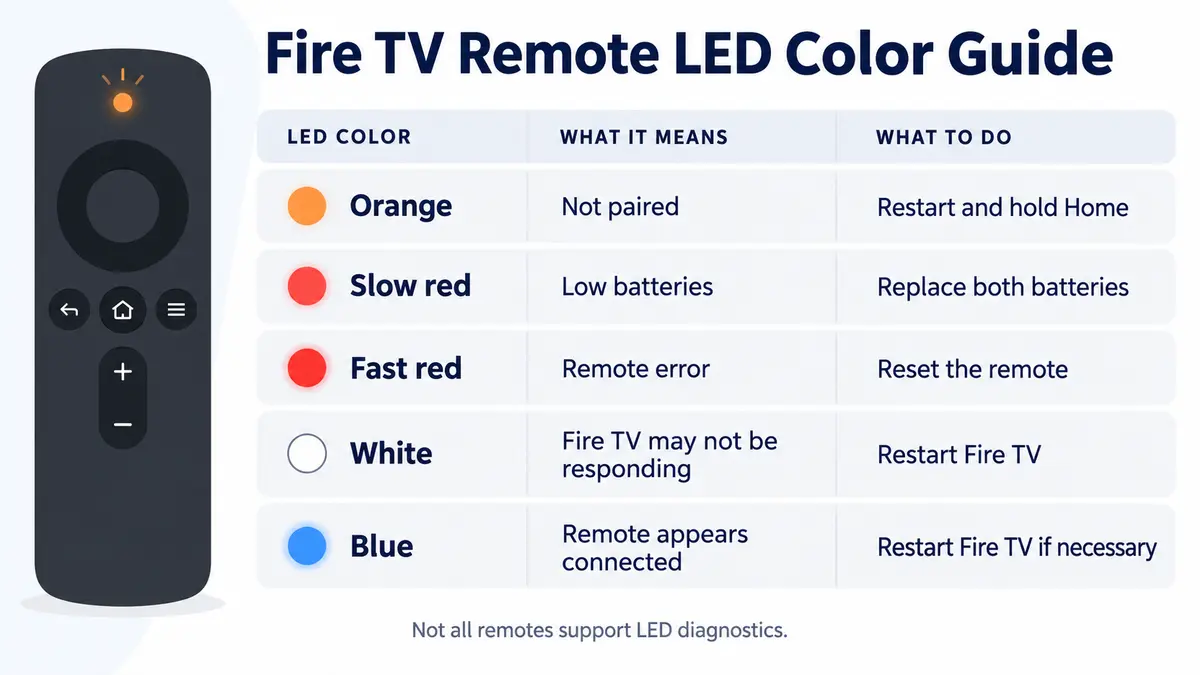
On compatible Alexa Voice Remotes, an orange light generally indicates that the remote is not paired with the Fire TV. The color meanings below come from Amazon’s troubleshooting mode on supported remotes; they are not a universal guide to every light a remote can show.
| LED color | Likely meaning | First action |
|---|---|---|
| Orange | Remote is not paired | Restart Fire TV and hold Home |
| Slow blinking red | Low batteries | Replace both batteries |
| Fast blinking red | Remote error | Reset the remote |
| White | Fire TV may not be responding | Restart the Fire TV device |
| Blue | Remote appears connected | Restart Fire TV if controls still fail |
1. Try pairing the remote again
Start with a normal pairing attempt before resetting anything:
- Move the remote within 10 feet of the Fire TV device.
- Restart the Fire TV from its menu if another controller works. For an external Fire TV player you cannot navigate, disconnect its power, wait five seconds, then reconnect it. Use the television maker’s restart instructions for a Fire TV built-in TV.
- Let the device start. For the orange diagnostic-light problem, Amazon says to wait for the “Cannot detect your remote” message.
- Press and hold the Home button for approximately 10 seconds.
- Watch for an on-screen pairing message or a blue LED on compatible remotes.
During initial setup, Amazon’s pairing guide describes holding Home until the Play/Pause start prompt appears. Follow the message on your TV, then test navigation. If pairing still fails, check the batteries briefly before resetting: for a battery-operated remote, remove them for 30 seconds, reinstall them correctly, and retry Home. Use a known-good matching pair if power is uncertain.
2. Reset the Fire TV remote
Check the model first. Amazon’s remote reset guide separates most remotes from the Basic Edition Remote and Alexa Voice Remote (1st Generation). Those exceptions use different steps. The sequence below is the “most Fire TV remotes” branch, not a universal command. It resets the remote, not the Fire TV’s apps and account.
- Disconnect the Fire TV from power and HDMI.
- Wait 60 seconds.
- Hold Left + Menu + Back together for 12 seconds.
- Release the buttons and wait five seconds.
- Remove the remote batteries.
- Reconnect the Fire TV and wait for the remote detection screen.
- Reinsert both batteries.
- Press the Home button.
If it still has not paired after this sequence, hold Home for 10 seconds. A blue LED can confirm pairing on supported models; on others, use the TV message and a navigation test. Do not repeat a reset sequence meant for a different remote.
3. Use the Fire TV app temporarily
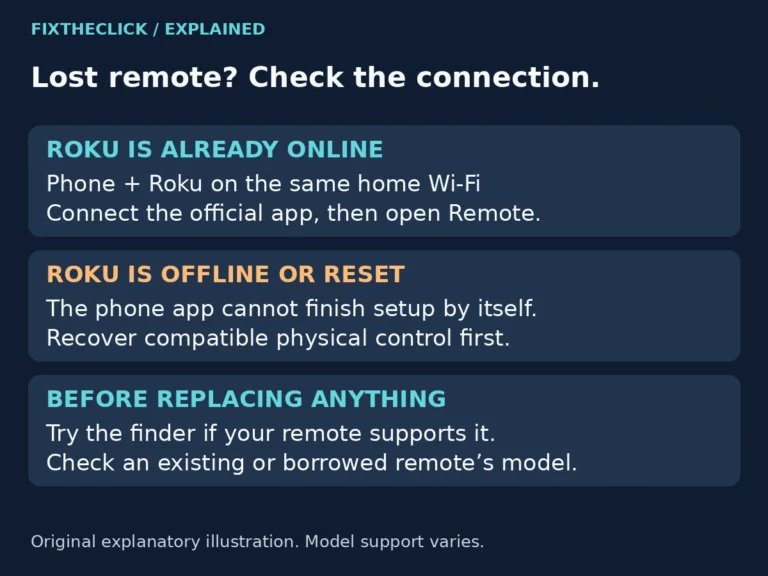
The Fire TV mobile app can provide temporary navigation while the physical remote is disconnected. The phone and Fire TV need to be connected to the same Wi-Fi network.
- Open the Fire TV app on the phone.
- Select the Fire TV device.
- Enter the code shown on the television if requested.
- Use the app remote to open Settings > Controllers & Bluetooth Devices > Amazon Fire TV Remotes.
- Select Add New Remote and attempt pairing again.
This method may not work if the Fire TV has disconnected from its previously saved Wi-Fi network. Do not try to open network settings with an app that has not connected. Use a compatible working controller or the support instructions for your exact device to restore access.
If the phone app opens but the Fire TV is missing from its device list, use our Fire TV app not finding your device guide. Local-network discovery is separate from pairing the physical remote.
4. Check remote compatibility
A replacement Firestick remote that will not pair needs a compatibility check before more button combinations. Check all four details before repeating the reset:
- The exact Fire TV Stick, Fire TV Cube, or television model.
- The generation of the remote.
- Whether it is an Amazon remote or a third-party replacement.
- Whether the remote is still paired with another Fire TV device.
Similar-looking remotes are not automatically interchangeable. A listing that says “for Fire TV” may support only certain generations. Compare the model number and compatibility list, not just the button layout.
What if the orange light returns after pairing?
Record whether it disconnects immediately, after a restart, or only at a greater distance. Test from nearby with the same device and remote. This comparison narrows the failure stage; it does not prove a hardware fault or identify a specific source of interference.
If you already have seven controllers paired, Amazon says to remove one before adding another. Only manage that list with a controller or app that still works, and remove an unused entry rather than your only working control. If pairing continues to fail, give Amazon support the device model, remote generation, screen message, and reset branch you followed.
5. When to seek further help
After the pairing and compatibility checks, collect these observations for support. None proves a hardware fault on its own:
- The remote shows no response with multiple sets of known-good batteries.
- A compatible remote produces a fast blinking red diagnostic signal.
- The remote pairs but repeatedly disconnects while another compatible remote stays connected.
- The remote has liquid damage, visible physical damage, or damaged battery contacts.
- Another compatible remote controls the same Fire TV normally.
Need a replacement remote? Check compatibility first
If the remote is physically damaged or fails the checks above, compare replacements using the exact Fire TV model and generation. Confirm whether the listing supports voice control, TV power, volume, and the specific Fire TV device. Do not assume an identical appearance guarantees compatibility.
Frequently asked questions
Why does my Firestick remote keep blinking orange?
On compatible remotes, a blinking orange light generally means the remote is not paired. Restart the Fire TV, move close to it, and hold Home for about 10 seconds.
Why will the remote not pair after a reset?
The remote may be incompatible, still associated with another device, too far away, or using the wrong reset sequence for its model. A nonresponsive Fire TV can also prevent pairing.
Should I factory-reset the Fire TV?
Not as an early step. Factory reset removes apps and settings and may leave you with a setup screen that still requires a working compatible remote. Try pairing and the model-specific remote reset first.
Bottom line
A Fire TV remote blinking orange is primarily a pairing clue. Restart the Fire TV, hold Home, then use the correct model-specific reset. Check compatibility before buying anything, and treat a replacement as the last step after another compatible remote proves the Fire TV itself is responding.
Official references: Amazon Fire TV remote troubleshooting, Amazon Fire TV remote reset instructions, and using the Fire TV app to pair a remote.
Fire TV and Fire TV Stick are trademarks of Amazon.com, Inc. FixTheClick is an independent troubleshooting site and is not affiliated with Amazon.