Laptop Not Connecting to WiFi but Phone Works? Try These 9 Fixes
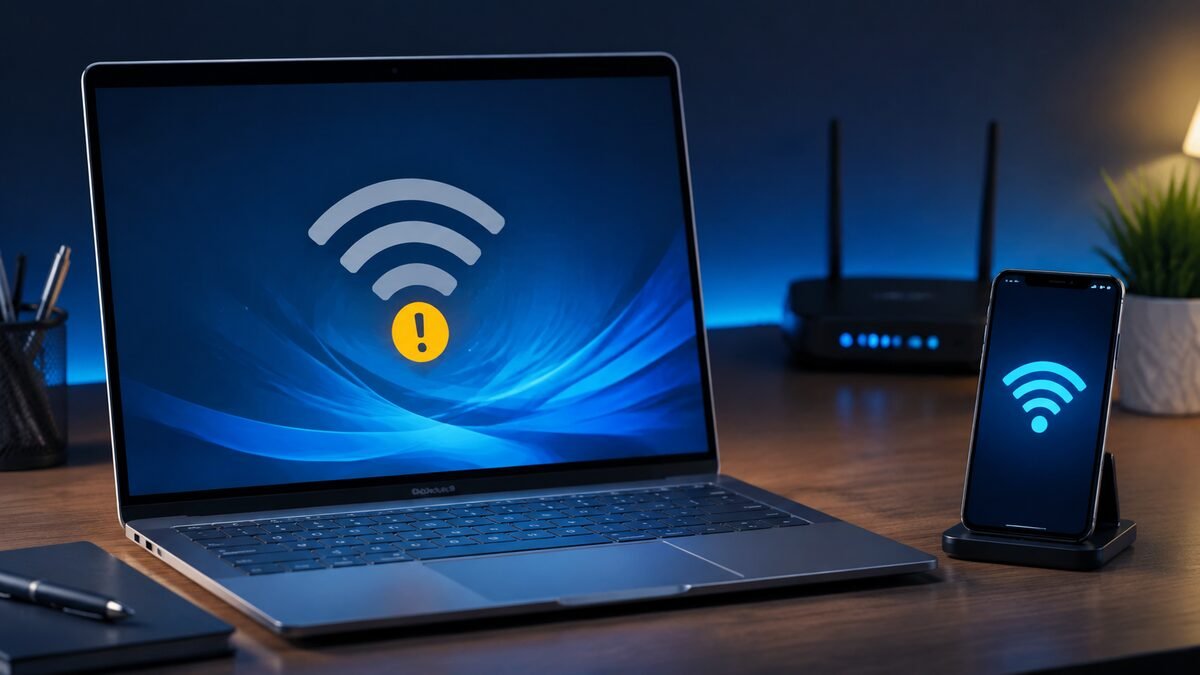
Quick answer: If your phone loads websites over the same Wi-Fi—not cellular data—the internet connection is probably working. The fault is usually isolated to the laptop: a saved network profile, Wi-Fi adapter, driver, IP address, security setting, or hardware problem.
Do not reset the whole router first. Confirm exactly what the laptop is doing, then work through the fixes below in order. This avoids disrupting every device in the home and makes the actual cause easier to identify.
Identify the symptom first
| Laptop symptom | Likely cause | Best first step |
|---|---|---|
| Your network is missing | Wi-Fi off, weak signal, band, or adapter | Toggle Wi-Fi and move closer |
| Network appears but rejects the password | Bad saved profile or security mismatch | Forget and reconnect |
| Connected, no internet | IP, DNS, VPN, or router rule | Restart and renew the connection |
| All networks are missing | Disabled adapter, driver, or hardware | Check Device Manager |
Wi-Fi option missing in Windows 11? Start with the adapter
A missing Wi-Fi option is different from a visible network that will not connect. Check any physical wireless switch, then Settings > Network & internet > Airplane mode. Do not start by forgetting a network you cannot select.
Open Device Manager > Network adapters. If the wireless adapter is disabled, right-click it and choose Enable device. If it is absent, record the PC model and any related error, then consult the manufacturer’s official Windows 11 driver/support page. Do not delete Ethernet, Bluetooth, or virtual adapters.
If Wi-Fi remains missing, Microsoft also recommends restarting WLAN AutoConfig: press Win + R, enter services.msc, find that service, and select Restart if available. If it is stopped, unavailable, or restricted by policy, use manufacturer or IT support rather than changing unrelated services. On a managed PC, consult IT before changing settings.
Once Wi-Fi returns, continue with the matching connection symptom below. Network reset remains a last step; VPN clients and virtual switches may need reconfiguration.
1. Toggle Wi-Fi and Airplane mode, then restart
Turn Wi-Fi off on the laptop, enable Airplane mode for about 10 seconds, then turn Airplane mode off and enable Wi-Fi again. This forces Windows to rebuild the radio connection without changing saved passwords.
If that does not work, restart the laptop. Use Restart rather than Shut down because Windows Fast Startup can preserve a faulty driver state after a normal shutdown.
2. Forget the Wi-Fi network and reconnect
A damaged saved profile can prevent one computer from connecting even while phones, televisions, and other devices work normally.
- Open Settings > Network & internet > Wi-Fi.
- Select Manage known networks.
- Choose your network and click Forget.
- Select the network again and enter the password carefully.
Check capitalization and avoid copying a password with an extra space. If the router password recently changed, every device with the old profile must reconnect.
3. Test the 2.4 GHz and 5 GHz bands
Your phone may support a band or security mode that an older laptop does not. If the router shows separate network names, try both. The 2.4 GHz band usually reaches farther and works with more older adapters; 5 GHz is often faster at shorter range.
Move within a few feet of the router for the test. If the laptop connects nearby but fails in the normal room, the problem is coverage or interference rather than the Windows password.
4. Use the Windows network troubleshooter
In Windows 11, open Settings > System > Troubleshoot > Other troubleshooters, then run the Network and Internet troubleshooter. On newer releases, Windows may open the Get Help app instead.
The troubleshooter can re-enable an adapter, repair common configuration errors, and identify whether Windows sees the router. Read the result before applying additional changes; it may name the failed adapter or service.
5. Disable and re-enable the Wi-Fi adapter
Right-click Start, open Device Manager, expand Network adapters, and find the wireless adapter. Its name often includes Wireless, Wi-Fi, WLAN, 802.11, Intel, Realtek, Qualcomm, or MediaTek.
If it is already disabled, choose Enable device. Otherwise, as a targeted adapter restart, choose Disable device, wait briefly, then choose Enable device. Do not uninstall every network device. Bluetooth, Ethernet, VPN, and virtual adapters serve different purposes.
6. Update, roll back, or reinstall the wireless driver
If the problem began after a Windows or driver update, open the adapter’s Properties in Device Manager and check the Driver tab. Use Roll Back Driver when it is available and the connection failed immediately after an update.
Otherwise, download the correct Wi-Fi driver from the laptop manufacturer using your phone or another computer. Match the exact laptop model and Windows version. A generic driver from an unrelated download site can create more problems.
As a final driver test, uninstall only the wireless adapter in Device Manager and restart Windows so it can reinstall the device. Have the manufacturer’s installer available first in case Windows does not restore it automatically.
7. Renew the IP address and clear DNS
If Windows says it is connected but websites do not load, open Windows Terminal as administrator and run these commands one at a time:
ipconfig /release
ipconfig /renew
ipconfig /flushdns
Restart the laptop afterward. This asks the router for a fresh local address and clears cached name lookups. It does not erase personal files.
8. Temporarily check VPN, security software, and proxy settings
A VPN, third-party firewall, or manual proxy can block internet access while Windows still shows a Wi-Fi connection. Disconnect the VPN and verify that Settings > Network & internet > Proxy does not contain an old manual server you no longer use.
Do not permanently disable antivirus protection. If pausing a third-party network filter restores access, update or reinstall that specific product and turn protection back on.
9. Use Network reset only after the targeted fixes
Windows Network reset removes and reinstalls network adapters and returns their settings to defaults. It can help after driver or configuration corruption, but it also removes saved Wi-Fi connections and may require VPN clients or virtual switches to be configured again.
Open Settings > Network & internet > Advanced network settings > Network reset. Save work, make sure you know the Wi-Fi password, and use this only after the earlier steps fail.
When the router can still be the cause
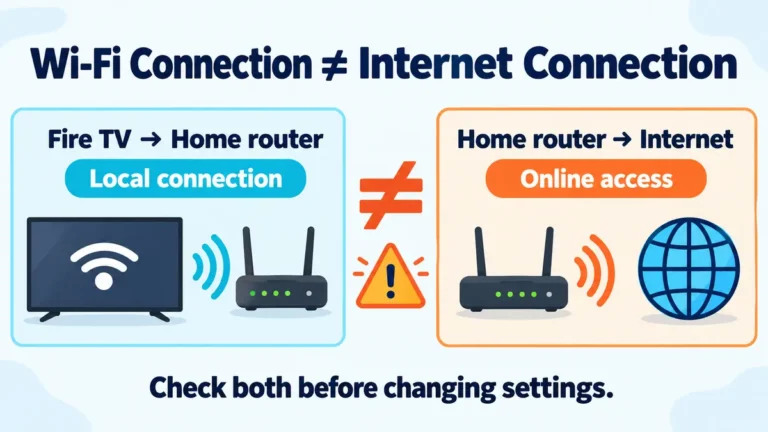
A phone loading websites over the same Wi-Fi, with cellular data off for the comparison, suggests the router has internet access; it does not guarantee the router accepts every device. Check the router only if the laptop connects to a phone hotspot but not to home Wi-Fi.
- Restart the router once and wait for it to finish booting.
- Check whether access control or MAC filtering blocks the laptop.
- Use WPA2/WPA3 mixed mode if an older adapter cannot use WPA3-only security.
- Confirm the DHCP address pool is not exhausted.
- Install the router manufacturer’s stable firmware update.
How to tell whether the laptop’s Wi-Fi hardware failed
Connect the laptop to your phone’s hotspot. If that works, the internal Wi-Fi hardware is probably functional and the conflict is specific to the home router. If no networks appear anywhere, Device Manager reports an error, and the correct driver does not help, the internal adapter may have failed.
Ethernet can provide a temporary connection. A reputable USB Wi-Fi adapter is also a practical diagnostic tool and may be a lower-cost repair for an older laptop. For a newer laptop under warranty, contact the manufacturer before opening the case.
Best troubleshooting order
- Toggle Wi-Fi and restart the laptop.
- Forget and reconnect to the network.
- Test nearby on both Wi-Fi bands.
- Run the Windows troubleshooter.
- Reset the adapter and correct driver.
- Renew the IP address and check VPN or proxy settings.
- Test a phone hotspot.
- Use Network reset last.
Official reference
Microsoft: Fix Wi-Fi connection issues in Windows
Windows is a trademark of Microsoft Corporation. FixTheClick is an independent troubleshooting site and is not affiliated with Microsoft.
If the laptop connects but drops off the network repeatedly, use our separate guide to Windows 11 Wi-Fi disconnection fixes.