Camera Not Working in Windows 11? Check Privacy and the Camera Switch
Your camera is missing, shows a black preview, or works everywhere except the meeting you need to join. First check its shutter or camera key, then Windows camera permissions. Test the Windows Camera app before deciding that the webcam or its driver has failed.
If Camera shows a live preview, follow the app-specific branch. If it cannot find the camera, follow the detection branch below, especially when you see 0xA00F4244. This guide covers Windows 11; permission controls and hardware switches can vary by PC and app.
1. Check the shutter, camera key, and connection
Look for a slider over the lens, a camera switch, or a keyboard key with a camera symbol. Some PCs require Fn with that key. Use your model’s instructions rather than guessing a universal shortcut. A covered lens and a camera electronically switched off are different conditions.
For an external webcam, check the USB connection. Try a direct connection if an unnecessary hub is involved. Microsoft’s camera troubleshooting guide includes hardware switches and connection checks.
Make one change, then check the preview again. Write down whether you see a black image, a crossed-out camera, or an error. “No video” is a useful starting symptom, but those results point to different next questions. Do not repeatedly reinstall software while leaving the physical control unchecked.
2. Review the correct Windows camera permission
Open Settings → Privacy & security → Camera. Review Camera access, then the access control for the type of app you intend to use. If the device-level setting is unavailable or managed, ask the PC’s administrator.
For eligible Microsoft Store apps, Let apps access your camera and the listed app’s switch control access. Desktop applications use Let desktop apps access your camera; Windows does not offer an individual desktop-app toggle in this list. Microsoft’s camera permissions guide explains the distinction.
Do not enable every listed application just to get one call working. Review only the access relevant to the trusted app you want. An app missing from the individual list may belong to the desktop-app branch; absence from that list alone does not establish that it is faulty.
On a company or school PC, stop if policy controls the setting. Tell IT which application needs the camera and what Windows displays. Changing unrelated security settings would obscure the actual restriction rather than identify it.
3. Test in the Windows Camera app
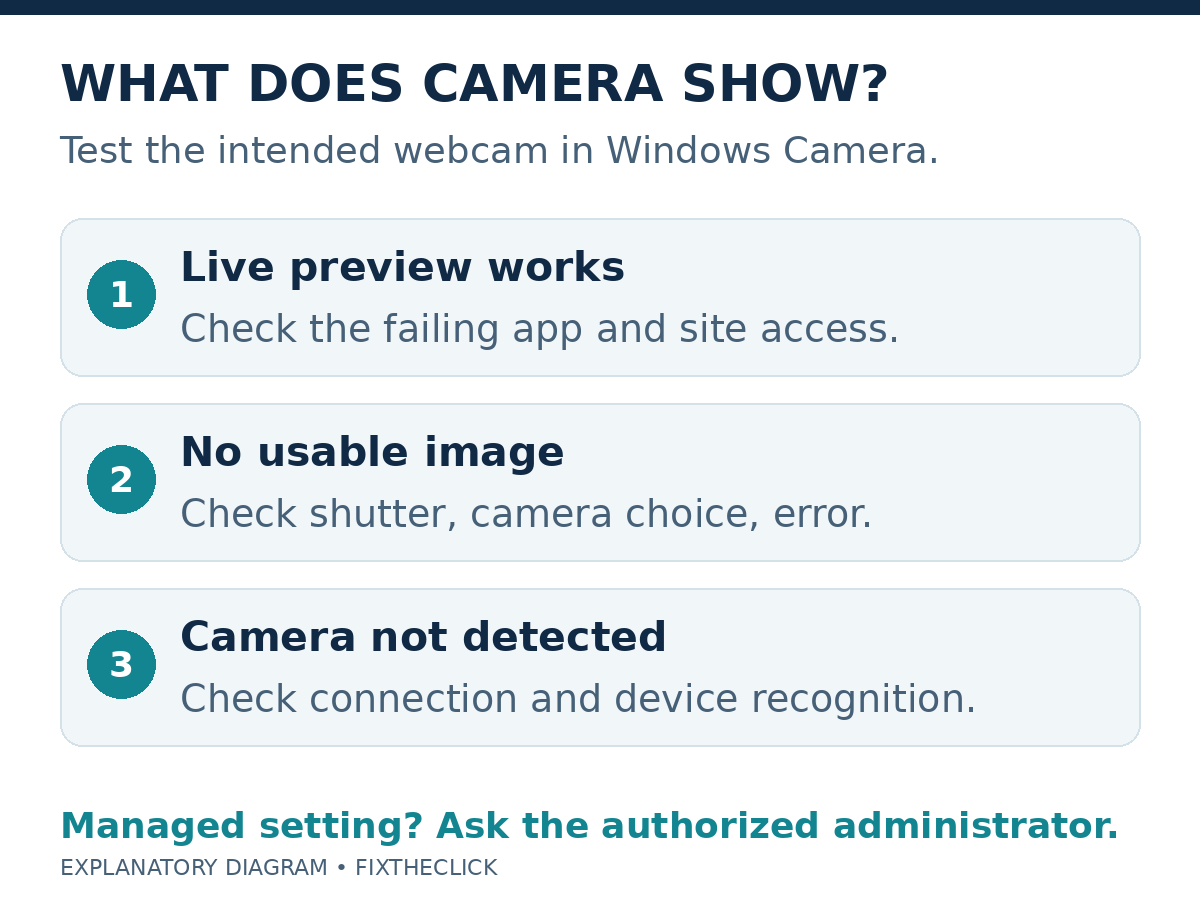
Close other camera-using apps normally, then search Start for Camera and check its preview. A working preview is a reason to investigate the failing app before changing drivers.
| What you see | Next check |
|---|---|
| Camera preview works; one app fails | That app’s camera choice and permissions |
| Camera opens but shows no useful image | Shutter, selected camera, and exact error |
| 0xA00F4244 or no camera detected | Connection, switch, and device recognition |
| Camera access is managed | Authorized administrator or IT |
Use the same intended webcam for each comparison. A laptop’s built-in camera working does not establish that an attached webcam works. Note which device was tested so you do not mistake a successful preview from another camera for a repair.
4. If only Zoom, Teams, or a browser fails
Open that app’s video settings and verify the selected camera using its current help. App names do not establish an identical interface or installation type. Compare its preview with the Windows result, and check whether video is turned off within the call itself.
For Chrome-based calls, there is also a website permission layer. Open Chrome Settings → Privacy and security → Site settings → Camera. Review the calling site’s permission and select the intended camera. Google’s camera and microphone instructions cover these controls.
Allow access only for the trusted service you mean to use. After changing the relevant setting, reopen the call or browser as appropriate and check its preview again. A managed browser may require the administrator to change its policy; do not work around that restriction.
If video works but people cannot hear you, that is a separate input problem. Use our Windows 11 microphone checks instead of changing more camera settings.
5. If Windows shows 0xA00F4244
Microsoft identifies 0xA00F4244 as a camera-detection failure. Recheck the connection and hardware switch. In Device Manager, look under Cameras, Imaging devices, or Sound, video and game controllers. If the identified camera offers Enable device, it is disabled; enable only that camera.
If it is absent, use Action → Scan for hardware changes, then recheck. Record the PC/webcam model and the exact result for manufacturer support. Missing detection is a different branch from a working webcam blocked in one website.
6. Update or repair only after narrowing the failure
Save work and use a normal restart. Microsoft also provides a camera troubleshooter in Get Help. If the failure persists, review Windows Update and the exact manufacturer’s camera support. Record whether the issue began immediately after an update before choosing a targeted driver repair.
Do not uninstall every imaging device, edit the registry, or switch off all antivirus protection as a first experiment. If security software reports a camera restriction, consult its maker or IT about that specific control. Keep the original setting and test result in your notes.
Frequently asked questions
Why does my camera work in Camera but not a meeting app?
Check the failing app’s selected camera and applicable Windows access, then its own permissions. For a browser call, review the particular website as well.
Does a black preview mean the webcam is broken?
It is a symptom, not a hardware diagnosis. Check the shutter and compare the intended camera in another trusted app before escalating.
What should I give support?
Provide the PC and webcam models, Windows version, affected apps, exact error, and Camera preview result. Avoid sharing private meeting images or recordings. Official guidance checked October 8, 2026; no physical PC or meeting account was tested for this article.