Fire TV Connected to Wi-Fi but No Internet? Start Here
Quick answer: If your Fire TV is connected to Wi-Fi but has no internet, remember that joining the router and reaching online services are separate steps. Start with Settings > Network, highlight the current network, and press Play/Pause on the remote to open network status on supported Fire TV devices.
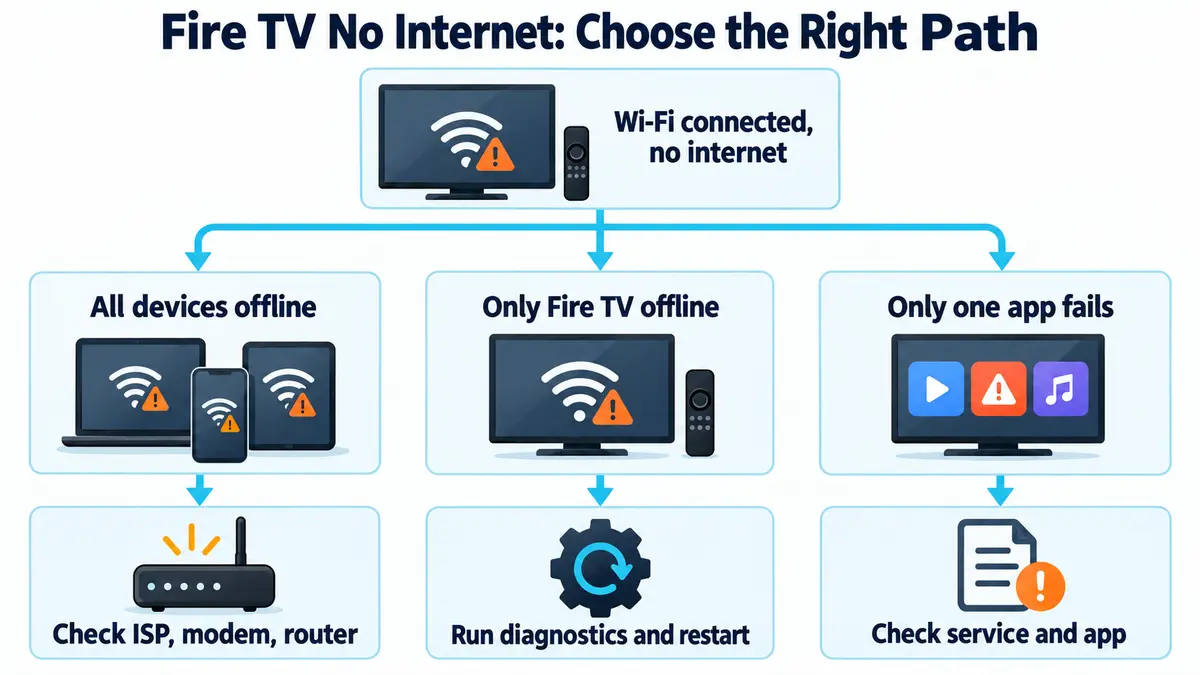
Before changing settings, check whether other devices on the same home Wi-Fi can reach the internet. Then separate the problem into one of three paths: all devices are offline, only the Fire TV is offline, or only one streaming app is failing.
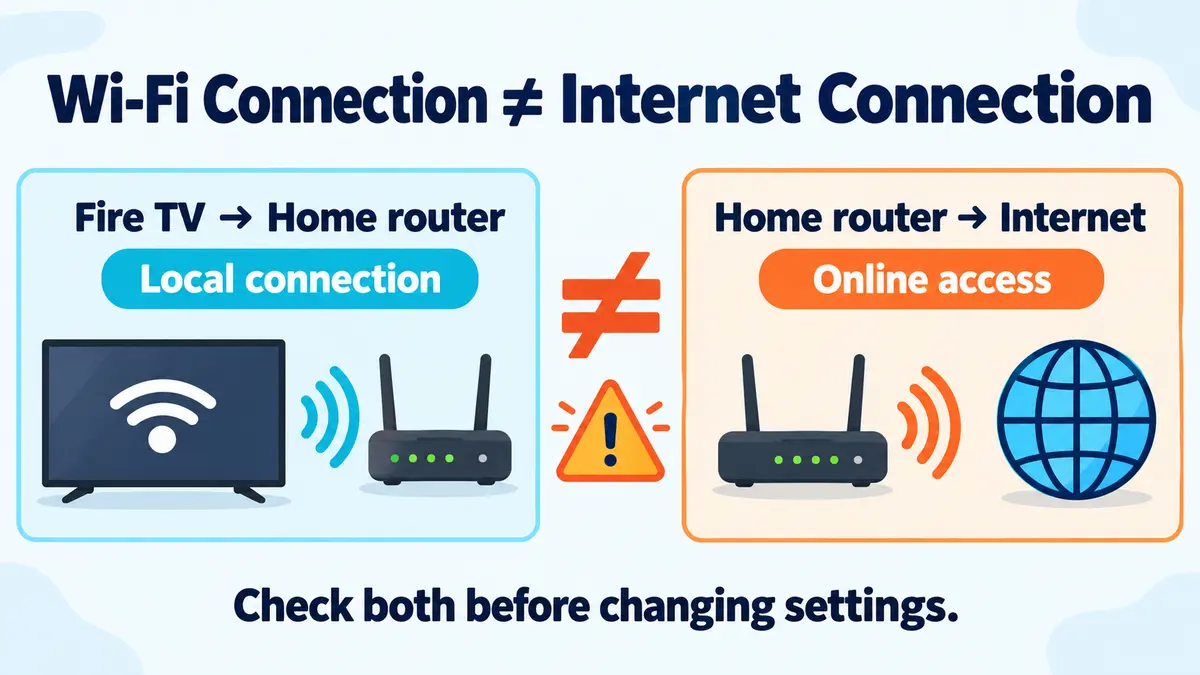
Wi-Fi connected does not always mean internet connected
The Wi-Fi status confirms that the Fire TV has joined a nearby router or access point. It does not by itself confirm that the router has a working connection to your internet provider, that the Fire TV can reach Amazon services, or that a specific streaming service is available.
This distinction keeps troubleshooting focused. A Firestick connected with no internet is not automatically defective, and a single app error does not automatically mean the entire network is down.
1. Open Fire TV network diagnostics
Amazon’s Wi-Fi troubleshooting guide documents an on-device network status tool. Open Settings > Network, highlight the connected network, and press the Play/Pause button on the remote. From an “Unable to Connect” message, some devices also offer Network Diagnostics.
Review the Wi-Fi connection and any internet status or recommendation shown. Compatible models may also show Run Speed Test or Advanced; do not worry if those options are absent because menus vary by device and software version.
2. Test another device without cellular data
Connect a phone or computer to the same home Wi-Fi and open more than one ordinary website or service. On a phone, temporarily turn off cellular data while testing. Otherwise the phone may quietly use its mobile connection and make a failed home internet connection look healthy.
This comparison is only a diagnostic clue. It does not identify the exact failed component, but it determines which branch deserves attention first.
3. If all devices on the home network are offline
When phones, computers, and the Fire TV all fail on the same Wi-Fi, check the modem or router status lights and your internet provider’s official outage page or app. This points to a home-network or provider problem more strongly than a Fire TV-only fault.
Amazon’s current support sequence is to unplug both modem and router, wait about one minute, reconnect the modem first, and wait about one minute for it to establish service. Then reconnect the router and wait about another minute. A single gateway device may combine both roles, so follow its manufacturer or provider instructions.
Do not repeatedly power-cycle equipment during an acknowledged ISP outage. Record the outage status and wait for the provider’s restoration estimate.
4. If only the Fire TV has no internet
Restart the Fire TV before removing its saved network. Amazon currently advises disconnecting Fire TV power, waiting 10 seconds, and reconnecting it for this troubleshooting path. After it starts, run the network status check again.
If the problem remains, open Settings > Network and turn Wi-Fi off and back on when that control is available. Menu wording can vary across Fire TV Stick, Fire TV Cube, and Fire TV smart television models.
5. Forget and reconnect to Wi-Fi only when prepared
Use network removal only when you know the Wi-Fi password and have a working remote or another reliable control method. In Amazon’s documented sequence, open Settings > Network, highlight the network name, press the Menu button, and then press Select/OK to forget it. Rejoin and enter the password carefully.
Do not forget the network if the phone app is your only remote and is not currently connected. That can remove the local path the phone needs. If the Fire TV app cannot find the device, solve that discovery problem separately.
6. If only one streaming app is failing
Open another streaming app or a Fire TV service. If those work, the internet connection may be usable and the failure may be limited to one app or service. Check the service’s official status page, close and reopen the app, and install available Fire TV or app updates.
If other apps play normally but one installed app closes or never opens, follow our Fire TV app crashing guide.
Clearing an app’s cache can be a later app-specific step. Avoid clearing app data unless you are prepared to sign in again and lose locally stored settings. Do not present a service outage as a router failure.
7. Use the symptom table before changing hardware
| Symptom | Most useful next check |
|---|---|
| All home devices are offline | ISP status, modem, and router |
| Only Fire TV is offline | Fire TV diagnostics, restart, and Wi-Fi reconnection |
| Only one app fails | Service status and app troubleshooting |
| Phone app cannot find Fire TV | Local network discovery |
| Settings cannot be opened because the remote fails | Physical remote troubleshooting or another supported control method |
If remote trouble blocks the network menu, use our Fire TV remote not working after new batteries guide. An orange pairing indicator has a separate path in our Fire TV remote blinking orange guide.
8. Factory reset is the last resort
Amazon places factory reset after network diagnostics, Fire TV restart, Wi-Fi reconnection, and modem/router restart. A factory reset removes account information, downloaded apps, and settings, so it is not the first response to a temporary outage.
- Confirm that the problem is not an ISP or streaming-service outage.
- Record the Fire TV model, software version when accessible, network name, and diagnostic message.
- Have the Amazon account details, Wi-Fi password, and a compatible working remote ready.
- Contact Amazon support or the internet provider with the diagnostic result before resetting if the cause remains unclear.
Frequently asked questions
Why does Fire TV say connected with no internet?
The Fire TV may be connected to the router while the router lacks internet service, or the Fire TV may be the only device failing to reach online services. Use the network status tool and compare another device on the same Wi-Fi.
Should I change DNS settings?
Not as a generic first fix. DNS changes can complicate troubleshooting and will not repair an ISP outage, weak local connection, or failed app. Start with the documented diagnostics and scope checks.
Do I need a new router?
Not based on this symptom alone. Replacement becomes reasonable only after the provider, router manufacturer, or repeat testing identifies a router fault or an unmet compatibility requirement.
Where to go from here
When Fire TV is connected to Wi-Fi but has no internet, begin with its network status tool and test another device on the same Wi-Fi without cellular fallback. If everything is offline, investigate the provider and router. If only Fire TV is offline, restart it and reconnect carefully. If one app fails, keep the diagnosis at the app or service level. Reserve factory reset for the end, after recording what the diagnostics actually show.
Official reference: Amazon: Can’t connect your Fire TV device to Wi-Fi.
Fire TV and Fire TV Stick are trademarks of Amazon.com, Inc. FixTheClick is an independent troubleshooting site and is not affiliated with Amazon.