Windows 11 WiFi Keeps Disconnecting? Try These 10 Fixes
If Windows 11 WiFi keeps disconnecting, first determine whether the router drops every device or only the PC. When phones and TVs stay online, forget and reconnect to the network, restart the Wi-Fi adapter, update its driver, and disable adapter power saving. Use Network Reset only after the targeted fixes fail.
The order matters. It prevents a router reboot or full Windows network reset from hiding the actual cause.
Quick diagnosis
| Pattern | Likely cause | Best first check |
|---|---|---|
| Every device disconnects | Router, modem, or ISP | Restart network equipment |
| Only the Windows 11 PC disconnects | Saved profile, driver, or power setting | Forget network and restart adapter |
| Disconnects after sleep | Power management or driver | Steps 5 and 6 |
| Stable near router, drops farther away | Weak signal or band congestion | Step 4 |
| Connected but websites do not load | DNS, DHCP, VPN, or ISP issue | Step 7 |
1. Check whether the PC or the network is dropping
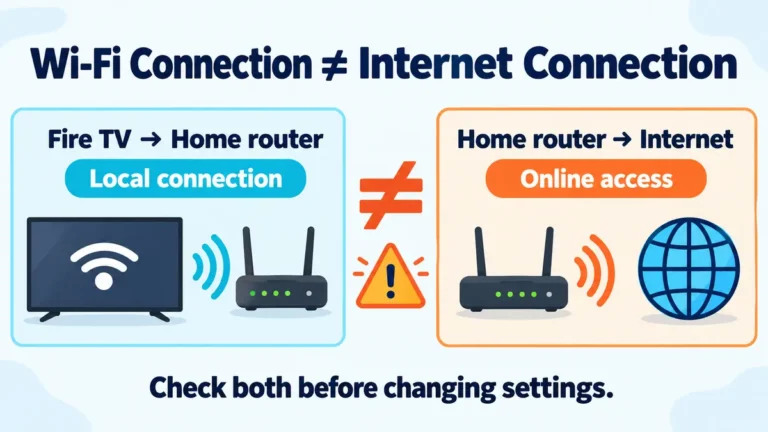
When the connection fails, immediately test a public website on a phone connected to the same Wi-Fi. If the phone also fails, troubleshoot the router, modem, or internet service. If the phone works, keep the router online and focus on Windows.
If the laptop cannot connect at all while the phone works, our separate guide covers a laptop that will not connect to Wi-Fi. The steps below focus on a connection that works and then repeatedly drops.
2. Forget the Wi-Fi network and reconnect
- Open Settings > Network & internet > Wi-Fi.
- Select Manage known networks.
- Choose your network and select Forget.
- Reconnect from the taskbar and enter the password again.
This replaces the saved Wi-Fi profile. It often fixes disconnects that begin after a router password, security mode, or network-name change.
3. Restart the Wi-Fi adapter
Open Settings > Network & internet > Advanced network settings. Disable the Wi-Fi adapter, wait about 10 seconds, and enable it again.
You can also restart the PC. A restart reloads the adapter driver and clears a temporary networking failure without changing saved networks.
4. Test signal strength and the other Wi-Fi band
Move the laptop near the router for a short test. If the connection becomes stable, placement or interference is involved.
Many routers offer both 2.4 GHz and 5 GHz networks. If both names appear, try the other band. The 5 GHz band can be faster at short range, while 2.4 GHz often reaches farther through walls. Performance depends on the router, adapter, congestion, and building layout.
Avoid buying an extender immediately. First test the laptop beside the router. If it still disconnects at close range while other devices remain stable, more signal hardware is unlikely to solve the problem.
5. Update or roll back the Wi-Fi driver
Right-click Start, open Device Manager, expand Network adapters, and open the Wi-Fi adapter.
- If the problem began without a recent update, install the latest Wi-Fi driver from the laptop or adapter manufacturer.
- If disconnects began immediately after a driver update, open the Driver tab and use Roll Back Driver when available.
Windows Update can provide drivers, but the laptop manufacturer’s support page may have a model-specific package. Download a replacement driver before uninstalling the current one, especially if Ethernet is unavailable.
6. Stop Windows from powering off the adapter
In Device Manager, open the Wi-Fi adapter’s Properties. If a Power Management tab appears, clear Allow the computer to turn off this device to save power, then restart the PC.
This is especially relevant when Wi-Fi disconnects after sleep or when the laptop runs on battery. Some adapters or newer Windows drivers do not show this checkbox; skip the step if it is absent.
7. Temporarily remove VPN and security-filter variables
Disconnect any VPN and test again. Also pause only the network-filtering feature of third-party security software if you know how to restore it. Do not disable Windows security protections broadly.
If Wi-Fi stays connected but the internet stops working, open Terminal or Command Prompt and test another website before changing DNS. A brief ISP or router failure can look like a Windows disconnect.
8. Restart the modem and router in the correct order
Use this step when multiple devices are affected or the earlier PC-specific fixes did not help.
- Unplug the router and modem. If you have one gateway device, unplug that device.
- Wait at least 10 seconds.
- Reconnect the modem and wait for its status lights to stabilize.
- Reconnect the router and wait a few minutes.
- Reconnect the Windows PC.
Everyone using the network will briefly lose internet access, so do this when it will not interrupt calls, uploads, or other work.
9. Generate a Windows wireless network report
For a recurring problem, open Terminal as an administrator and run:
netsh wlan show wlanreportWindows creates an HTML report covering recent Wi-Fi sessions. Its disconnect reasons and session timeline can reveal whether the adapter lost signal, the driver failed, or the access point ended the connection. This is more useful than repeatedly toggling random settings.
10. Use Network Reset as the last software step
Go to Settings > Network & internet > Advanced network settings > Network reset, then select Reset now.
Network Reset removes and reinstalls network adapters and returns related settings to defaults. You may need to reconnect to Wi-Fi, reinstall VPN software, or reconfigure virtual network adapters afterward. Save this step for last.
When should you replace hardware?
Do not replace the router when only one laptop disconnects at close range. Test the laptop on a trusted second Wi-Fi network or phone hotspot first.
- If the laptop drops on multiple networks, suspect its Wi-Fi adapter, antenna, or driver.
- If every device drops on the home network, suspect the router, modem, cabling, or ISP.
- If an inexpensive USB Wi-Fi adapter stays stable on the same laptop, the internal adapter or antenna becomes the stronger suspect.
Frequently asked questions
Why does Windows 11 WiFi disconnect after sleep?
Adapter power management and driver problems are common causes. Update the manufacturer’s driver and, when the option exists, stop Windows from turning off the Wi-Fi adapter to save power.
Should I use 2.4 GHz or 5 GHz?
Try both if your router shows separate networks. At longer range, 2.4 GHz may be more stable; near the router, 5 GHz may provide better speed and less interference in some homes.
Does Network Reset delete personal files?
No, it does not delete documents or photos. It does reset network adapters and related settings, so saved connections, VPN components, and custom networking configuration may need attention afterward.
Bottom line
When Windows 11 WiFi keeps disconnecting, separate a network-wide outage from a PC-only failure first. For a PC-only problem, rebuild the saved profile, restart the adapter, address the driver and power settings, and use the wireless report for evidence. Network Reset is a final software step, not the opening move.
Sources: Microsoft Wi-Fi troubleshooting and Microsoft wireless network report guide.