Lost Your Roku Remote? How to Connect Without the Original Remote
The remote is missing, and installing a phone app has not necessarily solved the problem. Before changing anything on Roku, establish one detail: is it still connected to the Wi-Fi network your phone can use right now? That decides whether the app is a practical temporary controller or whether you need to restore physical control first.
Quick Answer
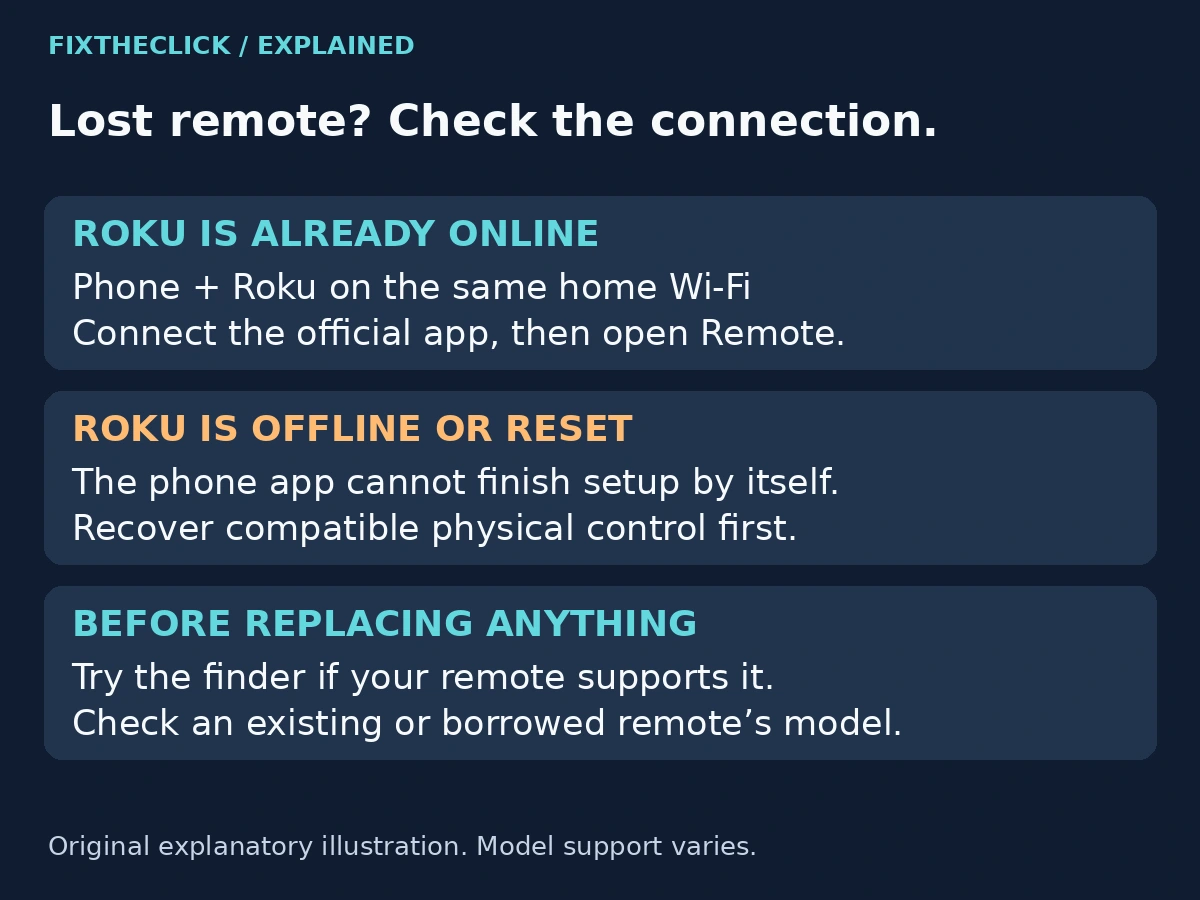
If your Roku is powered on and already connected to your current home Wi-Fi, connect your phone to that network and use the official Roku app’s Remote feature. If Roku is offline after a reset, a move, or a router change, the app cannot complete network setup simply by being installed. Try a supported lost-remote finder, then identify an existing or borrowed compatible controller before considering a replacement. Do not factory-reset a configured Roku to solve a missing remote.
1. Check Which Situation You Are In
Turn on the TV and select the input for your external Roku player, or open the Roku interface on a Roku TV. A visible Home screen confirms that you can see the interface; it does not, by itself, confirm the current network connection. A setup screen asking for a network is a different starting point.
| Your situation | Useful next step |
|---|---|
| Roku appears in the official app | Connect and test the on-screen remote. |
| Roku should still be on the current network, but is missing | Check phone Wi-Fi and app discovery before changing Roku settings. |
| Router changed, Roku was reset, or setup is incomplete | Recover a compatible physical controller; do not expect the app to configure an unreachable device. |
| The remote may be somewhere nearby | Check whether your exact remote supports lost remote finder. |
Roku’s lost-remote support guide makes the app limitation explicit. The Roku must already be powered on and connected, and the phone must share its Wi-Fi network. Knowing the Roku account password is not a substitute for that connection.
2. Use the App When Roku Is Already Reachable
Install the official Roku app from the store link in Roku’s phone-remote guide. Follow its sign-in and connection prompts, select the intended Roku, then open Remote. Test Home or a direction button while watching the television.
Choose the device carefully if you have more than one Roku. A successful connection to the bedroom player will not move the living-room screen. Start with navigation, rather than treating an unavailable TV-volume button as proof that the connection failed; available controls depend on the device.
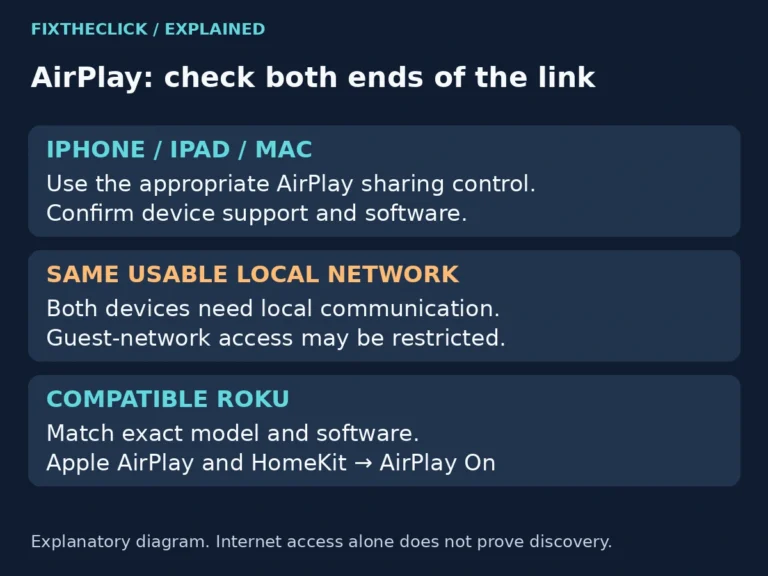
If the Roku does not appear, check the phone’s current Wi-Fi rather than repeatedly reinstalling the app. Cellular data alone is not this local control path. On a guest or managed network, internet access does not guarantee that devices can discover one another. Ask the administrator about supported local connections instead of disabling security.
For a Roku that should already be online, our Roku app can’t find your device guide covers discovery checks. Roku also documents Settings → System → Advanced system settings → Control by mobile apps in its app troubleshooting instructions. That setting requires an already-working controller to change. An app that has not connected cannot open it for you.
3. Try the Lost-Remote Finder If Your Model Supports It
Recovering the original remote may avoid a new setup entirely. Roku’s lost remote finder guide limits this feature to supported voice remotes with a built-in speaker. It is not present on every Roku remote.
If the mobile app already connects, open Devices, connect to the Roku, and look for Ping Remote in the connected device’s three-dot menu. Some players have a physical remote-finder button. Certain Roku TVs offer a finder through their panel controls; follow the instructions for your TV rather than assuming every power button opens that menu.
On a supported Voice Remote Pro with hands-free listening already enabled, try “Hey Roku, where’s my remote?” If that feature was off when the remote went missing, the command is not a way to turn it on remotely.
A supported remote still needs usable battery power and range. Silence does not prove it was unpaired or broken. Check the likely location and the model’s capabilities before treating the finder as a failed repair.
4. If Roku Is Offline, Recover Control Before Network Setup
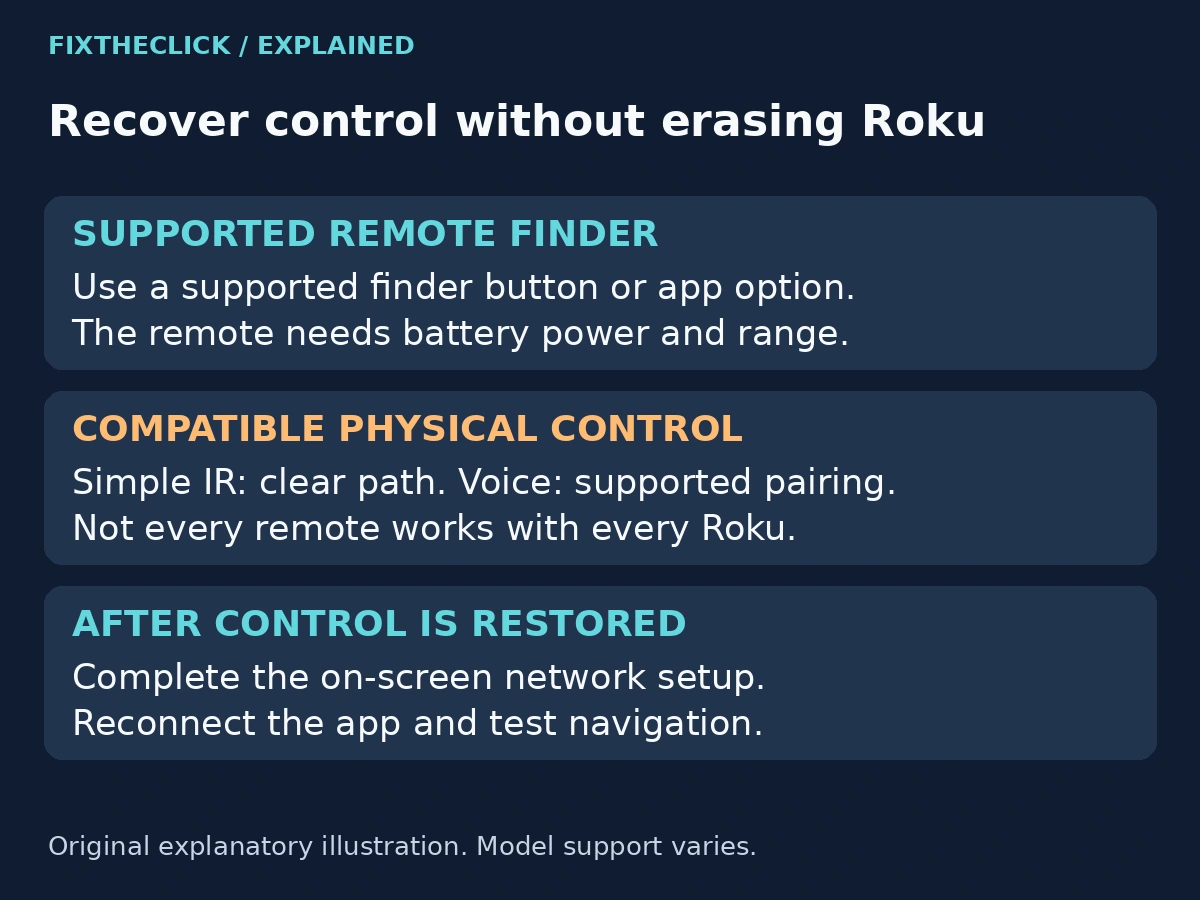
A new router or a factory reset changes the problem. You are no longer replacing a remote on an accessible Roku; you need a way to navigate the device before the phone can reach it. Do not follow instructions that begin “use the app to open Network settings” when the app cannot see your Roku.
First identify the receiving device from its label or documentation: Roku TV, streaming player, or Streaming Stick. Then check whether an existing household remote or a borrowed one is compatible with that exact model. Borrowing is a practical option only after compatibility is established; a similar-looking remote is not enough.
A compatible simple IR remote needs no pairing. Insert suitable working batteries and aim it at the receiving device with a clear path, following Roku’s simple-remote setup instructions. Do not assume a TV remote and a player remote are interchangeable, or that any IR accessory will control a Streaming Stick.
A compatible Roku voice remote must pair with the receiver. Roku’s voice-remote pairing guide includes a route that does not require a second working controller: disconnect Roku power, wait at least five seconds, reconnect, and put the voice remote into pairing mode when Home appears. For initial setup, follow the displayed pairing instructions.
Use that remote’s documented pairing control: the dedicated pairing button where present, or the supported Back + Home combination on the buttonless voice model. Our Roku remote identification guide explains those branches. This is a short power restart and remote-pairing process, not a factory reset of the player.
Once navigation works, complete the network setup shown on your device. Connect the phone to the same network, then retry the app. Keep the physical controller available until you have confirmed that the app actually moves the Roku interface.
5. Know When the Recovery Path Needs Support
If no compatible controller is available and the Roku is still offline, there may be no app-only route for your setup. Check the model’s official remote compatibility information or ask Roku support which controller it accepts before arranging a replacement. This is a compatibility decision, not a reason to replace the whole player.
Avoid another factory reset: it cannot locate the missing remote and may remove a working network configuration. This guide also does not rely on recreating Wi-Fi with an improvised phone hotspot. A workaround described for someone else’s phone and router is not a dependable recovery path for every Roku.
For support, collect the Roku model, whether it is at Home or initial setup, whether the router changed, and whether any controller still works. Share neither Wi-Fi passwords nor account credentials in public comments.
Frequently Asked Questions
Can I connect an offline Roku using only the mobile app?
Not simply by installing it. Roku’s official guidance says the app cannot detect a device that is unconnected during first setup or after a reset. Establish a supported control method and network connection first.
Do I need the original remote specifically?
Not necessarily. A compatible alternative can provide control, but its type and pairing requirements must match your Roku. Check the exact model before borrowing or replacing a remote.
Should I erase Roku so the phone can find it?
No. Removing its configuration can take away the network connection the app needs. Diagnose whether Roku is online, recover control if necessary, and leave a working setup intact.