Roku Stuck in Guest Mode? Exit Without a Factory Reset
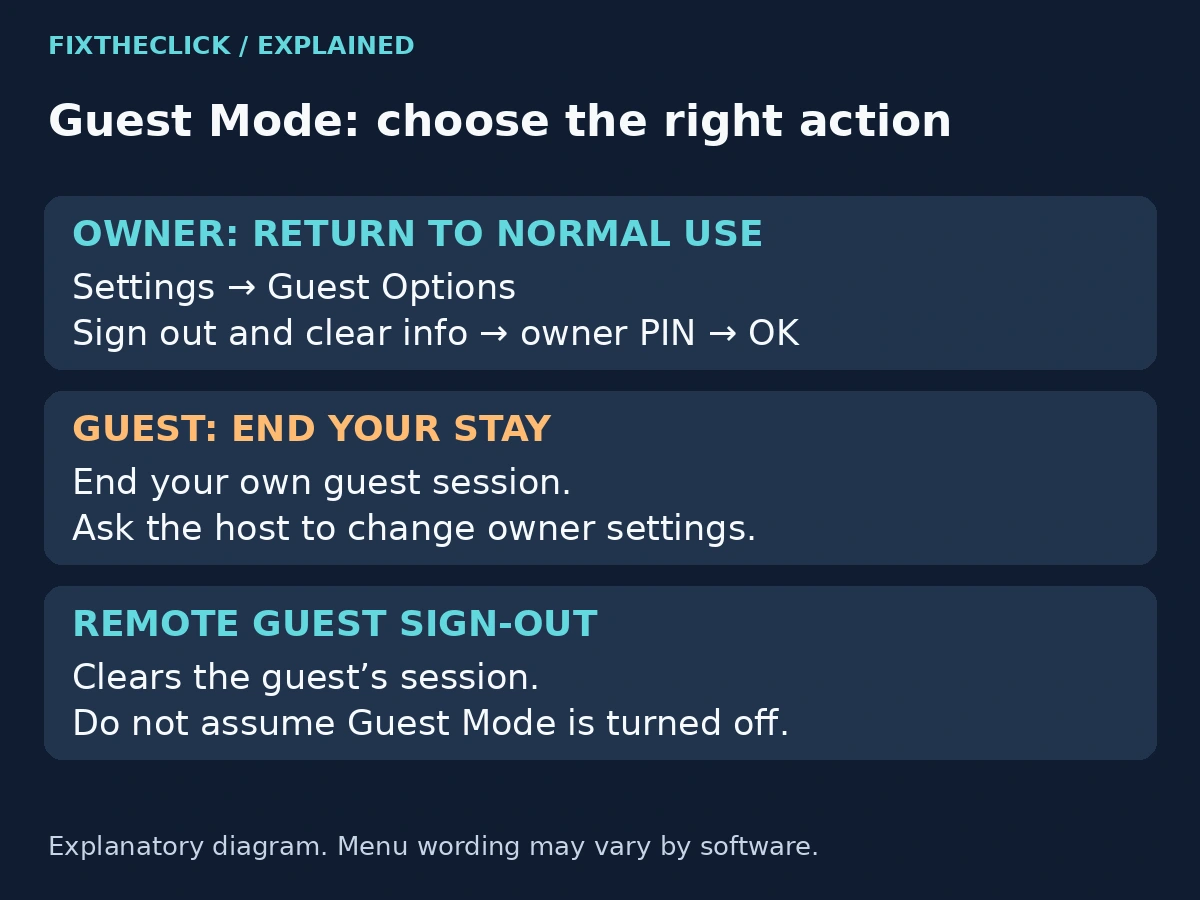
If you own the Roku, complete the welcome screen if needed, then go to Settings → Guest Options → Sign out and clear info, enter your Roku PIN, and select OK. This clears the guest’s information and added apps. If you are visiting, sign out of your guest session or ask the host to manage the device.
You turn on your Roku and see a guest welcome screen instead of the setup you normally use. Signing a visitor out may have removed their account information, but the television is still ready for another guest. Before clearing anything else, decide whether you want to end a guest session or return your own device to normal use.
This guide is for the owner of the Roku. If you are staying in a rental or using someone else’s television, ask the host to manage the device. A missing PIN is an account-access question, not a reason to reset their player.
1. Identify the Screen and Who Owns the Roku
Look at what the TV is asking you to do. A welcome screen with a checkout date points toward a guest session. A streaming app asking for its own password is a different sign-in. An activation message asking you to link the Roku is another separate setup step.
Use the situation that matches your goal:
| Your situation | Appropriate next step |
|---|---|
| You own the Roku and want normal use back | Use the owner’s Guest Options exit flow. |
| You are a visitor ending a stay | Use Home → Guest Mode Options → Sign out and clear info; ask the host about owner settings. |
| The Roku belongs to a rental host | Ask the host to manage Guest Mode. |
| You own the device but cannot supply its Roku PIN | Recover access to the linked account and change its PIN. |
| Initial activation is unfinished | Resolve activation rather than changing Guest Mode. |
If the television is waiting for an activation email, use our Roku activation-email guide. Receiving that email and leaving an established guest session are different tasks.
For a secondhand device, establish whose account is linked before changing account settings. A seller’s PIN or a previous host’s configuration should not be treated as yours to guess. Ask the previous owner or Roku support for the appropriate ownership and setup process.
2. Use the Owner’s Guest Options Exit
Roku’s official Guest Mode instructions provide the owner exit route shown at the start of this guide. Keep the TV on that workflow and read the confirmation before proceeding. The wording clear info matters: this is not simply closing the current screen.
If a visitor is still using the television, let them finish before ending their session. Check that you are acting on the intended Roku, especially when several TVs in the home or rental have similar names. A quick check now is more useful than cleaning up the wrong device and having someone sign in again.
Enter the owner’s PIN privately. Do not photograph it for a support request or post it in a comment. After confirming the exit, check the screen you actually reach. The useful result is that your device has left its guest-use workflow—not merely that a guest’s streaming app has logged out.
Menu labels and feature availability can vary with region and software. If your screen differs, compare it with Roku’s current guide rather than trying an old button sequence. Older references may call the feature Auto Sign Out; use the instructions that match the current device.
3. If You Are Visiting, End Only Your Guest Session
Roku’s guest instructions give a separate route: Home → Guest Mode Options → Sign out and clear info, then confirm. Read the cleanup prompt before ending your stay.
This ends your guest session; it is different from the owner’s PIN-confirmed procedure for turning Guest Mode off. If the TV is asking for an owner PIN or you need its setup changed, ask the host rather than guessing the code. If you have already left, ask the host to sign your guest session out remotely.
4. Understand What Guest Sign-Out Clears
Roku says apps added by guests are removed on sign-out, along with their guest sign-ins. Plan around that cleanup before you confirm. Someone who intends to keep watching should understand that they may need to sign into their services again.
Do not use another person’s saved session to check their subscription or account details. You can confirm that the guest session has ended without opening private information. Likewise, losing access to an app after guest cleanup is not a reason to recover the visitor’s credentials.
The practical distinction is between removing the guest’s session and changing how the device is offered to its next user. Keep your intended result in mind when you choose an account or television option.
5. Why Remote Guest Sign-Out May Leave a Welcome Screen
Roku separately describes remote cleanup through your account’s My streaming devices & TVs section. Select the intended device, choose Sign Guest Out, and confirm Yes, sign guest out now to end its guest session. This is useful when the visitor has left, but it is not the same documented procedure as the owner’s exit on the television.
That distinction explains why seeing another welcome screen does not automatically mean the sign-out failed. The visitor’s session may have ended while the device remains available for guest use. If your goal is to use the Roku normally again, return to the owner exit workflow.
Before repeating an action, check what changed: did the visitor’s account disappear, did a welcome screen return, or did a PIN prompt remain? Those observations give support a clearer problem than “nothing worked.” Avoid repeatedly clearing information while switching between several devices in your account.
6. If You Own the Roku but Forgot the PIN
Use the account linked to this Roku. Our forgotten Roku PIN guide explains how to identify the right account and choose a replacement code. Once the change is saved, return to the owner’s Guest Mode exit you were trying to complete.
Do not substitute a streaming-service profile PIN, an activation code, or your television manufacturer’s parental-lock code. They may all appear on the same TV, but they are not interchangeable credentials.
If you cannot access the linked account, use Roku’s official account-recovery support first. Repeated guesses or a factory reset do not establish that you are signed into the right account. If the account belongs to someone else, stop and contact that owner.
7. If Guest Mode Appeared Unexpectedly or Someone Wants a Fee
If you did not enable Guest Mode or an unfamiliar site demands payment to remove it, follow Roku’s official scam and account-security guidance. Roku says not to call or pay the requester, to change your Roku account password through my.roku.com, and to use its official Guest Mode exit procedure. Roku does not charge to remove Guest Mode.
Open the official account site yourself and use the password controls shown there; do not use a link supplied by the person demanding money. For account access problems, use Roku’s account-access help. A legitimate rental welcome screen is a different situation: check with the host before treating their setup as an unauthorized change.
8. When the Expected Exit Option Is Missing
Write down the exact screen wording, whether you completed the welcome flow, and where the process stops. Include the Roku model and software version if you can access them. Tell Roku support that you are the owner and want to leave Guest Mode, rather than simply sign a visitor out.
Keep account identifiers and PINs out of public screenshots. An explanation such as “Guest Options appears, but the exit asks for a PIN I do not know” is enough to describe the failure stage without revealing the code or someone’s account.
There is no need to start with a factory reset. First resolve the owner/account question and check the supported exit for that device. For a host-managed television, let the host decide any further configuration changes.
Frequently Asked Questions
Why do I still see a welcome screen after signing a guest out?
Ending the guest session and turning off Guest Mode are different goals. Check whether you used remote guest cleanup or the owner’s exit on the TV. A welcome screen alone does not prove the cleanup failed.
What should I do when the Roku belongs to my rental host?
Ask the host for help. End your own guest session as instructed, but do not try to remove the host’s settings, guess their PIN, or reset the device.
Should I use my streaming app’s PIN to leave Guest Mode?
No. The owner exit requests the Roku account PIN. A service’s profile lock or parental PIN belongs to that service and does not replace it.