Forgot Your Roku PIN? Reset the Right Code
Forgot your Roku account PIN? Sign in to the account linked to your device at my.roku.com, open PIN/Parental controls, and choose Change PIN. Save a new four-digit PIN, then retry the prompt. Roku TV Live TV locks and app-specific PINs use separate controls.
Roku asks for a PIN when you try to add an app or approve a purchase, and the number you remember does not work. Before guessing again, look at the screen making the request. A Roku account PIN, an activation code, and a streaming app’s parental lock solve different problems.
For a forgotten Roku PIN, start with the account linked to the device. You do not need to remove every purchase restriction just to choose a replacement code.
1. Check Which PIN the Screen Is Requesting
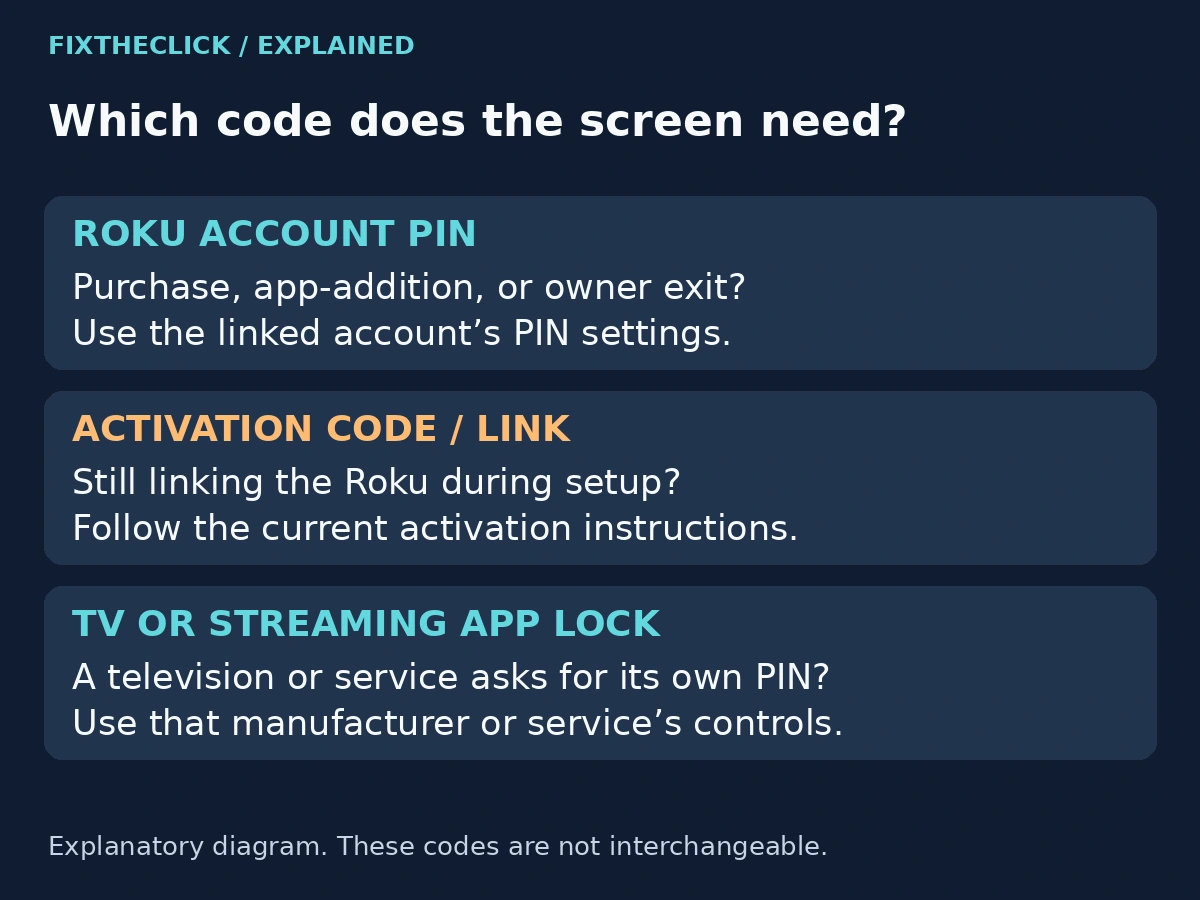
Notice what you were doing immediately before the prompt appeared. Were you adding an app through Roku, approving a purchase, opening a restricted profile inside a service, or linking the device for the first time? That context is more useful than the fact that the screen asks for numbers.
| Where the request appears | Which setting to investigate |
|---|---|
| A Roku app-addition or purchase prompt | The linked Roku account’s PIN settings. |
| Initial activation or device linking | The activation instructions currently on screen. |
| A streaming service’s restricted profile | That service’s own account or parental controls. |
| A Roku TV Live TV input lock | The TV’s separate parental-controls PIN, not the Roku account PIN. |
| The owner’s Guest Mode exit | The owner’s Roku account PIN. |
Roku’s parental-controls guide distinguishes the Live TV input lock from the account PIN. On a Roku TV, Home → Settings → Parental controls manages those TV controls. A code changed online for the Roku account does not replace that separate Live TV PIN.
If you are waiting for the email that completes initial setup, follow our Roku activation-email troubleshooting guide. Changing a purchase PIN is not the way to resend an activation message.
For a prompt inside an app, note the app name and the action that triggered it before changing anything. Do not assume a number requested on a Roku television must be managed by Roku. The television is also displaying other companies’ services.
2. Open the Correct Roku Account
Use Roku’s official account website from your browser. Check the actual domain before entering account information; a page mentioning Roku in its title is not enough. If you normally use more than one account, pause to confirm which one belongs to the device you are trying to manage.
Avoid creating another account simply because the first one you opened does not look familiar. A new account would give you another set of settings to manage without establishing that you changed the PIN for this Roku.
If a household member originally set up the device, ask them to confirm the account and handle the change if it is theirs. For a rental or borrowed device, contact its owner instead of trying to remove a restriction you do not manage.
If you cannot sign in, use Roku’s official account-access guidance to request a password-reset email. If you no longer have access to that email account, contact Roku support through that guide. Restore account access before returning to the PIN setting; do not create another account just to change this device’s PIN.
3. Change the PIN and Save Your Choice
Roku’s official PIN guide gives the route My Account → Profile & Settings → PIN/Parental controls → Change PIN. If the account layout differs, look for PIN/Parental controls; the same guide uses different upper-level wording in some sections.
Enter a new four-digit PIN and save. Before leaving, read the displayed settings and any confirmation. Keep the new number private, and store it somewhere you can retrieve without sharing it with everyone who uses the television.
Changing the code and deciding when the code is required are separate choices. If your goal is simply to replace a forgotten number, keep the protections you intended to use. You do not have to select Don’t require a PIN as a troubleshooting shortcut.
If the account page returns an error, note the message rather than assuming the change succeeded. Do not cycle through several new codes in quick succession; that makes it harder to know which saved value you are testing.
4. Retry the Original Action on Roku
Return to the same app-addition or purchase step that requested the PIN. Use the code you just saved. For a purchase, stop at any payment confirmation unless you actually intend to buy it; the purpose here is to resolve the PIN, not create an unwanted transaction.
If the code is rejected, check two things before changing it again: whether the account change was saved and whether the prompt belongs to that Roku account. Then reread the exact message. A service-profile lock will not start accepting your Roku PIN because you changed it successfully online.
Do not judge the result from an unrelated app opening normally. The useful check is whether the original, correctly identified PIN request now accepts the saved code. Equally, a working app does not prove that its own parental controls were changed.
If you are trying to leave Guest Mode, return to the owner’s exit workflow after changing the PIN. Our Roku Guest Mode guide separates turning the feature off from ending a visitor’s session. A guest ending a stay should ask the host to manage owner settings.
5. Keep Purchase Rules and Viewing Rules Separate
A purchase or app-addition restriction answers “Can someone approve this action?” A viewing restriction answers “Can someone watch this content?” Consider those goals individually when reviewing your settings, especially on a shared television.
Roku’s documented viewing controls cover The Roku Channel and Howdy on Roku devices. They do not create one universal restriction across other services, websites, and mobile apps. Roku also notes that those viewing settings do not work in Guest Mode.
Check each service you actually use if your household needs viewing limits there. Changing the Roku account PIN should not be treated as proof that a Netflix profile or television-manufacturer lock has been updated. Use the relevant service or manufacturer’s official instructions for its own controls.
Before making a broader change, agree on what the household wants to protect. Keep the PIN replacement focused on recovering your access; review additional restrictions deliberately rather than disabling them while trying to fix the prompt.
6. If You Still Cannot Complete the Change
Collect the failure stage for Roku support: unable to sign into the account, unable to save the PIN change, or saved successfully but rejected by a specific prompt. Include the device model and the wording of the request when available.
Do not include the old or new PIN, password, or a screenshot showing private account information in a public help post. Support needs to understand where the process stops, not see the code you want to keep private.
A factory reset is not the starting point for an account-managed PIN problem. Confirm the requesting system and the linked account first. If the device belongs to somebody else, stop at the ownership question and ask them to handle it.
Frequently Asked Questions
Will this change my Netflix or TV parental PIN?
No. A streaming app’s PIN and the Roku TV Live TV parental-controls PIN are separate from your Roku account PIN. Identify which system is requesting the code and use its own controls.
Do I need to remove all purchase restrictions to change a forgotten PIN?
No. Replace the PIN while retaining the rules you want. Changing the number and turning off PIN requirements are different decisions.
Why is the new PIN still being rejected?
Check that the change saved in the account linked to this device and that the prompt really asks for a Roku PIN. If both are confirmed, record the exact error and ask Roku support about that failure stage.