Roku App Can’t Find Your Device? Fix “No Roku Found” on the Same Wi-Fi
You can see the Roku Home screen, but the phone app has nothing to connect to. Installing the app again may feel like the obvious next move. First, check whether the phone can reach this Roku on the local network—and whether Roku allows mobile control.
This guide covers the official Roku mobile remote app. An empty Devices list is different from an AirPlay destination missing or a physical remote refusing to pair. “No Roku Found” and similar messages can also vary with the app version.
Quick Answer
If the Roku app can’t find your device, confirm that the Roku is powered on and already connected to the same usable Wi-Fi network as your phone. Check Settings → System → Advanced system settings → Control by mobile apps on Roku. On iPhone or iPad, check the Roku app’s Local Network permission if listed. Reopen the app and look for the device again. An offline Roku still waiting for initial network setup needs a working way to control that setup first.
1. Find Out Where the Connection Stops
Open the official Roku app and look at the device-selection screen. Is the Roku missing completely, listed but unavailable, or connected with only one remote function failing? Keep that distinction while working through the checks.
| What you see | Start here |
|---|---|
| No Roku in the device list | Local network, mobile-control setting, and phone permission |
| Roku still waiting for initial Wi-Fi setup | A compatible physical controller and network setup |
| Roku appears but will not connect | Exact connection message and the selected device |
| Navigation works, but TV volume does not | Supported controls for that player and television |
A successful connection followed by a missing volume function is not the same problem as an empty list. Roku notes that available app controls depend on the receiving device in its phone remote guide.
If several Roku devices are installed, identify the intended television or player before connecting. Test a harmless navigation action, such as moving across the Home screen, rather than opening private account information on the TV.
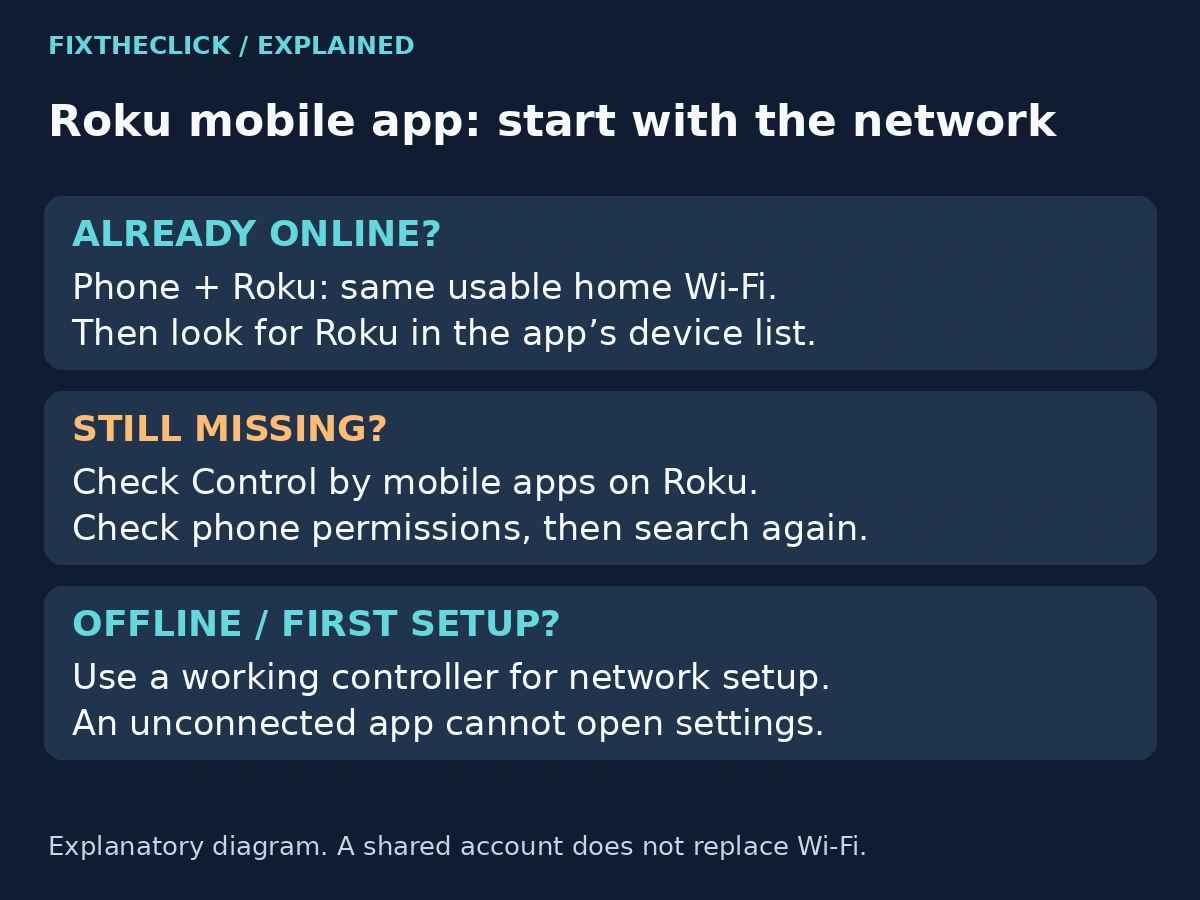
2. Confirm Roku Is Already on the Network
Turn on the TV and select the input that shows Roku. With a working controller, check Roku’s network information and compare it with the phone’s current Wi-Fi connection. Do not rely on where the phone was connected yesterday.
Roku’s mobile-app installation guide says to connect both devices to the same Wi-Fi network, let the app search, and select the Roku when it appears. Signing in to the same account does not replace that local connection.
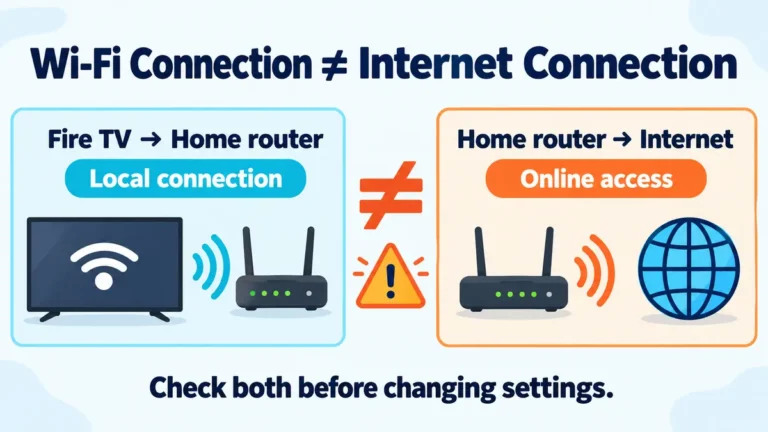
At home, check for an accidental main-network/guest-network split. Internet access on both screens does not prove that they can communicate locally. On a managed network, ask the administrator whether device discovery is allowed; do not disable the property’s security or bypass isolation.
Different 2.4 GHz and 5 GHz labels are not, by themselves, proof of incompatibility. The useful question is whether both devices are on a network that permits communication between them. Avoid changing several router settings before you know the current connection.
If Roku is offline after a reset or has never joined the network, stop here. Roku’s phone remote guide specifically warns that the app cannot detect the device in that situation. An app that has not connected cannot open Roku’s network settings for you.
If the physical remote is the obstacle, use our Roku remote identification guide to determine which control method that remote supports. Do not erase a configured player to solve an app-discovery problem.
3. Check “Control by Mobile Apps” on Roku
This step needs a controller that already works. On the Roku interface, open Settings → System → Advanced system settings → Control by mobile apps. Menu wording and available choices can differ with device software.
Read the explanation beside the current choice. Roku’s current installation guide describes an Enabled setting that permits commands from devices on the same local network. If your device offers that choice, it is the local-control option to check for this task.
Do not select a broader Permissive mode simply to make troubleshooting easier. It is not a requirement to open control beyond your local network. If your screen uses different choices, use the help for that exact model/software rather than guessing from another version’s screenshot.
Return to the phone app after checking the setting. Try discovery again before changing anything else. If the Roku now appears, select it and test Home-screen navigation. That result is more useful than continuing through every remaining step unnecessarily.
4. Check the Phone’s Local-Network Access
On an iPhone or iPad, open Settings → Privacy & Security → Local Network. If Roku is listed, check whether access is enabled for the official app you intend to use.
Apple’s local-network guidance explains that an app may need permission to discover nearby devices. An app can still use the internet when this permission is denied, so a loading app screen does not establish that local discovery is working.
Reopen Roku’s device list after changing the relevant permission. If the app is not listed, do not invent a hidden switch or reset every privacy permission. Follow the app’s current setup prompts and check its official support guidance.
Android does not use that iPhone settings path. Check the official app’s prompts and your phone manufacturer’s permission controls instead. Avoid granting unrelated permissions simply because a guide for a different operating system lists them.
5. Refresh the App Without Erasing Roku
Close and reopen the Roku app, then repeat the device search. Check its official App Store or Google Play listing for an update. If the phone or Roku has been behaving inconsistently, restart the affected device using its supported procedure and try again.
Keep a usable physical controller available before restarting a Roku you cannot currently control from the phone. A restart and a factory reset are different actions. This discovery checklist does not require removing accounts, deleting saved networks, or erasing the player.
Check app compatibility against the current store listing for your phone. Roku’s help pages currently show differing minimum iOS versions, so a single number copied from an older setup page is not a dependable requirement for every installed release. Record the phone OS and app version if the store will not install or update it.
An explicit “device incompatible” or sign-in error needs its own support path. Roku’s phone remote guide discusses platform-specific compatibility issues; those are not proof that the Wi-Fi discovery setting is wrong.
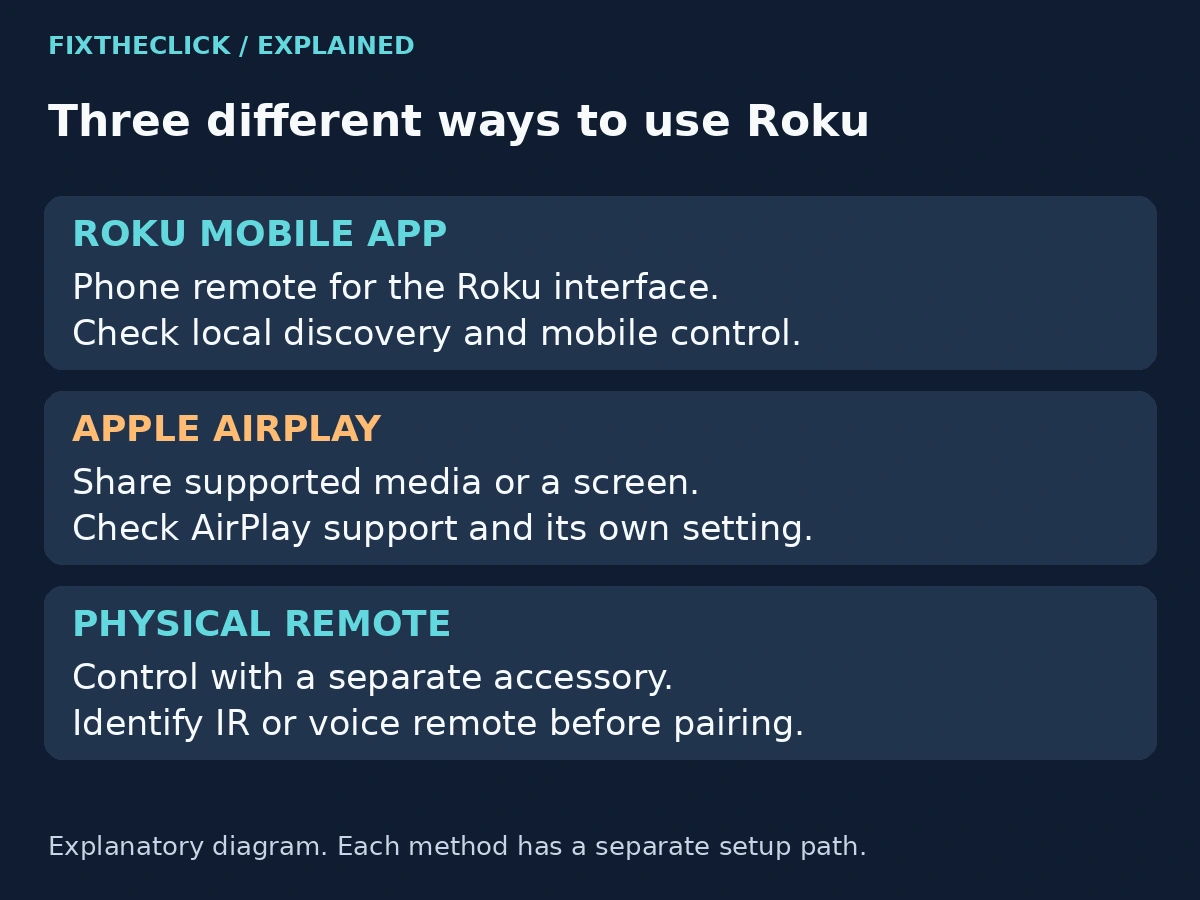
6. Keep AirPlay and Remote Pairing Separate
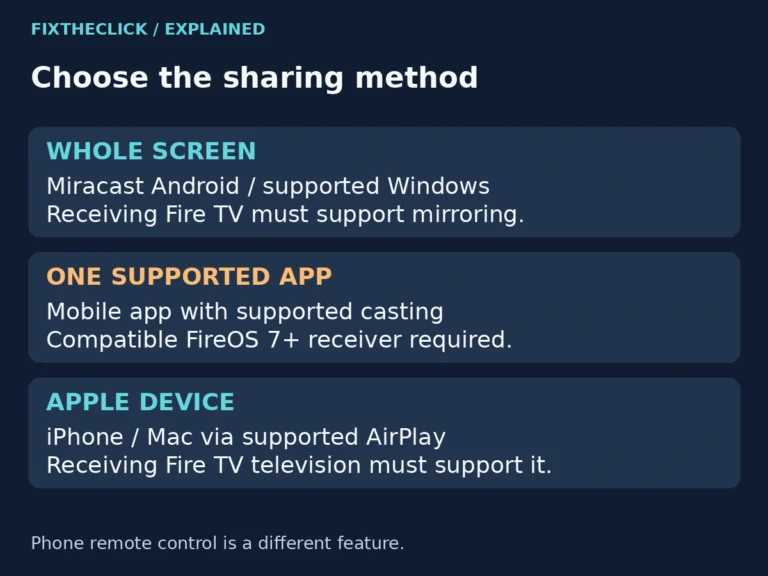
The Roku mobile app controls the Roku interface. Apple AirPlay shares supported media or a screen. A physical voice remote uses its own pairing process. Success with one does not confirm that the other two are configured correctly.
If you are actually looking in iPhone Screen Mirroring instead of the Roku app, use our Roku AirPlay discovery guide. Changing the AirPlay switch is not a substitute for checking Roku’s mobile-control setting.
For a persistent failure, note the Roku model/software, phone model/OS, app version, network type, and whether the device ever appears. Tell support whether another supported phone can discover it, if you can make that comparison. Keep passwords, private network details, and verification codes out of public comments.
Frequently Asked Questions
Does using the same Roku account guarantee discovery?
No. Account access and a reachable local device are separate requirements. Verify the current network and mobile-control setting rather than repeatedly creating accounts.
Can the app set up an offline Roku without a remote?
Installing the app does not make an unconnected Roku discoverable. First establish a supported way to control initial network setup.
Should I factory-reset Roku if the app finds nothing?
Not as an early troubleshooting step. It can remove the network setup you need. Check the device’s actual connection, local-control permission, and phone app first.