Roku Not Showing Up in AirPlay? Check Your iPhone and Roku Settings
Your Roku Home screen works, but the device never appears when you try to share something from an iPhone, iPad, or Mac. Start with the receiving Roku’s model, AirPlay setting, and network—not a remote-pairing sequence.
A missing destination, a rejected connection, and one app refusing playback are different problems. This guide focuses on the Roku that is absent from the AirPlay list.
Quick Answer
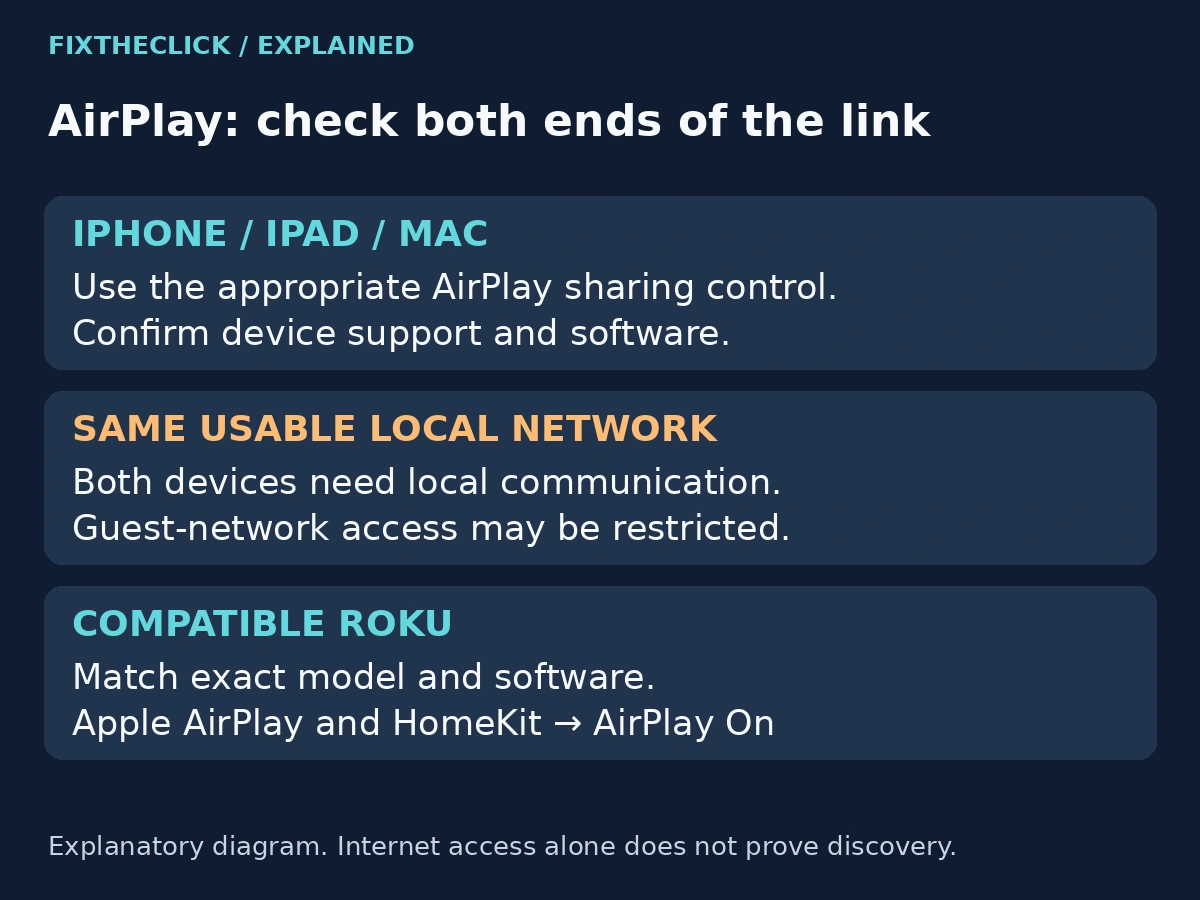
For a Roku not showing up on AirPlay, confirm exact model and software support, put both devices on the same usable Wi-Fi network, and turn AirPlay on in Roku settings. Check Settings → System → About, Settings → Network → About, and Settings → Apple AirPlay and HomeKit → AirPlay. Then reopen AirPlay or Screen Mirroring on the Apple device. If Roku is already listed, follow the connection prompt instead of repeating discovery checks.
1. Check the Model Before Resetting Anything
On Roku, open Settings → System → About and note the model number and software version. Compare both with Roku’s current AirPlay compatibility guide. Match the number, not just the product family printed on the box.
Roku’s guide groups supported devices by model and software requirements, with separate provisions for certain television lines. That is why “all Roku devices” or “anything with 4K” is not a reliable compatibility rule. An older player and a newer player with similar names may need different checks.
Check the sending Apple device’s support too. Keep its model and operating-system version available if you need help. A factory reset or remote-pairing shortcut cannot add a missing AirPlay capability to either side.
If you cannot find your exact model in the current documentation, ask Roku to confirm support. Do not use another model’s menu screenshot as proof that your device should expose the same feature.
2. Separate Discovery From Connection and Playback
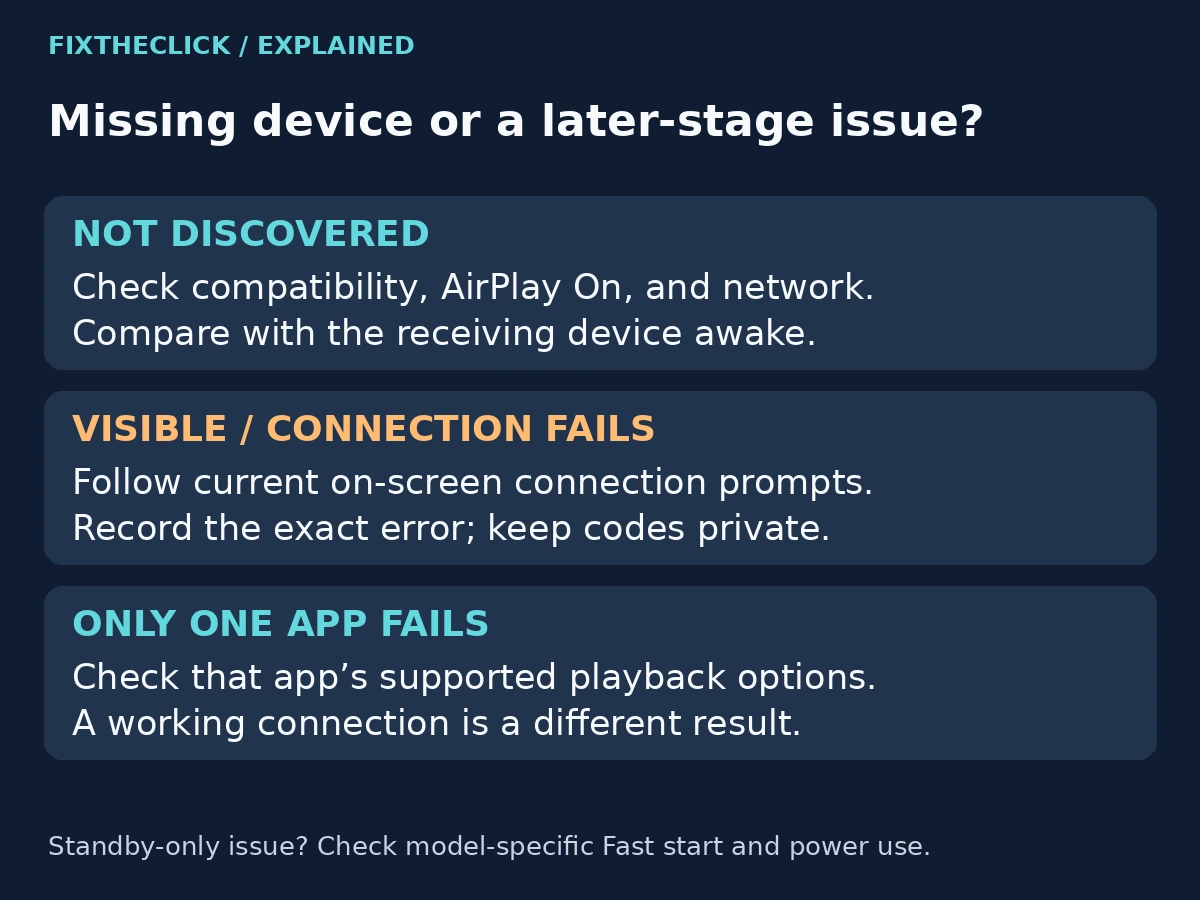
Open the sharing controls and watch where the attempt stops. Do you never see Roku, see it but cannot connect, or successfully connect before one app fails?
| What you observe | What to check |
|---|---|
| Roku is absent from every relevant sharing attempt | Compatibility, AirPlay On, and the local network |
| Roku appears only while the TV is on | Supported standby/network behavior |
| Roku is listed, but a code or connection prompt fails | The current on-screen instructions and exact error |
| Screen mirroring works, but one app does not | That app’s AirPlay and playback support |
Treat these as branches, not diagnoses. A working session in one context gives you a useful comparison; it does not prove that every app or protected title supports the same route.
For a clean first comparison, try a non-sensitive photo or ordinary screen view rather than private messages or a protected movie. Make sure you select the intended Roku if several nearby destinations appear. Stop screen sharing before opening anything you would not want visible on the television.
3. Confirm the Same Usable Local Network
Check Roku’s network under Settings → Network → About, then compare it with the Apple device’s current Wi-Fi connection. Internet access on both devices is not, by itself, a test that they can discover one another locally.
At home, avoid accidentally comparing a main network with a separate guest network. On a managed hotel, dorm, or workplace network, even matching Wi-Fi names may not establish that guest devices can communicate with each other. Ask the administrator whether local discovery is supported; do not disable security or try to bypass network isolation.
If the actual problem is unfinished hotel web authentication, use our Roku Hotel & Dorm Connect guide for that separate step. Finishing a venue login does not guarantee that its network permits AirPlay discovery afterward.
Keep the comparison specific. Do not declare different Wi-Fi frequency bands incompatible by themselves, and do not buy networking equipment because a receiver is missing. First establish that the two devices are on an allowed local connection and meet the feature requirements.
4. Turn On Roku’s AirPlay Setting
On a supported Roku, open Settings → Apple AirPlay and HomeKit and make sure AirPlay is On. This is Roku’s Apple sharing setting. A separate Android-oriented screen-mirroring option is not the same control.
Return to the Apple device and reopen the relevant AirPlay or Screen Mirroring menu. For a supported app, look for its documented AirPlay control; for sharing the whole screen, use the Apple device’s screen-mirroring controls. Do not interpret the absence of one app’s sharing icon as proof that Roku discovery is broken everywhere.
If the Roku appears, select it and follow the current TV and Apple-device prompts. Keep any displayed connection code private. At that point, an error accepting the connection is a different stage from a device that never appears in the list.
If Roku’s AirPlay menu itself is missing, return to the exact model/software check. Avoid undocumented hidden menus, third-party receiver downloads, or repeated resets in an attempt to create a feature that has not been confirmed for the device.
5. Restart and Check Software Without Erasing Settings
Apple’s AirPlay troubleshooting guidance recommends compatible devices that are powered on and nearby, current software, the same Wi-Fi, and restarting the devices. After the basic checks above, restart the Apple device and Roku using their model-appropriate procedures, then try discovery again.
Do not confuse switching off a television display with necessarily restarting an external Roku player. Follow the instructions for the device receiving AirPlay. If a software installation is already running, let it complete rather than interrupting power.
For Roku’s documented manual update check, use Settings → System → Software update → Check Now. See its official software-update instructions, and follow the labels shown on your supported interface. Install available updates and allow any resulting restart to finish before testing again.
Check the Apple device’s update process through its own settings and support instructions. You do not need to turn an iPhone or Mac into an AirPlay receiver just to send content to Roku; receiving-device guidance addresses a different role.
6. If Roku Disappears Only During Standby
First compare discovery with the Roku TV or Streambar awake. If it works then and disappears only when that device is off, investigate its supported standby behavior rather than repeating the powered-on discovery checks.
Roku documents Settings → System → Power → Fast TV start for supported TVs, or Fast start for the relevant Streambar configuration. These options can keep the network connection available during standby. Check the exact model and displayed option before enabling it.
There is a power trade-off: Roku says these modes use significantly more electricity than normal standby and override default power settings. They are optional convenience settings, not a universal fix for a Roku already awake and missing from the list.
Do not apply this television/Streambar branch to every Streaming Stick. If the feature is absent, consult that model’s documentation rather than treating its absence as a fault.
7. If Only One App Still Fails
When ordinary mirroring or another supported app works, record that result. Check the failing app’s official AirPlay support and the exact message for the title you want to watch. Do not assume a successful screen-share session means every video may be shared through it.
If Roku appears but rejects a connection or code, record the prompt and follow the current instructions on both devices. Avoid resetting all paired devices or removing accounts based on an unrelated tutorial. Content restrictions should be handled through the service’s supported playback options, without trying to bypass them.
For unresolved discovery, give support the Apple model/OS, Roku model/software, whether AirPlay is On, network type, and whether the Roku ever appears while awake. Those observations help separate capability, discovery, and playback problems without calling every failure “bad Wi-Fi.”
Frequently Asked Questions
Does every Roku support AirPlay?
No. Verify the exact model and software against Roku’s current list. A broad product name or a 4K label is not enough.
Why does Roku appear only when the TV is on?
On supported TV or Streambar setups, standby can affect network availability. Check the optional Fast TV start or Fast start branch and its additional power use.
Is the Roku mobile remote app required?
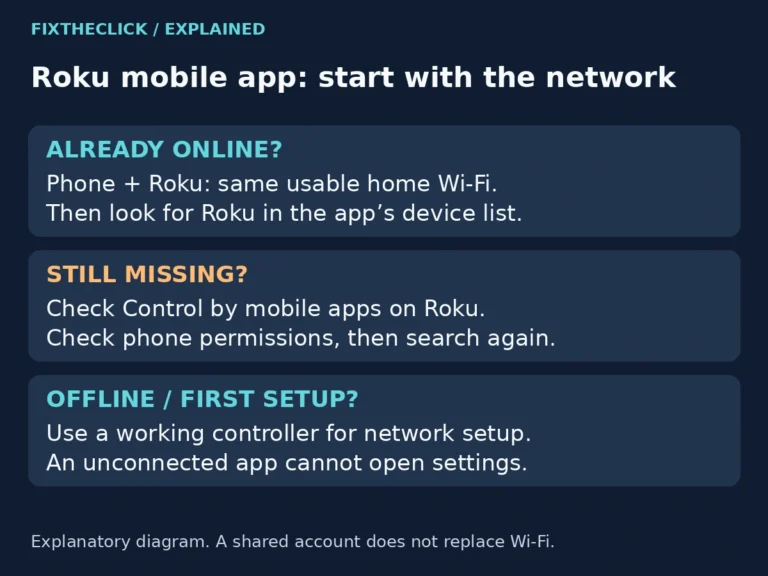
It is a separate control tool. This guide uses Roku’s own AirPlay setting and Apple’s sharing controls, not discovery inside the mobile remote app.