Roku Stops Streaming After 4 Hours? Check Bandwidth Saver
Your Roku plays normally for hours, then asks whether you are still watching or returns to Home. Before treating that as an app crash, check how long playback ran and whether anyone used the Roku remote or mobile app during that time.
Bandwidth Saver is one possible explanation for a long, otherwise normal viewing session ending. It is different from a player losing power, an overheating warning, or an app that closes immediately.
Quick Answer
If your Roku stops streaming after 4 hours without remote or mobile-app commands, check Settings → Network → Bandwidth saver. Select Off if you want to remove Roku's inactivity check and accept the extra unattended data use. Some streaming apps have their own timers, so this change does not remove every viewing prompt.
1. Match the Timing and What Was on Screen
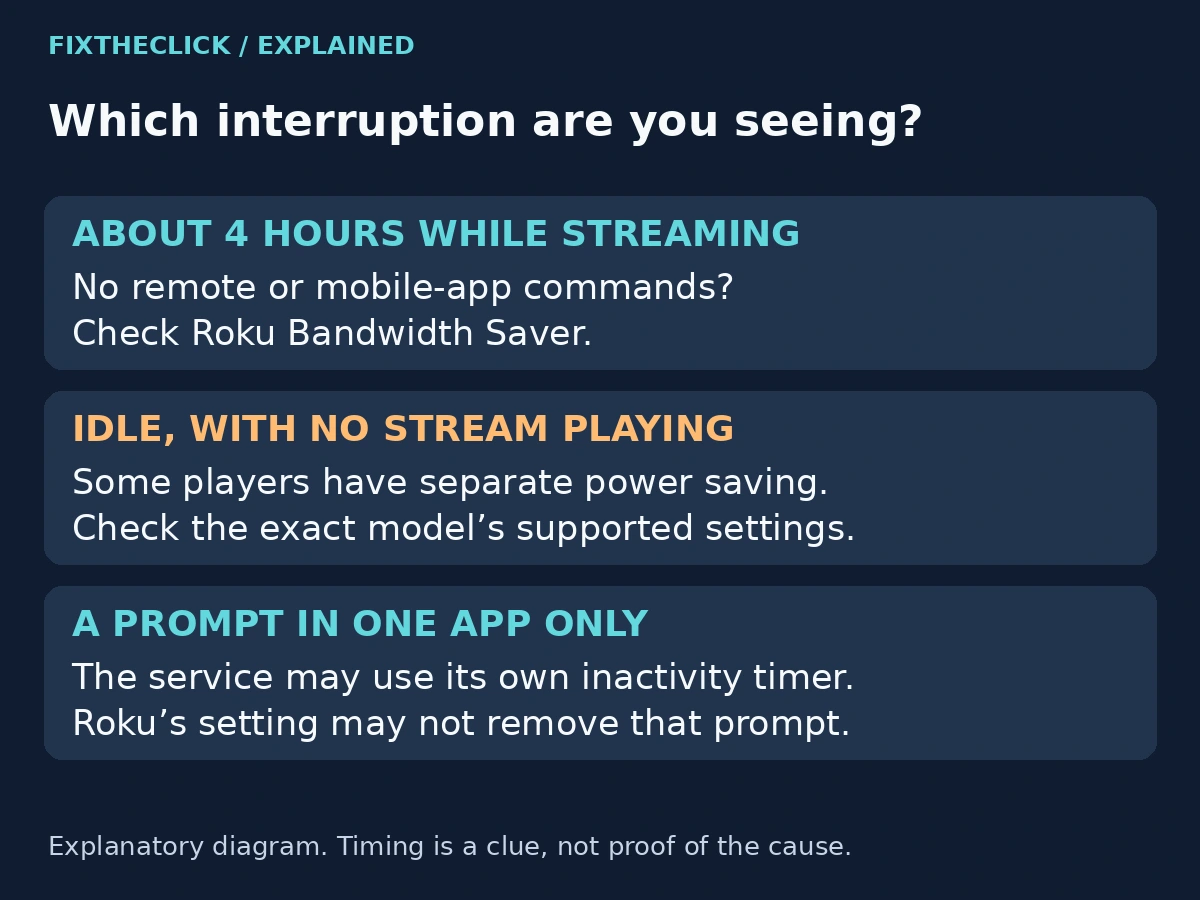
Start with the message you actually saw. Was video still playing before the prompt? Did you respond, or did the Roku return to Home while nobody was using it? Was the television itself off, or was the Roku Home screen visible?
Those details separate a viewing check from a power or app problem. Approximate timing is useful, but timing alone is not proof of the cause.
| What happened | First area to check |
|---|---|
| Streaming continued for about four hours without Roku control input, then a viewing prompt appeared | Roku Bandwidth Saver |
| The player became idle when nothing was streaming | Model-specific power-saving settings |
| A prompt appears in only one streaming app | That app's own inactivity controls |
| Playback stops with a red indicator or power warning | The warning itself, not Bandwidth Saver |
On some players, auto power savings concerns roughly 20 minutes without streaming or control activity. That is a separate idle behavior, not the four-hour playback check. Availability differs by model; consult Roku's auto power savings guide for the player you own rather than assuming every Roku exposes the same control.
2. Understand What Bandwidth Saver Is Checking
Roku's Bandwidth Saver guide describes a check after four hours without commands from the Roku remote or mobile app while streaming. The video can still be playing even though nobody has interacted with the controls.
When the prompt appears, choosing Keep streaming lets viewing continue. Without a response, Roku can stop playback and return to Home. That behavior is intended to limit streaming that continues after someone has stopped watching.
The distinction matters if you have been watching a long session without touching the remote. The check measures control activity; it cannot tell whether you are sitting in front of the television enjoying the program.
Do not assume that every similar-looking question comes from Roku. A streaming service can display its own message. Note the wording and which app was open before changing settings.
3. Turn It Off Only If That Fits Your Viewing
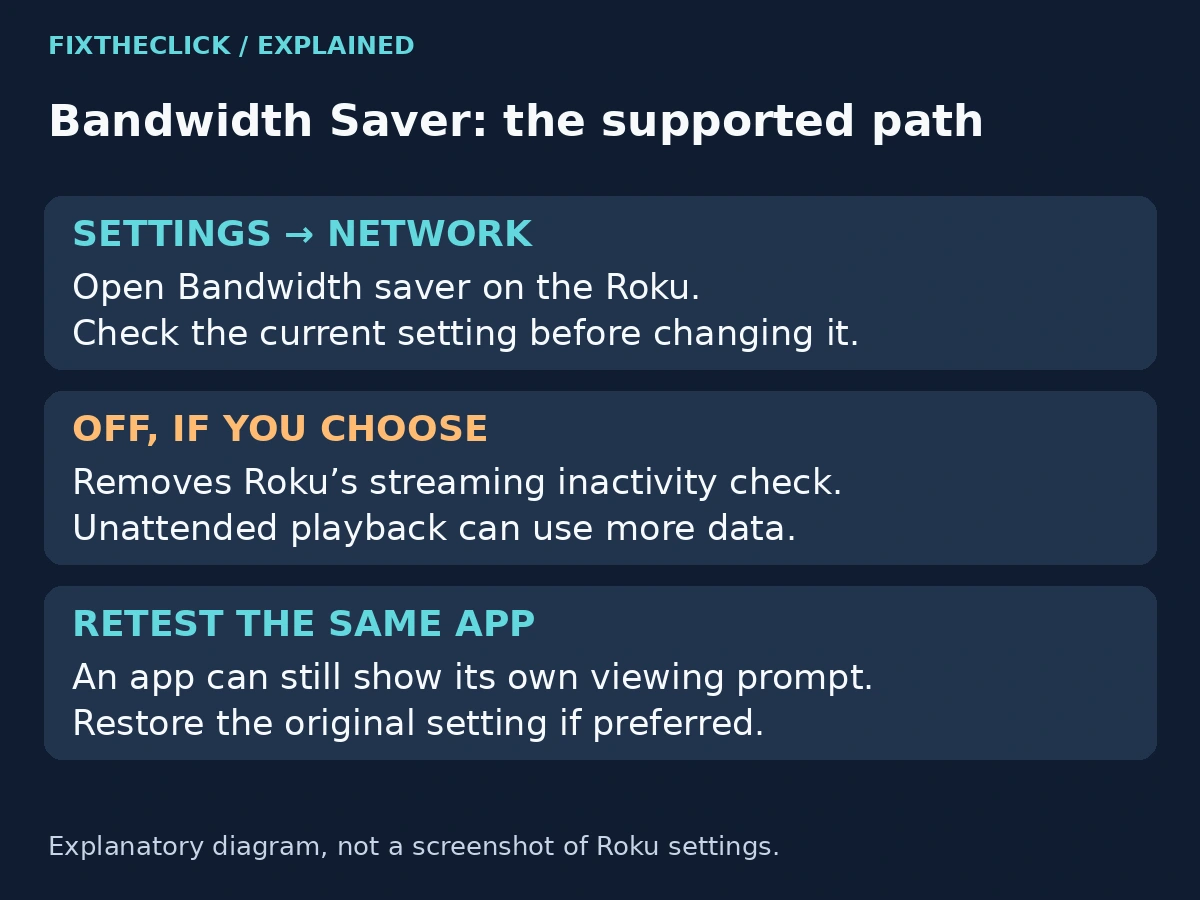
Press Home on a working Roku remote and open Settings. Choose Network, then Bandwidth saver, and select Off. These are the labels in Roku's current support instructions; use the available interface on your device.
Return to the app you were watching. This changes Roku's Bandwidth Saver preference; it does not change your streaming subscription or promise that the app will play indefinitely.
If you do not see the setting, record the Roku model and software version and compare them with current support guidance. Do not search for an undocumented hidden menu or reset the whole device to force the option to appear.
Roku also documents an app-specific choice on its viewing prompt: Don't ask again for this app. If that option appears in your actual Roku prompt, it can be more selective than turning the feature off globally. Do not assume that an unrelated streaming service's prompt offers the same choice.
4. Consider the Data-Cap Tradeoff
Leaving Bandwidth Saver enabled can be useful when someone falls asleep with a stream running or leaves playback unattended. It is particularly worth considering if your internet plan has a data allowance or you share a limited connection.
Turning it off removes that particular stopping point. Content that keeps playing can continue using data even when nobody is watching. The amount depends on the service, video quality, and duration; there is no single data-use figure for every Roku session.
Choose based on the problem you want to solve. If the prompt interrupts an occasional long session, answering it may be enough. If it regularly interrupts intentional viewing, changing the relevant preference may be reasonable. You can restore the original setting if the tradeoff is not worthwhile.
5. If Only One App Still Asks Whether You Are Watching
Check that app's official help for its inactivity or continuous-play behavior. Roku explicitly warns that a service can have its own mechanism even when Bandwidth Saver is off.
Avoid repeatedly changing Roku's setting if it is already off and the same app-specific prompt remains. Instead, record the app, the exact message, and how long playback ran. If another app behaves differently during ordinary use, that comparison helps you decide which support instructions to consult.
Do not use macros to simulate button presses or try to bypass the service's controls. If the provider does not offer a setting for that prompt, disabling Roku's separate preference does not create one.
6. Check One Change During Normal Viewing
Note the original Bandwidth Saver setting, change only the relevant preference, and observe your next normal viewing session. Keep the app and viewing setup otherwise unchanged where practical.
Write down whether the same message returns and whether Roku goes to Home, the television turns off, or an error appears. These outcomes point to different next steps. This is a suggested comparison for your setup, not a claim that we performed a four-hour playback test.
If the player instead displays insufficient power or flashes red, leave the timer troubleshooting and use the Roku low-power warning guide. If it reports overheating or shows the relevant steady-red indicator, carefully disconnect power and follow Roku's cooling guidance. Bandwidth Saver is not a repair for either warning.
Frequently Asked Questions
Does turning Bandwidth Saver off stop all automatic shutoffs?
No. It changes Roku's streaming inactivity check. App timers, television settings, idle power saving, and actual power problems are separate possibilities.
Should I factory-reset Roku for this prompt?
Not as the first step. Identify the prompt and check the supported setting. A reset would add setup work before establishing which feature caused the interruption.
Why does a prompt appear when I am still watching?
For Roku's Bandwidth Saver, the relevant signal is time without remote or mobile-app commands. Watching without interacting can still meet that condition. An app's own prompt may use a different rule.