Roku Voice Search Not Working? Check Push-to-Talk and Hands-Free Settings
Your Roku remote moves around the Home screen, but a spoken search does nothing. Or holding the microphone button works while “Hey Roku” gets no response. Start by separating those two voice features before resetting a remote that still controls the device.
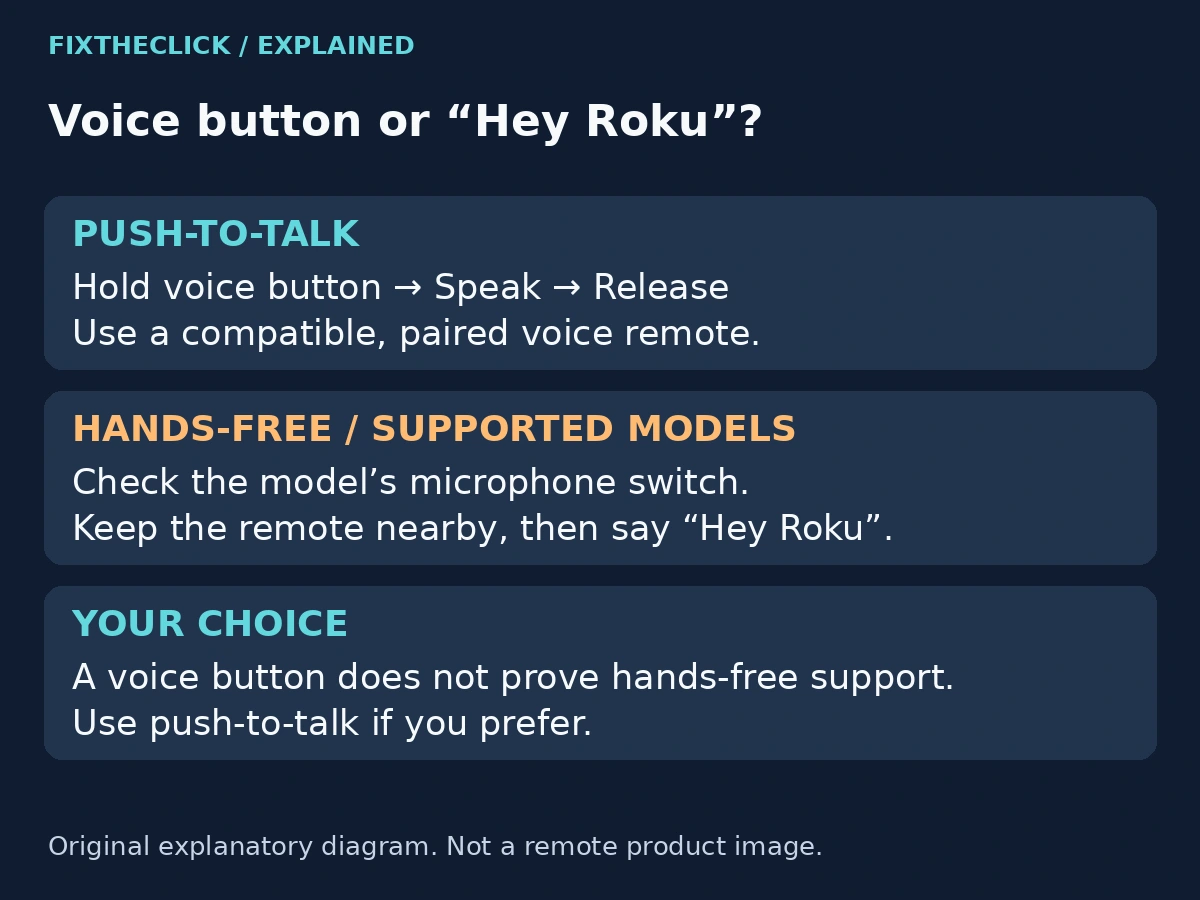
Quick Answer: Confirm that you have a compatible Roku voice remote. For push-to-talk, hold the voice button while speaking, then release it. Hands-free listening is a separate feature on supported models; check that model’s microphone switch and keep the remote nearby. A voice button does not mean every remote supports “Hey Roku.”
1. Identify the remote and what still works
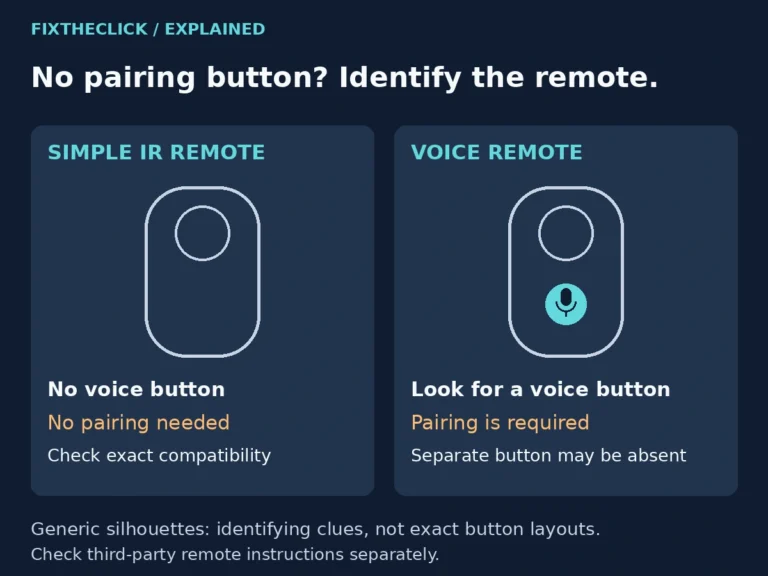
Look for the voice button, commonly marked with a microphone or, on older Roku voice remotes, a magnifying glass. Roku’s voice compatibility guide distinguishes voice-capable controls from a simple remote without that feature. Do not assume an unidentified third-party remote follows Roku’s instructions just because its buttons look similar.
Check the receiving Roku’s exact model under Settings → System → About, then compare it and the remote with the current compatibility guidance. Voice languages, regions, and supported commands also have limits. An English-language command supported on one setup is not evidence that every language or app offers the same function.
Next, try Home and the directional buttons. If those work, keep the first checks focused on voice input. If ordinary navigation also fails, the problem is broader: use our Roku remote identification and pairing guide before treating it as a microphone-only fault. TV volume working by itself is not the same test as navigating the Roku interface.
| Symptom | Start here |
|---|---|
| No voice button on a simple remote | Verify the remote’s capabilities; do not look for a hands-free setting |
| Navigation works, but held-button voice does not | Button technique and a short supported command |
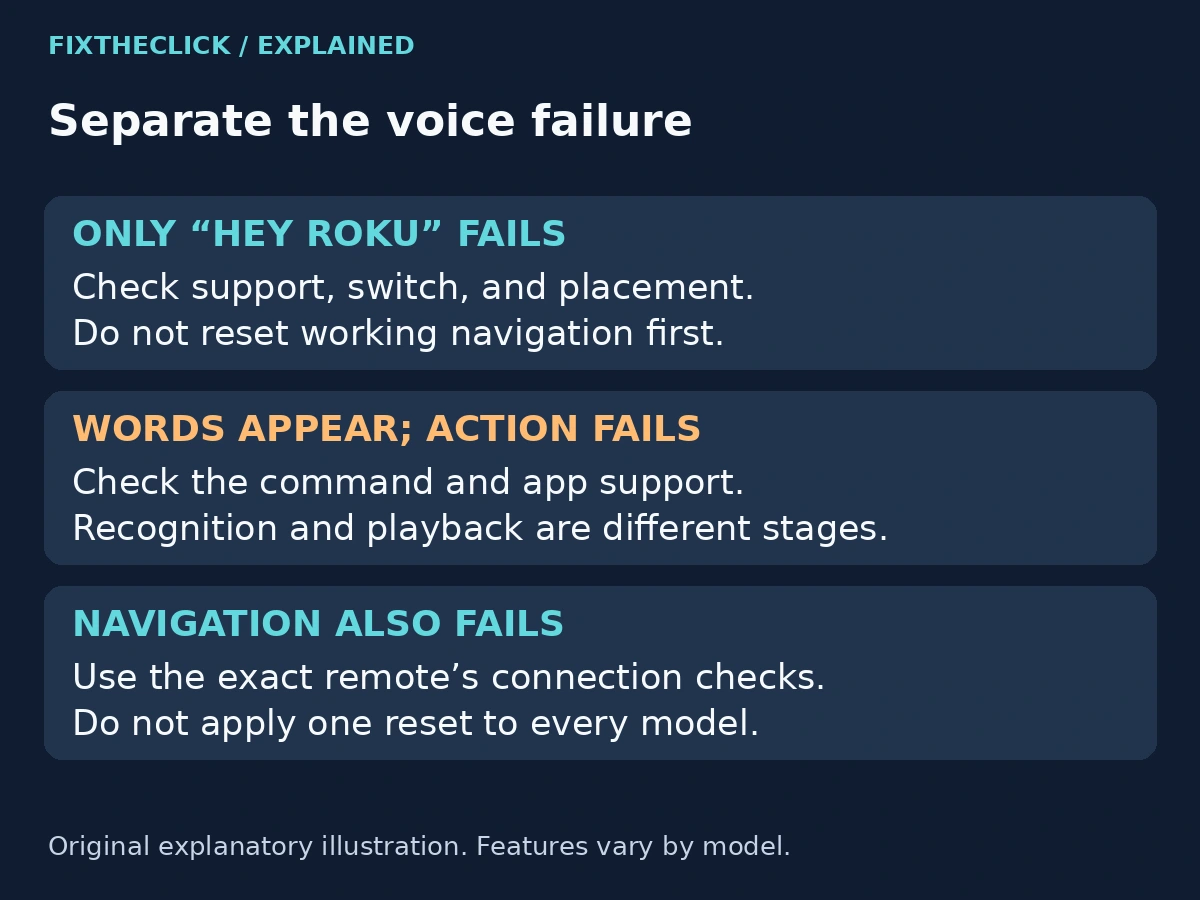
| Held-button voice works, but “Hey Roku” does not | Hands-free support, microphone switch, and remote placement |
| Voice is recognized, but an app action fails | The requested command and that app’s support |
| Navigation and voice both fail | Remote connection and power checks |
2. Test push-to-talk with one short request
Roku’s voice instructions require the voice remote to be paired. Press and keep holding the voice button, say a short request in a conversational voice, and release the button when finished. Tapping it and speaking afterward is a different action.
For a simple check, ask to search for comedies rather than combining several instructions. Watch what appears on the television. Does it begin listening? Does it recognize any words? Does it show results but fail at the next action? Those observations are more useful than repeating a long sentence louder.
Roku advises speaking toward the handheld remote from a few inches away. Aim your voice at the remote, not across the room at the TV. Keep the test straightforward and repeat the same request once after correcting the technique.
This mode listens while the button is held. You do not need to enable hands-free listening just to use push-to-talk. That distinction is useful if you share a room or prefer choosing exactly when to issue a voice request.
3. If only “Hey Roku” fails, inspect hands-free support
Hands-free control is not a feature of every voice remote. Roku’s Voice Remote Pro guide documents it for the Pro models covered there, separately from push-to-talk. Identify your actual remote before looking for its switch; do not apply a Pro diagram to a simple remote or a third-party controller.
On the supported Pro models in that guide, the hands-free slider shows green when enabled. If you want that mode, check the switch using your model’s illustration, place the remote nearby, and try “Hey Roku” followed by a short supported request. If you do not want hands-free listening, leave it off and use the held-button method instead.
Move a remote that is buried under a cushion or far from where you are speaking. Compare the response from a nearby, unobstructed position without shouting over the television. This is a placement check, not proof that a microphone has failed.
If push-to-talk succeeds but hands-free still does not, write down that difference. It narrows the next support question considerably. Re-pairing every remote or changing the Roku account would not directly test the switch, supported mode, or placement.
4. Separate hearing a request from carrying it out
A request can fail after speech has already been recognized. For example, getting to search results is a different stage from playing a particular title. Likewise, opening an app and controlling a feature inside it are separate requests. Start with a short documented search before testing a more specific app action.
If the Roku shows the wrong words, simplify the request and reduce competing sound for the next attempt. If the words are correct but the action is unavailable, check the supported command and the service involved. Do not treat both outcomes as evidence that the remote needs replacement.
Keep language and regional support in mind when consulting Roku’s compatibility page. Avoid changing your account country to chase a command described for another market. A setting or content limitation needs the relevant official guidance, not a generic microphone reset sequence.
TV power and volume deserve their own distinction. An unsuccessful request involving TV control does not establish that ordinary voice search is broken. Test search independently before mixing television equipment controls into this troubleshooting path.
5. Confirm the connection before broader recovery steps
If navigation has become unreliable as well, return to the remote’s normal connection and battery or charging checks for its exact model. Use the pairing guide linked above rather than applying one button combination to every remote. A rechargeable Pro and a simple infrared remote should not be treated as identical hardware.
If normal navigation remains dependable, preserve that working setup. Note what happens with both voice modes and consult Roku’s current model-specific help before resetting anything. A factory reset of the streaming device is an excessive first response to a single voice feature failing.
A phone can be a separate control option when its Roku app is already connected, but installing the app does not establish a connection automatically. If the app cannot see the device, use our Roku mobile-app discovery guide. That is a different issue from the physical remote’s microphone.
Frequently asked questions
Does having a microphone button mean my remote supports “Hey Roku”?
No. Check the remote model’s hands-free capabilities separately. A working push-to-talk button does not establish support for a wake phrase, and a missing hands-free feature is not something a factory reset can add.
Must I leave hands-free listening on to use voice search?
No. On compatible voice remotes, the held-button method provides a separate way to make a request. Choose the mode you intend to use; you do not have to leave the hands-free switch enabled for this troubleshooting check.
What should I send Roku support if voice still does not respond?
Provide the remote model, Roku model/software, whether navigation works, whether push-to-talk works, whether hands-free is supported and enabled, and the exact short command tried. Include any on-screen response without sharing account credentials. These observations help distinguish an input problem from an unsupported command; they do not by themselves prove a hardware defect.