BitLocker Recovery Key Needed? Find the Right 48-Digit Key
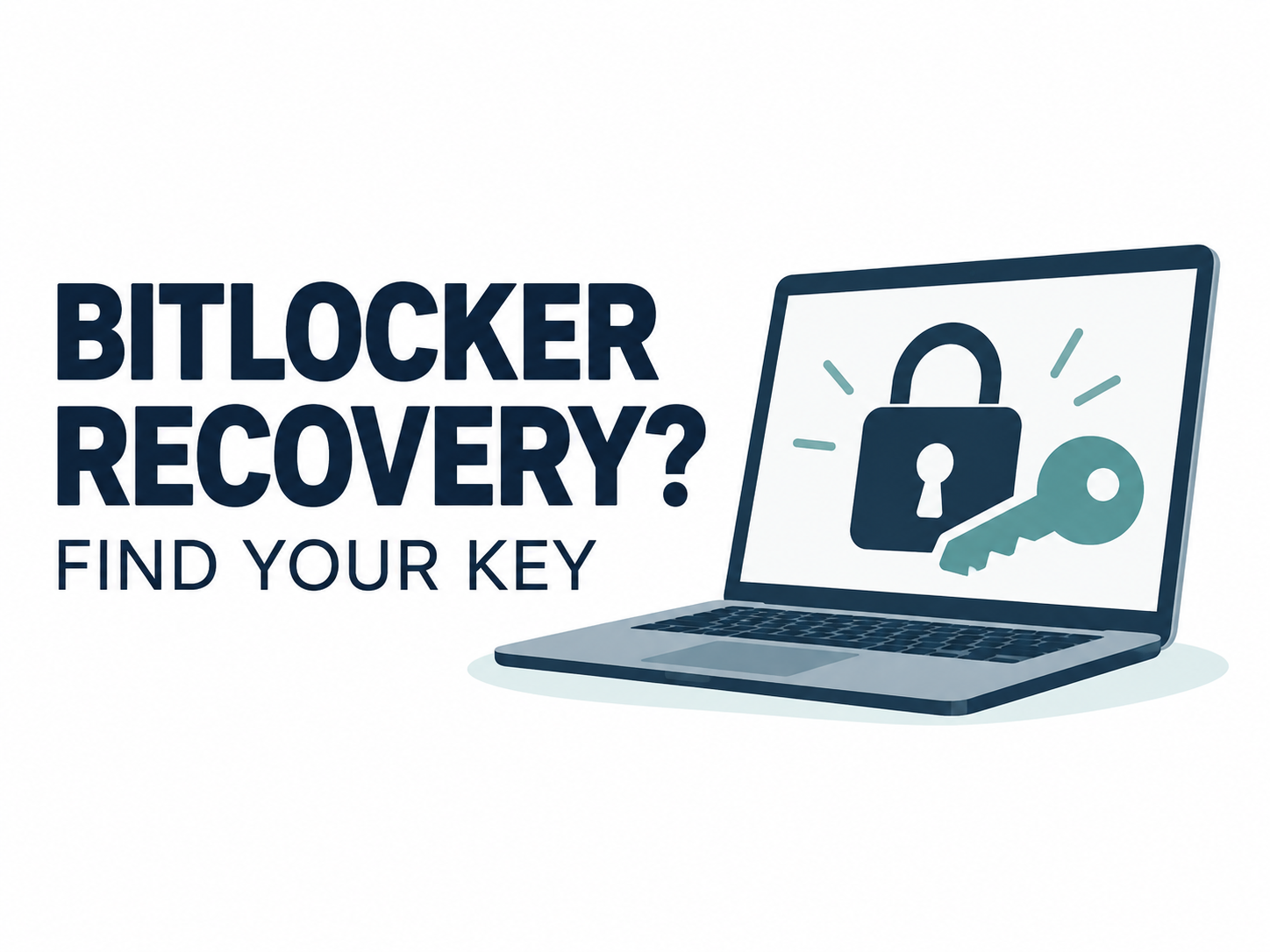
Windows is asking for a BitLocker recovery key before you can reach your files. Start with the recovery key ID on that screen, then look for the matching saved 48-digit recovery key. Your Windows sign-in PIN or account password is not that key.
If those files matter, pause before resetting, formatting, or clearing the TPM. First check your personal Microsoft account, a work or school account, and backups you kept. This guide covers finding an existing key for a drive you own or are authorized to use.
1. Match the recovery key ID before entering a number
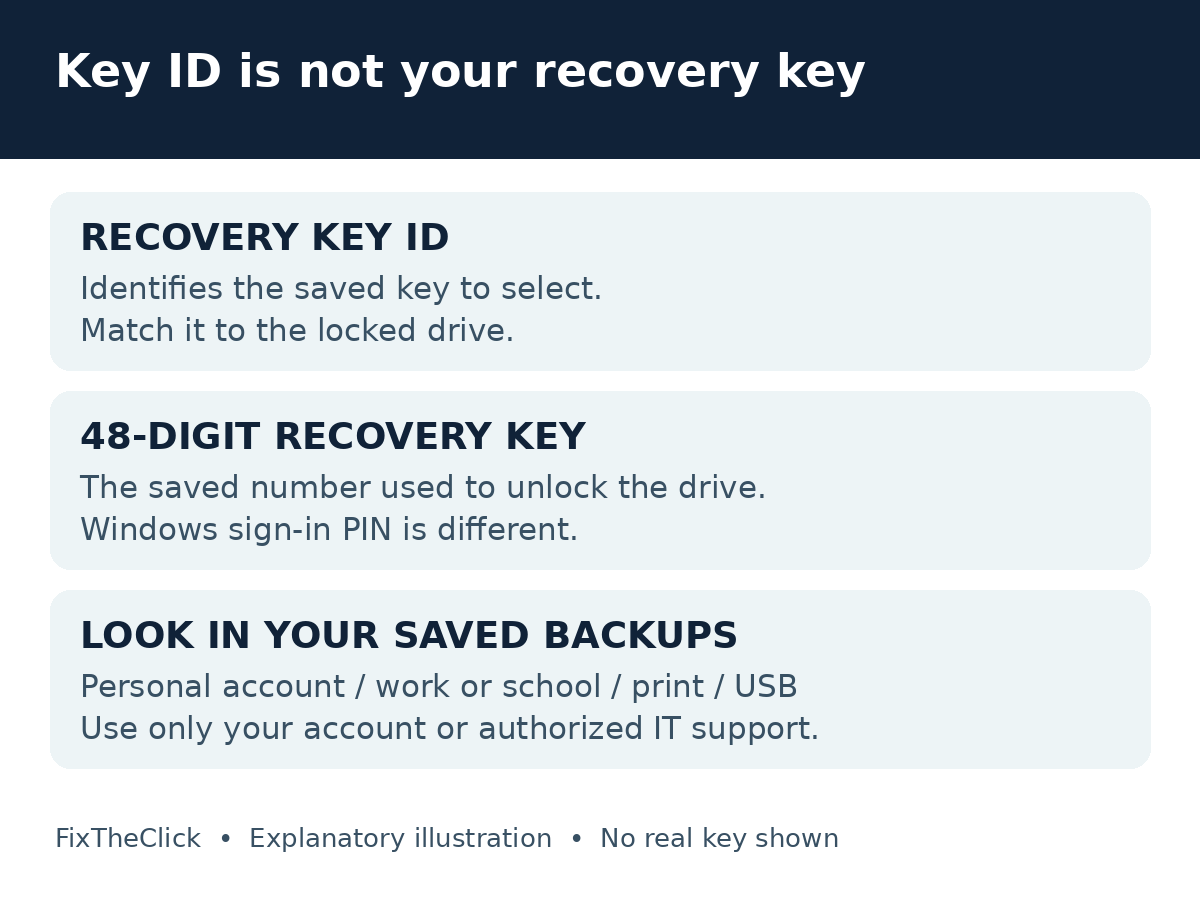
Microsoft’s recovery-key guide says to note the first eight characters shown for the key ID and match that identifier to a saved entry. The ID selects the key; the 48-digit number unlocks the drive.
Do not choose an entry just because its device name looks familiar. If several keys appear, compare the ID with the current recovery screen. Keep a private note of which drive is locked and where you found its entry. Do not post the recovery key, account details, or an unredacted recovery screen in comments or a public forum.
| What you have | What it does |
|---|---|
| Recovery key ID | Helps identify the matching saved key |
| 48-digit recovery key | Unlocks the BitLocker-protected drive |
| Windows sign-in PIN or password | Signs you in; not the requested recovery key |
The next useful question is where that particular key was saved. A new account, an unrelated password, or another computer’s key is not a substitute. Work through the locations that fit how this PC or drive was set up.
2. Check the personal Microsoft account that holds the backup
On another device, open Microsoft’s official recovery-key page and sign in to your account. A key appears there only if it was backed up to that account. Match the ID before using its associated recovery key.
If the list is empty, separate “I signed in successfully” from “this account contains the right backup.” Consider which of your own accounts was used when the PC was first configured. If someone else set it up, ask that authorized person for help; do not try to access their account yourself.
Use the link from Microsoft’s support page or check the actual address carefully. A search advertisement or a page containing the word “Microsoft” is not enough to establish that it is the official account service.
If account sign-in is the obstacle, use Microsoft’s account sign-in help. It separates forgotten passwords, usernames, and verification problems. Resolving account access and finding a saved drive key are separate tasks; creating another account does not move the old backup into it.
3. For a work or school device, use the organization route
Microsoft’s guide also links to work or school recovery-key access. Where permitted, sign in, choose Devices, select the device, and use View BitLocker Keys. If that access is unavailable, contact the organization’s IT team.
Tell IT which device is affected, the recovery key ID, and the exact message. Explain whether the prompt appeared after a repair or another known change. Follow its private support process rather than sending the full key through an open channel.
Microsoft’s organization recovery process includes verifying the authorized user and locating the key by device or ID. Do not bypass those checks. An organization can have different storage and access policies, so absence from a personal account does not settle whether its IT team has a backup.
4. Look for your printout or saved USB backup
Check the records you kept when encryption was configured: a printed recovery key, a saved text file, or a USB backup. If it is a text file on USB, read it on another trusted computer and compare its identifier with the locked drive.
This is a search for an existing backup, not permission to initialize an unreadable USB drive. If the backup drive itself is missing in File Explorer, use our USB drive checks before formatting. Protect the only copy while you investigate.
Organize the search by location rather than repeatedly retrying unrelated numbers: papers, a backup folder you can access elsewhere, then the USB device you used. Do not assume that a file inside the locked drive can help you before that drive is unlocked.
5. If a matching key is rejected, recheck the entry
Return to the current screen’s ID and the saved entry. Check that you copied the recovery number, not its identifier or a different drive’s entry. Microsoft notes that the recovery console can detect certain input errors; follow its message and carefully check the number you entered.
If it still fails, record the exact result and contact authorized IT or the PC manufacturer’s support. Avoid switching to an unrelated reset procedure just because the first attempt did not work. State clearly that you need to preserve the existing files.
6. If no key can be found, stop before erasing the drive
Microsoft Support cannot retrieve or recreate a lost recovery key. Its missing-key guidance warns that resetting the device in this situation removes files. A reset is a decision about losing access to existing data, not a method for discovering the key.
Before making that decision, review the account and backup locations you checked, confirm whether IT or the person who configured the device can help, and identify any independent copies of the files. Do not treat “I cannot find it yet” as evidence that your data has been backed up elsewhere.
Clearing the TPM or changing firmware security settings is not the next key-search step. Microsoft’s recovery overview lists TPM and startup configuration changes among possible recovery triggers. Do not make speculative changes while trying to preserve access.
After you regain access, check the backup
Once the drive is accessible, follow Microsoft’s key-backup instructions for your setup. Keep the backup somewhere accessible independently of the protected drive and secure it separately from the computer. On a managed PC, follow IT’s policy.
Also back up important files. A recovery-key backup and a file backup serve different purposes: one helps unlock the encrypted drive, while the other provides a separate copy of your documents. Confirm that both are usable before the next problem occurs.
Frequently asked questions
Can I use my Windows PIN instead?
No. A screen requesting the 48-digit BitLocker recovery key needs the matching saved key. Resetting a Windows sign-in PIN is a different workflow.
Why are there several keys in my account?
Select by the recovery key ID shown for the locked drive, rather than guessing from the first entry or its name.
Does an empty personal account mean the key is gone?
It means you did not find it there. Review your other authorized backup locations and the organization route where applicable.
Official guidance checked October 7, 2026. Windows screens and organization access can vary. No recovery key or device was tested for this article.