C Drive Full in Windows 11? What to Check Before Deleting Files
Your C drive is nearly full, but deleting the biggest folder you can find is not a safe starting point. In Windows 11, open Settings → System → Storage and check which category is using the space first.
Review cleanup suggestions, protect personal files, then decide what can be removed or moved. Downloads, the Recycle Bin, and OneDrive files need different decisions. This guide covers a working Windows 11 PC; it does not require manually deleting Windows system folders.
1. Find what is filling the C drive
Open Storage in Windows Settings and let the categories finish calculating. Note the available space and the largest category. If Windows offers more categories, expand them rather than assuming the first few account for everything.
Also check File Explorer’s This PC view to confirm which drive is nearly full. Extra space on a different drive does not establish that C has enough room. Microsoft’s drive-space guide explains this check and the Windows 11 cleanup tools.
A useful starting note is simple: “C has little free space; personal videos are the largest category,” or “temporary files account for most of the increase.” You are choosing the next inspection, not diagnosing a failed drive from the color of a capacity bar.
| What you find | What to review first |
|---|---|
| Temporary files are large | The individual cleanup categories and their descriptions |
| Personal files dominate | Which files to keep, back up, or move |
| OneDrive takes local space | Sync status and offline-access needs |
| Space disappears again | Which category grows after cleanup |
2. Review Cleanup recommendations before selecting files
From Storage, open Cleanup recommendations. Windows groups suggestions such as temporary items, large or unused files, cloud-synced content, and unused apps. Inspect each selection and the estimated space saving, then use the section’s cleanup control only for items you have approved.
“Unused” is a suggestion, not permission to discard a document. An old tax record or rarely opened project may still matter. Open or identify uncertain personal files before selecting them. Do not select every category simply because the drive is full.
Keep these decisions separate. Temporary items should be reviewed through Windows’ supported controls. Downloads can contain your own documents and installers. The Recycle Bin may contain something you still want to restore. Check it before emptying it, because you should not rely on recovering files afterward.
After one cleanup action, return to Storage and compare available space with your starting note. If you have enough room for the task that was blocked, stop escalating. Repeatedly removing small items is less useful than identifying the category responsible for the shortage.
3. Keep important personal files by backing up or moving them
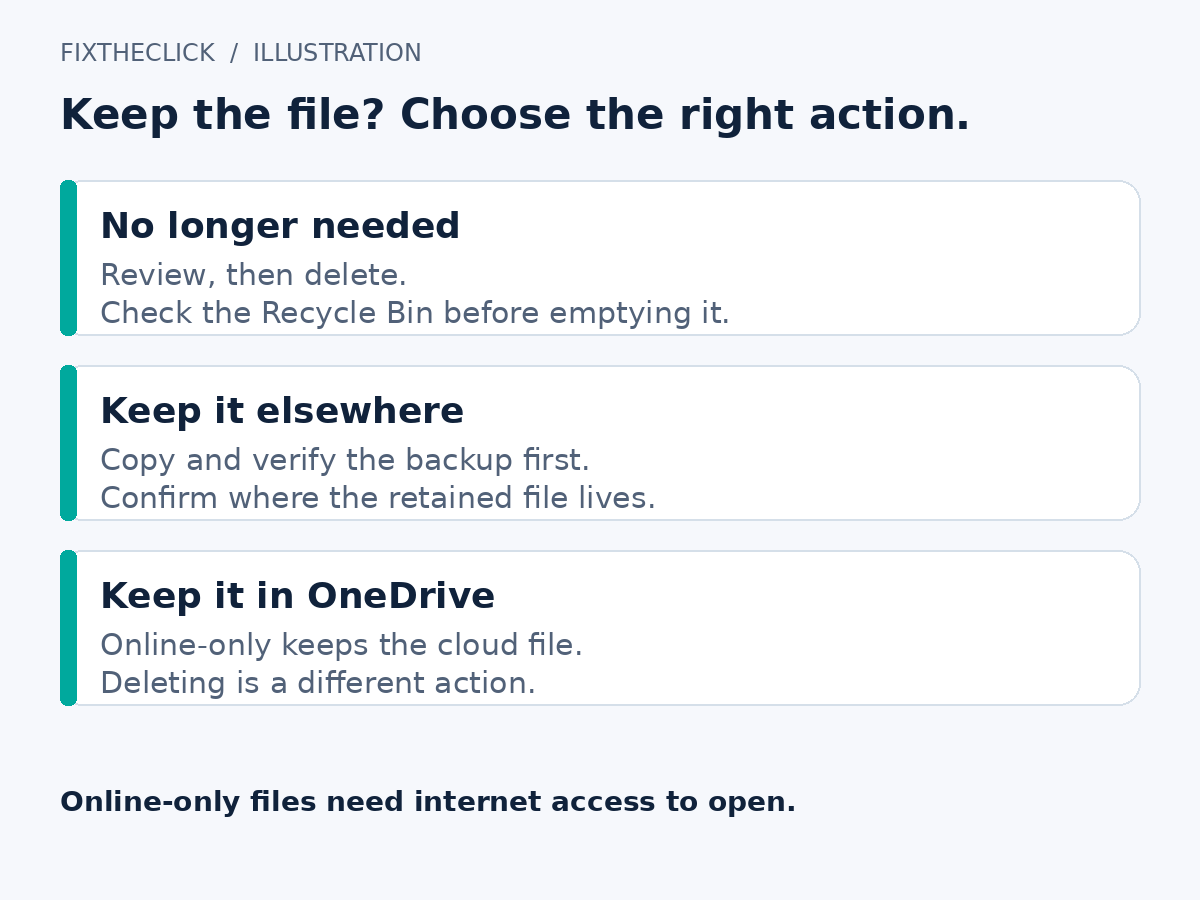
If personal files account for the shortage, make a deliberate keep-or-remove decision. For material you want to retain elsewhere, copy it to your chosen backup destination and verify that the copy opens before removing the local original. Check that you copied the intended folder, not a shortcut pointing back to C.
For a large collection, review one folder at a time. Record the destination so you can find it later. An external copy also needs its own protection if it becomes the only remaining copy; moving a file is not the same as maintaining a backup.
Microsoft describes external storage as one way to relocate personal files in its drive-space guidance. If the original sits in a synchronized cloud folder, first understand the service’s behavior. Deleting from a synced location can affect more than the PC you are cleaning.
4. Make OneDrive files online-only without deleting them
For supported OneDrive Files On-Demand content, Free up space changes a downloaded file to online-only. It retains the cloud file. Deleting that file is a different action: Microsoft’s Files On-Demand guide explains that deleting an online-only file removes it from OneDrive across devices.
Before changing availability, confirm that the files have synchronized to the correct account. Online-only files need an internet connection to open. Keep items you need while traveling or offline available locally; the option to always retain a file on the device uses local space.
This choice is useful when you want to keep a file but do not need its downloaded copy today. It is not a way to create a second independent backup, and it does not remove the need to review your account’s sync state.
5. Check Storage Sense’s rules instead of assuming its defaults
In Storage, open Storage Sense and review its schedule and cleanup preferences. It manages the Windows system drive. Check the separate rules for temporary content, the Recycle Bin, Downloads, and locally stored cloud content before enabling or changing anything.
Microsoft’s Storage Sense guide distinguishes deleting local items from making cloud files online-only. Files marked to remain on the device are excluded from its cloud-availability management. Available controls can depend on the account and Windows version.
Do not turn on automatic Downloads deletion merely to solve today’s warning. Choose a policy that matches how you use that folder, and check the actual configuration on a shared PC. Automation should follow your retention decision, not replace it.
6. Treat Windows.old as a recovery decision
A previous Windows installation may appear among removable system items after an upgrade. Removing it deletes the files needed to return to that previous version. Microsoft’s previous-version removal warning says this cannot be undone.
If you still need to evaluate the upgrade or may want to go back, leave that item alone. Do not manually delete Windows.old or other system directories as a shortcut. A folder’s size does not tell you whether its contents are expendable.
Frequently asked questions
How much free space should I keep?
Use the requirement shown for the task or update you are trying to complete. There is no single space target here that guarantees every application or Windows update will install.
Why is C full again after cleanup?
Compare the categories before and after the space returns. A growing category gives support a more useful clue than another round of blind deletion. Record the timing and any warning; do not infer malware or drive damage from the shortage alone.
What if Storage does not match these labels?
Check your Windows version and the current Microsoft instructions. On an organization-managed PC, ask IT about restricted controls. Stop before an unfamiliar removal action rather than substituting system-folder deletion or a registry cleaner.