Microphone Not Working in Windows 11? Check Input and App Permissions
People cannot hear you, but that does not yet tell you whether the microphone, Windows, or the calling app is responsible. First check whether Windows 11 can record your voice with the intended input selected.
If that recording works, focus on the app’s permission and microphone choice. If it does not, check mute, connection, and device detection before changing drivers. Start with the physical controls, run the Windows test, then follow the matching branch below.
1. Check mute and the microphone you are actually using
Look for a mute switch on the headset, microphone, or cable, and check the call’s own mute button. A working speaker does not establish that its microphone is working. You may be hearing through headphones while the app is listening to a different input.
Confirm that an external microphone is connected securely. For Bluetooth, check that the headset is connected to the PC, not merely powered on nearby. Microsoft includes these checks in its microphone troubleshooting guide.
Keep the setup simple while diagnosing it. Note whether you intend to use the laptop microphone, a USB microphone, a webcam microphone, or a headset. That device name will matter in both Windows and the app. Do not change several inputs at once and then guess which change helped.
2. Test the selected input in Windows 11
Open Settings → System → Sound. Under Input, select the microphone you intend to use, then open its properties using the arrow beside it.
In the microphone’s input settings, start the test, speak normally, and stop it. Play the recorded sample to check whether your voice was captured. If it is too quiet, adjust input volume and repeat the same short test. These steps follow Microsoft’s microphone setup and testing instructions; labels can vary with your Windows build.
Make sure the sample is coming from the intended microphone. A clear recording from the laptop’s built-in mic does not confirm that an attached headset mic works. If you cannot hear the sample, also verify that playback is going to an audible speaker or headset before treating silence as proof of an input failure.
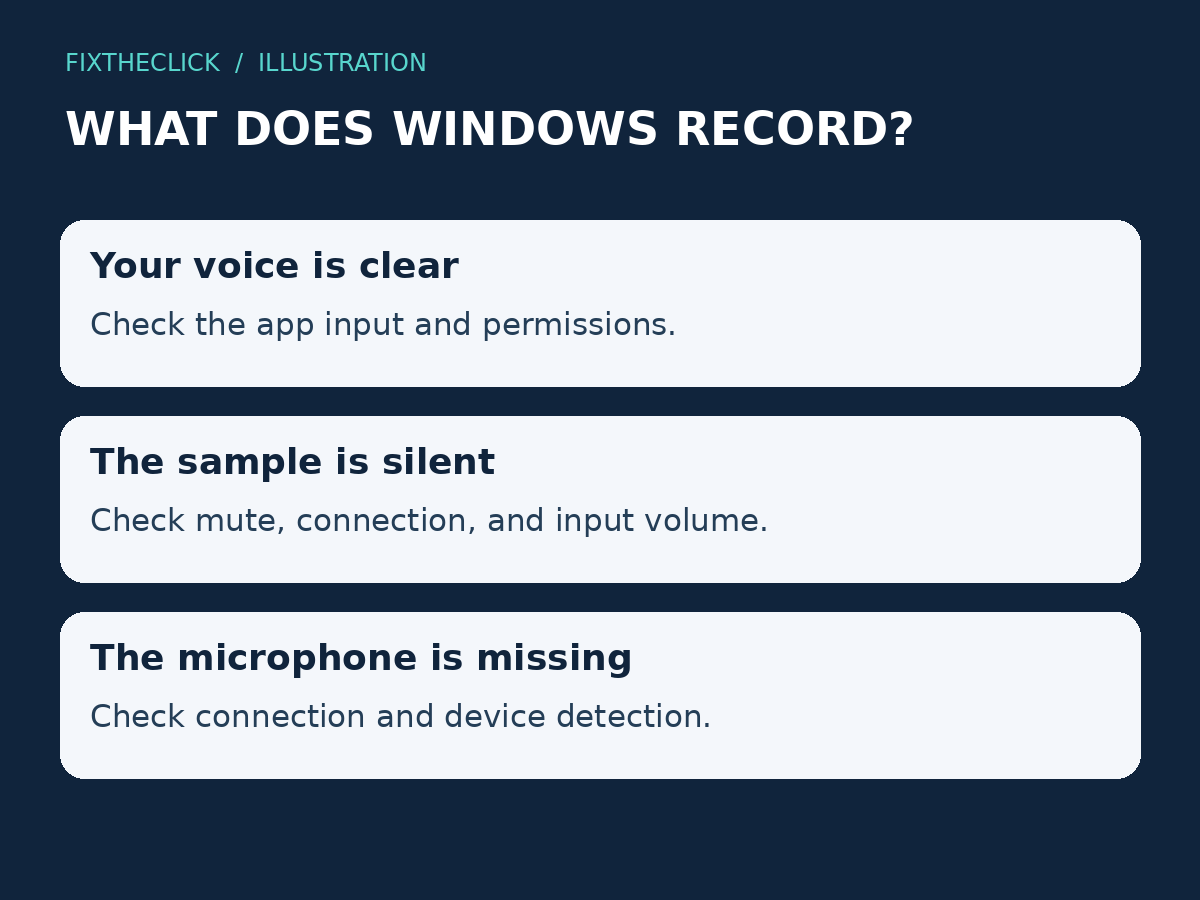
| What you find | Next check |
|---|---|
| Your voice records clearly | App access and the app’s selected input |
| The microphone is listed, but the sample is silent | Mute, connection, positioning, and input volume |
| The intended microphone is missing | Device connection and detection before app settings |
This comparison narrows the problem; it does not prove a component is defective. Keep the result so you do not repeat the same unrelated fixes in every meeting app.
3. Give the intended app microphone access
Open Settings → Privacy & security → Microphone. Check device-level microphone access, then review access for the app you want to use. You do not need to grant every installed app access.
Microsoft distinguishes apps with individual permission switches from desktop applications. Eligible Microsoft Store apps can have separate controls. Desktop apps use a separate desktop-access control and may not appear in the individually configurable list. A missing individual switch therefore does not automatically mean an app is broken.
Use Microsoft’s microphone permissions guide to identify the applicable control. If the setting is managed by your organization, ask its administrator rather than trying to override policy.
4. If Windows records you, check the failing app
Return to the app’s audio or device settings and choose the same input that passed the Windows test. App labels differ, so do not assume every calling service uses the same menu. Recheck the meeting’s mute state, then use its test facility if offered.
For a browser-based call, there is another permission layer: the website. In Chrome, open its settings, go to privacy and security, then site settings and the microphone permission. Review the specific calling site’s access and selected microphone. Google’s camera and microphone help explains these controls. Grant access only to the trusted site you intend to use.
Compare one failing app with another recording or calling app you already trust. If only one fails after Windows records clearly, its settings and support guidance are the more useful next stop. Reinstalling the PC’s audio drivers is a poor first response to that narrower result.
5. If Windows cannot detect the microphone
Reconnect the external device and confirm that its connection method is supported by the PC and accessory. If a dock or adapter is involved, consult its specifications rather than assuming every socket carries microphone input. For a built-in microphone, use the laptop maker’s model-specific support.
After saving your work, restart the PC and check the input list again. If detection still fails, review Windows updates and the manufacturer’s support for the exact model. Microsoft’s driver guidance favors Windows Update and provides targeted Device Manager procedures when needed.
Do not remove all audio devices or install a paid driver utility as a shortcut. If the failure began immediately after a driver update, record that timing for support before changing more settings. A targeted driver repair should address an identified device and include a recovery plan.
Frequently asked questions
Why can I hear people, but they cannot hear me?
Playback and recording use different paths. Check the selected microphone and run the Windows input test even when headphone sound is normal.
Why does the microphone work in Windows but not Chrome?
Check Windows desktop-app access, the calling website’s microphone permission, and the input selected by the web app. A successful Windows recording is a reason to investigate those layers first.
What should I tell support?
Provide the PC and microphone models, connection type, Windows version, affected app, whether the input appears, and whether the Windows recording contains your voice. Share error text without including private meeting details or recordings of other people.