No Audio Output Device Is Installed in Windows 11? What to Check First
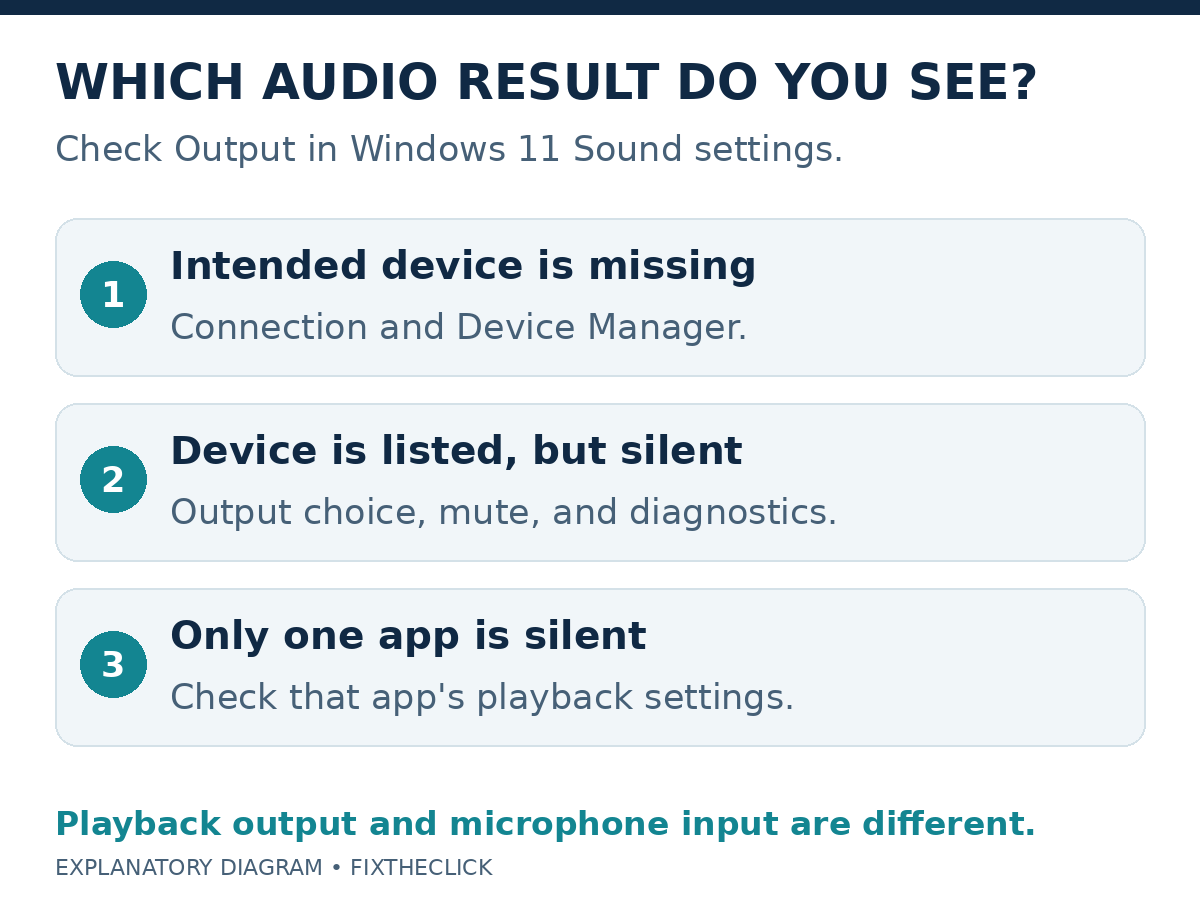
Windows says No audio output device is installed, or your speakers have vanished from the output list. Open Settings → System → Sound and check Output first. A missing playback device needs a different approach from a visible device that is silent.
If the intended device is absent, check its connection and Device Manager, then use Get Help and the correct manufacturer’s driver. If it is listed, first confirm that Windows is sending sound to it. This guide covers Windows 11 playback output, not a microphone that cannot record your voice.
1. Check whether the output is missing or just unselected
In Settings → System → Sound, inspect the devices under Output. Look for the speaker, headset, or monitor you intend to hear. If it is present, select it before treating the problem as a missing driver.
| Result | Next check |
|---|---|
| No intended playback device appears | Connection, Device Manager, and device recognition |
| The device appears, but all playback is silent | Output choice, volume, mute, and audio diagnostics |
| Sound works except in one app | That app’s mute and playback-device settings |
Compare a short piece of known audio in another app you already use. Keep the same speaker selected for the comparison. Sound working elsewhere narrows the next investigation; it does not prove the failing app is defective.
Write down the actual message and the name of any available output. An empty list and a list containing the wrong destination are easy to describe as the same problem, but they lead to different actions.
2. Check the connection and HDMI output choice
For external speakers or a headset, check the connection, power where required, and its own mute or volume control. Use the correct port for the device. For a built-in laptop speaker, focus on whether Windows detects the computer’s audio hardware.
If you recently connected an HDMI monitor, inspect Output again. Microsoft’s Windows audio guide notes that selecting a monitor without speakers as the default output can leave you without sound. Choose the intended audible device if it is available.
A working display is not a test of the laptop speakers. If the monitor itself is not detected, follow our Windows 11 second-monitor guide for that separate connection problem.
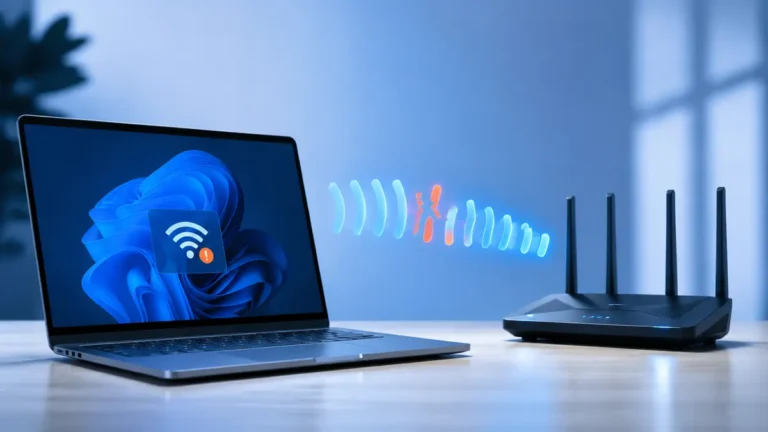
If your headset uses Bluetooth and Windows has lost its Bluetooth control entirely, investigate adapter detection first. Changing an app’s volume cannot restore a connection Windows is unable to make.
3. Find the audio device in Device Manager
Search Start for Device Manager and open it. Expand Sound, video and game controllers. Microsoft’s missing-output-device guide uses this category to check detection.
If you identify the intended audio device, right-click it. Select Enable device if that option is available. Then return to Sound settings and check the output list.
If the device is missing, use View → Show hidden devices, followed by Action → Scan for hardware changes. These are detection checks. Do not treat the appearance of a name in the list as proof that playback has been restored; verify Output and actual sound afterward.
Record any device error before changing drivers. If you cannot confidently identify the audio hardware, stop short of removing entries. HDMI audio, a USB headset, and the PC’s built-in audio can be different parts of the setup.
4. Run Get Help and restart normally
Microsoft recommends the automated audio troubleshooter in Get Help for Windows 11. Open it from the official missing-device instructions and follow the prompts for your setup.
Save your work, then use Start → Power → Restart. After signing back in, check Output before launching the app that failed. This is a normal Windows restart, not a reset of the PC or a forced power-off.
If the output has returned, replay the same short sample. Then confirm it in your usual app. If it has not, preserve the diagnostic result and continue with the device’s supported driver path.
On a managed PC, ask your administrator when device changes require permissions you do not have. Keep the exact result for them instead of trying to bypass management controls.
5. Use the official audio driver for the exact hardware
When the correct device remains undetected, Microsoft directs readers to the PC or sound-card manufacturer’s support website for an audio driver matching their Windows version. Follow that manufacturer’s installation instructions and restart afterward.
Match the computer model and, where relevant, the separately installed audio hardware. Do not assume a driver for another laptop in the same product family is appropriate. Keep the original error and your detection results available while identifying the package.
If the issue began after an update, tell support which update or driver changed and when. Timing helps select a targeted next step; it is not evidence that every current Windows update has an audio fault.
Microsoft’s broader audio guide also covers Windows updates and other playback issues. If Windows Update itself fails, use our update troubleshooting guide to work from that error instead of repeatedly changing audio devices.
Do not remove every audio driver or reset Windows as a first response. If the correct supported driver and diagnostics do not restore detection, contact the PC or accessory manufacturer with the results below.
Frequently asked questions
Is this the same as a microphone not working?
No. Output plays sound; input records it. If you hear other people but they cannot hear you, use our Windows 11 microphone guide and test the intended input.
Why does only one app have no sound?
If the same output plays normally elsewhere, check the failing app’s selected speaker and mute state. Do not start with a missing-device repair when Windows already detects and uses that device.
What information does support need?
Provide the PC and audio-device models, Windows version and build, connection type, exact message, available outputs, Device Manager findings, and Get Help result. Mention a recent HDMI connection or update, and whether another app plays sound.