Fire TV Has No Sound but the Picture Works? Check the Audio Output First
The movie is playing, the picture looks normal, and the room is silent. Before changing audio formats or resetting the Fire TV, check where you expect the sound to come from. A working screen does not tell you whether the TV speakers, soundbar, or another output is selected.
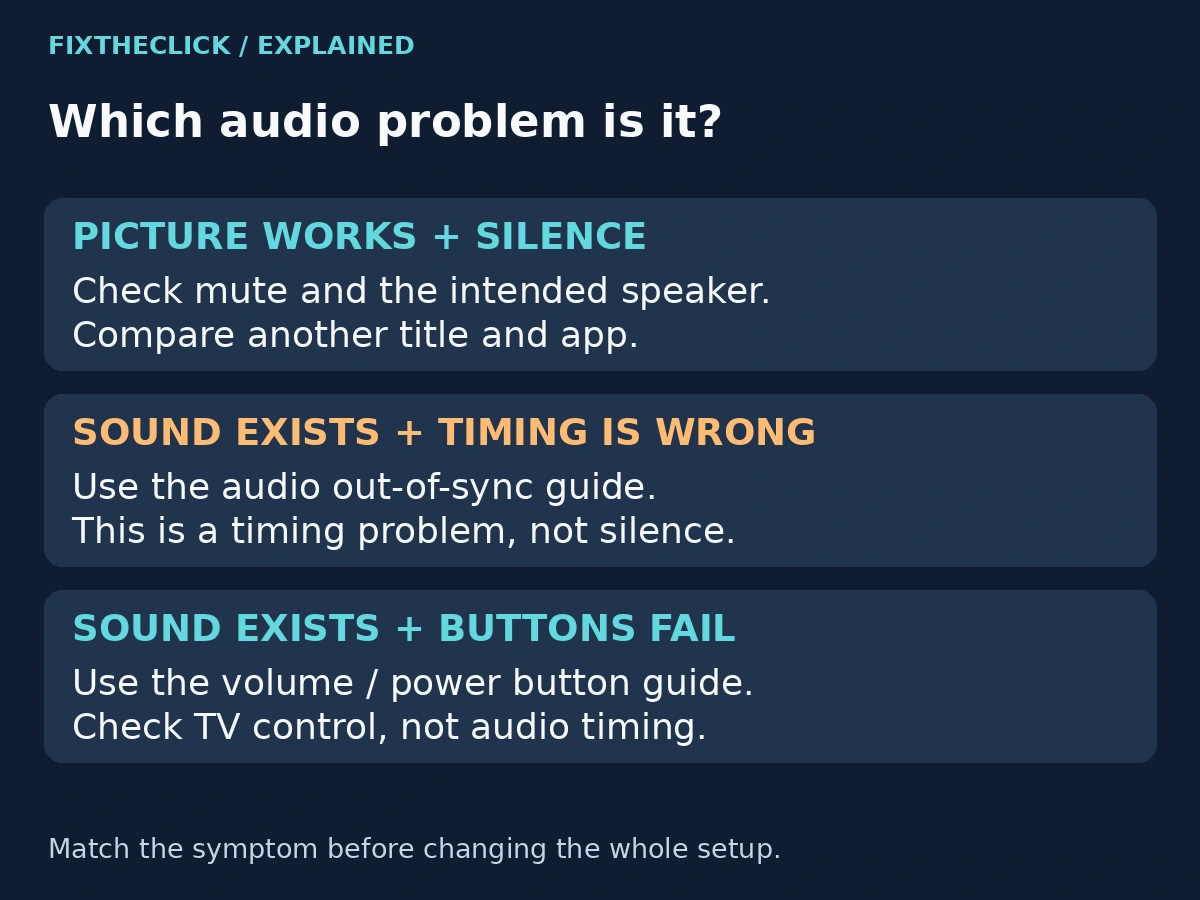
Quick Answer: When Fire TV has no sound but the picture works, check mute and volume on the intended speaker, compare another title and app, then use the supported audio troubleshooting tool. Separate an HDMI Fire TV player from a television with Fire TV built in before following a settings path.
This guide is for missing playback audio. If sound is present but arrives early or late, use our Fire TV audio out of sync guide. If the TV’s own remote adjusts audible sound and only the Fire TV remote’s buttons fail, use the volume and power button guide.
1. Check the speaker you actually want to hear
Start with the TV’s own volume and mute controls. Increase the volume gradually while a familiar scene is playing. A volume indicator moving on the screen is useful feedback, but listen for actual playback rather than assuming that a changing number confirms the sound path works.
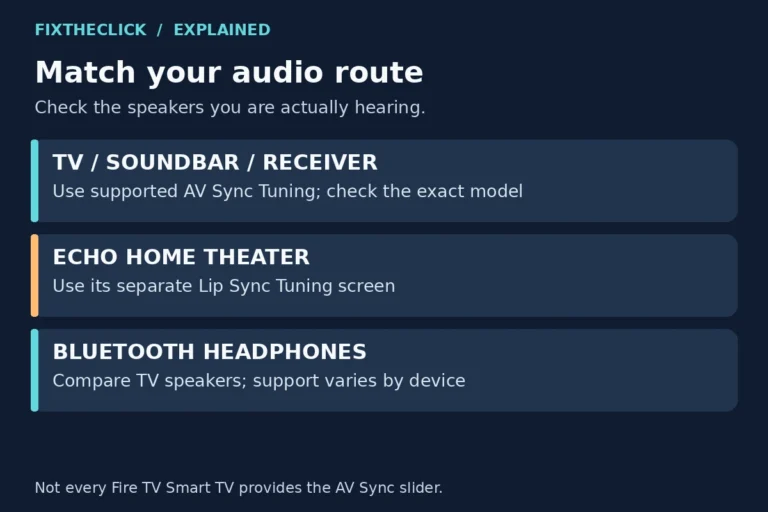
If you normally use a soundbar or receiver, check its power, mute status, volume, and selected input with its own controls. The TV can continue showing video while an external speaker is off or listening to a different input.
Think about any recent change: a new speaker, a different HDMI connection, or a switch from headphones back to the TV. Treat that as a clue to check, not proof of the cause. Avoid changing several outputs at once—you need a clear before-and-after comparison.
2. Find out whether one app or all playback is silent
Try another title in the same app, then a known video in a different app. If the service offers alternate audio tracks, check its own playback controls and help for the current title. Note the result instead of assuming that a single silent video means the entire Fire TV is defective.
Sound working elsewhere narrows the investigation, but it does not prove the first app is broken. The title, selected playback option, service, or interaction with the audio setup may still matter. Keep your usual output selected during the comparison so you are changing only the content.
If the affected app also closes, freezes, or refuses to open, use our Fire TV app crashing guide. Do not clear every app’s data to investigate one silent title. Before deleting an affected app’s data or reinstalling it, make sure you can sign back in.
When multiple apps are silent, move to the device and output checks below. If no picture appears either, switch to the HDMI and blank-screen guide; that is a different starting point.
3. Identify the Fire TV device before opening settings
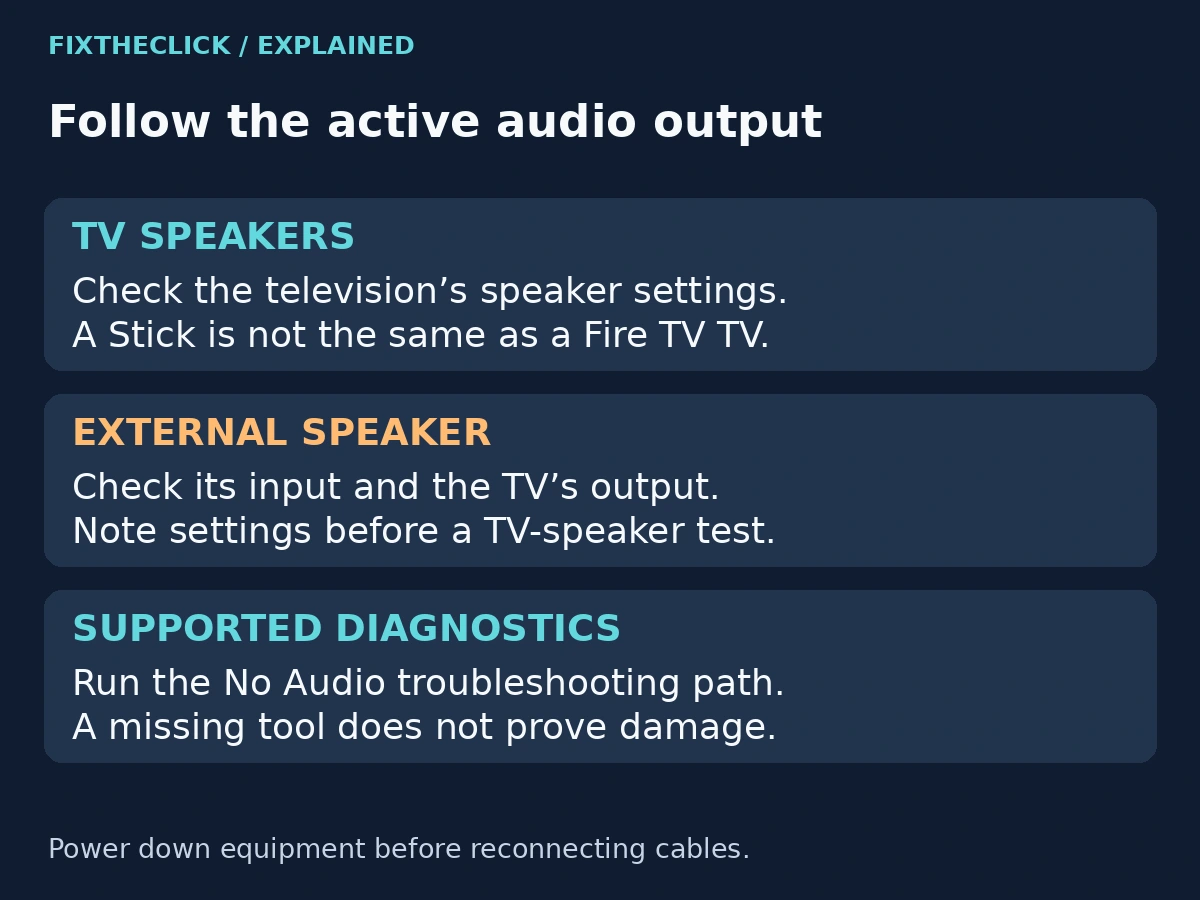
A Fire TV Stick or Cube is a separate player connected to a television. Its menus do not universally control the television’s built-in speaker settings. Use the television’s own documented audio-output controls when selecting its speakers or an external sound system.
A Fire TV Smart TV has Fire TV built into the television. Amazon documents speaker controls for this television category, but the exact labels and available options can still differ by model and software.
This distinction prevents a common dead end: looking for a TV Speakers switch inside an HDMI player that does not expose the television’s controls. Record the exact device model before deciding that a missing setting indicates a fault.
4. Run the supported No Audio diagnostic
For compatible devices, Amazon’s US audio troubleshooting guide gives this route: Settings → Display & Sounds → Audio and Video Diagnostics → Troubleshoot Audio/Video Issues → No Audio.
Follow the recommendations shown for the current setup and complete the troubleshooting sequence. Keep a note of any result or instruction that does not match your equipment. Do not substitute a generic Dolby or PCM change for the recommendation actually shown.
Amazon explicitly says this diagnostic tool is not available on every Fire TV device. If it is missing, continue with your model’s documented output checks and support guidance. Its absence alone is not evidence of damaged hardware.
If the issue remains after the diagnostic, Amazon recommends restarting the device. Use the model-appropriate restart approach discussed below rather than treating a factory reset as the next required step.
5. For a Fire TV television, check Audio Output
If you use the television’s built-in speakers, Amazon’s US Fire TV Smart TV guide lists Settings → Display & Sounds → Audio Output → TV Speakers: On. Some interfaces and regional guides use Display & Audio instead.
Use this path for the supported television, not as a universal Stick or Cube instruction. Confirm that you actually want the TV speakers before changing the output. Someone using an external sound system may intentionally have those speakers disabled.
For external audio, follow the branch documented for the exact TV and connection. Amazon’s television guidance includes a separate external-speaker setup; it is not permission to apply the same output or format to every soundbar, optical connection, or receiver.
If the labels differ, use the television manufacturer’s current model guide. Do not select an unfamiliar option simply because its name resembles something in a tutorial for another brand.
6. Isolate an external speaker without replacing it
If a soundbar or receiver is the intended output, match its selected input to the connection you actually use. Check the TV’s output setting against the manufacturer’s instructions for that equipment. A cable plugged into a port is not enough to establish that both ends are configured for the same path.
Where your television supports it, temporarily select its built-in speakers and replay the same scene. Note the original output first. If the TV speakers play but the external speaker stays silent, focus the next checks on the external path; that result does not by itself prove the cable or soundbar is defective.
Restore the original output after the comparison, or deliberately leave TV speakers selected if that is your temporary listening choice. Avoid leaving several settings changed without recording which one affected the result.
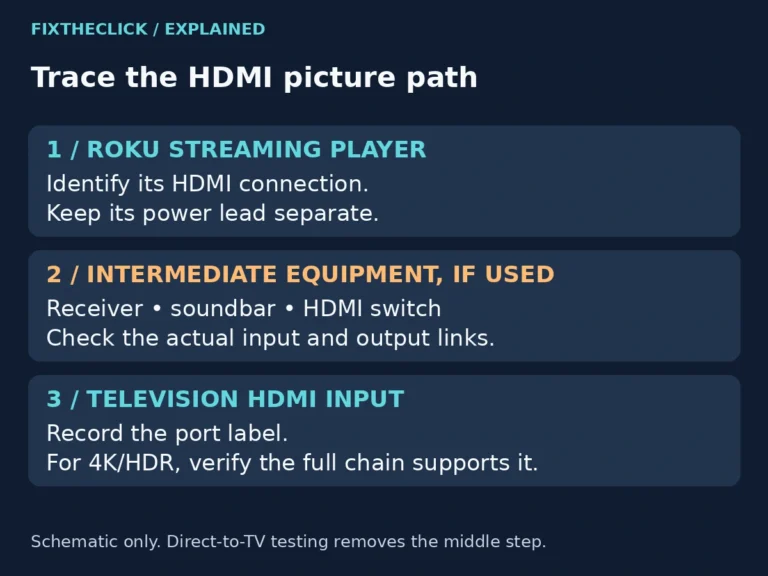
Before reconnecting audio or HDMI cables, power down the affected equipment and follow its manufacturer’s connection instructions. Do not force a connector. A Stick directly in the TV does not have the same cable arrangement as a player routed through a receiver.
This guide does not prescribe one PCM, Dolby, ARC/eARC, or Bluetooth setting for all setups. Those choices depend on supported devices and the actual connection, and can change which audio features remain available.
7. Restart the correct device, then repeat one comparison
Use the restart control documented for the exact Fire TV player or television. Wait for it to return to normal operation before replaying the same content with the same output selected. A restart and a factory reset are different actions; do not select the latter while looking for the former.
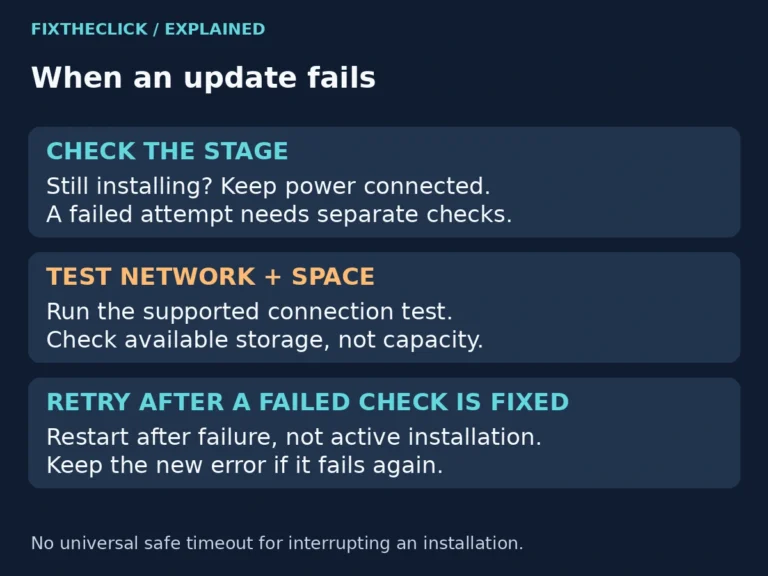
For a Fire TV Smart TV covered by Amazon’s television guide, its power-restart option is to unplug the TV for at least 30 seconds before reconnecting it. Do not transfer that timing or a remote-button shortcut to every separate player or audio accessory. Do not interrupt an active software installation.
If sound returns, confirm it with your usual app and speaker arrangement. If it does not, stop repeating the same restart and preserve the useful comparisons you have already made.
8. Bring specific results to support
Collect the exact Fire TV model and software version, TV model, audio-device model, connection type, affected apps, and diagnostic result if the tool is available. State whether built-in speakers worked and whether changing titles made a difference.
Contact the app’s support when the failure remains confined to its playback, or Amazon and the relevant TV/audio manufacturer when several apps share the problem. These comparisons guide the next investigation; they do not establish a hardware diagnosis remotely.
Frequently asked questions
Why does the picture work while sound is missing?
Video and the intended audio output can behave differently. Check mute, the selected speaker, and another title before deciding which part of the setup needs attention.
Should I immediately switch everything to PCM?
No universal format change fits every device and connection. Use the supported diagnostic and exact-model guidance, and understand the audio-feature trade-off before changing a format.
Will a factory reset fix no sound?
A reset is not the first step for an output or playback problem. Complete the supported checks and seek model-specific guidance before accepting the loss of settings and the work of setting up the device again.