Fire TV Update Failed or Stuck? Check Storage and Wi-Fi First
Quick answer: If a Fire TV update failed, test its internet connection and check available storage before resetting anything. Amazon recommends at least 500 MB available to download the update. On supported devices, use Settings > Network, then press Play/Pause for a connection test. Restart only after an update has failed or is no longer actively installing, and retry once you have addressed the failed check.
You try the update again, and the same message comes back. Deleting another app or restarting the router at random can turn one failed download into several unrelated changes.
Start with the stage that stopped: downloading, installing, or returning to Home afterward. This guide covers Fire TV device software updates, not updates to a single streaming app.
First, identify a failure versus an installation in progress
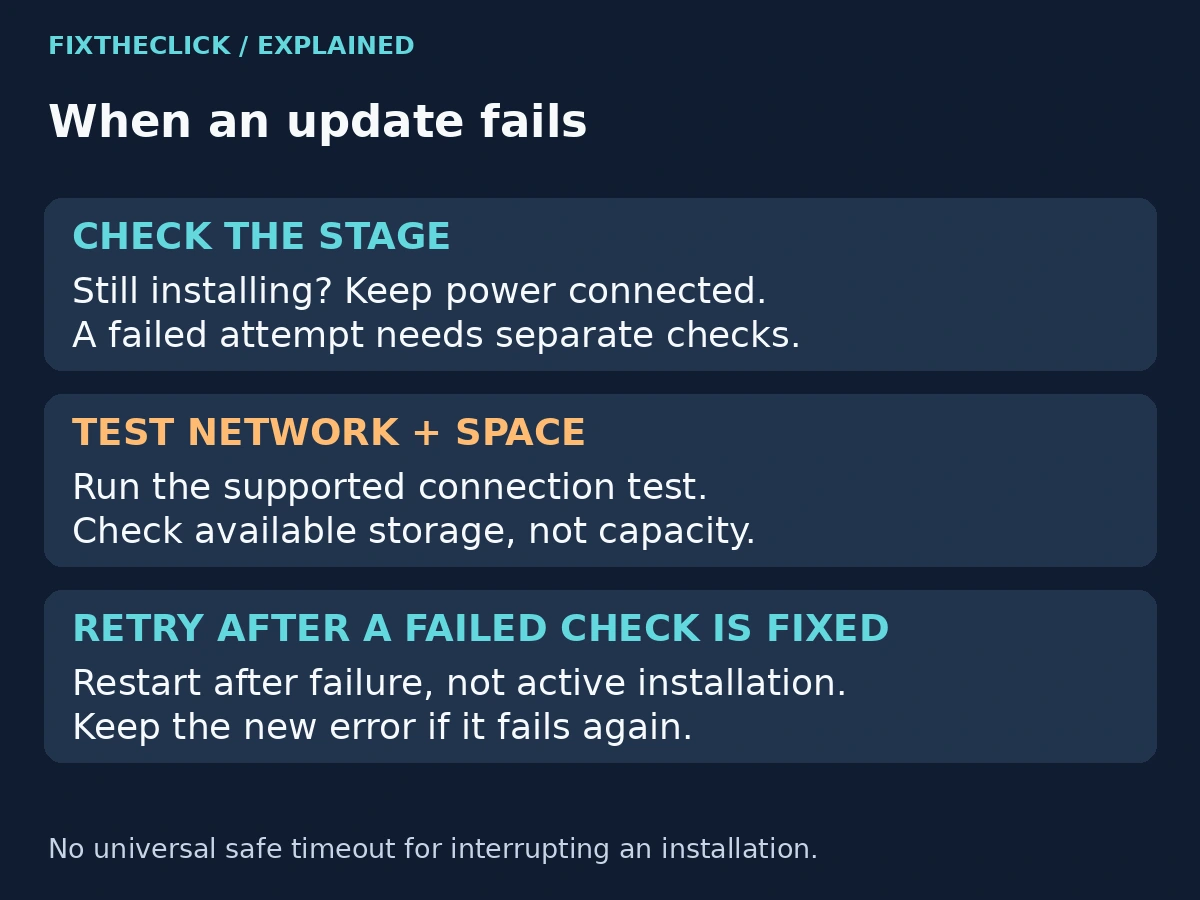
Read the whole screen before unplugging anything. An error saying the update failed gives you a different starting point from a screen that says it is installing and tells you to keep the device powered on.
If progress is changing, let the device continue and follow its instructions. Do not repeatedly interrupt installation because the screen seems slow. The official update-failure guidance does not establish one universal deadline after which every model is safe to unplug.
Record the message and, where shown, the progress value and time you first noticed it. If the screen stays unchanged and you cannot tell whether installation is still active, seek model-specific support before forcing another power cycle.
Scope: The menu paths below apply where your Fire TV offers those controls. External Fire TV players and televisions with Fire TV built in can differ, as can their operating systems. A device stuck in initial setup may not yet let you open the menus described here.
1. Test internet access on the Fire TV itself
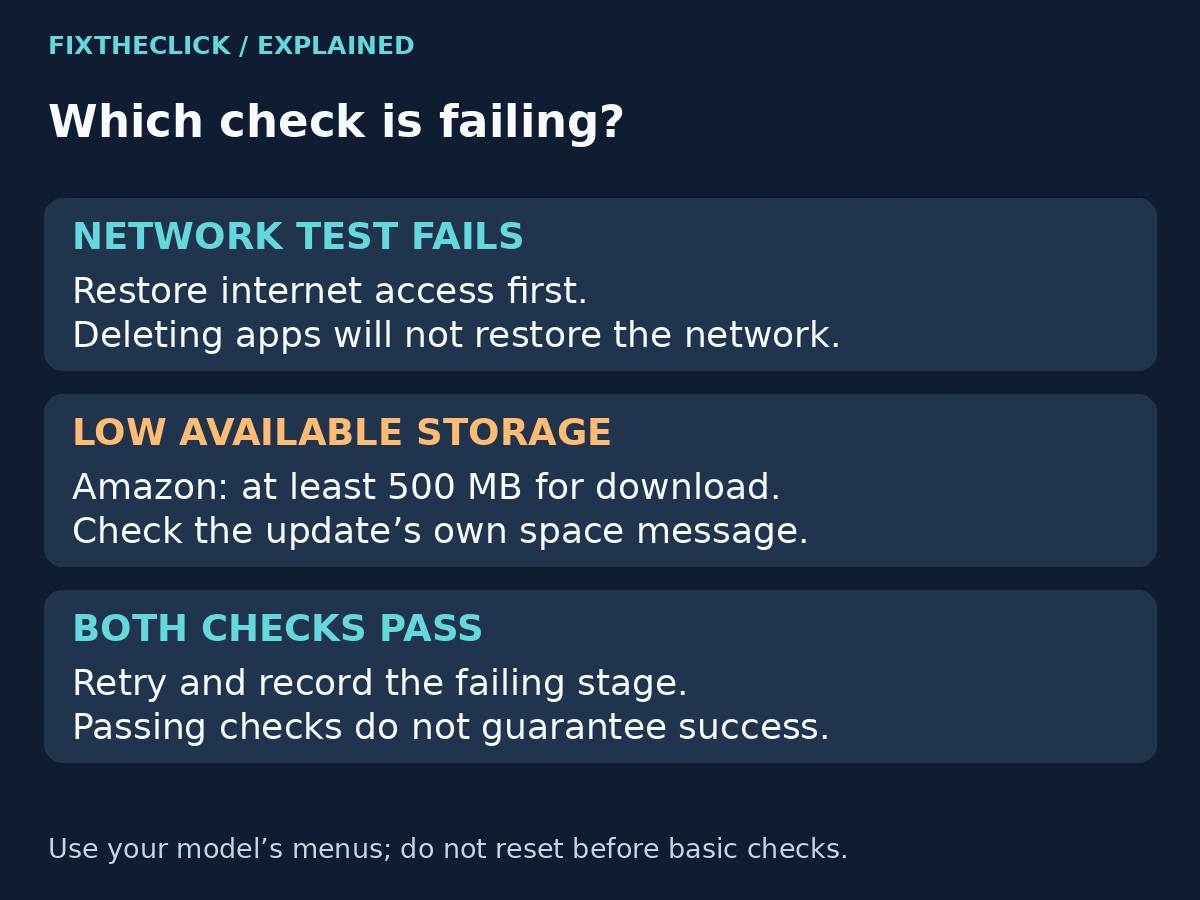
Amazon’s U.S. update troubleshooting starts with a connection test. On supported devices, open Settings > Network and press Play/Pause on the remote. Read the result rather than assuming a saved Wi-Fi name proves internet access.
If the screen reports a connection problem, write down which part failed. Test a phone on the same home network as a comparison, making sure it is not silently using cellular data. A successful phone test is useful context, not proof that the Fire TV has the same connectivity.
If your Fire TV joins Wi-Fi but still cannot reach online services, use our Fire TV connected to Wi-Fi but no internet guide. Return to the software update after connectivity works; there is little value in repeatedly retrying a download while the network test still fails.
2. Restart the modem or router only when connectivity points there
If other home devices also lose internet access, check the provider’s outage information before changing the Fire TV. A confirmed service interruption will not be repaired by deleting apps.
When a network restart is appropriate, Amazon’s Wi-Fi guidance describes unplugging the modem and router for one minute, then reconnecting the modem before the router. Allow the equipment to reconnect before running the Fire TV test again. Follow your provider’s instructions for a combined gateway.
This means restarting network equipment, not pressing its factory-reset pinhole. Warn anyone using the connection before disconnecting it. Keep the distinction clear: restarting temporarily interrupts internet access; resetting may erase network configuration.
If only the Fire TV fails the test, the comparison narrows the problem but does not establish a single cause. Keep the diagnostic result and use the network guide rather than changing DNS, buying a VPN, or disabling network security as a guessed update fix.
3. Check available storage, not the advertised capacity
For devices with the documented menu, Amazon gives this storage path:
Settings > My Fire TV (or Device & Software) > About > Storage
Its update-failure guidance specifies at least 500 MB available for downloading the update. That figure is a troubleshooting baseline from Amazon, not a guarantee that every download or installation will succeed at exactly that amount.
Read the available-space value, not the total capacity printed on a product listing. Record it before cleanup. Do not assume all Fire TV models have the same storage or expose the same screen.
If the update screen requests more room, follow that specific message. Meeting a stated minimum only addresses the space check; the device still needs a working connection and a successful installation.
4. Remove an unused app if space is the blocker
Choose an app you genuinely no longer use before selecting a removal option. Make sure nobody in the household needs its saved access and that you can obtain and activate it again if you change your mind.
For the full comparison of cache, offloading, Clear Data, and uninstalling, use our Fire TV low storage guide. This update guide does not require repeating every cleanup action. The goal is enough room to retry the failed update, not an empty device.
Check the available-space reading again after cleanup. If it has increased, retry the update before deleting another app. If it has not changed as expected, record that result rather than assuming the next destructive option must work.
Removing an app does not automatically cancel its paid subscription. Manage billing separately, and avoid clearing account data merely to test whether a software update will download.
5. Restart after a failed attempt, then retry
For an external Fire TV streaming device, Amazon’s update-failure page gives a power restart of one minute unplugged, then reconnection. Use this after failure, not while the device is visibly installing an update or warning against power interruption.
For a television with Fire TV built in, follow the TV manufacturer’s restart instructions. Do not treat a streaming stick’s power adapter procedure as a universal instruction for every television.
Once the device returns, Amazon’s software-update instructions use Settings > My Fire TV or Device & Software > About > Check for System Update. Follow the options actually shown, and let a new download or installation proceed without repeated button presses.
Keep power and connectivity available during the attempt. If it fails again, note whether it stopped at the same stage. “Network now passes, storage is available, but installation fails” is a more useful support report than “still broken.”
6. Follow the stage that still fails
| What happens now | Useful next step |
|---|---|
| Download fails and the network test fails | Restore connectivity before another download |
| A low-space message appears | Review available space and one cleanup target |
| Download finishes but installation reports an error | Record the exact error and device details for support |
| Home never returns and the logo remains | Switch to startup troubleshooting |
| Installation is visibly progressing | Keep power connected and follow the screen |
If the update is followed by a logo that stays on-screen instead of Home, use our Fire TV stuck on the logo guide. Storage settings are not accessible while the device cannot boot; do not follow menu-based steps blindly.
If initial setup never reaches Home, tell support that explicitly. Do not claim to have checked storage or network diagnostics if those screens were unavailable. An inaccessible setting is a limitation to report, not evidence that the hardware has failed.
7. Escalate with useful details before a factory reset
Give Amazon or the TV manufacturer the exact model, available software-version information, failure stage, error message, network-test result, and available storage reading. Include whether a restart changed the behavior.
A factory reset is not the first answer to an update that will not download. It removes local setup and can leave you facing the same connectivity or storage problem during setup again. If support recommends it later, confirm the model-specific procedure and have account and Wi-Fi access ready.
Do not install firmware from an unofficial download, copy recovery commands for another model, or downgrade software based on an unrelated forum post. The supported update route and an accurate failure report are the safer ways to continue.
Frequently asked questions
Is 500 MB enough to guarantee the update works?
No. Amazon identifies it as the available-space minimum for downloading in its troubleshooting guidance. A passing space check does not rule out a connection or installation problem.
Should I unplug a Fire TV that says it is installing?
Do not interrupt an active installation or disregard an on-screen power warning. If it appears frozen and its status is uncertain, get exact-model guidance instead of using an invented waiting period.
Why does the update fail after I free space?
Compare the new error with the original one. If the space warning is gone, investigate the remaining stage rather than continuing to delete apps. Keep your before-and-after notes for support.
Let the failed check decide the next step. Once the update completes and Home returns normally, stop troubleshooting and confirm ordinary playback works.