White Box on Fire TV Screen? Turn Off Text Banner
A white rectangle appears over the Fire TV interface, and suddenly the screen looks broken. Before unplugging the television or erasing your settings, check whether the box is displaying text while the rest of the interface still works.
Quick Answer: A white box on the Fire TV screen may be Text Banner, an accessibility feature, rather than a damaged display. If the interface remains usable, open Settings → Accessibility → Text Banner and turn the feature off. Then return to the same screen and check whether the box disappears.
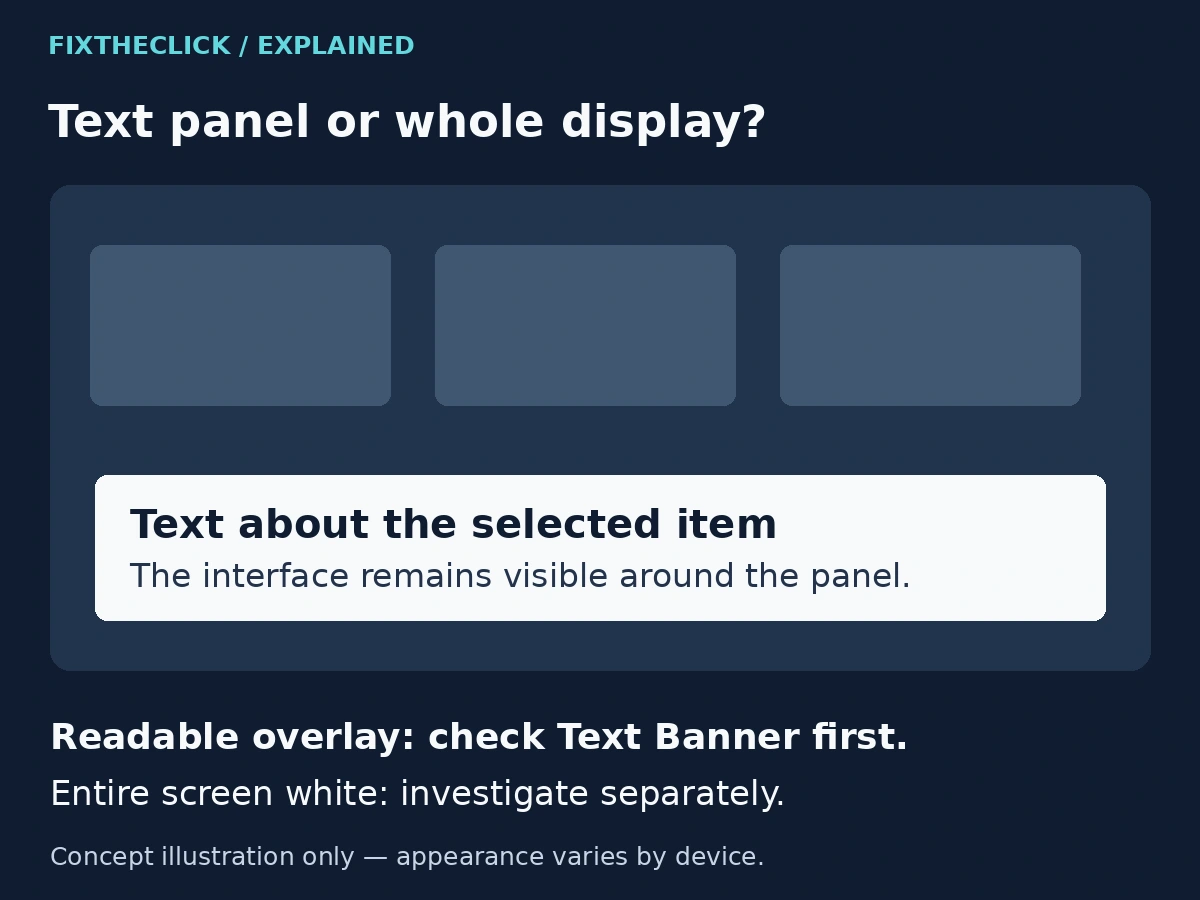
This check is for a text panel sitting over an otherwise visible interface. An entirely white display, a blank HDMI picture, and a frozen device need different troubleshooting. The shape and color alone do not identify the cause.
1. Check what is inside the white box
Look for readable words in the rectangle. Can you still see the Fire TV interface around it? Does navigation continue to work? Does the panel’s content relate to the item you select? These observations help separate an interface feature from a problem affecting the whole picture.
Text Banner is intended to make on-screen information easier to read. It is not an error message simply because it appeared unexpectedly. If another person uses accessibility features on the same television, ask before disabling something they rely on.
Do not identify Text Banner from a photograph of an empty white screen alone. A panel containing text over the interface is a useful clue; a uniformly white display gives you much less information. Neither observation proves that the television needs replacement.
2. Open Accessibility, then Text Banner
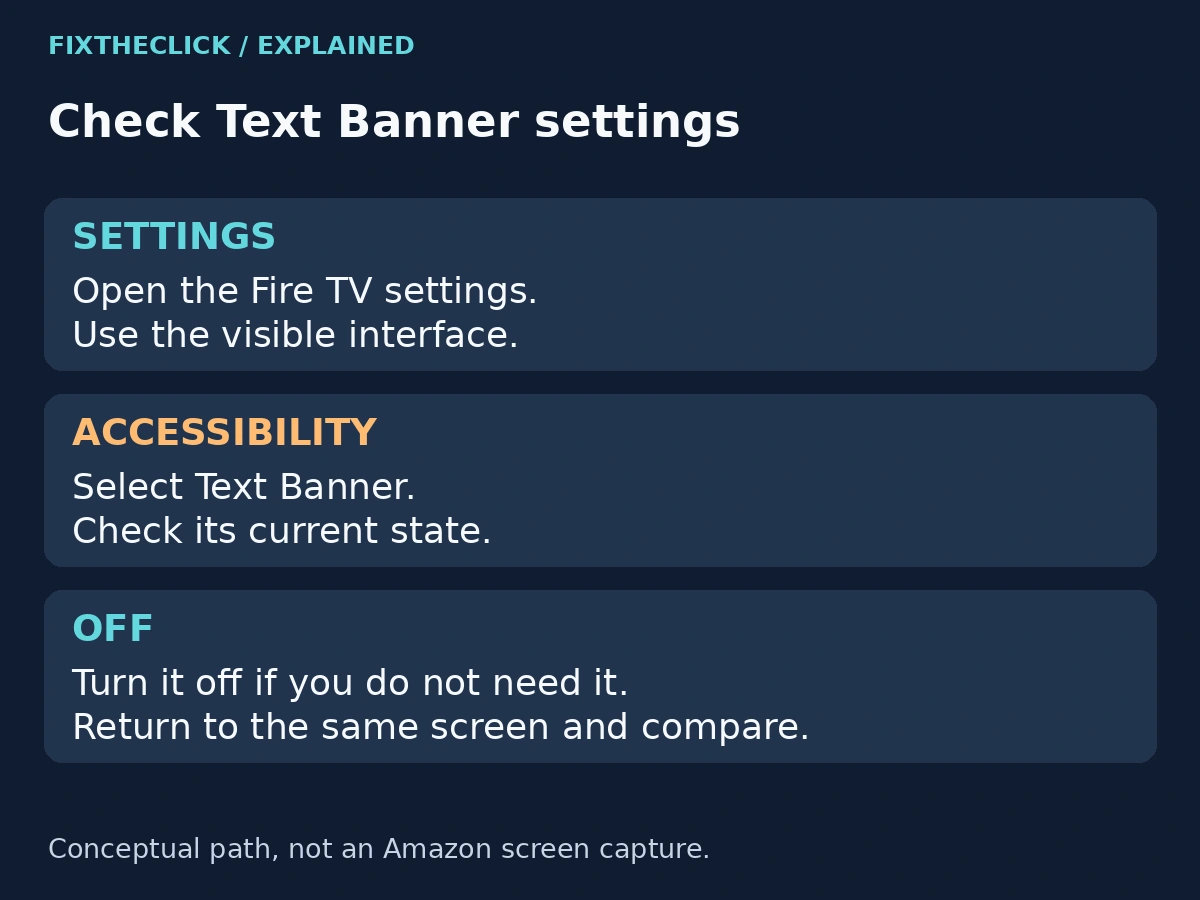
While the Fire TV menu is accessible, go to Settings, choose Accessibility, and open Text Banner. Check the feature’s current state before changing it. If it is on and you do not need it, set it to off.
Return to the screen where the rectangle appeared. Move through a few familiar items and check whether the unwanted panel is gone. This gives you a direct comparison without deleting apps, signing out, or changing the television’s display connection.
If Text Banner is already off, do not keep toggling unrelated accessibility settings. Record that result and move to the checks below. The feature’s name is more useful than following a tutorial’s exact icon positions, which may differ from the interface in front of you.
These instructions concern the Fire TV interface. If you are using a Stick or Cube, make sure you are looking at that player’s settings rather than a separate television menu. A television with Fire TV built in combines those roles differently.
3. Avoid guessing a remote shortcut
Use the visible settings path when you can. A remote-button combination from a video or a tutorial for another model is not a reliable substitute for confirming which feature you are changing.
There is no need to try reset combinations to remove an accessibility panel. If the menu is difficult to reach, use the exact device model when checking Amazon’s accessibility help.
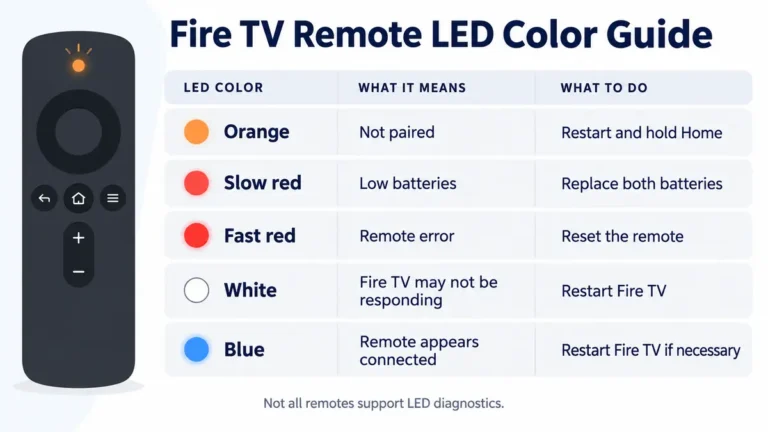
If the remote does not move the selection at all, that is a separate obstacle. Do not assume the white box disabled the remote, and do not follow a sequence of invisible menu selections. First establish whether the Fire TV responds to normal controls.
For a remote that remains completely unresponsive after a battery change, our Fire TV remote battery troubleshooting guide addresses that specific situation. It is not required when navigation already works.
4. Confirm that you changed the correct setting
After switching Text Banner off, revisit the same part of the interface. If the panel disappears, you have addressed the visible symptom through its setting. You do not need to continue into HDMI repair or factory-reset instructions just because those steps appear in a general troubleshooting list.
If the box remains, note whether its words or position change when you leave the current app. A panel that appears only within one app may need that app’s own help. Do not label it an app defect without checking the message or controls shown there.
If someone needs Text Banner for readability, the goal may be to restore their preferred setup rather than leave it disabled. Explain what you changed so that a shared television does not become harder for them to use.
Changing one setting at a time matters here. If you disable several features, restart everything, and change the input together, you lose the comparison that tells you which action affected the box.
5. Separate a banner from a full-screen display problem
A banner leaves other interface elements visible. An entirely white or blank display may prevent you from seeing the Home screen or reading any settings. Do not keep following an accessibility menu path that you cannot see.
If the complete Fire TV HDMI picture is absent, use our blank-screen and HDMI troubleshooting guide. The checks there address the selected input and display connection rather than a readable text overlay.
A Fire TV logo that remains visible is another different symptom. For that situation, use the Fire TV stuck on the logo guide. A static logo is not evidence that Text Banner is on.
For a white display that persists beyond the Fire TV interface, contact the television manufacturer with the model and a description of when it appears. Do not infer panel damage from the color alone or buy replacement equipment before identifying the affected part of the setup.
6. Stop before a factory reset
A factory reset is a disproportionate first response to a feature that can be changed in settings. Amazon’s factory-reset guidance warns that resetting removes account information and downloaded content. That creates setup work without establishing why a rectangle appeared.
If the settings check does not match your screen, gather the Fire TV model, software version if accessible, the words inside the box, and whether Home and other apps remain visible. A photo can help support understand the symptom, but hide account names, email addresses, and other personal details before sharing it.
Tell support whether Text Banner was on or off and what happened after you changed it. “The box remains while Text Banner is off” is more useful than “my TV is broken.” It also reduces the chance of repeating the same setting check unnecessarily.
Frequently asked questions
Does a white box mean the Fire TV screen is damaged?
Not necessarily. A text overlay on a working interface may be an accessibility feature. A completely white picture needs a separate investigation; neither symptom alone establishes a hardware fault.
Do I need to restart after turning Text Banner off?
First return to the affected screen and check the result. Do not add a restart or reset automatically when the unwanted panel has already disappeared.
What if I cannot find Text Banner?
Check that you are in the Fire TV’s Accessibility settings, then consult guidance for the exact model and software. Do not assume a missing option can be added by factory-resetting the device.