Fire TV Keeps Restarting? How to Stop a Reboot Loop
The Fire TV logo appears, the screen changes, and then the startup sequence begins again. Before replacing the device, separate a true restart loop from a picture that is simply disappearing. The next useful check depends on what is actually repeating.
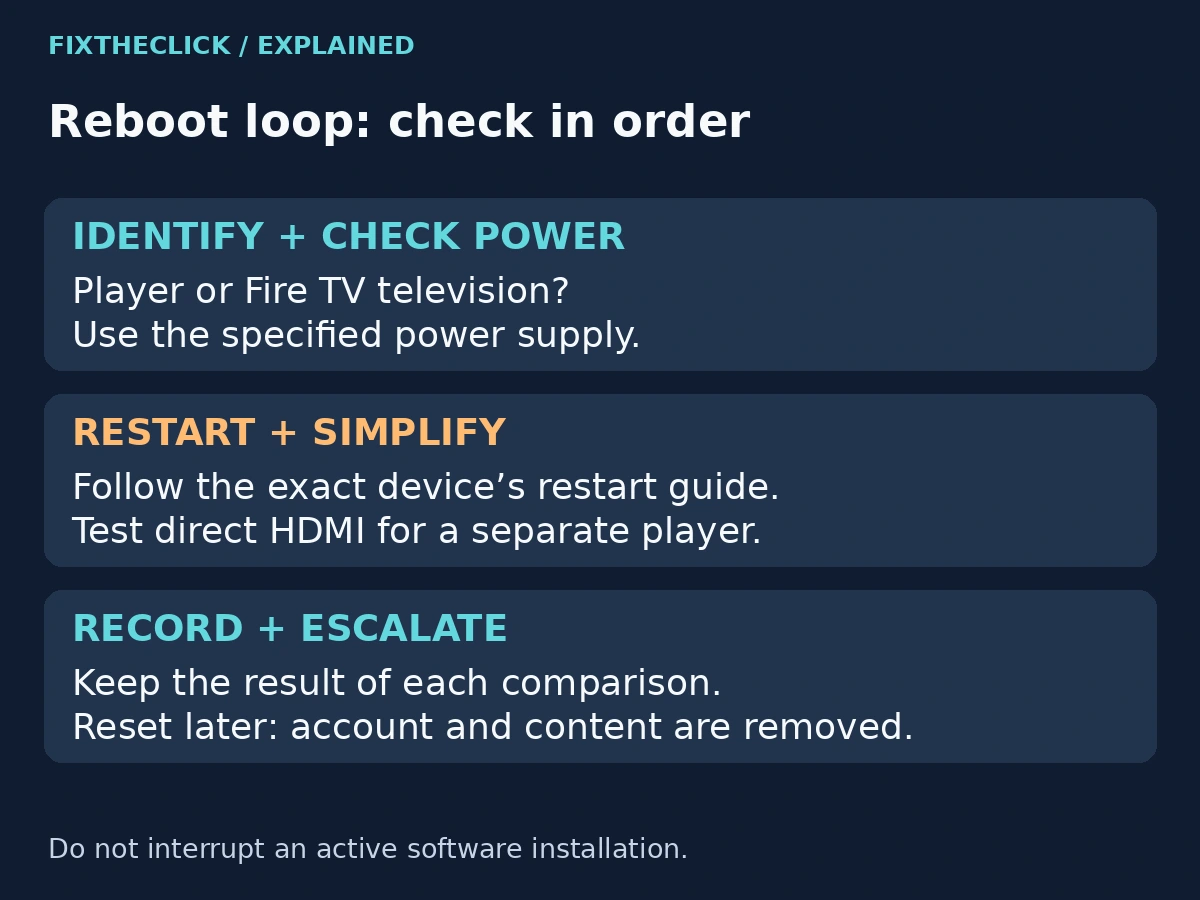
Quick Answer: If Fire TV keeps restarting, identify the device type, check its specified power supply, and perform a model-appropriate restart. For an HDMI player, simplify the connection to the TV and remove unnecessary accessories for comparison. Keep factory reset for later, after basic checks and preparation for losing the device’s account information and setup.
Power is worth checking early, but the symptom alone does not prove that the adapter is defective. Work through one comparison at a time and keep track of whether the restart behavior changes.
1. Confirm that startup is actually repeating
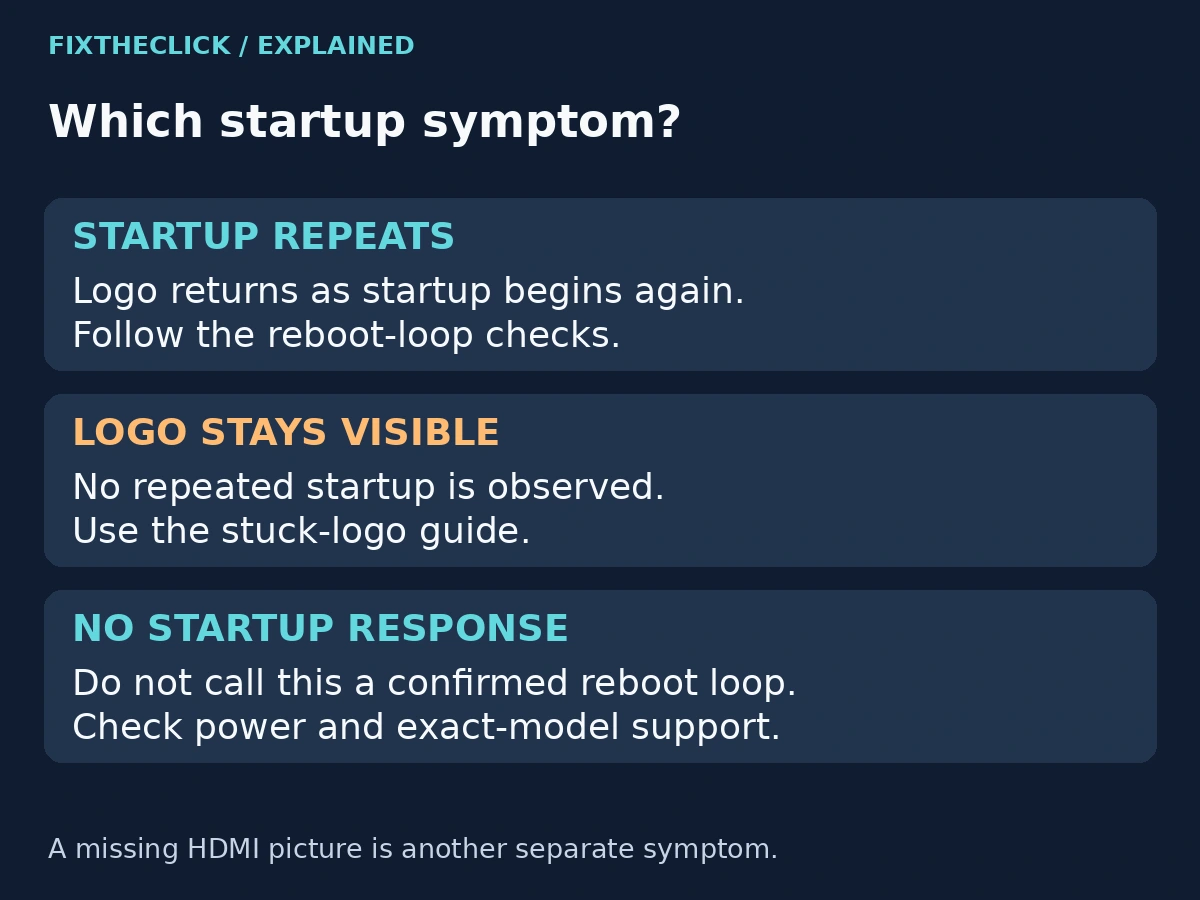
Watch a complete cycle if possible. Does the Fire TV logo reappear after the device seems to start again? Does Home briefly load before another restart? Note what happens without repeatedly pressing buttons or disconnecting power during the observation.
A logo that stays in place is a different symptom. Use our Fire TV stuck on the logo guide when startup appears stationary rather than cycling. If the TV only reports No Signal or loses the whole picture, use the HDMI and blank-screen guide.
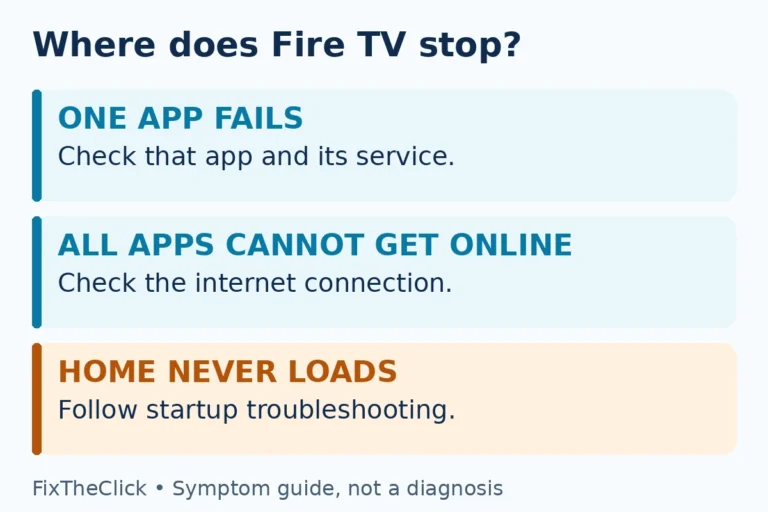
A device that never shows any startup response also needs its own power and support checks. Do not assume that “won’t turn on” and “starts again repeatedly” are interchangeable. If one app closes but the Fire TV interface remains available, that may be an app-level problem rather than a device reboot.
2. Identify a player versus a Fire TV television
A Fire TV Stick or Cube is a separate player connected to a TV. A Fire TV Smart TV has the system built into the television. They do not share one universal power cable, remote shortcut, or menu layout.
Check which device is restarting. If a separate player’s picture vanishes while the television’s own menus still work, record that distinction. If the television itself switches off and returns, use its manufacturer and model when choosing the restart procedure.
Do not disconnect equipment at random. Identify the player’s power supply and the display connection first. Keep any accessibility or control needs in mind before removing accessories that someone relies on to operate the system.
3. Check the specified power supply
Amazon’s startup troubleshooting guidance tells users to use the power cord or adapter included with the device. For a separate player, check that the connections are secure and that the supply matches the exact model.
If the original supply is unavailable, verify replacement compatibility through the device’s official specifications or support. A connector that fits does not by itself establish electrical compatibility. This guide does not assign one adapter rating to every Fire TV product.
Where the player uses an external wall adapter, test with the specified adapter at a working wall outlet rather than relying on the television’s USB port. Treat this as a controlled power comparison, not proof that every TV USB port causes reboot loops.
Do not use damaged cables, exposed wiring, or connectors that require force. If damage is visible, stop using that component and seek an appropriate replacement or support advice. Do not open the player or television to investigate internal power components.
4. Restart using the correct device instructions
If an HDMI player stays usable, Amazon’s Fire TV restart guide documents Settings → My Fire TV → Restart. The current general guide also describes disconnecting its power cord or adapter and reconnecting after 3 seconds.
That is the timing in this particular guide, not a universal rule for every television or troubleshooting scenario. Follow an exact-model instruction if it differs. If Home never stays visible, do not begin with a menu path you cannot use.
For Fire TV Smart TVs, Amazon separately documents a power restart by unplugging the television for at least 30 seconds before reconnecting. This appears in its Smart TV troubleshooting guidance. Use the television manufacturer’s specific procedure where applicable.
Do not transfer a remote-button combination between product families. This guide uses the documented menu and power approaches instead. If an explicit update-installation message appears, do not keep interrupting it; a normal update restart is not automatically a reboot loop.
5. Simplify the HDMI connection for diagnosis
For a separate player connected through an HDMI hub, Amazon’s startup guidance includes testing a direct connection to the TV. Power down the affected equipment before rearranging connections, then select the input that matches the actual port.
Temporarily remove unnecessary HDMI switches or other optional accessories from the test path. Preserve the correct power supply. Do not remove required storage without following its safe-ejection instructions, and do not disconnect a control device needed to complete the test.
A Stick that plugs directly into the television is different from a device using a separate HDMI cable. Only swap or reseat components that are actually present in your setup. There is no reason to buy a new hub merely to test whether the old hub matters.
If behavior changes with the simpler connection, reintroduce optional equipment one item at a time. A problem returning after an item is added tells you where to investigate next; it does not conclusively identify that item as defective.
6. Compare another port or display where practical
Amazon’s startup guidance also includes another HDMI port and, if available, another TV. These comparisons apply to a separate HDMI player, not to removing the built-in Fire TV system from a television.
Keep the player’s specified power supply unchanged while comparing displays. Select the matching input and note whether the complete startup sequence still repeats. If you change the adapter, cable, port, and television simultaneously, the result becomes harder to interpret.
A successful comparison helps narrow the affected setup, but it does not prove a particular port or receiver is broken. Record the working and failing arrangements for support. If the entire television is restarting, continue with that television’s manufacturer rather than treating it as an interchangeable HDMI player.
7. Investigate software only when the device stays usable
Once Fire TV remains on long enough, note whether the problem follows one app or occurs even at Home. If an app closes without restarting the whole device, use our Fire TV app crashing guide for that narrower problem.
If an update reports a failure, use the Fire TV update troubleshooting guide. Do not assume an update caused the loop just because you noticed the issue recently, and do not start deleting app data to investigate a device that cannot remain powered.
Keep the observation specific: startup repeats immediately, restarts occur after a period of use, or one operation triggers the behavior. Avoid invented temperature thresholds or a promise that a fixed cooling period will repair it.
8. Treat factory reset as a late-stage decision
Amazon warns that a factory reset removes account information and downloaded content. Expect to set up the device again, reinstall needed apps, and restore preferences. It is not the same as a restart, and it does not repair a physically damaged power component.
Before considering it, have account access, Wi-Fi details, and a working way to control the device. Follow the exact product’s procedure and read the confirmation screen. Amazon warns that some reset flows proceed automatically if no choice is made, so do not trigger them merely as a diagnostic experiment.
If the device cannot stay on, or the same restart pattern remains after the basic comparisons, contact Amazon or the television manufacturer first. Provide the model, software version if accessible, power equipment, connected accessories, and the results of each comparison. Those facts are more useful than assuming the device needs replacement.
Frequently asked questions
Is a repeating logo the same as a stuck logo?
No. A logo that reappears as startup begins again suggests a repeating startup cycle. A logo that remains stationary needs the separate stuck-logo checks.
Should every Fire TV be unplugged for 60 seconds?
No single timing covers every product and procedure. Use the general player restart guide or the specific television guidance that applies to your device.
Can a factory reset fix a damaged power supply?
No. A reset changes the device’s software setup. Check the specified power equipment before accepting the data loss and setup work of a factory reset.