Roku “Manage Subscription” Missing? Check Apps and Billing
Start in Home → Apps. Highlight the app, then press ★ to open its options. If subscription controls are still missing, look up the subscription in your Roku account and check which company manages it.
A missing Manage subscription option does not tell you whether a subscription is canceled. First check where you opened the app’s options, then follow the billing route for that subscription. These checks are for managing a streaming subscription, not removing a Roku account or resetting the device.
1. Open the App from the Apps Section
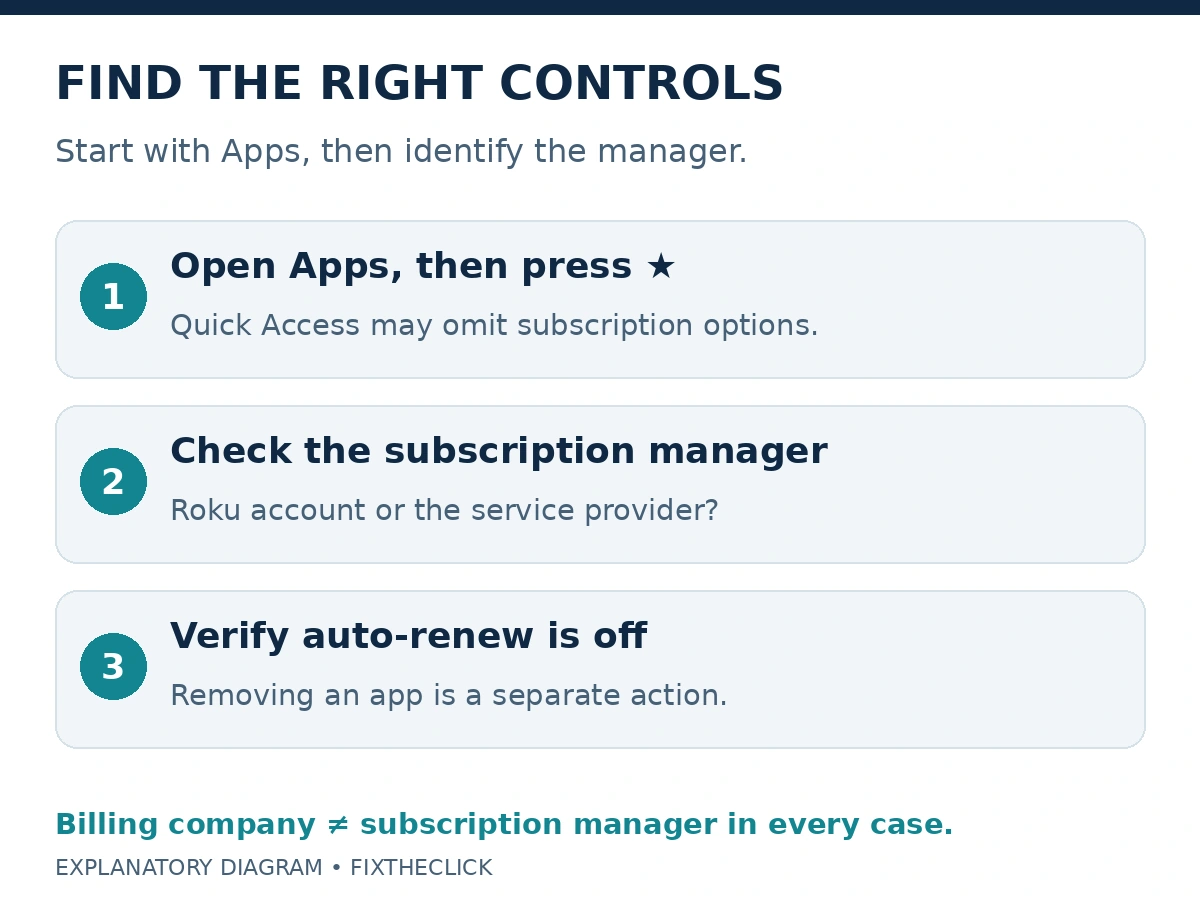
Press Home, scroll to the Apps section, and highlight the app without opening it. Press the remote’s Star (★) button to view its options.
Roku’s subscription-management guide explains that some options, including Manage subscription, are unavailable from Quick Access. If you started there, repeat the check from Apps before troubleshooting your account. A shortcut tile and the app’s full options do not necessarily offer the same controls.
If the option appears, read the renewal information before making a change. If it is still absent, move to the account check below. Reinstalling the app or resetting the player is not a useful first response to a missing subscription menu.
Menu layout can differ by Roku software and device. Use the Apps section and the options actually shown on your screen; this guide does not assume every Home screen looks identical.
2. Find the Account and Subscription Manager
Open your Roku subscriptions in a browser and sign in to the account used for the subscription. Look for the service under Active subscriptions. If it is missing, compare the signed-in account with the account and receipt used when you subscribed.
The question is who manages this particular subscription. Having an app installed on Roku does not establish where you subscribed. Check the service name, receipt, account email, and renewal information privately; you do not need to post payment details or account screenshots to identify the next step.
| What you find | Where to go next |
|---|---|
| A Roku-managed subscription | Use its management controls in your Roku account |
| Disney+, Hulu, or Sling TV, even when Roku bills it | Use that service’s subscription support |
| A subscription obtained directly from another provider | Use that provider’s account or billing controls |
| No matching subscription in this account | Check the original receipt, account, and subscription manager |
Disney+, Hulu, and Sling TV are important exceptions. Roku’s current guidance directs you to those services to manage or cancel their subscriptions even when Roku processes the charge. A Roku billing description alone does not establish that Roku’s cancellation controls apply.
Use the provider links in Roku’s official guide if one of those exceptions matches your receipt. Keep this separate from a streaming-app login: the account that plays a video and the route that manages its billing need to be checked, rather than assumed to be the same screen.
3. Turn Off Auto-Renew and Confirm the Result
For a subscription managed through Roku, the website route is Active subscriptions → select the subscription → Manage subscription → Turn off auto-renew. Confirm that you have selected the intended service before completing the on-screen steps.
On the Roku device, the subscription’s options can also show its renewal date and a Turn off auto-renew choice. If a Roku account PIN is requested and you do not remember it, use our guide to changing the correct Roku PIN, then return to the same prompt. Changing the PIN and turning off a subscription’s renewal are separate actions.
Read the resulting status and the date through which access continues. Roku says a canceled Roku-managed subscription remains available until the current billing cycle ends. Being able to watch afterward does not, by itself, mean the cancellation failed.
Keep the confirmation or make a private note of the service, account, status, and end date. If the page still shows an upcoming renewal instead of the result you expected, check the subscription’s current management screen before assuming the change completed.
Turning off renewal does not promise an immediate refund. If a later charge remains unresolved, compare it with the confirmation and billing period, then contact the company managing that subscription through its official support route. Avoid submitting the same cancellation repeatedly just because access remains during the paid period.
4. Check Subscription Status Before Removing the App
Removing an app and stopping automatic renewal are different steps. Complete and verify the subscription change first. Deleting the tile is not your confirmation that future billing has stopped.
Roku’s app-removal guide says the Remove app option may be absent while a subscription is active or during the current billing cycle. Turning off auto-renew therefore does not guarantee that the removal option appears immediately.
When removal is available and you still want it, highlight the app on Home, press Star, select Remove app, and read the confirmation. Check the subscription status separately afterward; do not use the app’s presence or absence as a billing-status indicator.
If you are still stuck, collect three observations for support: whether you opened options from Apps, whether the subscription appears in the correct account, and which company manages it. Those details help separate a missing menu from an account mismatch or a provider-managed subscription without erasing the Roku’s setup.