Windows 11 Update Not Installing? Start With the Error Code
Windows 11 opens normally, but an update will not install. First record the exact error, update name, and whether Windows is waiting for a restart. Then run Microsoft’s Windows Update troubleshooter in Get Help.
Check power, connectivity, and available space before trying a repair matched to that error. This guide covers an installation failure on a PC whose desktop and Settings still work. A computer that cannot boot or is stuck on an installation screen needs a different troubleshooting path.
1. Record the failed update and the stage it reached
Open Settings → Windows Update. Write down the displayed update name, any KB identifier actually shown, the complete error code, and the current status. Do not substitute an error number from another person’s screenshot.
Check Update history for the relevant entry and its result. Microsoft documents that route in its Windows Update FAQ. A missing code is still worth recording: keep the exact message rather than guessing what it means.
Separate download failure, installation failure after downloading, and a pending restart. That distinction tells you which observation to revisit after a change. If several updates are listed, identify the one that failed instead of treating every entry as part of the same fault.
| Current situation | First useful action |
|---|---|
| Restart requested; desktop works | Save work and use the normal restart option |
| Download fails | Record the message and check the PC’s connection |
| Installation fails with a code | Keep the update details and run Get Help |
| Desktop no longer opens | Use recovery guidance rather than these Settings steps |
2. Prepare for a normal restart and a stable download
Save open work and protect important files before troubleshooting. If you need a backup method, Microsoft’s Windows Backup guide explains its account-based options. Verify that the files you need are actually protected; having a backup app installed is not a confirmation.
Keep a laptop connected to its appropriate power supply. Check internet access on the PC that is downloading the update. A working phone is only a useful comparison if it is using the same Wi-Fi rather than cellular data; it does not establish that the PC’s connection works.
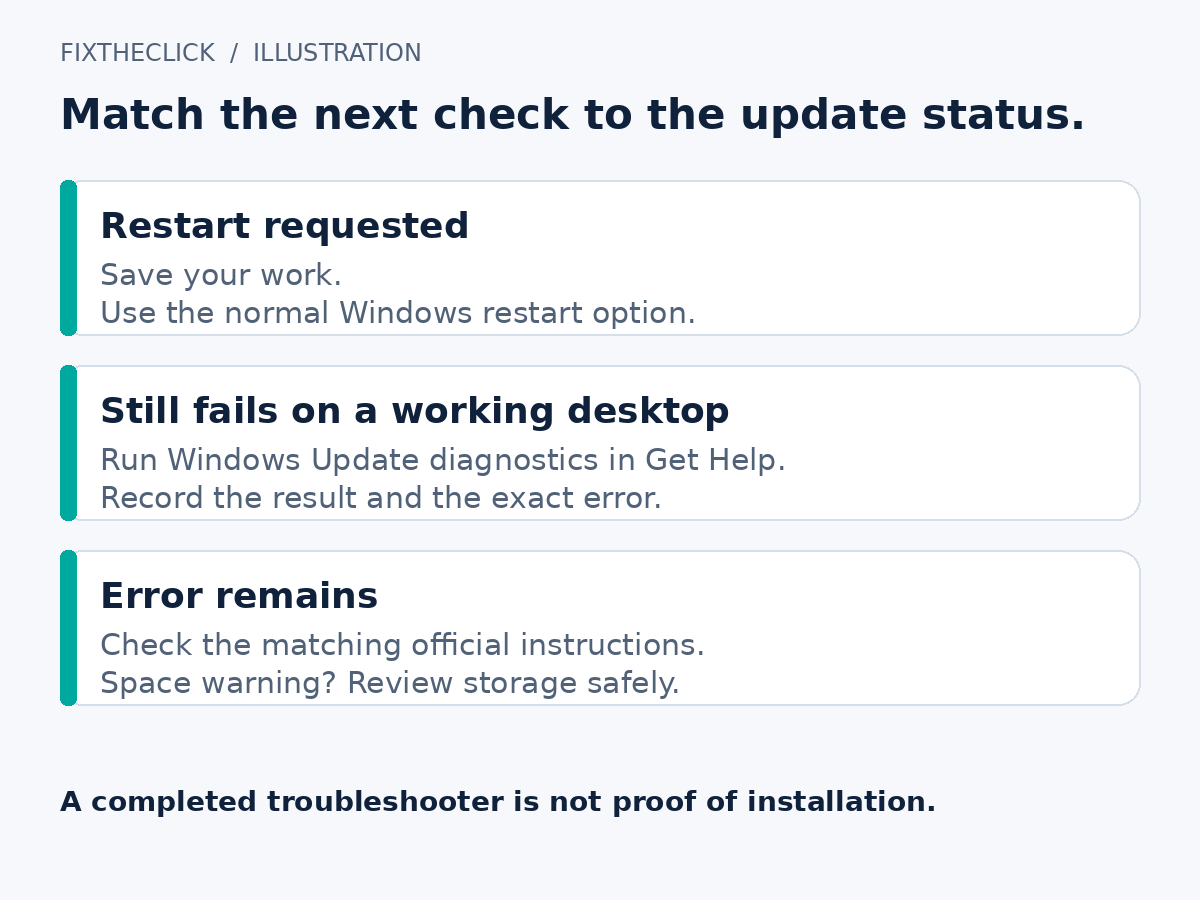
When Windows requests a restart, use the restart control it provides after saving your work. Microsoft’s update guidance also describes the normal power-menu update/restart options. Holding the power button to force the PC off is not the same action.
If an installation screen is already active, do not apply an invented “wait a few minutes, then force shutdown” rule. This article assumes you can return to the desktop and Settings. Keep the exact screen message and consult the appropriate official guidance if that assumption no longer holds.
3. Run the Windows Update troubleshooter in Get Help
Open Microsoft’s Windows Update troubleshooter page and use its Get Help option on the affected Windows 11 PC. Follow the prompts and keep the diagnostic result. The current official guide identifies Get Help as the starting tool for Windows 11.
Windows also documents a route through System settings, troubleshooting, and the other troubleshooters list. If that route is available on your build, choose Windows Update. Follow the controls actually displayed rather than borrowing Windows 10’s Update & Security menu.
After the tool finishes, complete a requested normal restart, reopen Windows Update, and check for updates. Note whether the same update still fails and whether its error changed. The tool can diagnose and attempt repairs; its completion alone does not prove the update installed.
4. Check free space without turning this into a deletion guide
If Windows reports insufficient space, check the system drive in Storage settings. Follow the requirement displayed for your particular update. Do not assume a generic drive-size figure is the free-space requirement for every Windows 11 update.
For help choosing safe cleanup targets, see C Drive Full in Windows 11? What to Check Before Deleting Files. That guide separates personal files, temporary items, OneDrive availability, and the recovery consequences of removing a previous installation.
Return here after checking space and retry the update through Windows Update. If the shortage is resolved but the same error remains, stop deleting unrelated files. Available space is one check, not evidence that every installation failure has the same cause.
5. Match the remaining error to the official instructions
Use Microsoft’s update troubleshooting guide to find the entry that matches your recorded code and situation. Its general steps include power, internet access, storage, and restarting. More involved repairs belong after these checks.
For an upgrade-related error, Microsoft has a separate upgrade and installation error guide. Some generic failure messages need the detailed code before a useful next step can be selected. Confirm that the instructions apply to your Windows version and type of installation.
Do not copy a service-stopping script, erase update folders, or remove every driver just because another PC had a similar message. A later repair should address the identified failure and include its prerequisites. Keep security protections enabled while completing the initial checks.
On a work or school PC, managed update settings or an administrator requirement belong with IT. Give them the error and update details instead of attempting to override policy. For a personal PC, use Microsoft’s official support if the matched guidance does not resolve the failure.
Frequently asked questions
Does “restart required” mean the update failed?
It can be a remaining installation step. Save work, perform the requested normal restart, and then check the update’s result before diagnosing a persistent failure.
Should I factory-reset the PC?
That is not an initial response to an update error on a working desktop. Record the failure, run the supported diagnostic tool, and follow the relevant official instructions first.
What should I send support?
Provide the Windows version, exact update name and displayed KB identifier, full error code, failure stage, restart status, free-space result, and Get Help outcome. Include what changed after each attempt. Remove account details and personal filenames from screenshots.