Printer Offline in Windows 11 but Connected to Wi-Fi? Start Here
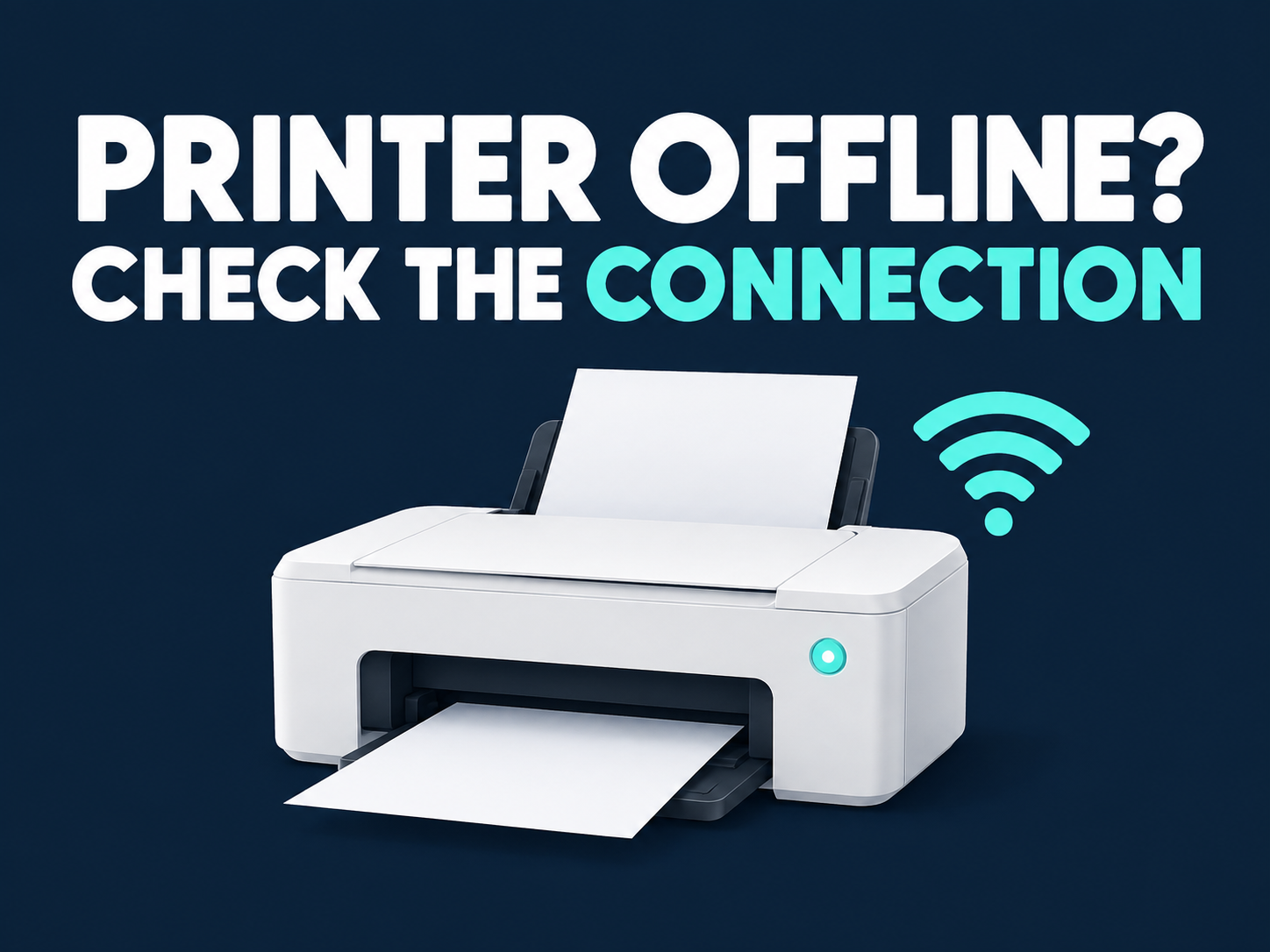
Your printer shows a Wi-Fi connection, but Windows 11 still calls it Offline. That light does not confirm that this PC can reach the printer—or that your document is going to the right printer entry.
Quick answer: Confirm the printer and PC are on the same usable network, check the printer for an error, and select the correct printer in Windows. Then run the Get Help printer troubleshooter and inspect its queue. Restart Print Spooler only if needed; remove and reinstall the printer after those checks.
This guide covers a Wi-Fi printer used from Windows 11. For a company-managed printer or shared print server, involve IT before changing the installation. A printer connected directly by USB needs its cable connection checked instead.
1. Check the Printer and the Network It Actually Uses
Look at the printer itself before sending more copies of your document. Is it awake and ready, or does its display report a paper jam, open cover, or another error? Resolve the displayed condition using the exact model’s instructions. An Offline label on the PC is not a substitute for reading that message.
Compare the printer’s connected network with the network currently used by the PC. Use the printer’s network screen or documented wireless-status report; do not guess a button combination. Microsoft’s printer connection guide specifically calls out separate network names on routers, access points, and extenders.
If you recently changed the router or Wi-Fi name, confirm the printer joined the current network. A saved setup from the previous router is not enough. If this is a managed or guest network, ask its administrator whether local printing is supported rather than turning off security.
If the PC itself cannot join Wi-Fi, solve that connection first. Our laptop Wi-Fi connection guide covers that separate problem. When comparing with a phone, verify that it is using the same Wi-Fi rather than cellular data.
For an otherwise unresponsive printer, Microsoft suggests turning it off, unplugging it for 30 seconds, and reconnecting it. Let it finish starting before testing again. Restarting the printer is different from erasing its wireless settings.
2. Run Windows 11’s Get Help Printer Check
Microsoft’s offline-printer instructions recommend the automated printer troubleshooter in Get Help. Open Get Help from Start and follow the printer troubleshooting prompts, or use the troubleshooter link on that Microsoft page.
Read the result before making another change. Write down the printer it checked and any named error. “No issue found” does not establish that the printer is reachable from every app; it tells you that this diagnostic did not resolve the problem.
Try one small document after a reported fix. If it prints, stop troubleshooting. Avoid submitting the same job repeatedly while you are unsure whether earlier copies remain queued.
3. Choose the Correct Windows Printer Entry
Open Settings → Bluetooth & devices → Printers & scanners. Compare the listed printer name with your intended device, then also check the printer selected in the app’s Print dialog. Do not remove every entry just because two names look similar.
To make one printer your usual choice, turn off Let Windows manage my default printer under Printer preferences, select the desired printer, and choose Set as default. Microsoft’s default-printer guide explains that automatic management can select the last printer used; disabling it exposes manual selection when the button is missing.
Default is a selection preference, not a connectivity repair. If the correct printer is already selected and still offline, continue to its queue. Changing the default cannot make a disconnected device reachable.
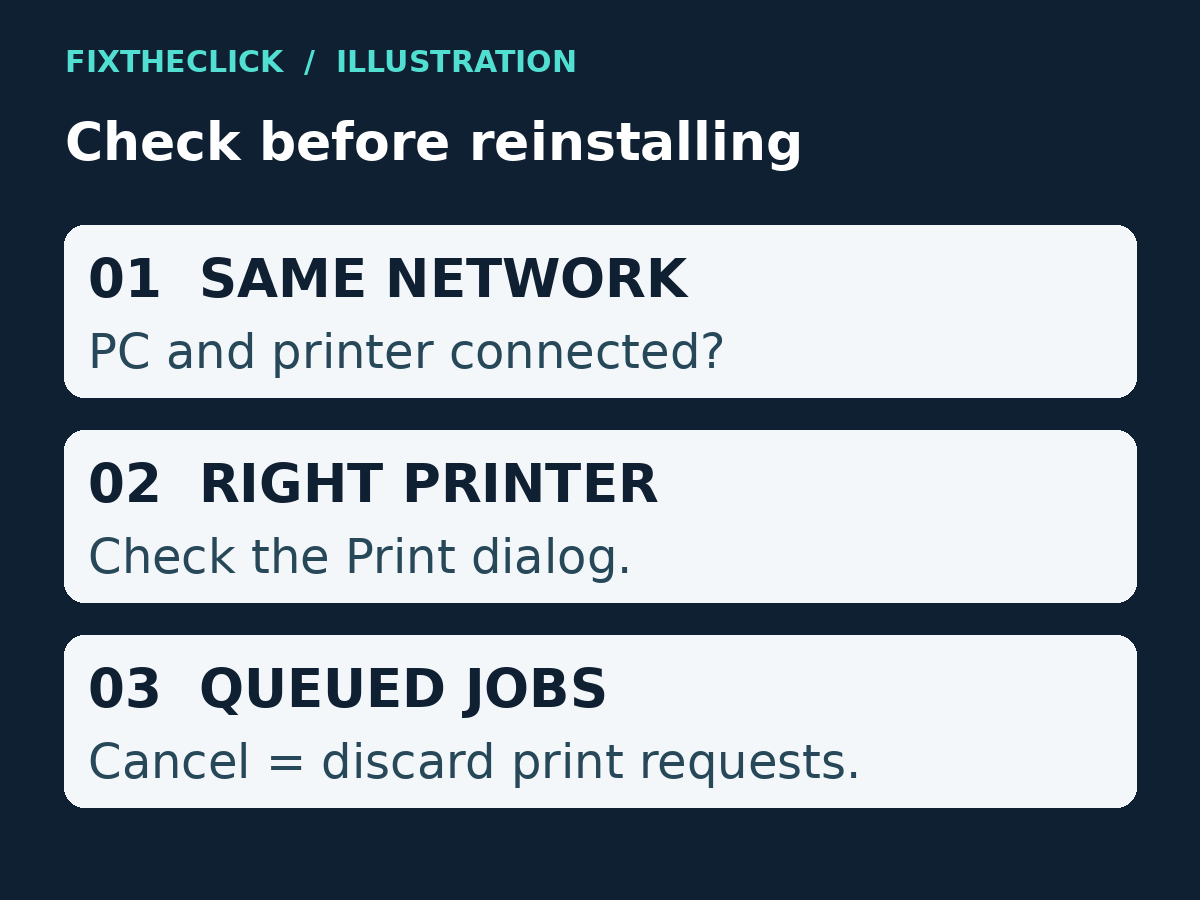
4. Inspect the Queue Before Canceling Anything
In Printers & scanners, select the intended printer and choose Open print queue. Microsoft’s queue guide shows this Windows 11 route. Check the queue’s printer selection and pending documents, not just whether the window opened.
An empty queue means no jobs are waiting there. It does not prove the physical printer is online. Conversely, a list of documents tells you what has been submitted, not necessarily why printing stopped.
Canceling pending jobs discards those print requests. Keep the original documents and note what needs resending. If you own the queued jobs and want to clear the backlog, use the queue’s … → Cancel all option documented in Microsoft’s offline guide. Do not clear coworkers’ work on a shared printer.
After cancellation finishes, send one fresh test job. For a job that refuses to disappear, follow Microsoft’s stuck print-job guidance rather than repeatedly clicking Print.
5. Restart Print Spooler If Printing Is Still Stalled
Print Spooler is the Windows service involved in handling print jobs. Microsoft includes restarting it in its troubleshooting guidance. Search Start for Services, open it, find Print Spooler, then right-click it and choose Restart.
This can interrupt printing from this PC, so finish or coordinate other printing first. If Windows requires administrator access you do not have, stop and ask the administrator. You do not need to change unrelated services or delete system folders for this step.
Retry once after the service restarts. If it repeatedly stops or reports an error, save that message for support. Microsoft has a separate Print Spooler troubleshooting guide; repeatedly restarting a failing service is not a diagnosis.
6. Remove and Re-add Only the Affected Printer
Keep this for a printer that remains unavailable after the connection, selection, queue, and service checks. First record its model and current entry name. For an office printer, obtain the approved installation instructions before removing anything.
Go to Settings → Bluetooth & devices → Printers & scanners, select that printer, and choose Remove. With the printer powered on and connected to the same network, return to the list and select Add device. Choose the matching device when Windows finds it.
If discovery fails, use the manual option described in Microsoft’s installation guide or your model’s official support instructions. Do not guess ports or install a paid “driver fixer.” Record whether Windows cannot find the device or finds it but fails during installation; those are different stopping points.
Frequently Asked Questions
Why does the printer have Wi-Fi but still show Offline?
The wireless indicator and Windows’ ability to communicate with the chosen printer entry are different checks. Confirm the current network, printer status, selected destination, and queue before deciding that hardware has failed.
Should I use these steps for a USB printer?
The Windows selection and queue checks can still help, but the same-Wi-Fi check is not the connection test for a directly attached USB printer. Check its USB cable and the model’s wired setup instructions.
What should I send to support?
Provide the printer model, Windows version, exact status message, connection type, Get Help result, and the last step that changed anything. Keep document contents, Wi-Fi passwords, and other private information out of screenshots.