Roku Screen Mirroring Not Working on Windows 11? Check the Connection Request
Your Windows laptop is ready to share its screen, but the Roku never appears—or it appears and refuses to connect. Those are different failures. Before changing your network or resetting anything, find out whether the request leaves the PC and reaches the TV.
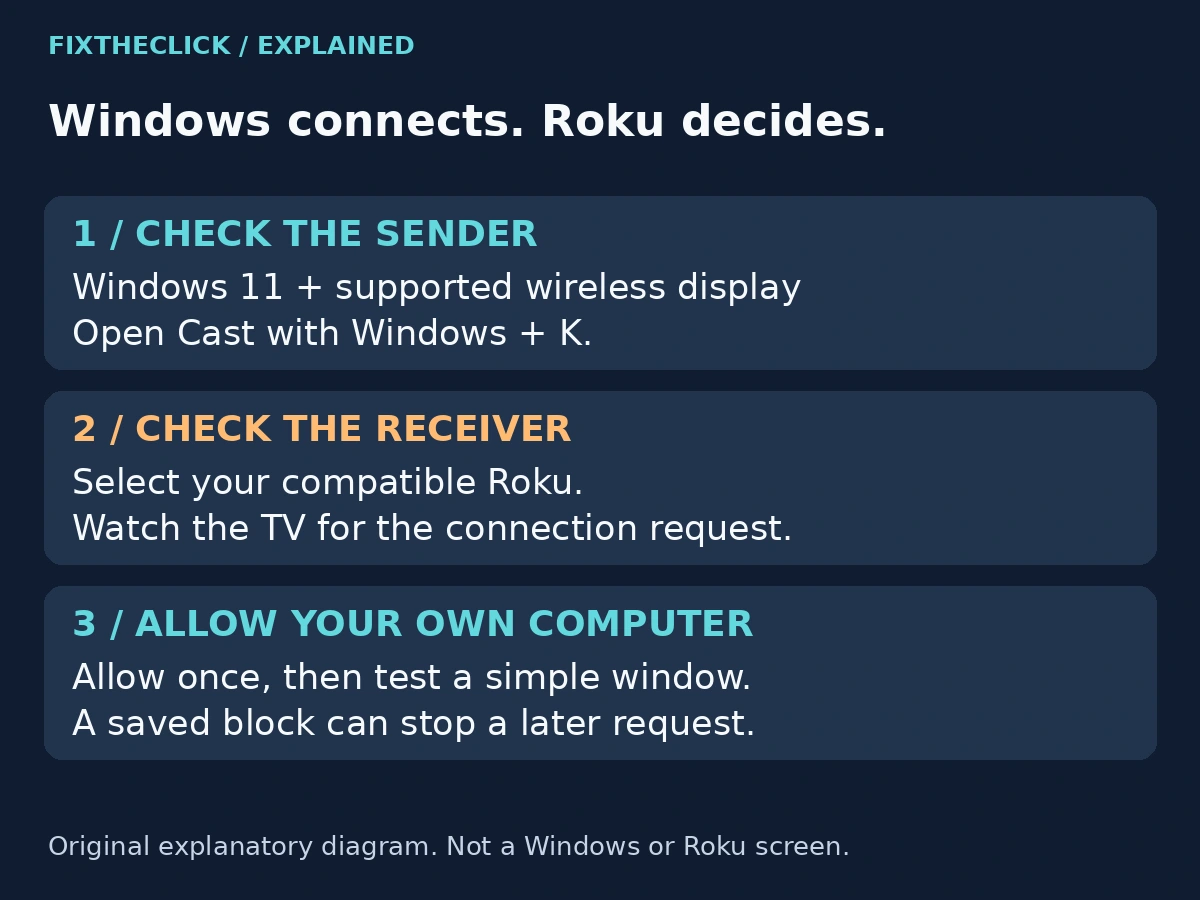
Quick Answer: On a compatible Windows 11 PC, press Windows + K, select your Roku, and watch the TV for a connection request. Allow the request from your own computer. If the Roku is missing, check wireless-display compatibility and that Wi-Fi is enabled. If it is listed but blocked, review the Roku’s mirroring permissions, including any earlier block for that PC.
1. Confirm the devices and the sharing method
This guide covers a Windows 11 computer sending its desktop to a supported Roku receiver. It does not cover controlling Roku with a phone, selecting a video app’s Cast icon, or using Apple AirPlay. Start with the method you actually want to use; similar-looking device lists are not interchangeable.
Roku’s screen-mirroring guide includes Windows 11 instructions but excludes some older Roku hardware. For example, Roku Express model 3700 does not support the described mirroring feature. Check the exact model under Settings → System → About, then compare it with Roku’s current guidance. The product family name alone is not enough.
On the PC, Microsoft says Windows + K can display a message when Miracast is not supported. Treat that as a compatibility check, not an instruction to repeatedly restart the Roku. A working laptop screen and working internet connection do not, by themselves, establish wireless-display support.
Using an iPhone, iPad, or Mac instead? Follow our Roku AirPlay discovery guide. Changing the Windows steps will not turn them into an Apple connection method.
2. Open Cast and identify the failure stage
Wake the Roku and make sure you can see its normal interface. On the Windows 11 PC, keep Wi-Fi enabled, press Windows + K, and look for the intended Roku in the Cast list. Select it if it appears, then look at the television rather than waiting only at the laptop.
Use a harmless desktop window for the first attempt. A document containing private information is a poor test screen, especially on a shared television. Close anything you would not want other people in the room to see before accepting the connection.
| What happens | Check next |
|---|---|
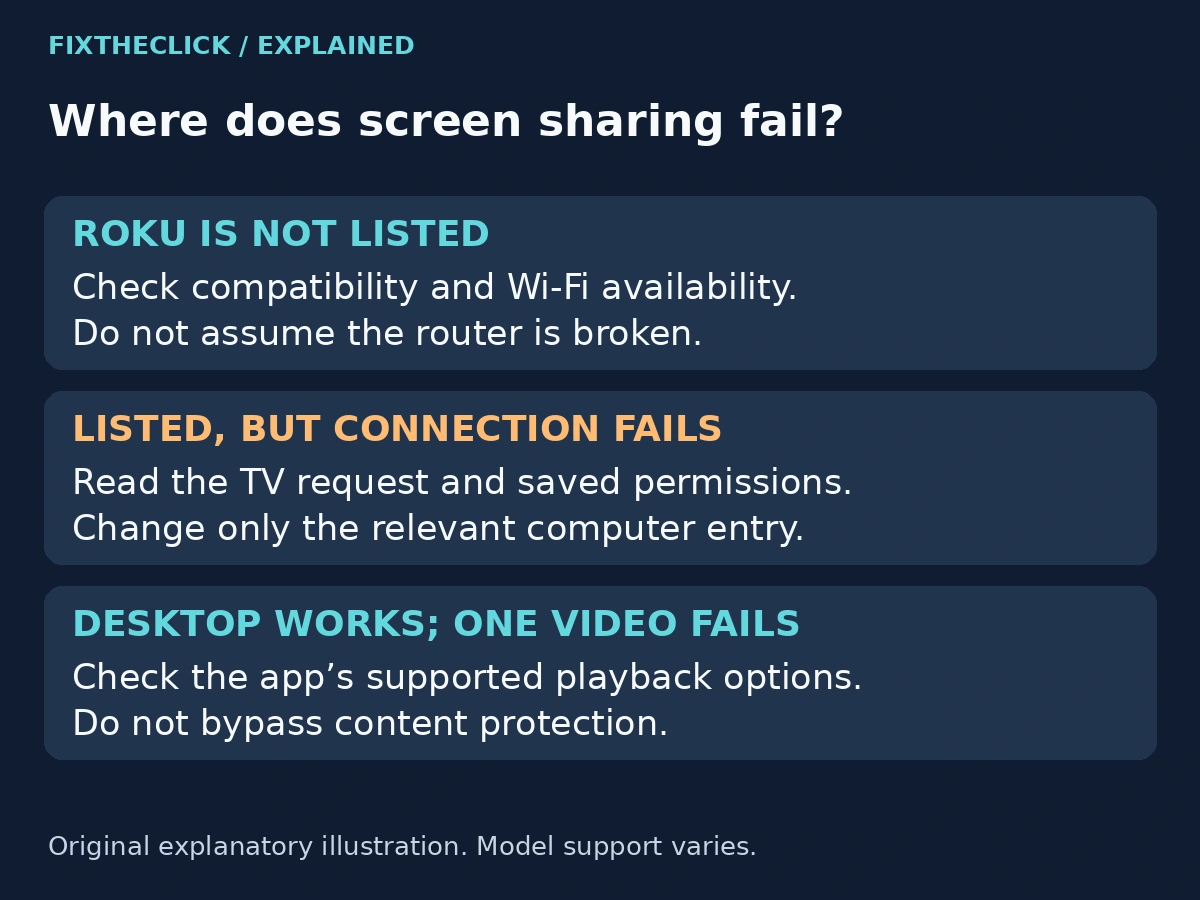
| Roku is absent from Cast | PC wireless-display support, Roku compatibility, power, and Wi-Fi availability |
| Roku appears, but no connection completes | The TV’s request and mirroring permissions |
| Desktop appears, but it looks different | Windows projection mode before troubleshooting the connection again |
| Desktop works, but one video does not | That app’s supported playback options |
Write down the actual message. “Not listed,” “connection denied,” and “video will not play” give support very different information. Avoid changing several settings at once, because that makes it harder to know which stage improved.
3. Read the request on the TV—and check previous blocks
Roku offers four responses to a mirroring request. Allow accepts the current session; Always allow remembers that device. Block rejects the current attempt; Always block remembers a refusal. For a first test from your own PC, a one-session allowance is enough. There is no need to allow every device nearby.
A previously remembered refusal can explain why another attempt does not produce the response you expect. Check the receiving Roku, not just the Windows connection panel. Also confirm that the television displaying the request is the one you intended to use.
For Roku TVs using the layout documented in the U.S. Roku TV v14.0 guide, saved allow/block entries are managed under Settings → System → Screen mirroring → Screen mirroring devices. Review the entry matching your PC and change only that device’s permission as offered on your screen. The guide also distinguishes a prompting mode from a mode that refuses mirroring.
That is a documented Roku TV menu, not a guarantee that every player or newer software version uses identical wording. If your screen differs, use the model’s current support instructions. Do not guess at hidden menus or clear unrelated Bluetooth devices. Ask the owner before changing permissions on a shared or hosted TV.
4. If Roku never appears, check the PC side separately
Microsoft’s wireless-display troubleshooting guide recommends checking Miracast support, enabling Wi-Fi, and making sure the receiving display is powered on and supports the connection. Restarting the PC and receiver is a reasonable next check once compatibility is established.
Keep this focused. A missing Roku entry does not establish that your router is defective. Do not disable your firewall or network security to see whether something changes. On a work-managed laptop, ask IT whether wireless projection is supported rather than changing managed settings.
If Windows already has a stale entry for this receiver, Microsoft documents removing that specific wireless display under Settings → Bluetooth & devices → Devices, then reconnecting. Use that step only when the relevant display is actually listed. Removing unrelated devices adds work without testing this connection.
For persistent PC-side problems, check the computer manufacturer’s current guidance for the exact model and supported display/network drivers. Avoid unofficial driver packages. Updating software can be appropriate, but it does not prove that an unsupported hardware combination will become compatible.
5. If the desktop connects, stop troubleshooting discovery
A visible desktop changes the question. If the TV shows a different workspace rather than the laptop’s current window, check the Windows projection choice. Microsoft’s projection guide distinguishes Duplicate, which shows the same content, from Extend, which provides additional desktop space. Use Windows + P to review the supported choices.
If a simple window displays correctly but one streaming video fails, keep that result separate. Check the service’s official playback and screen-sharing support. A working desktop does not guarantee every protected title or app permits the same presentation method. Do not try to bypass copy protection or label the television broken from this result alone.
When finished, disconnect the wireless session. Before another test, change one relevant item and repeat the same simple desktop check. This makes the comparison useful without turning troubleshooting into a collection of unrelated resets.
Frequently asked questions
Do I need to install Windows Wireless Display to send my screen to Roku?
Microsoft’s optional-feature instructions address using a Windows PC as the receiving display. That is different from sending your existing PC screen to Roku. Start with the sender’s Cast function and compatibility check; do not install a receiver feature as a universal Roku fix.
Why is Roku listed but the TV will not accept my laptop?
Check the television’s current request and any saved refusal for that computer. Being discovered and being permitted to connect are separate stages. If permissions look correct, record the exact failure message before trying a restart or contacting support.
What should I collect if it still fails?
Save the Roku model/software version, PC model and Windows version, whether Cast lists the Roku, whether the TV shows a request, and whether any desktop content appears. These details help Roku or the PC manufacturer focus on compatibility, approval, or playback instead of repeating a generic factory-reset checklist.