Prime Video Not Working on Fire TV? Fix Loading and Playback Errors
Fire TV reaches the Home screen, and another streaming app plays normally—but Prime Video keeps loading, closes, or refuses to start a title. Before changing network settings, check exactly where playback stops. A rental prompt needs a different response from an app that closes as soon as you open it.
Quick Answer
If only Prime Video is failing, try another Prime Video title and then another streaming app. Reopen Prime Video and restart the Fire TV before clearing anything. If a title asks for a rental, purchase, or extra subscription, check its access requirements instead of treating the message as a device fault. For repeated app loading failures, try clearing Prime Video's cache; keep data deletion for later, with account access ready.
1. Is it one title, Prime Video only, or every app?
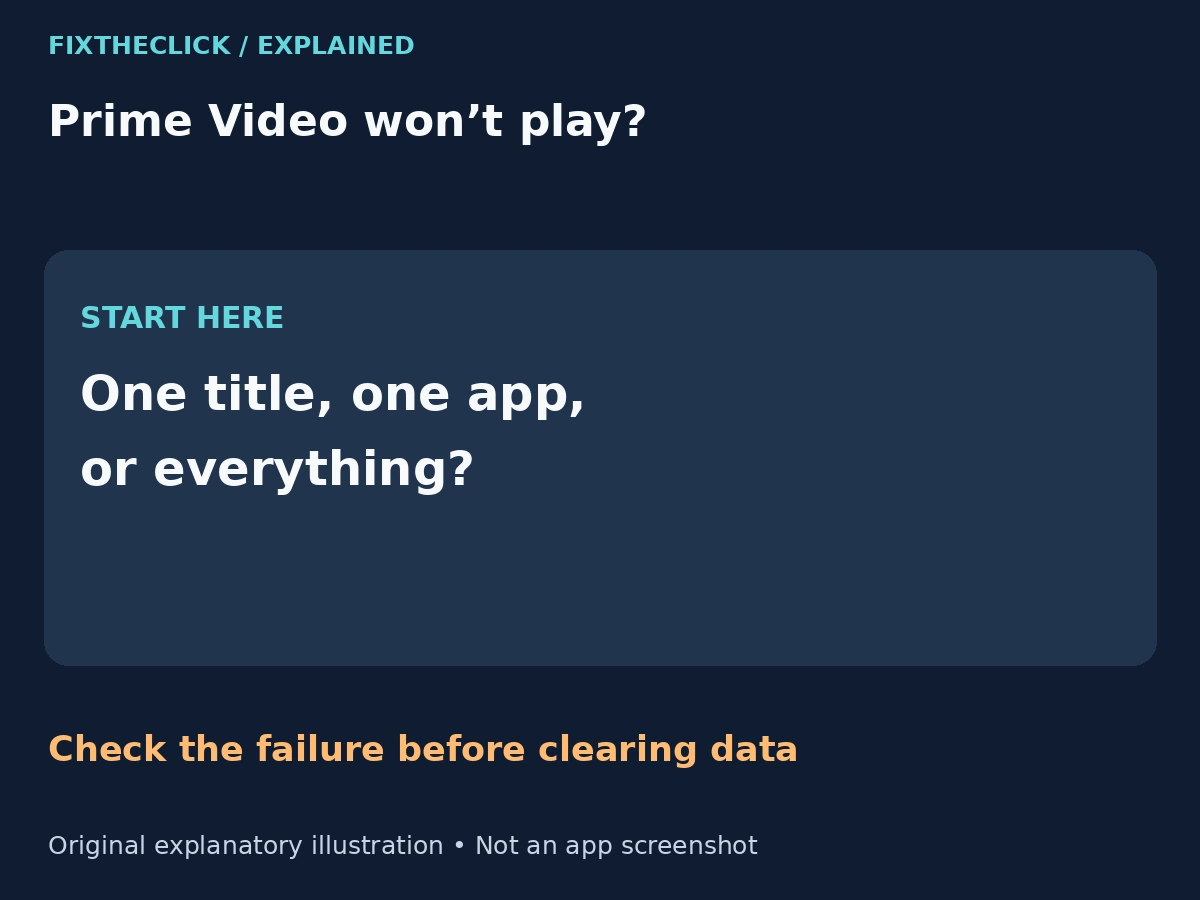
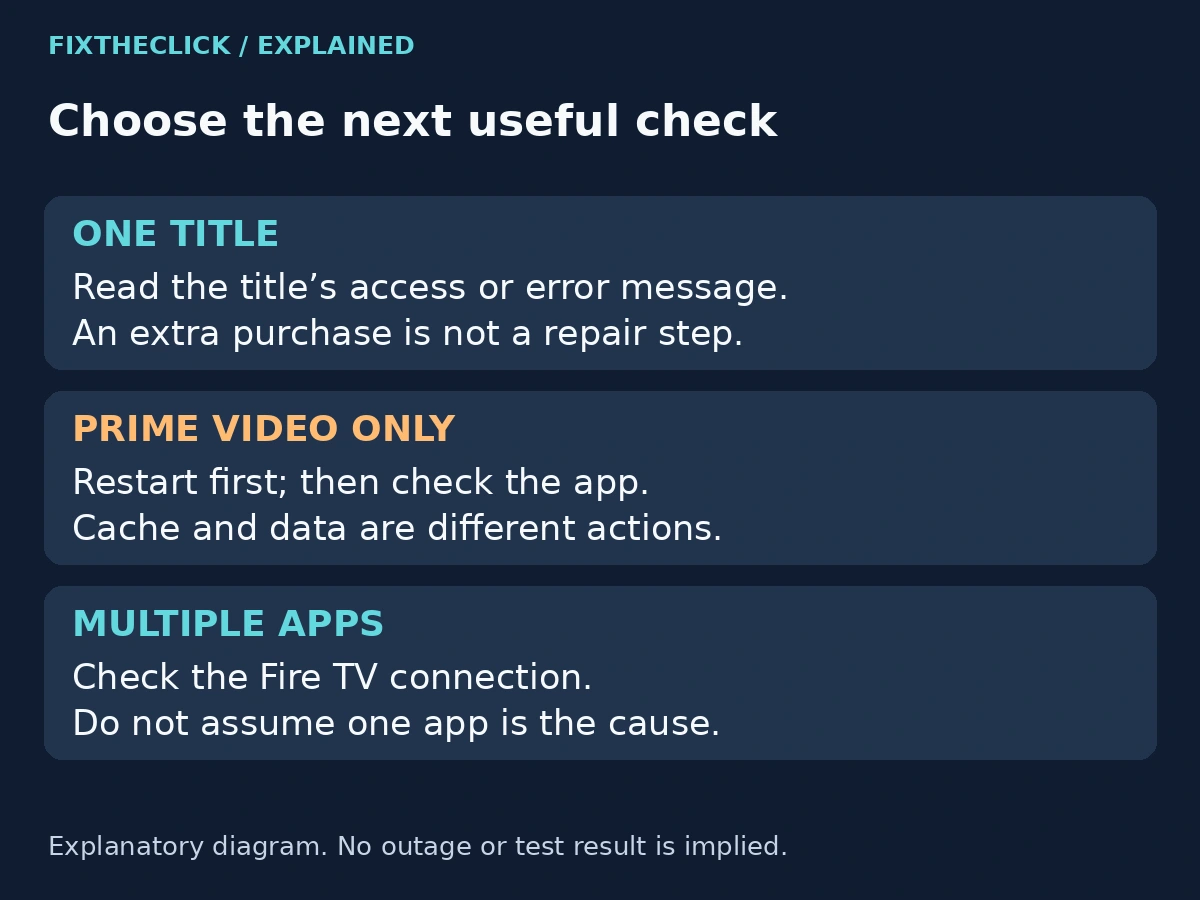
Start with two short comparisons. Choose a different title you expect to have access to in Prime Video. Then try playback in another installed streaming app. You are narrowing the problem, not proving a cause from one successful test.
| What you see | Check next |
|---|---|
| One title fails; another Prime Video title plays | The title's access message and exact playback error |
| Several Prime Video titles fail; another app plays | Prime Video's loading state, account, and app-specific controls |
| Several streaming apps fail | The Fire TV's connection and whether the failure is shared |
| Prime Video closes before you can choose a title | Restart, cache, and the app-crash troubleshooting path |
Write down the error text before dismissing it. Note whether it appears while opening the app, choosing a title, or pressing Play. That distinction is more useful than repeatedly trying the same button.
If other apps cannot get online either, use our Fire TV connected to Wi-Fi but no internet guide. A TV with no picture at all is outside this guide: these steps assume you can see and navigate Fire TV Home.
2. Check the title's access message before resetting the app
An accessible Prime Video catalog does not mean every title in it is included with your membership. Amazon's rentals and purchases explanation distinguishes included titles from separately paid viewing. A title previously included can also change availability.
Look at the current title page. Does it offer Play, or ask you to rent, buy, or start an additional subscription? Amazon also explains that Prime Video add-on subscriptions are separate from the base membership. Do not purchase a title or start a trial just to test whether the Fire TV works. Choose something you already have access to for the comparison.
If you believe access is missing, check which Amazon account you are using and compare it with the account associated with the membership, purchase, or add-on. Keep receipts and account details private. Clearing cache cannot grant a viewing entitlement, and canceling a subscription is not a playback repair step.
For an explicit simultaneous-viewing message, check whether the same title is playing elsewhere in your household. Amazon's Prime Video playback troubleshooting limits simultaneous streams of the same title to two devices. This check belongs with that message; it is not an explanation for every loading spinner.
3. Restart before clearing data
Return to Fire TV Home, reopen Prime Video, and retry the same accessible title. If the app is still stuck, restart the Fire TV using the restart control available on your device.
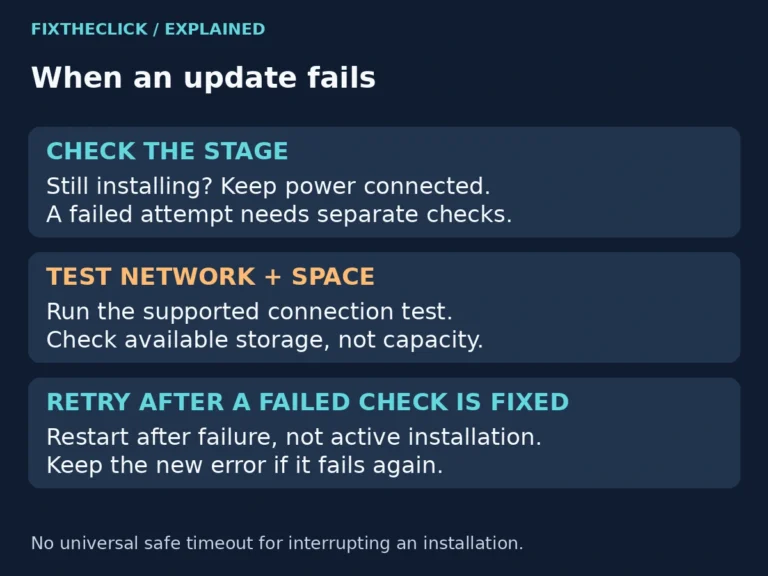
For a power restart, Amazon's Fire TV app troubleshooting guide gives a one-minute power-adapter disconnect before reconnecting. Follow your device's own restart guidance, especially on a television with Fire TV built in. Do not interrupt an update screen that tells you to keep power connected.
Once Home returns, try Prime Video before changing another setting. If it now plays, stop troubleshooting. If it closes immediately rather than reaching a title page, our Fire TV app-crash guide covers that separate failure in more detail.
4. Clear Cache and Clear Data are different choices
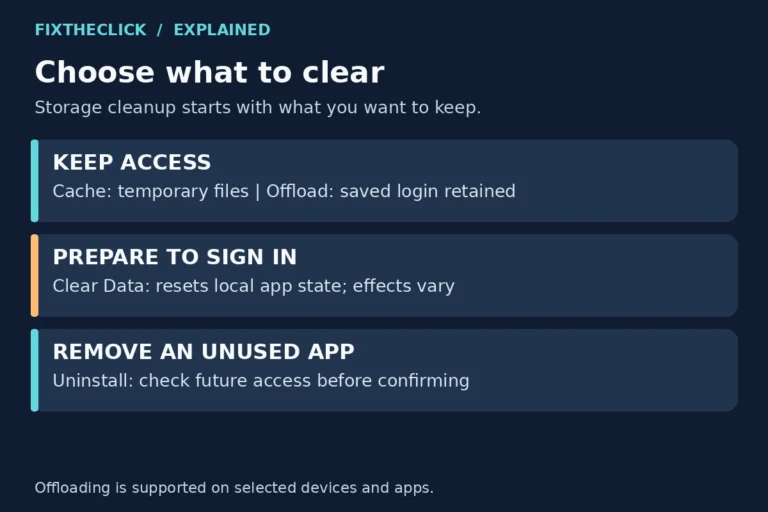
On Fire TV interfaces with Amazon's documented app-management controls, open Settings → Applications → Manage Installed Applications → Prime Video. Choose Clear Cache first. This removes temporary app files; reopen Prime Video and compare the result before doing anything more disruptive.
Amazon documents these controls in its cache and app-data guide. Menu wording and available controls vary by model and software. If Prime Video or a particular action is absent, do not substitute an unrelated system app or follow a hidden-menu workaround.
Clear Data is a separate action that resets the app's local state. Before using it, make sure you can sign back in and restore any app preferences that may need attention. Do not clear data when you are unsure which account holds your viewing access.
Use it only after the simpler checks leave Prime Video failing. Deleting local data is not the same as canceling a subscription, fixing a purchase entitlement, or resetting the entire Fire TV. This guide also does not assume that the built-in Prime Video app can be uninstalled on every model.
5. Follow the remaining error, not a generic reset list
If the problem remains, compare the current message with the one you first recorded. A change from an endless loading screen to an access prompt is useful information, even though playback has not started yet.
Amazon's Prime Video guidance recommends current app and device software and an accurate automatic date and time. Use the update controls provided on your Fire TV model. On supported interfaces, Amazon's Fire TV guide lists Settings → My Fire TV or Devices & Software → About → Check for System Update. If your screen differs, use that model's official instructions instead of forcing the same path.
For a title-specific failure, return to Prime Video's official help with the title and error text. For an app-wide failure, report that another streaming app works and describe which steps changed the result. Do not describe it as a worldwide service outage unless there is a current official announcement supporting that claim.
If several apps also begin failing, switch to connection troubleshooting. A Prime Video-only error is not a reason to change your country, buy a VPN, alter DNS, or factory-reset a working Fire TV.
Before contacting support
Have the Fire TV model and software version, the exact error, and the affected title or titles ready. Explain whether another Prime Video title and another streaming app played during your comparison. Include whether restarting or clearing cache made any difference. Share account-specific details only through the official support flow, not in public comments or screenshots.
Frequently Asked Questions
Why does Prime Video ask me to pay when I already have Prime?
Some titles require a separate rental, purchase, or add-on subscription. Check the offer on that title's page and the account holding your access. If you believe an existing purchase is missing, contact official support rather than purchasing it again as a troubleshooting test.
Should I clear data before trying cache?
Start with restarting and clearing cache. Data deletion has a greater effect on the app's local state and may leave you needing to sign in or restore preferences. Neither action changes what your subscription includes.
Does working Wi-Fi rule out every connection problem?
No. It helps establish that the Fire TV is connected, but does not prove that every service request or stream will succeed. Compare another title and another app, then follow the branch that matches the actual failure instead of assuming either the network or Prime Video must be at fault.