Fire TV Keeps Talking? Turn Off VoiceView or Audio Description
You move to another menu item, and a voice reads it aloud. Or you start a movie and hear someone describing every movement between the dialogue. Both can feel like a narrator has suddenly taken over, but they call for different settings.
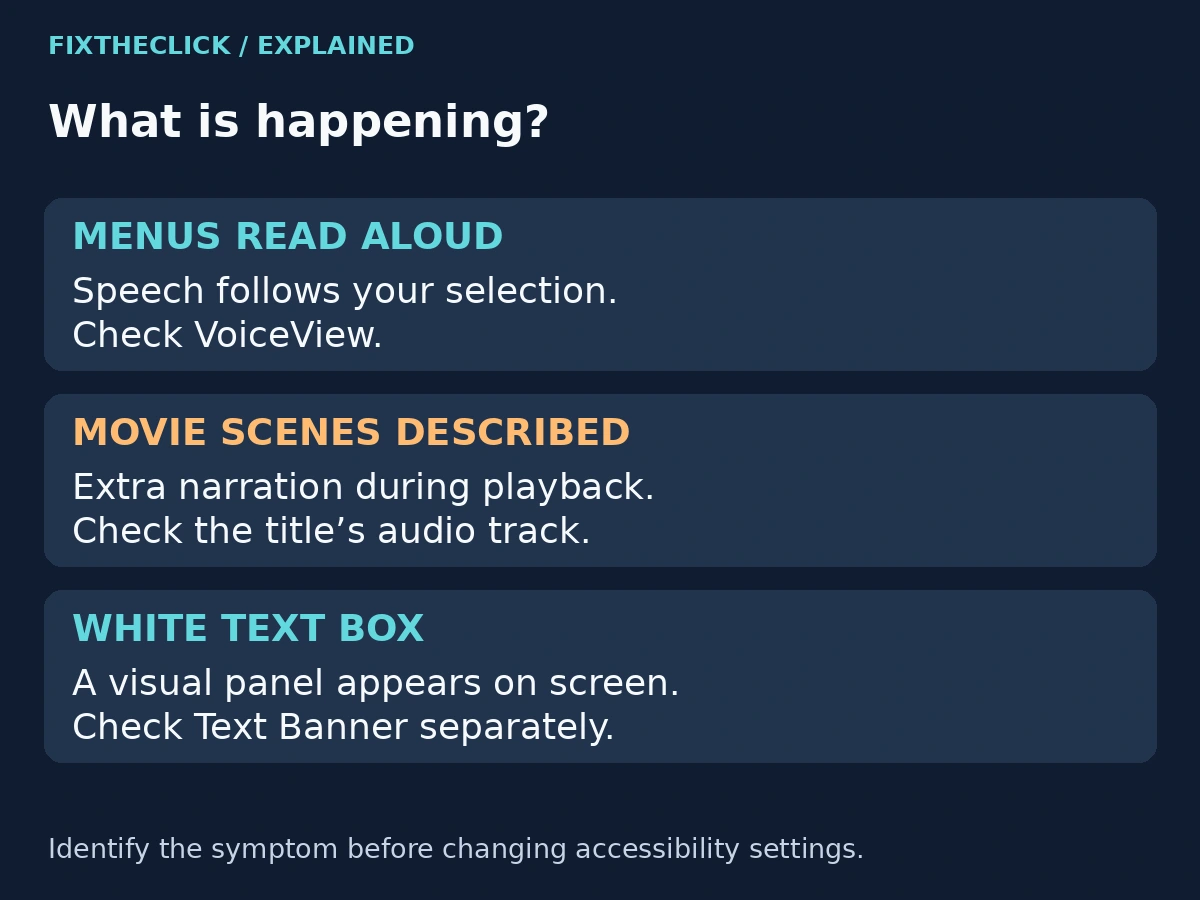
Quick Answer: If Fire TV reads menu labels, check VoiceView under Settings → Accessibility. If a voice describes movie scenes, check the selected audio track inside that streaming app. Start by identifying when the speech happens; turning off a screen reader will not necessarily change a movie’s audio track.
These features help people access their television. Someone in your household may rely on them, so check before changing a shared setup. You can make a targeted, reversible adjustment without muting the whole TV or deleting anything.
1. Identify which voice you hear
Return to Home and move between a few menu items. Then compare that with playback of the affected title. Listen for whether the voice follows your selection or describes what characters are doing. This is a symptom check, not a test that identifies every possible source of speech.
| What happens | Where to look first |
|---|---|
| Menu labels are read as you navigate | VoiceView |
| A voice describes action between dialogue | The title’s audio track |
| A reply follows your Alexa request | The voice interaction you started |
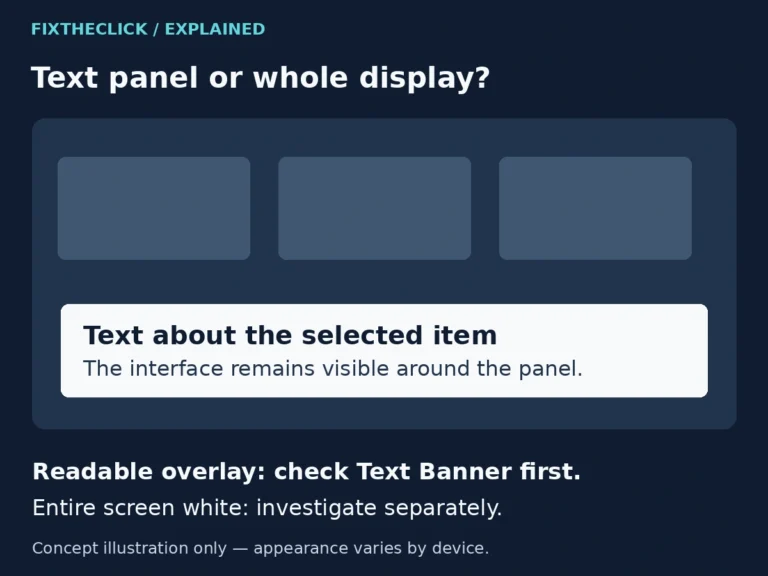
| A white text panel appears | Text Banner, a separate visual feature |
A spoken reply after you deliberately ask Alexa a question is not automatically evidence that a screen reader is enabled. Likewise, a documentary’s own narrator may be part of the original program. Compare the behavior before changing accessibility options.
2. Turn off VoiceView when menus are read aloud
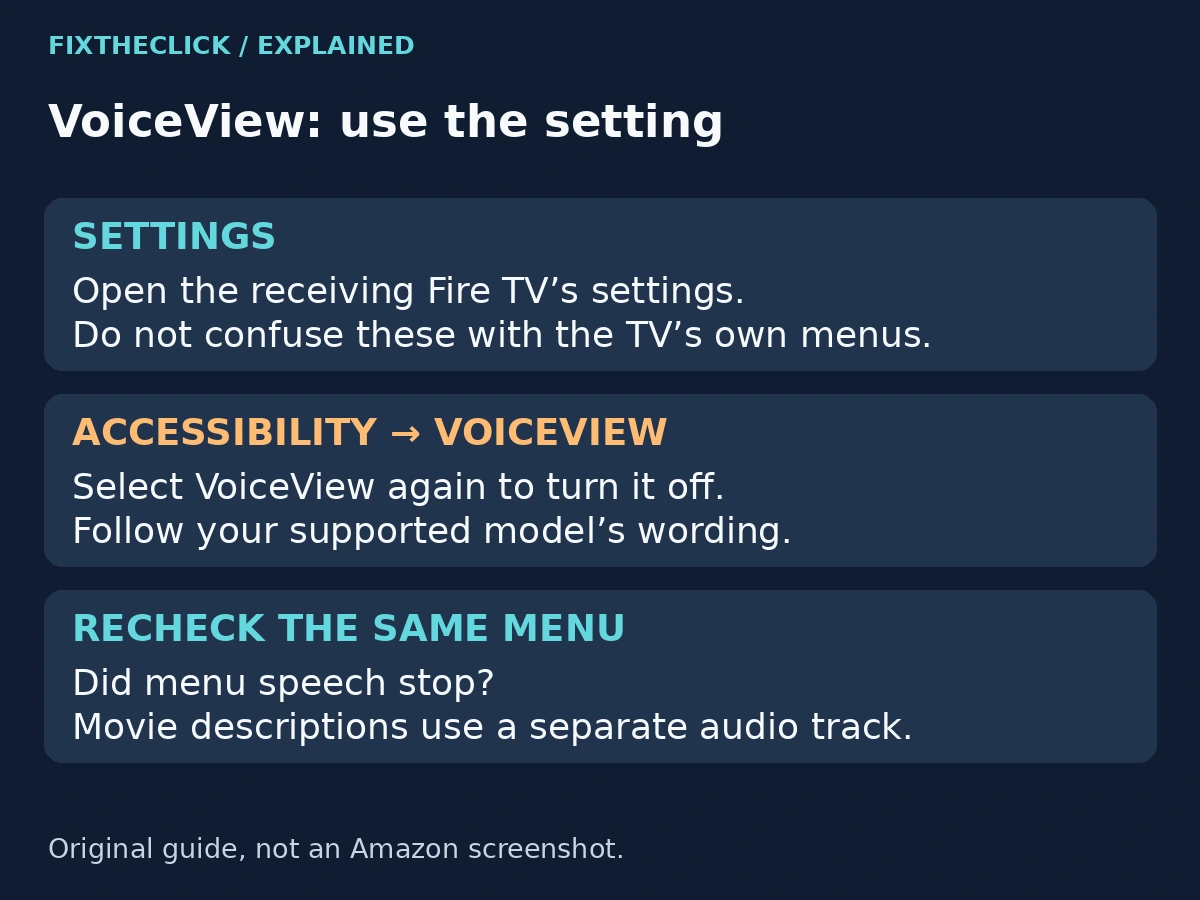
For supported Fire TV interfaces, Amazon’s accessibility guide gives this route: Settings → Accessibility → VoiceView, then select VoiceView again to switch it off. Feature availability and wording can vary by device.
Use the Fire TV remote to make the change, then revisit the same menu. Amazon says VoiceView does not support the Fire TV Remote App, so the phone app is not a guaranteed workaround.
Make sure you are changing the settings of the device producing the speech. A separate Fire TV Stick connected to a television and that television’s own accessibility controls are different places. Note which interface was being read before you changed anything.
If you cannot find VoiceView, record the exact Fire TV or television model and check its support guidance. Do not assume the setting is hidden, that an app is malicious, or that a missing menu means the device is defective.
3. Use the confirmed shortcut only for the documented remote
Amazon’s separate VoiceView controls guide explicitly documents Back + Menu for two seconds as an on/off toggle on the Alexa Voice Remote covered by that guide. It is not merely an activation instruction.
If your supported remote matches the guide, use the combination once, then check whether menu speech stops. Repeating a toggle can turn the feature back on. Do not substitute different buttons on an unfamiliar remote or treat this as a shortcut for every television.
The same guide distinguishes stopping current speech from switching VoiceView off. That matters if the voice pauses and then returns at the next selection: silence for a moment does not establish that the feature is disabled. Check the actual setting rather than escalating to a reset.
4. Check the Prime Video audio track for scene narration
If menus are quiet but a movie includes extra descriptions, inspect that title’s playback Audio options. Look for the ordinary language track without an Audio Descriptions label, when offered. Keep the language you want; switching to a different language is not the goal.
Amazon also documents Settings → Accessibility → Audio Descriptions → Prime Video → OFF as a separate device option. This is Prime Video guidance, not a universal control for Netflix or every installed app.
After changing the track, replay a short passage where you clearly heard the extra narration. Listen for normal dialogue as well. If the descriptions remain, check which track is now selected before making another change. A second title can help distinguish one program from a broader playback preference.
The available choices belong to the title and service. Do not assume every episode has the same tracks or that an absent option can be added by reinstalling the app. If the menu differs, use the service’s current help for that device.
5. For Netflix, change Netflix’s own audio selection
Netflix’s official audio-description instructions say to start the title, press Up or Down on the remote for a streaming media player, and open Audio & Subtitles. Some TV interfaces show the language choices directly.
Choose a suitable audio track without Audio Description in its name. Netflix notes that availability can differ between seasons and episodes. Check the affected episode rather than assuming another episode’s options apply.
For another service, use its own audio menu and official help. Avoid trying a Fire TV remote shortcut simply because it stopped menu speech elsewhere. The important question is which app or device owns the setting, not whether all the voices sound similar.
6. If the narration remains, repeat the comparison
Check Home again, then the same title. If menu speech stopped but scene descriptions remain, continue with the audio-track branch. If a title is now normal but menu labels still speak, return to VoiceView. Changing both settings at once makes the result harder to interpret.
If normal playback audio is also missing, that is a separate symptom. Use our Fire TV no-sound guide for silence rather than changing narration preferences to repair the audio output.
A white panel alone is a visual issue. Do not turn off a useful screen reader just to remove a box, and do not assume Text Banner is the source of spoken narration. Keep those observations separate when asking for help. For that visual symptom, see our Fire TV Text Banner guide.
If support is needed, provide the device model, app, title, selected audio-track label, and whether Home menus speak. Those details give support a specific starting point. Factory reset, deleting accounts, and clearing every app’s data are disproportionate responses to an unwanted narration setting.
Frequently asked questions
Will muting the TV turn the narrator off?
It hides the sound, including the audio you wanted to hear. Adjust the relevant accessibility option or title track instead, then verify that normal playback remains audible.
Why does the voice return after I stop it?
First check whether you paused speech, toggled a feature back on, or changed a different app’s setting. The timing and affected screen are more useful clues than repeatedly pressing shortcuts.
Does this mean my Fire TV is broken?
Unwanted narration alone does not establish a hardware problem. Start with the menu-versus-playback distinction and the supported settings before considering any repair.