Windows 11 Upgrade Not Available? Check PC Health Check First
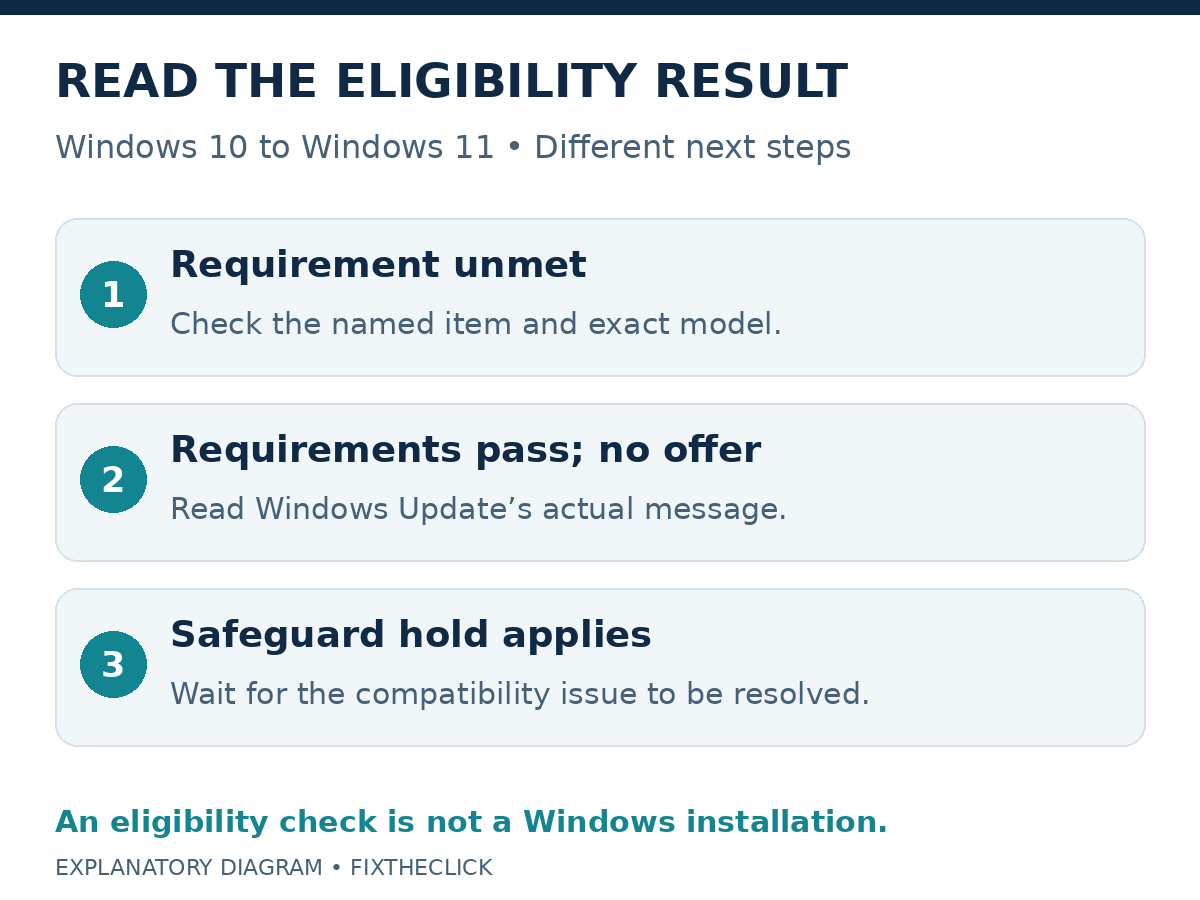
If the Windows 11 upgrade is not available on your Windows 10 PC, open Microsoft’s PC Health Check app and select Check now. Read the result before changing firmware: a requirement the PC does not meet is different from a qualifying PC whose upgrade is not yet offered.
Start with the named unmet item, the exact model, and the message in Windows Update. Running the eligibility check is not the same as installing Windows or deleting your files. Preserve important files before an actual upgrade or firmware change.
1. Run the official eligibility check
Search for PC Health Check from the Windows taskbar and open it. If it is missing, use the download linked in Microsoft’s PC Health Check instructions. Use the official app rather than an unfamiliar paid compatibility checker.
In the Windows 11 section, select Check now and read the reasons returned. If the app offers an update, use the current official version. Keep a private note of the result and your exact PC or motherboard model.
The useful question is not just whether the result is positive or negative. Identify which requirement needs attention. Re-running the check without changing or verifying that item gives you little new information.
| Result or situation | Next check |
|---|---|
| A hardware requirement is unmet | The specific requirement and exact model’s support information |
| Requirements pass, but no offer appears | Windows Update’s message and compatibility guidance |
| Windows 11 is already installed | The separate update-installation problem |
2. Check the full requirements, not one headline specification
Microsoft’s U.S. specifications require a compatible processor, TPM 2.0, and UEFI firmware with Secure Boot capability, alongside memory, storage, graphics, and display requirements. A fast CPU or a recent purchase date does not settle all of those checks.
The listed minimums include 4 GB RAM and a 64 GB or larger storage device. Storage-device capacity is not the same as space currently free for an upgrade. The processor requirement includes compatibility, not simply reaching a clock-speed number.
The specifications page also notes that PC Health Check does not check graphics or display. If those capabilities are in doubt, compare the exact hardware with the official requirements and manufacturer documentation rather than treating the app as a complete test of every component.
When contacting the manufacturer, provide the model and the specific failed item. “Can this model meet the TPM requirement?” is more useful than asking whether any computer sold in the same year can run Windows 11.
3. Distinguish a disabled TPM from missing support
Microsoft’s TPM guidance explains that a capable PC can have TPM disabled. A message that a compatible TPM cannot be found is therefore a reason to investigate, not proof that the hardware lacks support.
For a read-only check, press Windows + R, enter tpm.msc, and inspect the result. If a TPM is ready, check its Specification Version. An earlier version does not meet the TPM 2.0 requirement. Do not use the console to clear the TPM as an eligibility fix.
If firmware configuration needs attention, find instructions for the exact PC or motherboard. Microsoft emphasizes that settings differ by device. Do not copy a BIOS menu from another brand or assume that enabling a similarly named option is safe for your configuration.
Before a supported firmware change, confirm your important-file backup and access to the saved drive recovery key if encryption is enabled. If you cannot find that key, use our BitLocker recovery-key guide before proceeding. Do not post it in comments or a public screenshot.
Secure Boot capability is another requirement; it is not interchangeable with TPM. Use Microsoft’s Secure Boot guidance and the manufacturer’s instructions. This guide does not prescribe a universal firmware toggle, disk conversion, or registry workaround.
4. If requirements pass, check why the upgrade is not offered
On Windows 10, open Settings → Update & Security → Windows Update → Check for updates. Microsoft’s upgrade eligibility guide documents this route and says offering timing can vary by device.
Read the actual message. Passing the hardware check does not establish that every app or driver is ready, nor does the missing offer prove a safeguard hold. Record what Windows reports rather than assigning a cause from another person’s screenshot.
Microsoft uses safeguard holds for known compatibility issues and recommends waiting for those issues to be resolved before manually upgrading. If a hold applies, do not use forced installation as the first alternative.
Ask the manufacturer or your organization’s IT team about the message and supported next step. Keep the same PC and result in view; unrelated driver tools, security changes, and repeated registry edits are not a substitute for identifying the constraint.
5. Prepare for a supported upgrade, or review the temporary coverage path
When the official upgrade is offered and the requirements are met, back up important files and review the installation prompts before starting. Keep account and recovery information available privately. Checking eligibility and committing to installation remain separate decisions.
If the PC is not ready for a supported upgrade, review our Windows 10 Consumer ESU coverage guide. Check the device’s eligibility and enrollment status rather than assuming every Windows 10 computer is covered. This gives you a separate question to resolve while planning the transition.
If the computer already runs Windows 11 and a normal update fails, use our Windows 11 update-installation guide. That is a different situation from a Windows 10 PC asking whether it qualifies to upgrade.
Frequently asked questions
Does a fast processor guarantee eligibility?
Check the supported processor and other requirements together. Clock speed alone does not answer the question.
Should I clear TPM when Health Check reports a problem?
Use the exact model’s supported diagnostic route. Clearing a security component is not a shortcut to identifying whether it is supported or enabled.
What should I keep for support?
Record the model, Windows version, Health Check result and Windows Update wording. Describe any verified configuration change and preserve recovery information privately.