Windows 10 ESU Extended to 2027: Do You Need to Enroll Again?
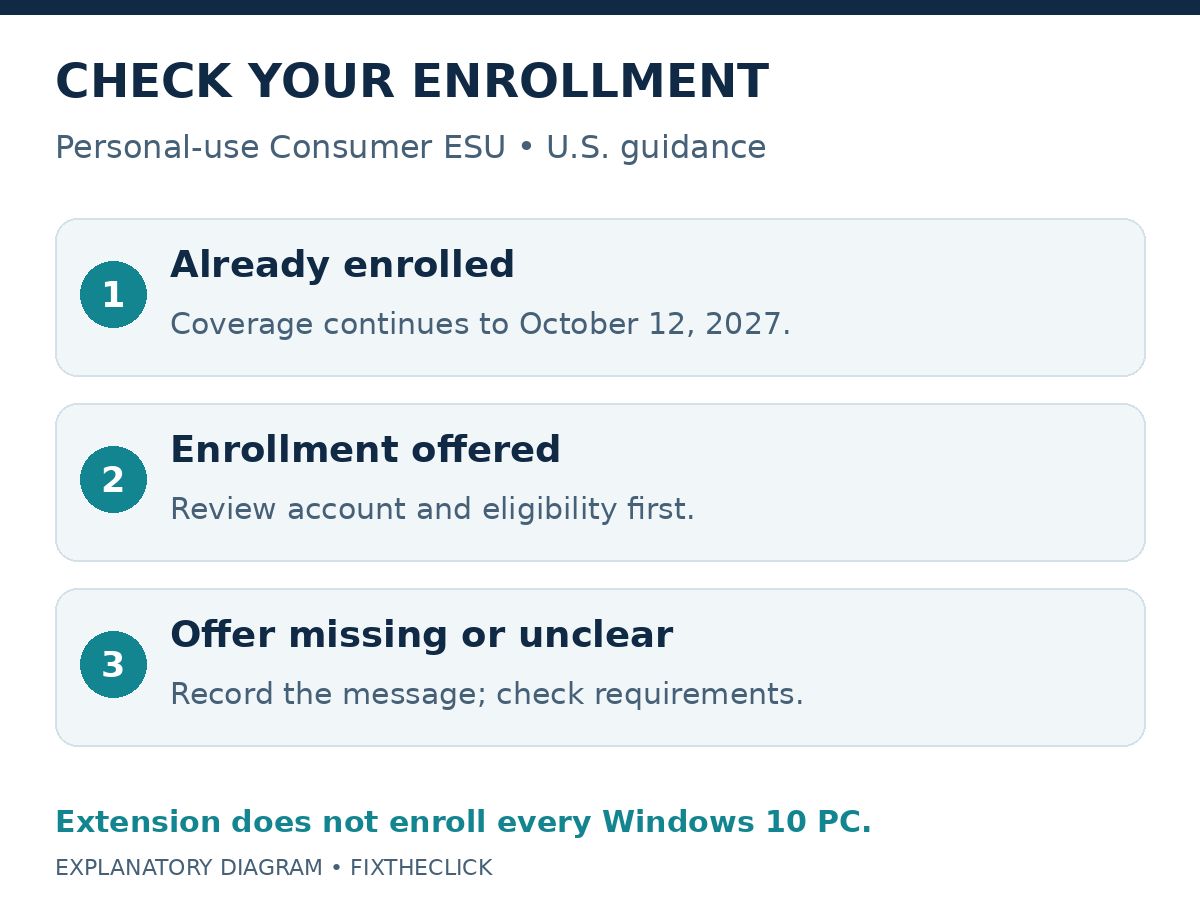
You do not need to enroll again just because an older Windows 10 ESU deadline has passed. Microsoft’s current U.S. Consumer ESU page says coverage runs through October 12, 2027 and continues automatically for devices already enrolled. That does not automatically enroll every Windows 10 PC.
First check Settings → Update & Security → Windows Update on the PC you actually use. Separate an enrolled device, an enrollment offer, and a missing offer before deciding what to do next. This guide concerns personal-use Consumer ESU, not an organization’s commercial program.
1. Check which deadline you are reading
Windows 10’s regular support ended on October 14, 2025. Microsoft’s end-of-support guidance distinguishes that from Consumer ESU, which gives eligible users more time to transition. The PC continuing to start does not establish that it has extended coverage.
An old search result or saved guide may still show October 13, 2026. Open the current U.S. Consumer ESU page and read the coverage statement itself. Its current end date is October 12, 2027. Treat that as the program information checked here, not as a claim that Microsoft announced an extension today.
Before following an older enrollment tutorial, ask two questions: is it about the consumer program, and does its region match yours? A company deployment guide or a different regional offer is not a substitute for the enrollment screen on a personal U.S. PC.
2. Separate already enrolled from not yet enrolled
| Your situation | Next action |
|---|---|
| The PC shows enrolled status | Continue through Windows Update; no repeat enrollment for the extension |
| The PC offers enrollment | Review eligibility, account, and the choices shown |
| No status or offer is clear | Check requirements and record the exact message |
Do not start another purchase merely because the date in an old article has arrived. Check the current device’s status first. A receipt can help identify a purchase, but the question you need to resolve is whether this particular PC is enrolled.
If you use more than one PC, inspect each one separately. Avoid assuming that signing into an account means every computer associated with it has completed enrollment. Similarly, an available Enroll now link is an invitation to begin, not a confirmation that the process is finished.
3. Read the enrollment status in Windows Update
Open the Windows 10 route shown above and read the ESU information. Microsoft documents this location for checking enrollment status. Note whether it reports enrollment, offers Enroll now, or explains why enrollment cannot proceed. Do not look for an invented universal green badge.
If enrolled, use Windows Update to check the updates offered and complete any normal restart after saving work. Keep the enrollment result and an individual update’s installation result separate: confirming one does not prove that the other completed.
If the screen is unclear, record its wording, Windows edition and version, and which account you intended to use. Keep account details private when contacting support. Repeating a payment or resetting Windows is an unnecessarily broad response to an unidentified status message.
4. If you have not enrolled, check the current prerequisites
The current U.S. page requires Windows 10 22H2 in an eligible Home, Professional, Pro Education, or Workstations edition, current updates, and the required ESU licensing preparation package. Enrollment uses an administrator Microsoft account that is not a child account.
Compare those requirements with your PC before following the offered enrollment steps. If you normally use a local Windows account, read the Microsoft-account prompt carefully. Do not assume that a different household member’s account or an old receipt identifies the license you meant to use.
Consumer ESU is for personal use; commercial and managed-device exclusions apply. If this is a work-managed computer, ask IT which program covers it rather than removing management to expose a consumer offer.
Review the available enrollment choices and their terms on the official page and your own screen. Do not turn on backup or settings synchronization just because a tutorial says to click through everything. Regional choices and timing can differ, so a U.S. price is not a universal quote.
5. Understand what coverage does—and plan the next step
ESU provides critical and important security updates. It does not restore regular feature development or general technical support, and enrollment does not make a computer immune to security incidents.
Keep important files backed up, continue checking updates, and plan your transition instead of treating enrollment as the end of maintenance. The extension answers a coverage question; it does not determine whether your applications and hardware are ready for a new operating system.
Microsoft’s PC Health Check guide explains how to check Windows 11 eligibility. Use that result to choose a supported next step rather than guessing from the age or appearance of the PC.
Frequently asked questions
Does the extension register my Windows 10 PC automatically?
Check enrollment on that device. Automatic continuation for existing enrollment is different from enrolling an unregistered computer.
Should I pay again because my old guide shows a different date?
Start with the current official terms and the PC’s enrollment status. Do not make a repeat purchase based only on a stale deadline.
What should I report if the enrollment offer is missing?
Record the Windows version and edition, account type, update state, and exact message. Use official support or workplace IT as appropriate, without sharing passwords or private account screenshots.