Fire TV No Signal? Fix the HDMI and Power Problem in This Order
Quick answer: A Fire TV “No Signal” message usually means the television is on the wrong HDMI input, the Fire TV is not receiving stable power, or the HDMI connection has failed. Select the correct input, power the Fire TV from its wall adapter, then unplug both the television and Fire TV for 60 seconds before reconnecting them.
Do not factory-reset the Fire TV first. A factory reset cannot repair a loose HDMI connection or weak USB power, and it can erase your accounts and settings without solving the real problem.
First, identify what “No Signal” means
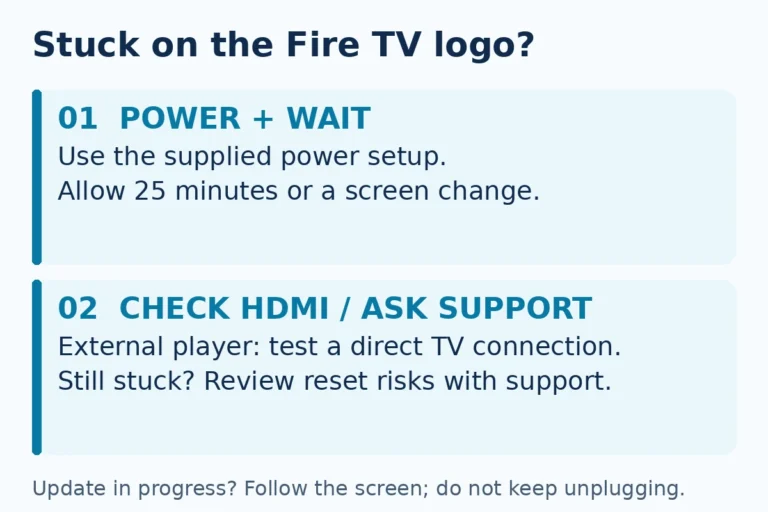
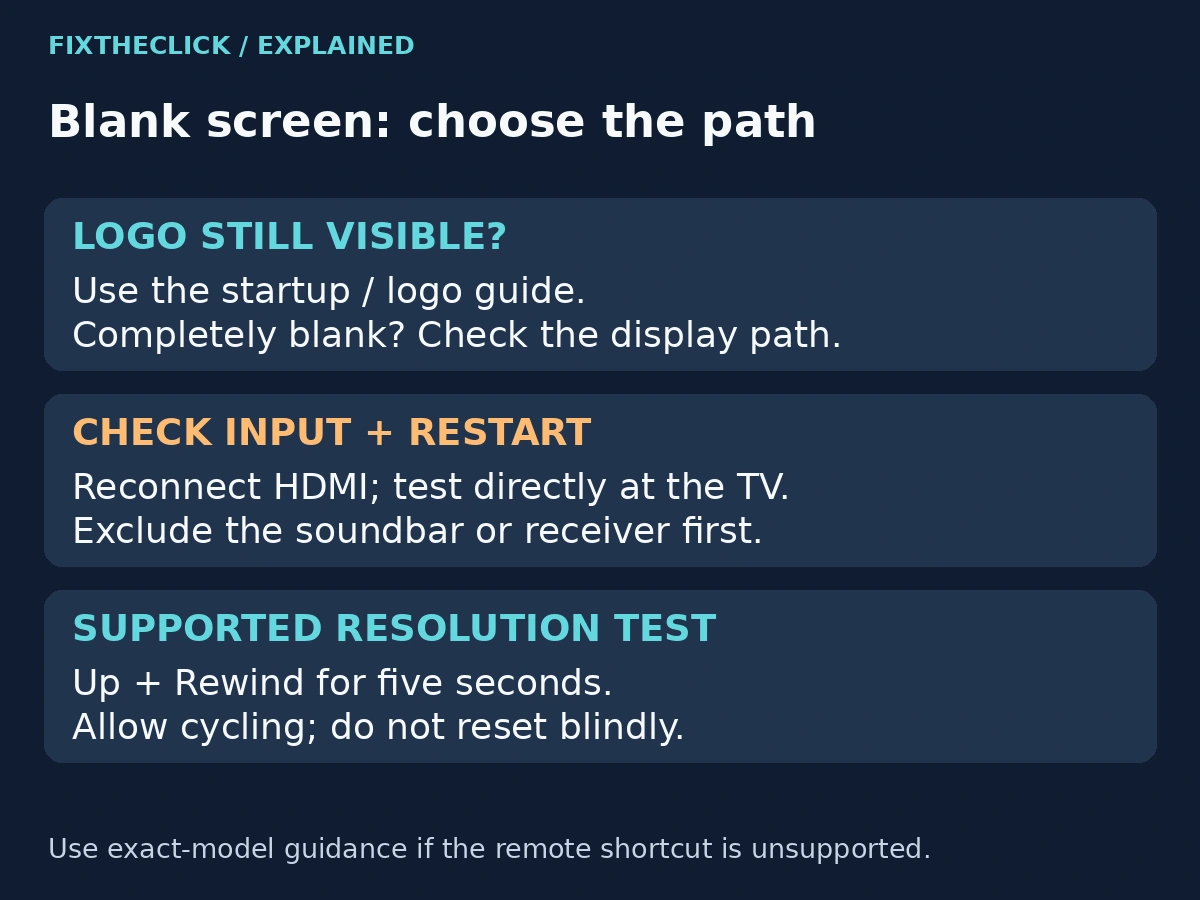
A TV-generated No Signal message means the selected input is not detecting a video signal. A completely blank screen needs display-path checks too, but it is not the same as a Fire TV logo that remains visible. For a persistent logo, use our Fire TV stuck on the logo guide.
If Home works and only one app is black, investigate that app separately. Use Wi-Fi and internet troubleshooting only if other online services also fail; a blank HDMI screen alone does not establish an internet problem.
| What is on the screen? | Start here |
|---|---|
| TV says No Signal or No Input | HDMI input, power, and connection checks |
| Fire TV logo appears, then screen goes blank | Restart, HDMI compatibility, and display checks |
| Home screen loads but an app is black | App restart, cache, network, or service status |
| Picture works but remote does not | Remote battery and pairing checks |
1. Select the correct HDMI input
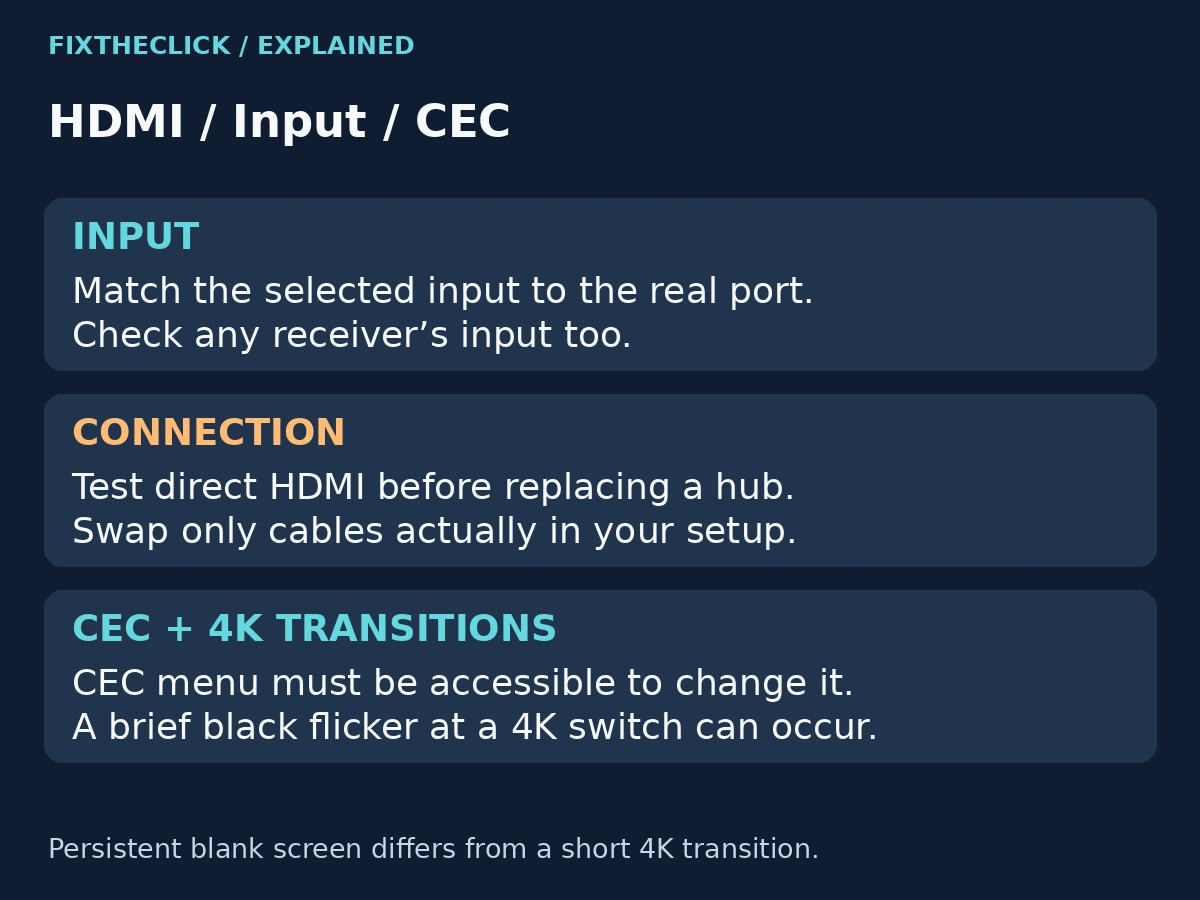
Use the television’s original remote and press Input, Source, or the input icon. Choose the HDMI port where the Fire TV is physically connected, such as HDMI 1, HDMI 2, or HDMI 3.
Do not rely only on the input label. A port labeled “Fire TV” may be an old custom name if the device was moved. Trace the connection at the back or side of the television and select that exact port.
2. Use stable wall power
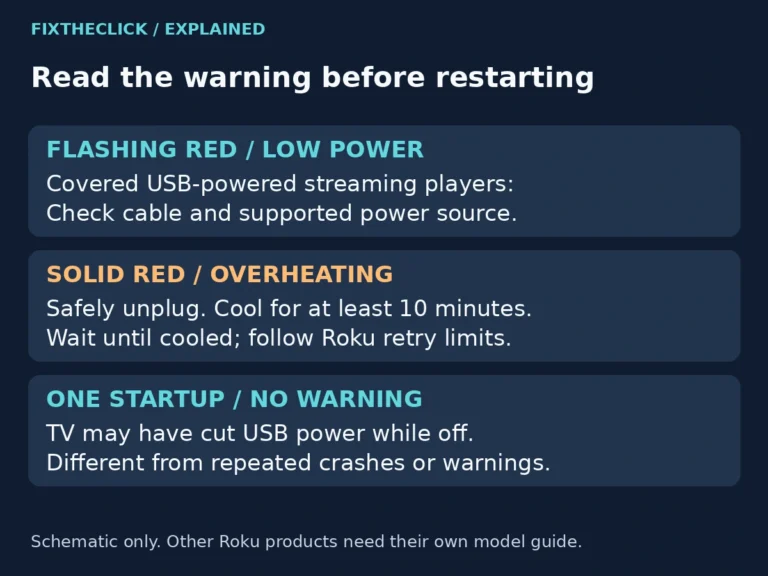
A Fire TV Stick may light up when powered from a television USB port but still receive too little power to start reliably. Use the Amazon power adapter and USB cable that came with the device, connected to a working wall outlet.
- Connect the Fire TV directly to the supplied power adapter.
- Try another wall outlet if the device remains unresponsive.
- Remove unnecessary USB extension cables or hubs.
- Check the power cable and connector for damage or looseness.
If the Fire TV repeatedly starts, shows the logo, and restarts, unstable power is especially likely.
3. Power-cycle the TV and Fire TV for 60 seconds
Turn off the television. Disconnect the Fire TV from power and unplug the television from the wall. Wait 60 seconds, following any device-specific power instructions. Do not interrupt an active software installation.
Reconnect the television first and turn it on. Then reconnect the Fire TV power, select the correct HDMI input, and allow up to a few minutes for startup. This may resolve a temporary connection or startup problem without deleting your data.
4. Reseat the HDMI connection
Remove the Fire TV Stick or HDMI cable from the television, inspect the plug for obvious damage, and reconnect it firmly. A connector can look attached while sitting slightly out of position.
If a Fire TV Stick is crowded by nearby cables or cannot sit straight, use the short HDMI extender that came with it. The extender can reduce physical strain and move the device away from heat behind the television.
5. Try another HDMI port
Move the Fire TV to a different HDMI port and select the matching input. If it works there, the original port or that port’s television setting is the likely cause.
For testing, connect the Fire TV directly to the television. Temporarily remove HDMI splitters, switches, capture devices, soundbars, and AV receivers. Add those devices back one at a time only after the picture returns.
6. Check the HDMI cable and 4K path
A Fire TV Cube or a setup routed through a receiver uses a separate HDMI cable. Reseat both ends and test a known-good high-speed HDMI cable. Amazon recommends a high-speed connection for 4K video. If a separate hub is in the path, test direct HDMI first and another compatible hub only if needed. A Fire TV Stick plugged directly into the TV has no separate HDMI cable to swap.
If 1080p works but 4K does not, every part of the path must support the required resolution and copy-protection standard: the television port, HDMI cable, receiver or soundbar, and any switch in between. Some televisions support full 4K features on only certain HDMI ports.
A brief black flicker when switching 4K can be normal
Amazon notes that the screen may briefly flicker or go black when starting or stopping 4K Ultra HD playback. That short transition differs from a display that stays blank and never returns to a usable picture.
Try supported resolution cycling if the picture stays blank
On devices covered by Amazon’s instructions, hold Up + Rewind together for five seconds, then allow the device to cycle through its available resolutions. This is a display test, not a factory reset. Follow any selection prompt that becomes visible.
Check your exact device and remote support before using the combination. Do not assume every television with Fire TV built in or every operating system responds identically. If it has no effect, use the connection comparison and manufacturer support instead of unrelated button combinations.
If a picture returns, test the same input. If video works but speech no longer matches the picture, use the separate Fire TV audio out of sync guide.
7. Toggle HDMI-CEC only when its controls are accessible
If the Fire TV picture returns temporarily or works on another compatible display, Amazon’s documented path is Settings > Display & Audio > HDMI-CEC Device Control. Some interfaces use Display & Sounds. Turn the control off and back on, then test the original setup.
If the Fire TV screen is still completely blank, you cannot navigate this menu reliably. Use the TV’s own accessible settings and exact-model documentation for any TV-side CEC check, or skip this step until a picture is available. CEC changes may affect automatic input or power control; note the original setting and restore it if the test does not help.
8. Test the Fire TV on a second display
Connect the Fire TV directly to another compatible television or monitor using the same wall power adapter. This comparison helps separate the player from the original television and connection path.
- Works on the second TV: focus on the original TV’s HDMI port, CEC, input settings, or receiver path.
- Fails on both displays: test the power cable and adapter, then consider a Fire TV hardware problem.
- Works only with a different adapter or cable: replace the failed accessory with a compatible one.
9. What to do if the remote is also not responding
A remote problem does not usually cause a television-generated No Signal message, but it can make input and restart testing confusing. If fresh batteries did not restore the remote, use our guide to fix a Fire TV remote that still does not work after new batteries.
If the remote flashes orange, follow the separate Fire TV remote pairing guide.
When a factory reset will not help
Do not factory-reset a device that never produces a signal on any television. Do not issue a reset command blindly into a black screen. First restore visibility or obtain exact-model support instructions. A reset will not repair a damaged HDMI plug, bad port, or failed power adapter.
Consider a reset only after the Fire TV displays a picture but has persistent software problems that survive normal restarts. Before resetting, make sure you know the Amazon account credentials and understand that installed apps and local settings will be removed.
Quick troubleshooting order
- Select the HDMI port where the Fire TV is actually connected.
- Use the supplied wall power adapter.
- Unplug the television and Fire TV for 60 seconds.
- Reseat the HDMI connection.
- Try a different HDMI port with no splitter or receiver.
- Test another high-speed HDMI cable when applicable.
- Try supported resolution cycling for a persistent blank screen.
- Toggle HDMI-CEC when its controls are accessible.
- Test the Fire TV on a second display.
If the Fire TV produces no picture on two displays with known-good power and a direct HDMI connection, hardware failure becomes more likely. At that point, check warranty or support options before buying a replacement.
Official references
- Amazon: Fix a blank TV screen on Fire TV devices
- Amazon: Restart your Fire TV device
- Amazon: Troubleshoot 4K viewing issues
Fire TV and Alexa are trademarks of Amazon.com, Inc. FixTheClick is an independent troubleshooting site and is not affiliated with Amazon.