Bluetooth Toggle Missing in Windows 11? Check the Adapter First
The Bluetooth switch has disappeared, so there is nothing to turn on. First open Settings → Bluetooth & devices and check whether the switch is missing there too. A button that is off, a missing Quick Settings tile, and an adapter Windows cannot detect need different checks.
If Bluetooth is absent in Settings, check Airplane mode, save your work, and follow Microsoft’s full shutdown procedure below. Then inspect the PC’s Bluetooth adapter before trying to pair your headphones or mouse again. These steps are for Windows 11; they do not assume every PC includes Bluetooth hardware.
1. Find out which Bluetooth control is missing
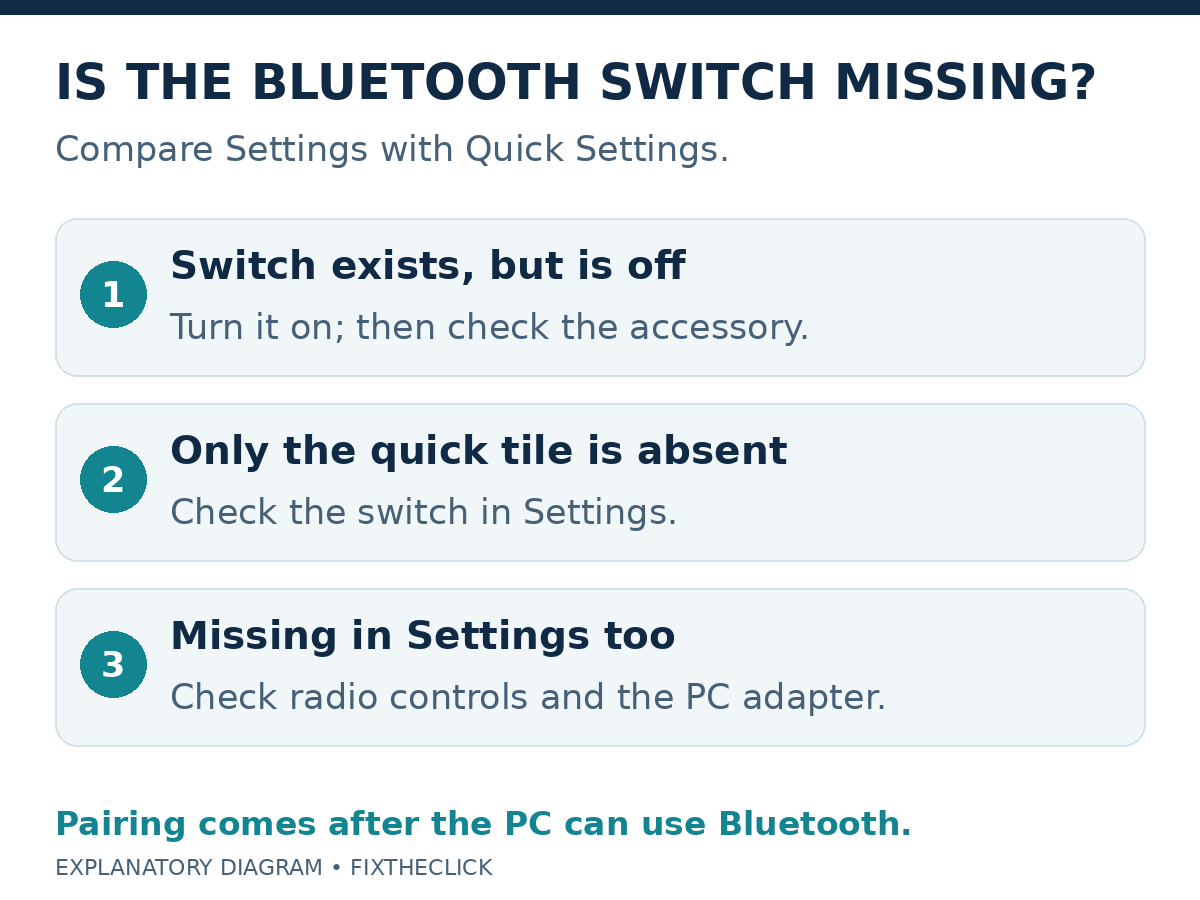
Check Settings, then open Quick Settings from the taskbar’s network, sound, or battery area. Look for the Bluetooth control. Microsoft’s Windows 11 Bluetooth guide documents both locations.
| What you see | Start here |
|---|---|
| The switch is present but off | Turn it on and check the accessory connection. |
| Quick Settings lacks a tile, but Settings has a working switch | Use the Settings switch; do not assume the adapter has disappeared. |
| The switch is missing or unavailable in Settings too | Check the PC’s radio controls and adapter detection. |
If Bluetooth is on and says Not connected, that is a different starting point from having no switch. It can mean no accessory is connected. Note exactly what you see before changing anything.
For a new PC, check its exact specifications. Microsoft notes that some computers have no Bluetooth capability. For a PC that previously connected successfully, record when the controls vanished: after waking, an update, or another change. Timing is useful evidence, not a diagnosis.
2. Check Airplane mode and the PC’s physical controls
Press Windows + A and make sure Airplane mode is off. If your laptop has a physical wireless or Bluetooth switch, check its documented position. Do not assume every laptop has the same keyboard shortcut.
Return to Bluetooth settings after that check. If the control returns, test the accessory you normally use. If it remains absent, leave the accessory alone for now: repeating its pairing sequence does not tell you whether Windows recognizes the PC’s radio.
On a work or school PC, ask IT when a control is managed or unavailable. Do not change an organization’s policies to make a switch appear.
3. Shut down fully, then turn the PC back on
Microsoft’s missing-Bluetooth instructions specify this sequence:
Save and close your work. Hold Shift, and while holding it, select Start → Power → Shut down. Once the PC is off, wait one minute. Then turn it on normally.
Select Shut down, not Restart, for this particular step. It is a menu command while holding the keyboard’s Shift key, not an instruction to hold down the physical power button.
After signing back in, inspect the same Settings page. If Bluetooth returns, check normal use before making further changes. If it does not, move to adapter detection rather than repeating shutdowns indefinitely.
4. Check the Bluetooth adapter in Device Manager
Right-click Start and open Device Manager. Expand Bluetooth, if present, and look for the PC’s adapter. Microsoft notes that its name may include Bluetooth or Radio. An accessory’s name is not necessarily the adapter you need to investigate.
Record three things: whether the category appears, whether an adapter appears inside it, and whether the identified adapter shows an error. Keep any exact error text for support. Do not uninstall a list of similarly named devices to see what happens.
An absent category does not establish that the PC never had Bluetooth. Compare the result with its specifications and your previous working setup. If you used an external USB Bluetooth adapter, check that it is still connected and consult that adapter’s official instructions.
If Bluetooth and Wi-Fi disappear together, mention both to the PC manufacturer. If Wi-Fi works normally, say so too. These observations make a support request more useful than a general statement that wireless is broken.
5. Use Get Help and the correct manufacturer’s driver
Open Microsoft’s Bluetooth troubleshooter in Get Help and follow its diagnostics. Record the result, then check the Settings switch again.
For an identified adapter, Microsoft’s driver check is Update driver → Search automatically for drivers in Device Manager. If a suitable update is installed, restart when prompted.
If the control stays missing, use the PC manufacturer’s official support for the exact model and Windows version. For a separately installed adapter, use its maker’s support instead. Avoid a driver package chosen only because its name resembles your device.
Microsoft also identifies manufacturer firmware as a possible area to investigate. That is a later, model-specific support step, not a reason to flash a random BIOS update. Follow the manufacturer’s applicability and preparation instructions before considering it.
Frequently asked questions
Should I remove my headphones and pair them again?
First restore the PC’s missing Bluetooth control. Accessory pairing becomes the relevant question once Windows can use its adapter. Keep a working wired input device available if your usual mouse or keyboard is Bluetooth.
Does a missing switch prove the hardware is broken?
No. Check detection, the correct driver, and model-specific support before drawing that conclusion. A PC with no Bluetooth hardware is also different from one whose previously working adapter has stopped appearing.
What should I tell support?
Provide the PC model, Windows version and build, when the issue began, whether Bluetooth is missing in both locations, the Device Manager result, and the Get Help result. Include whether the Shift-plus-Shut-down check changed anything.