File Explorer Not Opening in Windows 11? Start With a Restart
File Explorer will not open from the taskbar, and Win + E does not bring up a usable window. Save work in your other apps, use a normal Windows restart, then check Settings → Windows Update. Do those checks before forcing processes to stop or changing the registry.
First separate “Explorer will not open at all” from “one folder or drive will not open.” This guide covers a Windows 11 desktop you can still use. A PC that cannot reach the desktop needs a different recovery path.

1. Confirm whether Explorer opens at all
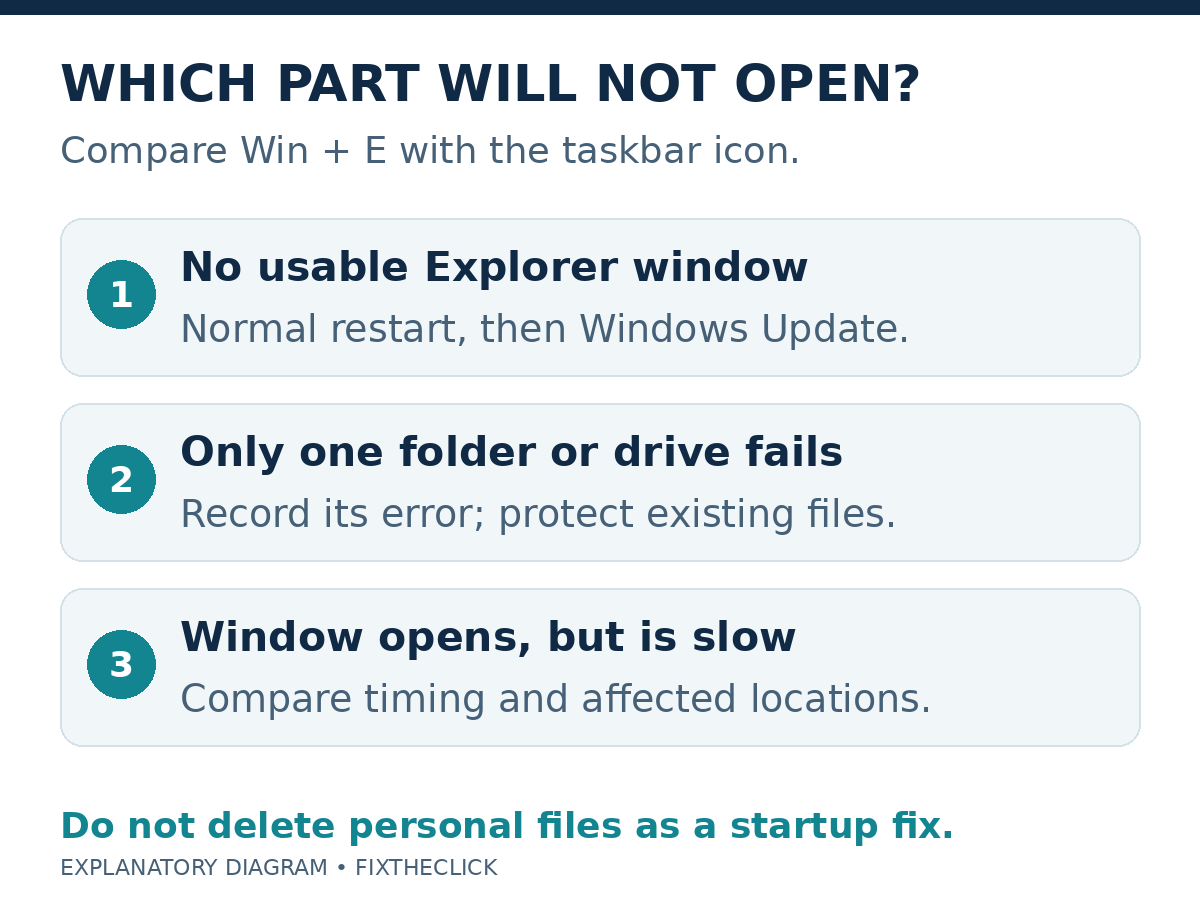
Try Win + E and the File Explorer taskbar icon. Microsoft documents both in its File Explorer startup guide. If one route opens a usable window, note which route failed instead of treating the whole application as unavailable.
Describe the result precisely: no visible window, a window that closes immediately, a frozen window, or an error only when you open a particular location. Avoid clicking the icon repeatedly while you try to work out which symptom you have.
| Result | Next action |
|---|---|
| No usable Explorer window from either route | Normal restart and Windows Update |
| Explorer opens; one folder or drive fails | Investigate that location and its error |
| Explorer opens but is slow | Compare timing and affected locations |
| Windows cannot reach the desktop | Use the appropriate Windows recovery guidance |
This comparison is a way to choose the next check, not a diagnosis of corruption. If the issue started after a known change, record it. Keep the error text and affected location private if it contains personal filenames or organization details.
2. Save your work and restart Windows normally
Save open documents and use Start → Power → Restart. After Windows returns, try the same two opening methods. Microsoft includes restarting among its recommended first steps for Explorer not opening.
If Windows offers an update-related restart, follow its on-screen instructions. A normal restart and holding the power button to force the PC off are different actions. Do not switch to forced shutdown merely because an update takes longer than you expected.
Check the result before adding another fix. If Explorer works again, verify that the folders you need open normally and return to work. You do not need a registry cleanup or a Windows reset just to confirm that the restart helped.
3. Review Windows Update
Open Settings → Windows Update → Check for updates. Review the offered updates and finish any required normal restart. This is the Windows 11 path; the older Windows 10 Update & Security route is not the menu used here.
If installation itself fails, record the update name and error rather than retrying unrelated Explorer repairs. Our Windows 11 update failure guide separates that problem. Completing an update is a diagnostic step, not a promise that every Explorer failure will disappear.
Recheck Explorer after the update/restart cycle. Keep a short note of what changed and whether the original symptom persists. Avoid installing a collection of third-party “repair” utilities while you are still determining whether the supported Windows steps help.
4. If only a folder or drive fails, narrow the location
An Explorer window that opens other folders is a narrower problem than the application not starting. Compare an ordinary local folder with the location that fails, and write down the exact message. Do not delete the folder to test whether Explorer can recover.
If an external USB drive is absent while Explorer otherwise works, use our USB drive checks before formatting. If a work share is affected, give IT the location and error through its private support channel rather than changing permissions or network security.
If the window does open but responds slowly, note whether that happens immediately after login, continuously, or only at one location. Those observations help support choose a relevant investigation. They do not establish that clearing personal files will repair the application.
5. Consider system-file repair only if basic checks fail
For persistent Windows malfunction, Microsoft publishes a separate System File Checker procedure. It checks Windows system files; it is not a way to recover a missing personal document or repair every inaccessible drive.
After updates and a restart, an authorized administrator can open Command Prompt as administrator and run DISM.exe /Online /Cleanup-image /Restorehealth. Microsoft’s order is to wait for successful completion, then run sfc /scannow and let verification finish. Read the official instructions before proceeding.
If a command fails, preserve its exact output for support rather than continuing through a bulk script. On a managed PC, let IT decide whether to run repairs. Do not substitute explorer.exe termination, registry edits, or deletion of system folders for an identified repair.
6. Review recovery with a backup plan
Microsoft’s Explorer guide mentions resetting the PC after earlier steps fail, but its broader Windows recovery guide explains less disruptive and model/version-dependent options. Choose a path that matches the failure rather than treating reset as the next routine click.
Back up important files first. Reset this PC can remove apps and settings even when you choose to retain personal files, and some recovery paths require the BitLocker recovery key. If you cannot access files to verify a backup, tell support that preserving those files is a priority.
For a recovery-key prompt, use our guide to finding the matching BitLocker key. Do not format a drive or clear its security settings to bypass the prompt.
Frequently asked questions
Should I end explorer.exe first?
Start with the normal restart and update checks. Killing the process is not the opening step in this guide, particularly while other work or file operations may be active.
Should I delete Downloads or the Recycle Bin?
Not as a generic response to Explorer failing to start. File retention is a separate decision; preserve anything you need.
What should I report if it still fails?
Give support the Windows version, both opening-method results, the exact error, recent changes, and whether other folders or Windows apps work. Official guidance checked October 8, 2026; this article does not claim a hands-on repair or guaranteed outcome.