Windows 11 Slow After Login? Check Startup Apps First
Windows 11 reaches the desktop, but opening anything feels slow right after you sign in. Start with Task Manager’s Startup apps list. Disable only familiar apps you do not need to launch automatically, then use a normal restart to compare.
Disabling a startup entry prevents its automatic launch at sign-in; it does not uninstall the program. Keep security, essential device software, work-managed tools, and unfamiliar entries unchanged while you check whether the slowdown is limited to the first part of your session.
1. Separate a slow sign-in period from an all-day slowdown
Think about when the problem ends. Does the desktop eventually respond normally, or do ordinary tasks remain slow throughout the session? Does it happen on every sign-in, only after an update, or only when a particular app launches?
Make a short note of the symptoms before changing anything: which task feels delayed, what opens automatically, and whether performance settles later. You do not need to invent a benchmark. A comparison is more useful when it describes the same normal task on the same PC.
| Pattern | First area to check |
|---|---|
| Slow initially, then normal | Automatic app launches and their startup impact |
| Slow throughout the session | Current CPU, memory, disk activity, and available storage |
| One app stays slow | That app’s behavior rather than every startup entry |
| Desktop never opens | A startup or recovery problem outside this guide |
These patterns guide a comparison; they do not prove the cause. This article assumes you can reach the desktop and open Task Manager. A frozen installation screen or a PC that cannot sign in needs a different path.
2. Review Startup apps in Task Manager
Right-click Start → Task Manager, then select Startup apps. Alternatively, Microsoft’s Windows 11 performance guide documents Ctrl + Shift + Esc to open Task Manager.
Look at each app’s name, enabled status, and startup impact. Microsoft’s startup-app guide explains the impact categories and the Enable/Disable controls. Task Manager provides more detail than the simpler Settings → Apps → Startup switches.
High impact is a resource-use rating, not a malware verdict. An app can be legitimate and still do substantial work at sign-in. Likewise, Not measured means there is no impact measurement available; it is not a guarantee that the app has no effect.
Use the list to choose a candidate you recognize and understand. A familiar chat, media, or launcher app you normally open later may be worth reviewing. An unfamiliar name, a security tool, or software needed by a device is a reason to investigate its purpose, not an invitation to disable it.
3. Disable one optional automatic launch
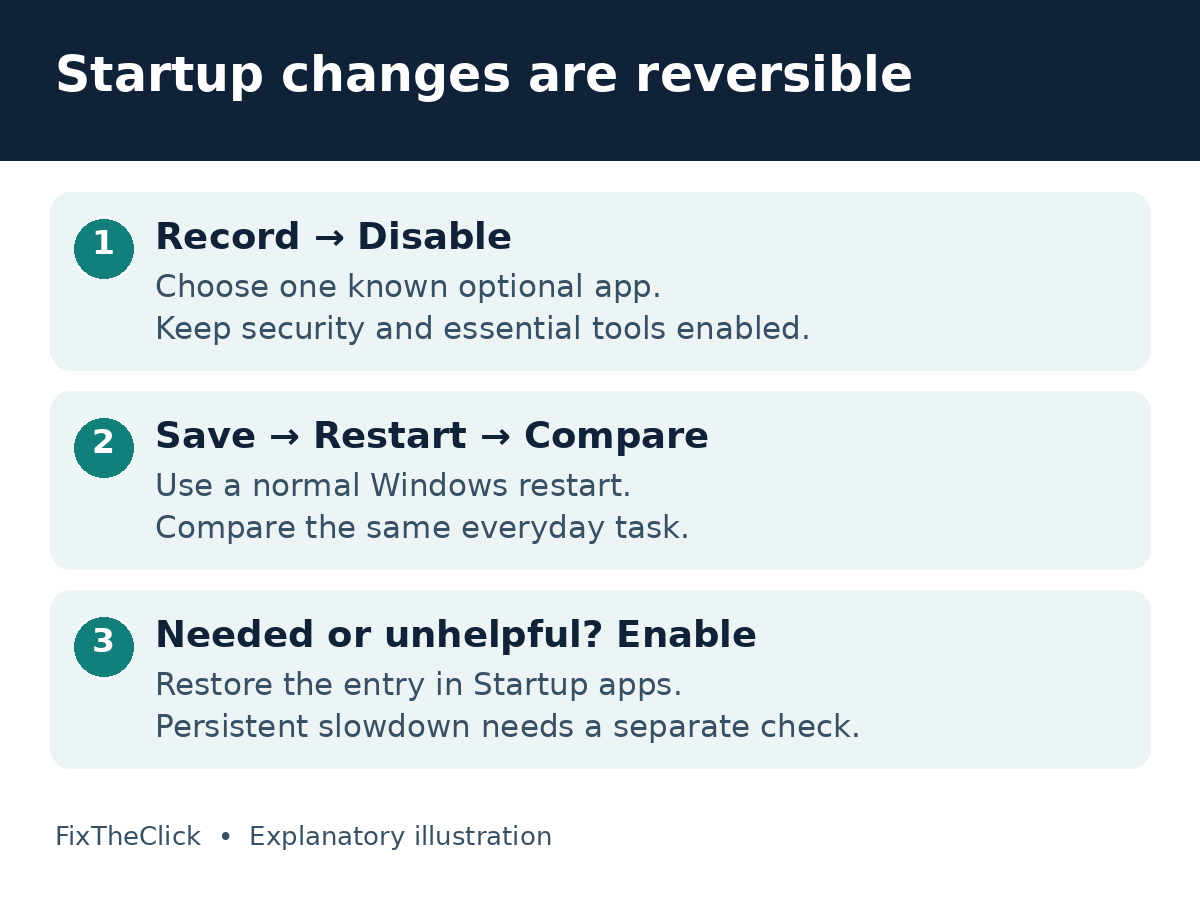
Record the app’s current status. If you know what it does and do not need it automatically at sign-in, select that entry and choose Disable. Leave the rest unchanged for the first comparison.
You should still be able to open the program when you want it. However, stopping its automatic launch may also delay its background functions until you open it. Consider notifications, synchronization, and any other function you rely on before choosing an entry.
Do not switch off every high-impact app as a group. Keep antivirus and other protection enabled. Do not disable corporate management software or essential keyboard, touchpad, audio, accessibility, or other device functions without understanding the dependency. For a work or school PC, ask IT about entries controlled by policy.
If you cannot explain why an item is safe to postpone, skip it. A smaller, reversible change gives you a clearer comparison than a long list of changes whose effects are difficult to trace.
4. Restart normally and compare the same task
Save open work, then choose Start → Power → Restart. Holding the power button to force the PC off is not the same test. After signing in, compare the same everyday task you noted earlier.
Keep the conditions reasonably similar. Opening many extra apps during one comparison and none during another makes the result harder to interpret. Also note whether an update or other visible background task is active; a single improved session does not establish that startup apps caused every previous delay.
If responsiveness improves and the postponed app is not needed automatically, you can keep that individual change. If it does not help, or a needed function is missing, return to Task Manager → Startup apps, select the entry, and choose Enable. Restart normally again when you need to compare the restored state.
Keep a simple change log with the app name, original status, and what happened. There is no universal number of seconds this will save. Startup apps are one possible contributor, and the result depends on what was actually running on your PC.
5. If the PC remains slow after startup settles
Use Task Manager’s Processes and Performance views to observe CPU, memory, and disk activity during the problem. Microsoft discusses those checks in its Windows performance guidance. Note the relevant app or resource instead of ending unfamiliar processes at random.
A busy resource is a starting observation, not a complete diagnosis. For example, record whether a known app’s activity coincides with the slowdown and whether the pattern persists when your normal startup period is over. Save the result for an app developer, the PC maker, or IT if you need help interpreting it.
If Storage settings show the system drive is nearly full, see C Drive Full in Windows 11? What to Check Before Deleting Files. That is a separate cleanup decision. Do not delete personal files just because a startup entry has a high impact rating.
If an update is visibly failing, record its actual error and follow Windows 11 Update Not Installing? Start With the Error Code. An update-specific failure and optional automatic app launches should not be treated as the same problem.
Escalate with your Windows version, PC model, slowdown pattern, resource observations, and change log. Keep private account information out of screenshots. Avoid registry cleaners, bulk startup scripts, and a PC reset as a routine first response to post-login slowness.
Frequently asked questions
Does Disable remove the program?
No. For a startup entry, Disable stops its automatic launch at sign-in. Use Enable to restore that behavior if you need it.
Should every high-impact app be disabled?
No. First identify its role and whether you need it running automatically. Impact does not tell you that an app is unsafe or unnecessary.
Why did disabling one app make no difference?
The slowdown may have another contributor, or that app may not be important to the symptom. Restore it if appropriate and use the persistent-slowdown branch instead of disabling more unfamiliar entries.