Chrome Keeps Signing Me Out? Check Site Data Before Resetting
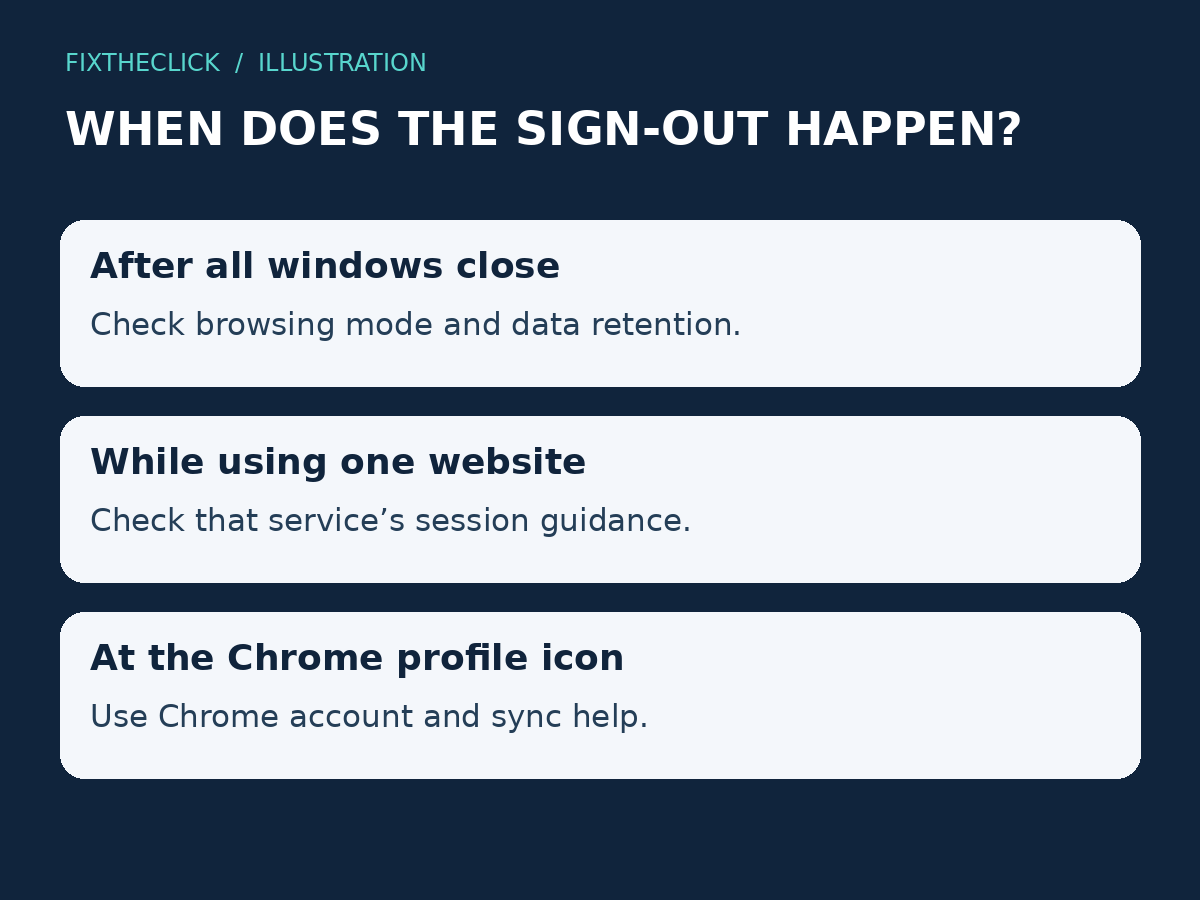
If Chrome keeps signing you out, first note when it happens: after closing every window, or while you are still using a website. Those patterns call for different checks.
On a private PC you trust, check whether you are in Incognito or Guest mode and whether Chrome removes site data on exit. If one website signs you out during use, investigate that service’s session rules before changing the whole browser. Start with the browsing mode, then data retention, then the affected site’s behavior.
1. Identify what is actually signing out
A website asking you to log in again is not the same problem as Chrome showing a paused sync state or an account verification prompt. Write down where the message appears: inside a website, or beside the browser’s profile icon.
For profile or sync prompts, follow Google’s sync troubleshooting guidance. Google notes that signing out of a Google service can pause Chrome sync and require account verification. Resolving that prompt does not establish that every unrelated website will retain its session.
Also check that you reopened the same normal Chrome profile. Comparing two different browsing contexts can look like a lost login even when you have simply returned to a different set of site data.
| Pattern | Start here |
|---|---|
| Many sites sign out after all windows close | Browsing mode and site-data retention |
| One site signs out during use | That service’s session and account guidance |
| Chrome’s profile shows a sync or verification prompt | Chrome account/sync help |
2. Rule out Incognito and Guest mode
Incognito is a separate session. Once every Incognito window closes, Chrome removes that session’s cookies and site data. Reopening it is not a way to preserve the previous website login. Google explains this behavior in its Incognito guide.
Guest mode also removes its browsing data when you exit. On your own trusted computer, use your normal profile if you want websites to remember you. On a borrowed or public computer, prioritize signing out and ending the session rather than making the login persistent.
Do this check before deleting anything. If temporary browsing explains the behavior, there is no reason to erase the data in your ordinary profile.
3. Check what happens to site data when Chrome closes
In desktop Chrome, open Settings, choose Privacy and security, then Site settings. Expand the additional content settings and open On-device site data.
Google’s current site-data guide describes three choices: retaining data, removing it when all windows close, or preventing sites from saving it. The removal-on-exit choice can explain why websites forget you between visits.
For the trusted private-PC situation covered here, review whether data retention matches your intention. Note the current choice before changing it. Keeping data can support a remembered login, but it cannot force a website to keep a session valid indefinitely. If an organization manages the setting, contact its administrator.
Do not confuse this with a recommendation to allow all tracking or switch off browser protection. You are checking whether the login’s local data survives a normal browsing session, not weakening every privacy setting.
4. Retest one website without clearing everything
Choose one affected service you already use. Save unfinished work, sign in normally, and note whether it stays signed in while you browse. Then close all normal Chrome windows, reopen the same profile, and check that service again.
This is a suggested comparison, not a test we performed on your account. If the result changes after adjusting retention, you have a useful clue. If it does not, restore any change that did not serve your needs and continue with the narrower checks below.
If only one website still expires, consult its official account help. A service may intentionally require another sign-in after inactivity or a security event. Record its exact message and timing; do not infer a universal time limit. Keep two-step verification and organizational security requirements enabled.
5. Review cleanup tools and update Chrome
Think about what runs between your last successful visit and the next sign-out. A cleanup extension or scheduled privacy tool deserves attention if it is configured to remove browsing data. Google also notes that some software can remove cookies in its stay-signed-in guidance.
Open Chrome’s extensions menu and choose its management page. Review any optional cookie-cleaning extension you installed. If appropriate, pause that specific cleanup function for a controlled comparison, then restore it if the result is unchanged. Google’s extension management instructions explain the available controls. Do not disable antivirus protection or a managed security extension.
Check for a browser update through Help → About Google Chrome in the main menu. Apply a pending update using the relaunch option after saving your work. See Google’s update instructions. Updating is a maintenance step, not proof that an old browser caused the logout.
Why clearing all cookies is not the first fix
Removing login-related site data can itself sign you out and discard site preferences. Repeating a blanket deletion while trying to preserve logins makes the result harder to interpret.
If a service’s official troubleshooting later calls for clearing its data, confirm you can sign back in first and understand what will be removed. Keep that action limited to the affected service where possible. A full Chrome reset is unnecessary merely because one account requests verification.
Frequently asked questions
Does saving my password keep me signed in?
Being able to fill a password and maintaining an authenticated website session are different outcomes. Check session behavior rather than treating a saved password as evidence that a website must remember you.
Should I disable two-step verification?
No. A request to verify your identity should be handled through the service’s legitimate account process. Changing security protections is not the remedy for site data being removed on exit.
What information helps support?
Note the Chrome version, normal or temporary browsing mode, affected sites, whether every window had closed, and the exact sign-out message. Never include passwords, verification codes, or private session data in a support screenshot.