Roku Subtitles Won’t Turn Off? Fix Captions That Keep Coming Back
You turn captions off, start another episode, and the words are back. Before repeating the same switch, notice when they return: in every app, in one streaming service, after Replay, or only while the sound is muted.
Those patterns point to different settings. Roku has a system caption mode, but some apps manage captions themselves. The goal is to change the setting responsible for the text you are seeing, without resetting the whole device.
Quick Answer
If Roku subtitles won’t turn off, check Settings → Accessibility → Captions mode and choose Off. Some interfaces put these controls under Captions instead. If the text remains in one app, turn subtitles off in that app’s playback controls and check the active profile. Captions that appear after Replay or Mute may reflect those specific modes, rather than a setting changing by itself.
Before changing a shared setting, check whether someone in the household intentionally uses captions. You can troubleshoot the unexpected behavior while preserving the viewing setup they need.
1. Match the Symptom Before Changing Settings
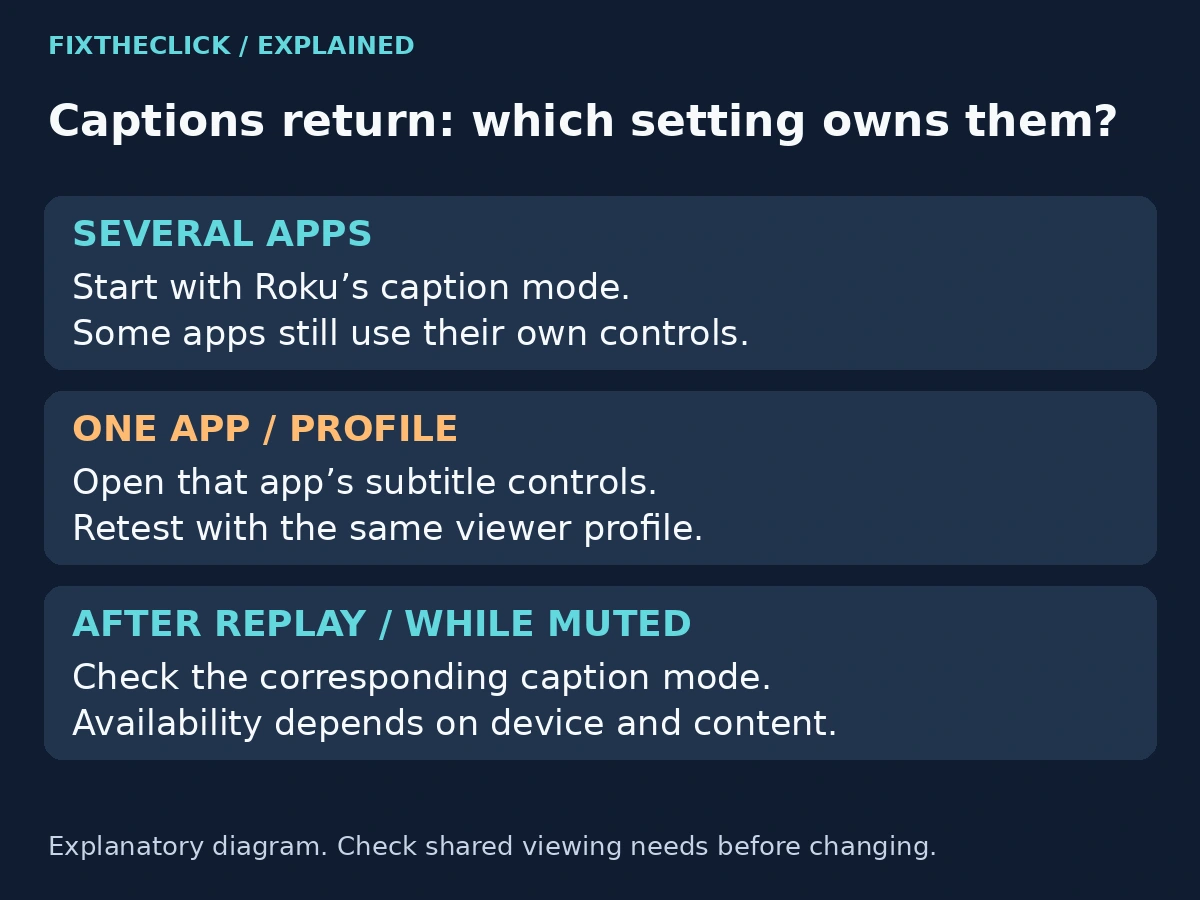
Start with the program you were watching when the problem appeared. Note the app, title, profile, and whether you had just pressed Replay or Mute. Then compare another title or app, without changing several controls at once.
| When captions appear | Where to look first |
|---|---|
| Across several apps | Roku’s caption mode, then each affected app |
| Only in one streaming app | That app’s subtitles and profile preferences |
| Immediately after Replay | On replay mode, where supported |
| Only while muted | On mute mode, where available |
| Only for certain dialogue in one title | The title’s subtitle behavior and available tracks |
Treat this as a way to narrow the problem, not proof of a hardware fault. Two apps can use different caption systems on the same Roku. One ignoring the Roku setting does not establish that the setting failed everywhere.
Also confirm that the symptom is text accompanying playback. Spoken menu labels are a screen-reader issue; a voice describing movie scenes is an audio-track issue. Turning off captions is not a fix for either kind of narration.
2. Turn Off the Roku Caption Mode
Press Home and open Settings → Accessibility → Captions mode. Select Off if that is the intended viewing preference. If Accessibility is absent, Roku’s official caption guide directs readers to the Captions menu instead.
Read the selected mode rather than assuming that leaving the menu changes it. Return to the same content and check whether the text disappears. If it does, try the next episode or a second title to see whether the result persists in normal use.
The setting only governs apps that use Roku’s caption controls. It cannot be treated as a master switch for every streaming provider. If one app still displays subtitles, move to that app’s controls rather than repeatedly toggling Roku between On and Off.
Avoid trying to hide the problem by changing caption color, size, or opacity. Those controls change appearance; they do not answer why the caption track is active. Changing them also makes later troubleshooting harder to interpret.
3. Check “On Replay” and “On Mute”
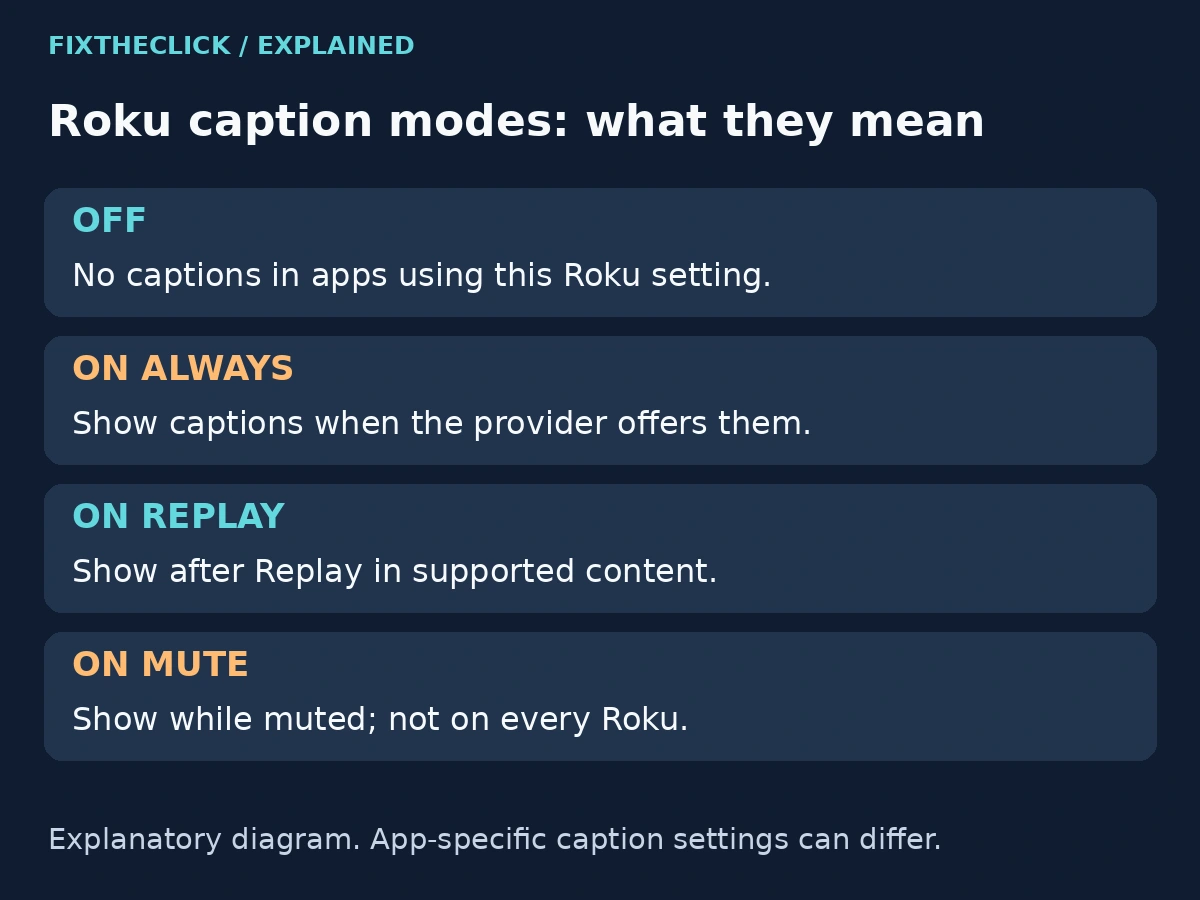
Roku offers several caption behaviors. On always displays available captions during normal viewing. On replay brings them up after Replay in supported content. On mute ties them to muted volume on devices that offer that choice.
That makes the timing useful. If captions arrive immediately after you replay a missed sentence, inspect the replay mode before assuming a software bug. If they appear when you mute the television, check the available mute-related option.
For captions to remain off in apps governed by this setting, select Off instead of a conditional mode. If someone likes captions only during replay, that mode may be intentional and worth keeping. Agree on the preference before altering a shared television.
Do not look for On mute indefinitely on a device that does not support it. Its absence is an ordinary model limitation. Likewise, a service that owns its own captions may not respond to Roku’s replay-related preference.
4. Change the Streaming App’s Own Subtitles
Play the affected title and open its playback controls. In many supported apps, pressing the Star/Options button exposes a caption choice. Roku explicitly notes that not every app provides that path, so follow the controls actually shown.
Look for a subtitles, captions, or language control and select the available Off option for subtitles. Keep audio language separate: choosing another spoken-language track is not necessarily the same operation as disabling text.
For example, Netflix’s official instructions tell television and streaming-player users to press Up or Down during playback, open Audio & Subtitles, and adjust the available selection. This is a useful example of why one universal Star-button sequence is not reliable for every service.
After changing the app setting, resume the same scene, leave the title, and reopen it. Then try another episode while staying on the same profile. These small comparisons help show whether the preference is being retained or whether you are looking at a title-specific behavior.
There is no need to sign out of every service or clear all app data to make this comparison. Those actions can create new account-access problems without identifying which caption control was responsible.
5. Check Profiles and Title-Specific Text
If captions return after switching profiles, inspect the preference on the profile you actually intend to use. Roku’s streaming-app feature guidance notes that some language and caption settings are saved per profile.
Do not assume a change made for one viewer should apply to everyone. In a shared household, separate profiles may deliberately have different accessibility or language preferences. Check the current profile before asking someone else to change theirs.
A small amount of translated dialogue is another case to distinguish. Netflix says subtitles may still appear for dialogue in a language different from a title’s original language even when subtitles are off. That does not mean all captions have been re-enabled.
Netflix also documents exceptions to saving subtitle and audio preferences when most Kids titles are viewed from an adult profile. If that matches the situation, consult the service’s instructions rather than treating it as a Roku-wide reset problem.
Record whether the unwanted text covers the whole program or only particular scenes. A scene-specific observation gives the streaming provider something concrete to investigate and avoids changing every device setting for one title.
6. If the Correct Setting Still Does Not Stick
Once the responsible setting and profile are clear, check for an update to the affected app. Roku documents highlighting the app on Home, pressing Star, and choosing Check for updates. Use that option where your installed app and software expose it.
Retest after the update before making another change. If the issue persists, restart the Roku using its supported System restart option. The location can include a Power submenu on a Roku TV; follow your device’s displayed route.
A factory reset is not a sensible first response to a caption preference. You would still need to identify whether the streaming service manages its own subtitles afterward. Removing an app also adds a reinstallation and possible sign-in step, so keep it out of the initial checks.
When contacting support, provide the Roku model/software, app, title, profile type, selected caption mode, and the exact action that makes text return. Contact the streaming provider first for an isolated app behavior; explain to Roku if the same system-setting problem affects multiple supported apps.
Frequently Asked Questions
Why do subtitles remain after I set Roku captions to Off?
The streaming app may use its own subtitle preference. Check its playback controls on the active profile and retest the same title.
Why do captions appear only after I press Replay?
Check for On replay mode. Its purpose is to show captions after replay in supported content, so the timing may be expected rather than random.
Is a screen reader the same as subtitles?
No. A screen reader speaks interface information. Subtitles and closed captions are text associated with the program. Identify which symptom you have before changing accessibility settings.