Fire TV Screen Mirroring Not Working? Check Compatibility Before Resetting
You open the sharing menu on your phone, wait for the TV to appear, and get nothing. Restarting the router seems like the obvious next move—but the two devices may be looking for different kinds of connections.
Quick Answer: If Fire TV screen mirroring is not working, check the source device and the receiving Fire TV before changing network settings. Native mirroring, supported app casting, and AirPlay on a compatible Fire TV television are separate routes. A reset cannot add a mirroring feature that the device does not support.
This guide covers sharing a phone or computer screen, or sending supported app playback to a television. If you are opening Amazon’s phone remote app to control Fire TV, use our Fire TV app not finding your device guide instead.
1. Choose what you actually want to share
Start with the task, not the name printed on a sharing button. Do you want the TV to show your entire desktop, a photo you are opening on your phone, or a movie from a particular streaming app?
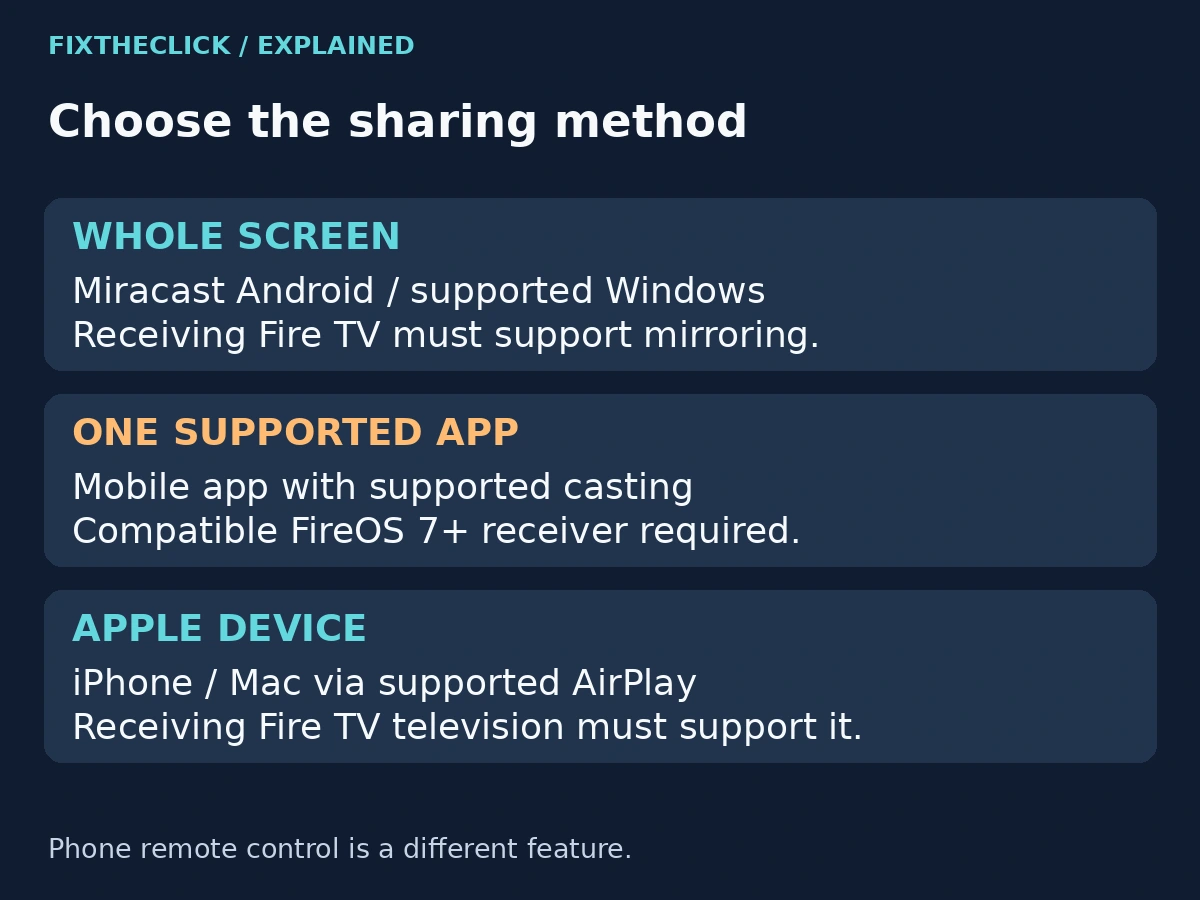
For the whole screen, both devices need a compatible mirroring method. For one supported app, its own casting feature may be enough. The fact that an app can send a movie to the TV does not establish that your phone can mirror every other app or its home screen.
Write down the source model and the receiving device. “An Android phone and a Firestick” is not quite enough: phone manufacturers and Fire TV generations do not all support the same features. Also distinguish a Fire TV Stick plugged into a television from a television with Fire TV built in.
2. Check the native mirroring option on Fire TV
Amazon’s US native mirroring guide lists Settings → Display & Sounds → Enable Display Mirroring. Some interfaces and regional documentation use Display & Audio for the display settings label.
Check the receiver before spending time on phone settings. Amazon says that if the mirroring option is absent, the Fire TV does not support the feature described in that guide. Do not keep searching for undocumented button combinations to unlock it.
The source matters too. Android needs Miracast support; being an Android phone is not enough. Windows needs supported wireless-display functionality. This native route does not support iOS or macOS. Amazon also specifies the same Wi-Fi network and a distance within 30 feet, or about 10 meters.
A missing receiver can therefore mean an unsupported pairing of devices, not a failed router. A different sharing method may suit your task, but it needs its own compatibility check.
3. For Android or Windows, verify the sending side
If the Fire TV offers native mirroring, open that receiver screen and use the source manufacturer’s instructions for the exact phone or computer. Look for explicit support for the relevant wireless-display method, not simply a button with “cast” in its name.
On Android, avoid assuming that another brand’s tutorial applies to your phone. If its official instructions describe a different receiving system, a missing Fire TV entry does not prove that either device is faulty. Check whether the manufacturer actually supports Miracast on that model.
On Windows, confirm wireless-display support through the computer manufacturer’s current guidance. Do not install random drivers or receiver utilities just because a video tutorial shows a device appearing in a list. Use supported software and the connection controls documented for your computer.
Once a compatible connection request reaches the TV, follow the visible prompts. Note whether the receiver never appears, the request is rejected, or the session starts and then disconnects. Those are different points of failure, and that detail is useful if you need support.
4. For iPhone or Mac, check the television’s AirPlay route
An iPhone or Mac should not be troubleshooting the native Android/Windows path above. For a compatible Fire TV Smart TV, Amazon documents a separate AirPlay setup route: Settings → Display & Audio → AirPlay & HomeKit, followed by the instructions on the television.
AirPlay is not available on every Fire TV Smart TV. Check the exact television model and its current menu. The presence of a Fire TV Stick or Cube in an HDMI port does not give the attached television the AirPlay feature described in Amazon’s Smart TV guide.
If the television itself supports AirPlay, use that television’s instructions and the Apple device’s current sharing controls. Select the intended receiver carefully when several televisions are listed. Do not publish or share any on-screen connection code.
If this route is unsupported, consider whether you only need playback from a supported app. That is a separate option, not a way to make native whole-screen mirroring work. There is no need to install an unknown third-party receiver or sideload an APK for the checks in this guide.
5. Use app casting only where the app supports it
Amazon’s app-casting instructions cover compatible apps on Fire TV devices running FireOS 7 or later. That requirement does not promise support for every app or every product carrying the Fire TV name.
For a supported combination, connect the mobile device and Fire TV to the same Wi-Fi. Open the mobile app, select its Cast icon, and choose the Fire TV. For Prime Video, Amazon also requires the mobile app to use the Amazon account associated with that Fire TV.
If you do not see a Cast control, check the app’s current official help before treating the missing button as a network error. Likewise, a Fire TV that plays the service directly may not necessarily receive playback from every mobile version of that service.
Keep the distinction clear when testing: getting one supported movie to play is useful, but it does not confirm that a presentation, browser tab, or another app can mirror through the same route.
6. Check the connection after compatibility is confirmed
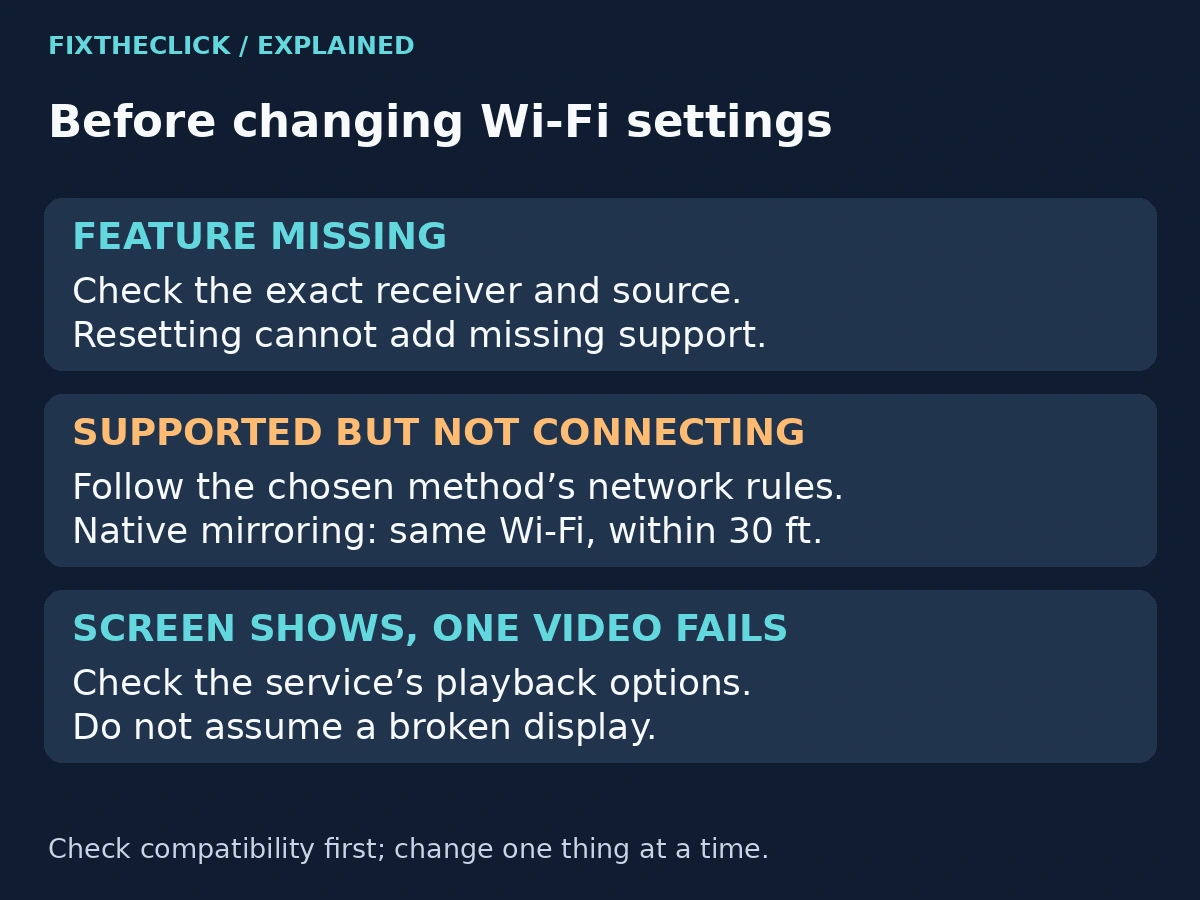
With a supported method selected, check the two devices’ actual network names. A phone using cellular data or a device on a different household network can make your comparison misleading. Follow the network requirements for the chosen method rather than assuming that internet access alone proves the devices can communicate.
For native Fire TV mirroring, use Amazon’s same-network and distance guidance above. Keep the devices nearby while checking whether a connection request reaches the receiver. Avoid changing multiple settings during one attempt; you want to know which check changed the result.
If other Fire TV functions also cannot reach the internet, use our Fire TV connected to Wi-Fi but no internet guide. Do not turn a missing mirroring option into a full network repair job when the receiver does not support that feature in the first place.
You can retry a supported sharing session after closing it on the source and reopening the receiver’s documented screen. Treat that as a fresh attempt, not a guaranteed fix. Do not remove saved Wi-Fi networks or erase device settings merely to make a receiver appear.
7. Separate a connection problem from a playback restriction
If the desktop or phone interface appears on the TV but one protected video does not, record that distinction. Check the service’s official viewing options and any error message before blaming the display hardware. Do not try to bypass content protection.
The TV’s own Fire TV Home screen is another useful boundary. If that screen is also completely absent, use the HDMI and blank-screen troubleshooting guide. If Home is visible and only the shared content fails, stay with the sharing method and source device.
For support, collect the source model and OS, exact Fire TV model and software version, selected sharing method, whether its menu is present, and the stage where the connection stops. That is more useful than reporting only “screen mirroring is broken.”
Frequently asked questions
Why is Enable Display Mirroring missing?
Amazon says its absence means that Fire TV does not support the native mirroring feature described in its guide. Check the exact model and another supported sharing route; a factory reset is not a way to add compatibility.
Can an iPhone mirror to every Fire TV?
No. The native Fire TV mirroring route excludes iOS. AirPlay is a separate feature on compatible Fire TV televisions, and app casting depends on the particular app and receiver.
Does the Fire TV phone remote app mirror my screen?
It serves a different purpose: controlling the Fire TV. Finding a device in that app does not establish support for whole-screen mirroring, AirPlay, or every streaming app’s casting feature.