Win + Shift + S Not Working? Fix Snipping Tool in Windows 11
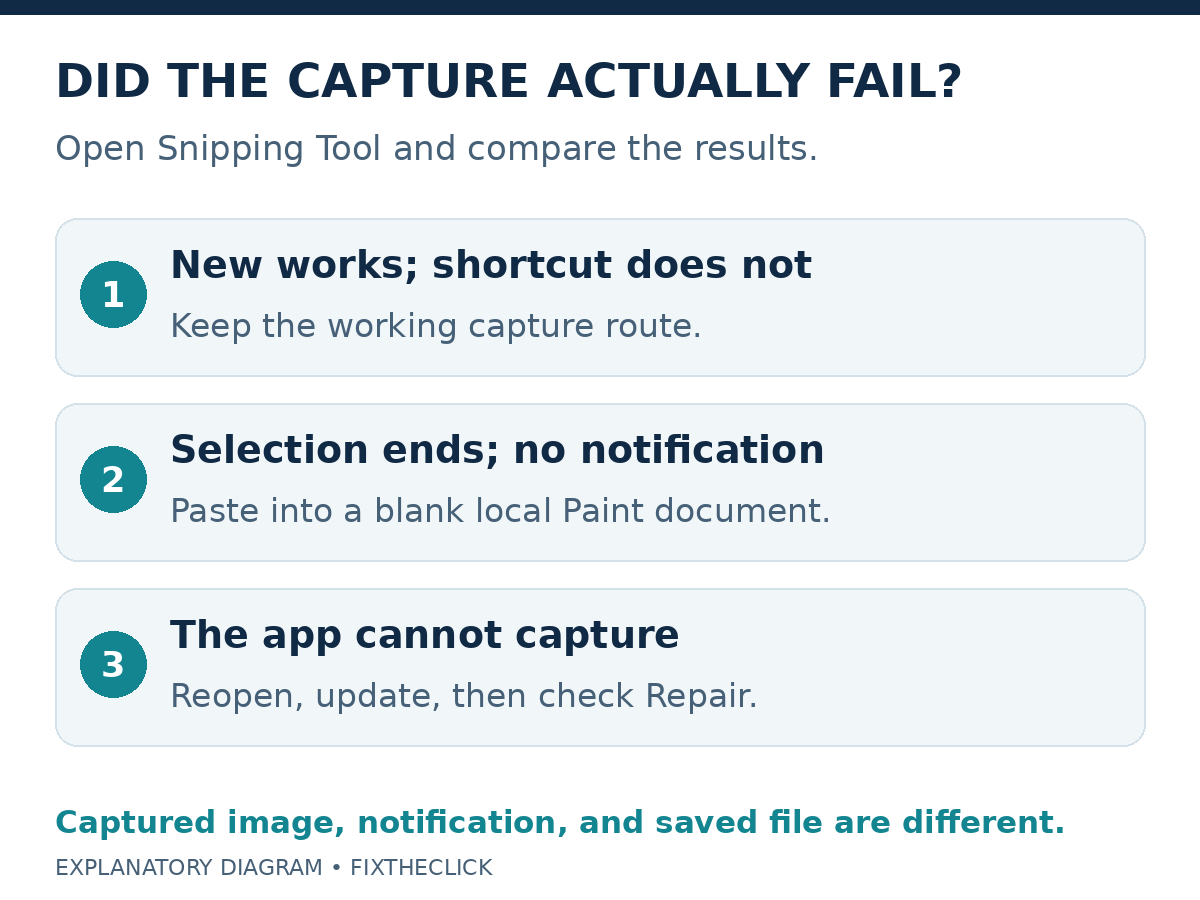
If Win + Shift + S is not working in Windows 11, open Snipping Tool from Start and try New in screenshot mode. If that captures an image, the app can still capture; investigate the shortcut or notification behavior before resetting it.
If the screen selection appears but no notification follows, paste into a blank local Paint window with Ctrl + V. An image appearing there is a different result from no capture at all. Start with these checks, then reopen or update the app and use Repair only when needed.
1. Open Snipping Tool directly and try New
Search Start for Snipping Tool and open the app. Make sure you are taking an image rather than recording a video. Choose a screenshot mode, select New, and capture a small harmless part of your desktop. Microsoft’s Snipping Tool instructions document this direct route.
Use something you can safely inspect, such as a blank document with a sample heading. Keep private messages, account details, and codes outside the selection. The test needs to show whether capture works, not disclose what you were originally trying to capture.
| What happens | Next check |
|---|---|
| New captures, but the shortcut does not | The shortcut on the same desktop |
| A selection completes, but no notification appears | Paste the result into a local image app |
| The app will not open or New cannot capture | Reopen, update, then consider Repair |
Keep a note of the result before changing anything. An app that opens and captures through New is not in the same state as an app that immediately closes. Avoid applying both repair paths just because they share the same search phrase.
Win + Shift + S is the image-capture shortcut. Microsoft’s separate video shortcut uses R instead of S. This guide checks screenshots; a recording control is not the result you are looking for.
2. Check for a capture before treating the missing notification as failure
Try the image shortcut and finish the selection. Immediately open a blank Paint document and paste. Do this before copying another item, so that your comparison concerns the capture you just attempted.
Microsoft’s screen-copy guide explains that the captured screenshot goes to the clipboard and that a notification opens the editor. It also documents pasting images into a drawing app such as Paint.
If the new picture appears, keep it by saving from that local app. The missing notification alone does not mean capture failed. If another picture or no image appears, note that result rather than assuming you have proved which component is broken.
Keep three questions separate: was an image captured, can you open or paste it, and was a file saved? Seeing a clipboard image does not tell you where a file exists.
The current Snipping Tool guide describes automatic saving to Screenshots and changing that behavior or destination through See more → Settings. Inspect your installed app’s actual setting. If you need to be certain, use Save as and confirm the saved file in the location you chose.
3. Reopen the app and check its official update
Save any capture you want to keep, close Snipping Tool, and open it again. Repeat the same small New test and shortcut test. A different result helps narrow the issue; reopening is not a guaranteed fix.
Open Microsoft Store and check for an available app update. Microsoft’s current update guide names Check for Updates; its Store troubleshooting guide uses Library → Get updates. Use the update control your Store version shows.
Let an available Snipping Tool update finish, then reopen the app and compare again. Do not download a replacement capture utility or an app package from an unknown site as the first response.
If a restart is requested, save your work and use a normal Windows restart. Record whether the app itself changed or only the shortcut behavior changed. Keep those observations separate when describing the issue to support.
4. Try Repair if Advanced options offers it
Use Settings → Apps → Installed apps → Snipping Tool → Advanced options, opening the app’s three-dot menu where needed. Select Repair if available. Microsoft’s Windows 11 repair guide cautions that some apps do not expose these options.
Microsoft’s app repair documentation distinguishes Repair, which retains app data, from Reset. Even so, save any open capture before closing or repairing the app. Keeping the only copy in an unsaved window is unnecessary risk.
After Repair completes, try New first and the image shortcut second. Judge the original symptom, not just whether Windows finished the repair operation. If the option is absent, do not substitute a bulk reinstall command.
5. Consider Reset or reinstall only after preserving your captures
If the app still cannot capture, review the supported Reset option and its confirmation before deciding. Microsoft says resetting packaged apps deletes their app data and can remove preferences or sign-in details. This is an app reset, not a request to reset the entire PC.
Preserve important captures as separate files and check their locations first. Record your save preferences so you can review them again afterward. Do not assume unsaved work will survive Reset or removal.
If reinstalling becomes necessary, use the official Microsoft Store route for Snipping Tool. On a managed PC, ask IT if app installation or capture is restricted. Neither resetting dates nor disabling security is an appropriate first step for an unexplained shortcut failure.
Frequently asked questions
Do I need to reset the app when New works?
Start with the shortcut and paste comparison. Preserve the working capture route while investigating what actually fails.
Does a screenshot on the clipboard mean a file was saved?
Check the app’s save behavior and actual destination. Save a separate copy when the capture matters.
What should I tell support?
Provide your Windows build and installed Snipping Tool version, the New result, whether selection appears, the local paste result, and any update or Repair outcome. Leave private image contents out of the report.