Fire TV App Keeps Crashing or Won’t Open? Try These Fixes First
Quick answer: If an installed Fire TV app keeps crashing, return to Home, reopen the app, and restart the Fire TV if needed. Next, clear that app’s cache under Settings > Applications > Manage Installed Applications on supported devices. Save Clear Data and reinstallation for later, when you have the account’s sign-in details ready.
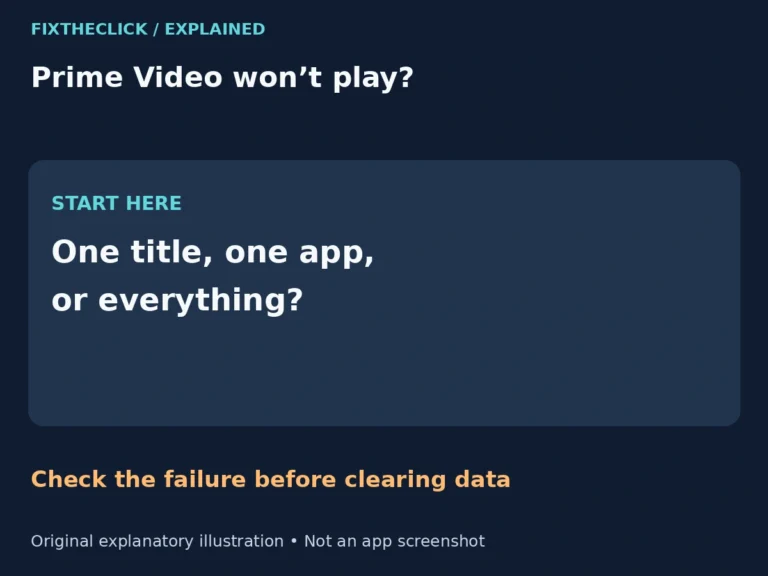
You select a show, the app starts loading, and suddenly you are back at Home. Before changing the whole device, check whether the failure follows one streaming app or affects everything you open.
This guide covers streaming apps installed on the television or Fire TV player. If you mean the phone’s remote-control app, use our Fire TV app not finding your device guide instead.
First, identify what is actually failing
Open a different installed streaming app and try playing something. Merely seeing its menu does not prove that playback works, but a successful stream gives you a useful comparison.
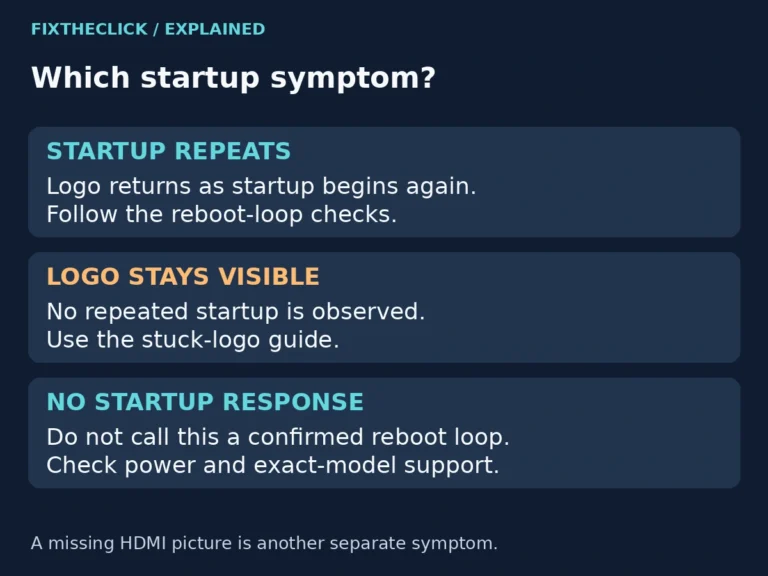
If only one app closes, focus on that app and its service. If several apps cannot reach the internet, follow our Fire TV connected to Wi-Fi but no internet guide. If Home never appears and the Fire TV logo stays on-screen, app settings are not accessible; that is a startup problem.
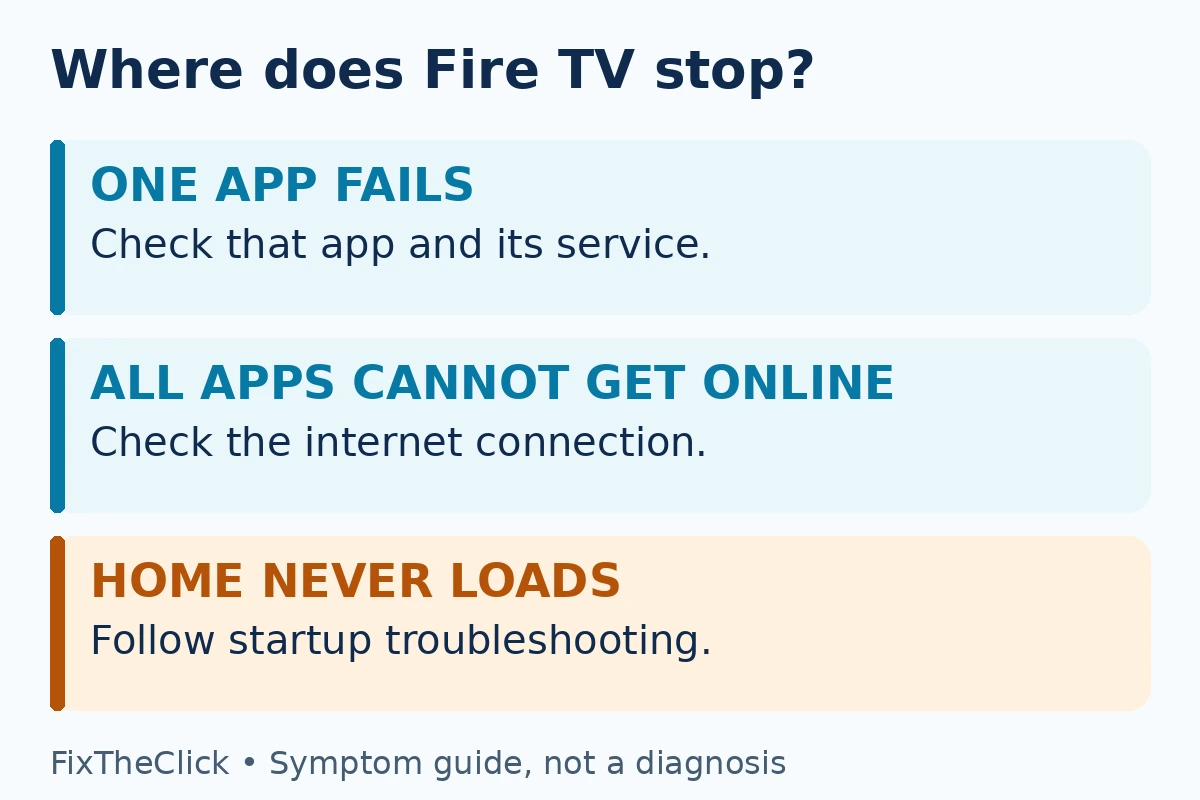
These branches narrow the investigation; they do not establish the cause. An app returning to Home also differs from the entire device restarting. For a logo that repeatedly disappears and returns, see Fire TV keeps restarting.
1. Reopen the app, then restart the Fire TV
Press Home and launch the affected app again. Note whether it closes immediately, stops at its own loading screen, or fails only when you select a video. Keep any error code for later rather than dismissing it repeatedly.
Amazon’s app troubleshooting guidance includes restarting the device. Its power-restart example is to disconnect the power adapter for one minute, then reconnect it. Do this when no system update is being installed.
Use your model’s restart control if available. Restarting means turning the device off and back on; it is different from restoring factory settings. After Home returns, open the same app and repeat the action that failed before.
2. Clear the affected app’s cache first
For Fire TV models that provide this menu, open:
Settings > Applications > Manage Installed Applications > [app name] > Clear Cache
This follows Amazon’s documented app-management path. Our suggested order is to test after clearing cache, before moving to the more disruptive Clear Data option.
Cache holds temporary files. Clearing it lets the app rebuild those files as needed. It normally leaves sign-in information intact, although the next launch may take longer while content is fetched again.
Select the app that is failing, not a different app with a similar name. Reopen it and test playback. If it still closes, note that cache clearing did not resolve this attempt; that does not prove the device is broken.
Clear Cache and Clear Data are different
Clear Data resets the app’s local state. Depending on the service, that can remove sign-in sessions, preferences, and locally stored information. It is a bigger step than deleting temporary cache files.
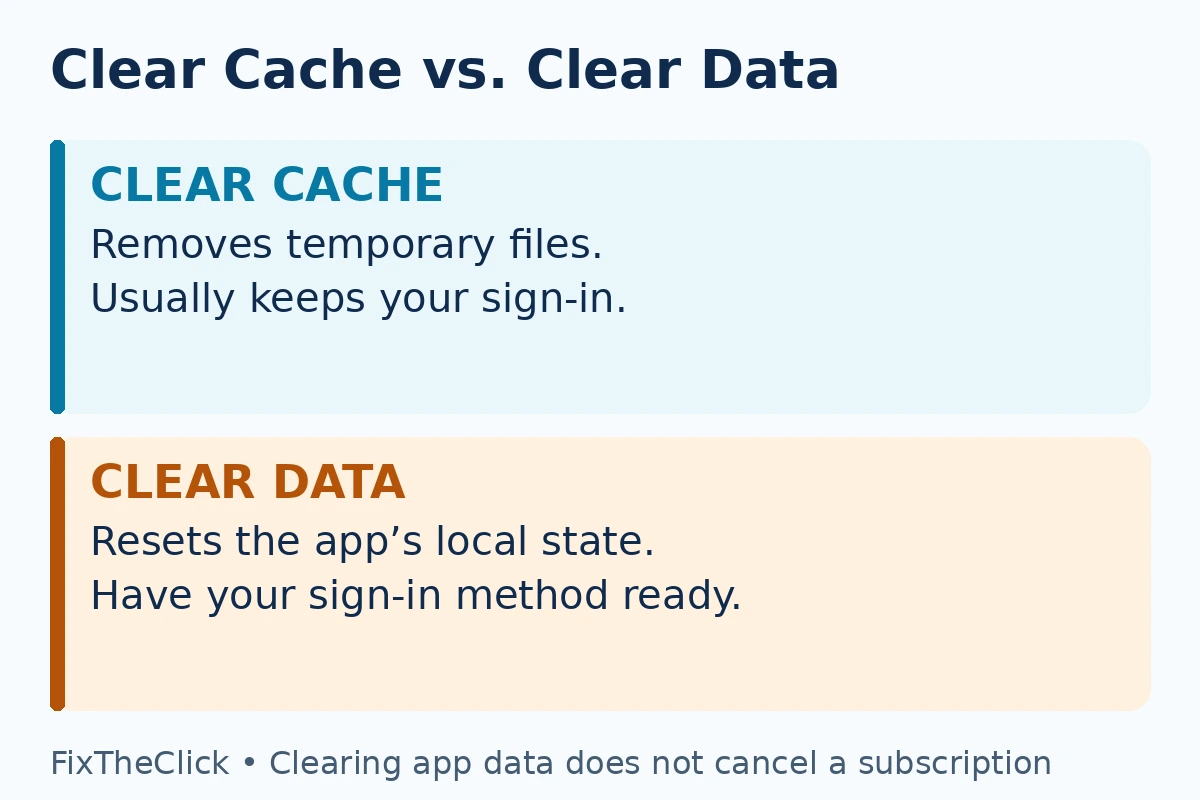
Before using Clear Data, confirm that you can sign back in. Some services use a password; others ask you to enter a code through a phone or reconnect a TV-provider account. Make sure you have access to the required account and verification method.
As one concrete example, Victory+ tells Fire TV users to reconnect their account after Clear Data. That illustrates the possible inconvenience, not a promise that every streaming app stores information in exactly the same way.
Clearing local data or uninstalling an app is not a subscription-cancellation method. Manage billing separately with the service or the company that processes your subscription.
3. Check the message before deleting data
An account, location, or subscription message deserves a different response from an app that vanishes without an explanation. Look up the exact message in the streaming service’s official help center.
If the service reports an outage, repeated reinstalls are unlikely to restore its servers. If no outage is confirmed, do not assume one exists simply because a stream failed. The same symptom can come from several different problems.
Trying the service on another supported device can provide context. A failure there too may point toward the account or service, but differences in device support and playback permissions mean it is not definitive proof.
4. Clear Data only when you can sign back in
Return to the affected app’s page in Manage Installed Applications and choose Clear Data, if that option is offered. Read the on-screen confirmation, reopen the app, and complete its sign-in or activation process.
Test the app before changing anything else. If it opens but one title still fails, record the title and error message. That narrower symptom is useful to the app’s support team and does not justify clearing every app on the device.
If you cannot recover the login or activation method yet, pause this step. Keeping a working sign-in can be more useful than repeatedly resetting an app without a way back into the account.
5. Update or reinstall through the supported store
Check for an available app update using the store supplied for your Fire TV model. Before uninstalling, verify that the app is still offered for that device and that you can activate it again.
If reinstallation is appropriate, remove the affected app and download its official listing again. Do not use an unofficial APK, an older package from an unknown site, or a download advertised as a “crash fix.” An unavailable app may require advice from the service about current device support.
Amazon also recommends checking for device software updates. On models with the documented menu, look under Settings > My Fire TV (or Device & Software) > About for the system-update option. Follow the wording actually shown on your device and allow an installation to finish.
Check your Fire TV model and operating system
The app-management steps here target Fire OS devices that expose Manage Installed Applications. Fire TV Stick, Cube, and televisions with Fire TV built in do not all have identical menus.
Amazon’s device table also distinguishes Fire OS products from Vega OS products, including Fire TV Stick 4K Select. If your device lacks the described cache or data controls, use its model-specific support instructions rather than treating another operating system’s menu as mandatory.
When to contact the app developer or Amazon
For one persistent app failure, start with the streaming service. Provide the app name, Fire TV model, available software-version information, error message, and the step that triggers the failure. Tell support which changes you already tried.
For multiple apps crashing or Home becoming unstable, contact Amazon or the television manufacturer as appropriate. Avoid a whole-device factory reset just to investigate one app; it adds account setup and downloads without establishing why that app failed.
Frequently asked questions
Why does my Fire TV app close immediately?
An immediate return to Home identifies an app-launch failure, but not its cause. Start with reopening, a device restart, and the affected app’s cache. Keep any error message and compare another app before changing network settings.
Will Clear Data delete my streaming account?
It resets information stored locally by that app; it is not an instruction to close your service account. Be ready to sign in again, and check the service’s guidance for app-specific effects.
Should I reset the router if only one app fails?
Not as the first response. Confirm whether other apps can actually play content. Working playback elsewhere makes the affected app and service the more useful starting point.
Keep the next step tied to what failed. Reopen and restart first, test cache separately, and only reset app data or reinstall when you can get back into the account.