Win + V Not Working in Windows 11? Check Clipboard History First
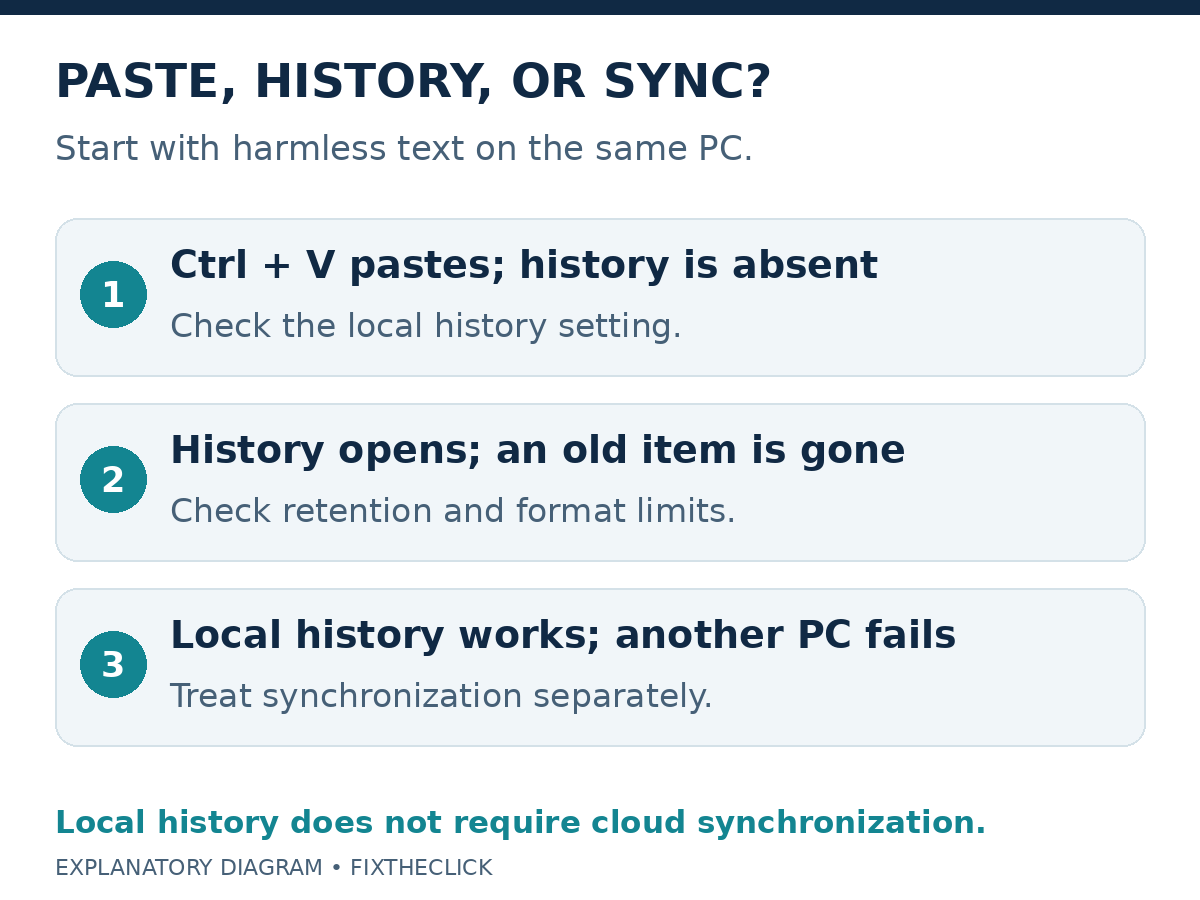
If Win + V is not working in Windows 11 but Ctrl + V still pastes, start with Clipboard history. Ordinary paste and the history panel are different features. Open Windows + V and select Turn on if offered, or check the local history setting under Settings → System → Clipboard.
Then copy a short, harmless line and try the panel again on the same PC. Do not enable cloud synchronization just to run this local check. Separate a history panel that will not open from one that opens but lacks an older item.
1. Identify whether paste or history is failing
Use a blank local document with a sample such as “clipboard check.” Select that text, copy it, and paste into another blank document. Keep passwords, verification codes, work records, and other private content out of the test.
If ordinary paste produces the new sample, record that result. It is evidence that this copy-and-paste action worked, not proof that the history feature is enabled. If paste fails too, do not describe the problem as only a missing history item.
| What you see | Start here |
|---|---|
| Paste works, but history is unavailable | The local Clipboard history setting |
| History opens, but the old item is absent | A new sample, then retention and format limits |
| This PC works, but another lacks the item | The separate synchronization feature |
Keep the same PC, source document, and destination for your first comparison. Changing several apps and devices at once makes it harder to describe where the failure occurs.
2. Turn on local history and test a fresh item
Microsoft’s clipboard guide documents the first-use Turn on prompt. In Clipboard settings, check Clipboard history itself rather than the separate across-devices setting. If a workplace manages the control, ask your administrator; do not edit policy or registry entries to bypass it.
After enabling the feature, copy the sample again. Open the panel and look specifically for that new text. Select it to paste into a harmless destination. This makes the check repeatable without exposing anything sensitive.
Do not rely on material copied before activation to judge this test. Turning history on is not a promise that every earlier copied item can be recovered. If you still have the original content, copying it again is a clearer check than searching for an unspecified old entry.
If the panel appears but the sample does not, note the source app and whether ordinary paste contains the same text. An empty panel and a keyboard shortcut that never opens anything are different observations.
3. Check the limits before assuming an item disappeared unexpectedly
Microsoft specifies 4 MB per item and supports text, HTML, and bitmap formats. History holds up to 25 copied entries; older unpinned entries can be replaced as new ones arrive. A copied file or other content should not automatically be expected in this list.
Use the short text sample to avoid confusing a content-size or format question with a panel-opening problem. If that works while your original content does not, preserve the original elsewhere and describe the difference to support.
Clipboard history is a convenience during copying, not a substitute for saving an important document. Keep a separate copy when losing the item would interrupt your work. Do not clear the whole list just to test whether one unsupported item can appear.
4. Separate restart behavior from a history failure
Microsoft says restarting clears history except for pinned items. If you want to retain a suitable, non-sensitive entry, use the pin control offered for that item in the history panel. Pinning does not replace a durable file or document.
Think about when the item went missing. Was it present in the same session, or are you looking after a restart? That distinction can explain why the current panel differs from the one you remember without establishing that Windows is malfunctioning.
There is no need to restart solely to demonstrate the documented clearing behavior. If you are troubleshooting another issue that needs a restart, first save important work outside the clipboard. Do not leave the only copy of a needed paragraph in temporary history.
5. Treat cross-device synchronization as a separate choice
The Windows 11 guide calls its synchronization control Clipboard history across your devices. It is tied to a Microsoft or work account. That feature concerns transferring copied content between devices; leave it off when your goal is only a local history check.
If you deliberately want synchronization, first confirm the local sample works. Then follow Microsoft’s account and synchronization instructions for the participating devices. Consider the content you copy before choosing automatic sharing.
If one PC has the sample and another does not, report that as a cross-device result. Do not keep clearing a working local history or changing unrelated keyboard settings in response.
If the fresh text test works but you cannot create a screenshot at all, use our Windows 11 Snipping Tool guide. An image missing from history, by itself, does not establish that the capture app failed.
Frequently asked questions
Can I recover everything copied before enabling history?
Do not assume that. Preserve or recopy content from its original source when available, then judge the new test item.
Must I use cloud sync for this PC?
Check local history first. Make synchronization a separate, deliberate decision when you actually need another device.
What if the setting is managed or the panel still will not open?
Record the Windows version and build, setting state, shortcut behavior, fresh sample result, and whether ordinary paste works. Use official support or workplace IT without publishing clipboard contents or bypassing organizational restrictions.