Keyboard Typing Wrong Characters in Windows 11? Check the Layout
If your keyboard is typing wrong characters in Windows 11, check the selected input layout before assuming the keys are broken. Hold the Windows key and press Space to review installed layouts, then choose the one that matches your keyboard and intended input.
Try the same harmless characters in another app. If the mismatch continues, inspect installed layouts before removing anything. Keep a known working layout so you can still enter passwords and use the computer. This guide is about incorrect input, not a keyboard that never connects.
1. Check the active layout first
Microsoft’s keyboard layout guide documents the shortcut above and the taskbar’s input-language menu. If the shortcut does not switch anything, only one layout may be installed. Do not interpret that result as proof that the keyboard is broken.
Use a simple sample in a blank document: a few letters and the symbols that have been coming out differently. Do not use an account password as your test text or post a screenshot of one for help.
Record the selected layout’s full name, not just “English.” Then compare the sample again after selecting the intended option. If that fixes the mismatch, preserve the working choice before investigating why another option was available.
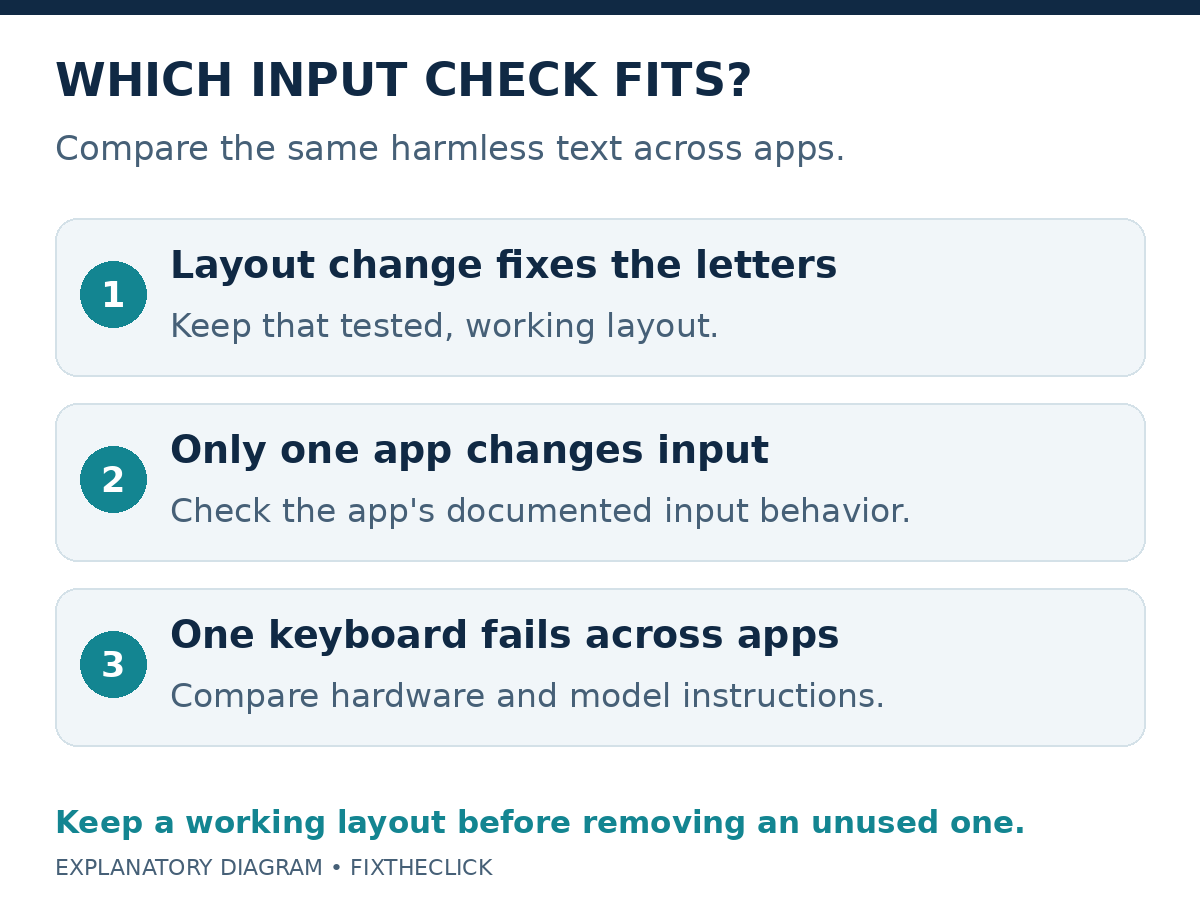
| Comparison result | Next check |
|---|---|
| Characters match after changing the layout | Review installed layouts; keep the working one |
| Only one app changes the characters | That app’s input or text-processing behavior |
| One keyboard misbehaves across apps | Compare the hardware and its documented settings |
These comparisons help choose a branch; they are not a definitive fault diagnosis. Write down the actual output so that your next change answers a specific question.
2. Review installed keyboard layouts
Open Settings → Time & language → Language & region. Beside the relevant language, select its three-dot menu and Language options, then inspect Keyboards. If the intended layout is absent, use Add a keyboard and select it before testing again.
A layout may be listed under your display language or another installed language. Microsoft distinguishes the Windows display language from keyboard input; changing the language of Windows menus is not a required fix for this symptom.
Look at the physical keyboard too. Was it supplied with this PC, purchased in another country, or switched recently? Those details help you decide what layout you intended to use. Do not change language settings solely because a support example shows a particular regional choice.
If the appropriate option is already installed, select it rather than repeatedly adding similar entries. A shorter list is helpful only when it still contains everything you actually need.
3. Keep the working layout before removing an unused one
Removal is optional. First select and test the layout you want to keep. Microsoft places Remove in the three-dot menu beside an installed keyboard. Its guidance notes that the only layout for the display language cannot be removed without adding another.
Do not remove every option as a troubleshooting experiment. Keep a record of the working layout and any arrangement another household member intentionally uses. If you are unsure which entry is needed, leave it in place while you test.
Removing an unused layout and deleting a language pack are different tasks. You do not need to remove an entire language just because one keyboard arrangement is unwanted. On a managed PC, ask IT when settings are restricted rather than bypassing those controls.
4. If the problem happens in only one app
Use the same physical keyboard, selected input, and sample text in a second app you already trust. Compare what appears as you type, not just what the finished sentence looks like after the app processes it.
If another app produces the intended characters, focus the next investigation on the failing app. Note whether individual keys are substituted, a word changes after completion, or an input prompt offers different choices. Consult that app’s documented input and text settings; do not switch off unrelated features throughout Windows.
Change one relevant option and repeat the sample. If it does not help, restore the original choice. A single successful sample is useful evidence, but it is not a guarantee that every input field in the app behaves identically.
5. Separate external-keyboard trouble from layout settings
If the mismatch remains across apps with the intended layout selected, compare another compatible keyboard if one is available. Note whether the same characters are wrong on both. Do not treat one comparison as conclusive proof that the original keyboard needs replacement.
For a USB keyboard that also misses input, Microsoft’s hardware troubleshooting guide suggests reconnecting it, trying another port, and testing without a hub. Inspect for cable damage. For battery-powered models, check their charge. Follow the model’s own instructions for special operating modes.
If a Bluetooth keyboard does not connect at all and the PC’s Bluetooth control is missing, use our missing Bluetooth toggle guide. That is a connection/detection problem, not a layout fix.
For persistent incorrect input, give the PC or keyboard manufacturer the models, selected layout, affected keys, app comparison, and any supported second-device result. Use official support before installing a remapping utility, deleting drivers, or resetting Windows.
Frequently asked questions
Do I need to change Windows to another display language?
Start with keyboard input. Identify the arrangement that produces the characters you need; leave unrelated display preferences alone.
What if Windows + Space does nothing?
Inspect the installed list before repeatedly pressing the shortcut. Add a missing intended layout through the documented route, then test it.
Should I delete all extra layouts?
No. Keep the tested working layout and any intentionally used options. Remove only an entry you have identified as unnecessary.