Brightness Slider Missing in Windows 11? Check Your Display Type First
If the brightness slider is missing in Windows 11, first identify the screen you want to adjust. On a desktop using an external monitor, its absence can be expected: use the monitor’s own brightness controls. A laptop’s built-in screen losing a previously available control needs a different check.
Open Settings → System → Display and look for the control there before changing drivers. This guide separates external-monitor adjustment from a missing built-in-screen control, so you can choose the next step without resetting Windows.
1. Identify the display, not just the computer
A laptop can use its built-in panel, an external monitor, or both. Being on a laptop does not make every connected screen an internal display. Likewise, a desktop with a separate monitor should not be treated as a laptop with a broken brightness control.
Microsoft’s Windows brightness guide notes that the slider may be absent with external monitors and directs readers to the monitor’s buttons. That absence alone is not evidence of a damaged graphics driver.
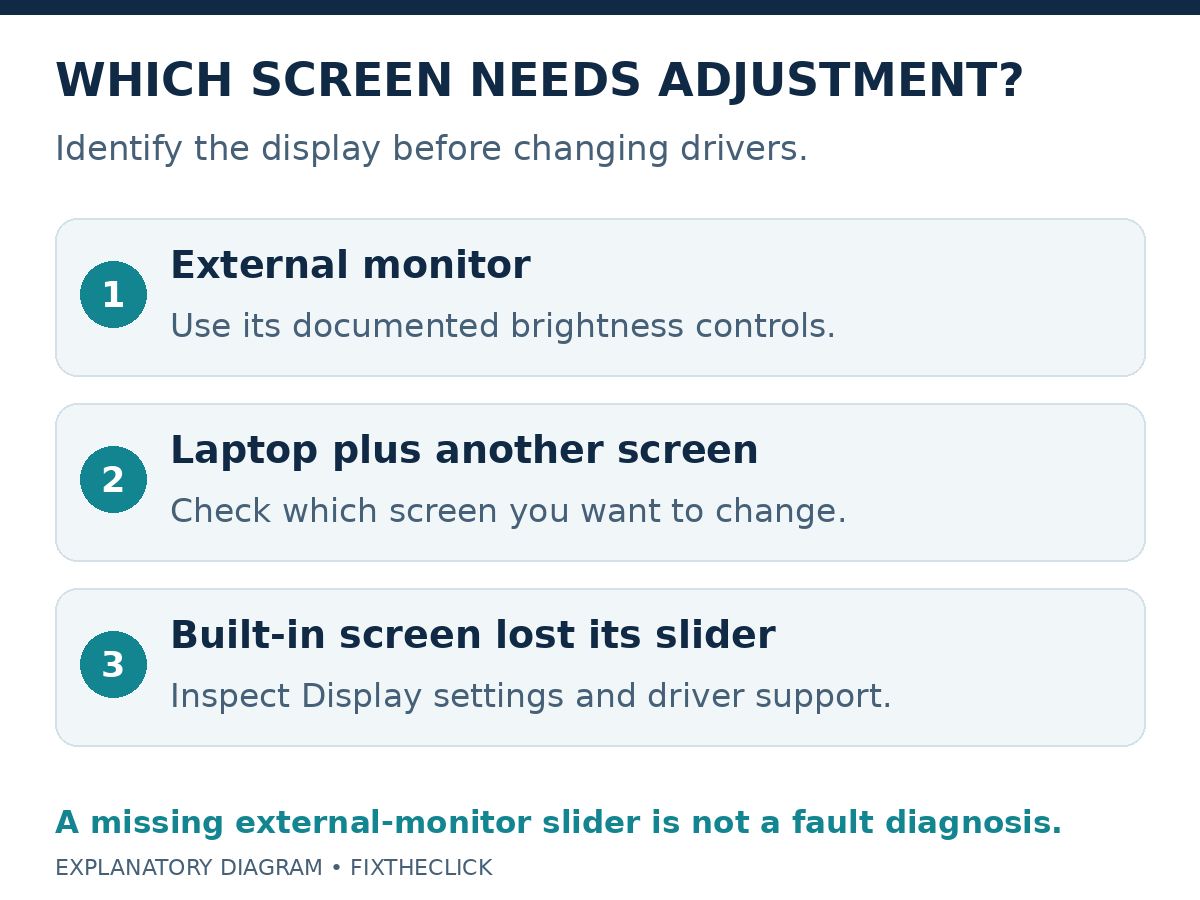
| Your situation | Start here |
|---|---|
| Separate monitor connected to a desktop | The monitor’s physical brightness controls |
| Laptop connected to another screen | Identify which screen you want to change |
| Built-in laptop display lost its control | Display settings, then supported driver checks |
If you use two screens, write down which one is too bright or dark. A change on one screen is not a useful test of the other. Keep the connection arrangement unchanged while making the first comparison.
2. Check Display settings before searching for a missing tile
Open the Display page above and inspect its brightness controls. Microsoft also describes opening the taskbar’s Network icon to adjust brightness where available. If the Settings control works, use it; a missing taskbar control does not establish a failure of the entire display system.
Distinguish three results: the control is absent, it is visible but unavailable, or it moves without the expected change. Record which result applies. Do not describe all three as “the slider disappeared,” because support will need that difference.
If moving an available control changes the intended screen, stop there. You do not need to install software simply to make the same adjustment from another location. If you cannot see the external monitor at all, use our Windows 11 second-monitor guide; that is a detection problem rather than a missing brightness control.
3. Use the external monitor’s own controls
Locate the buttons or joystick described in the monitor’s manual. Look for its documented brightness adjustment and note the original value before changing it. Button locations and menu wording are model-specific; there is no single Windows click sequence that replaces every monitor’s controls.
Change only brightness for this check, then compare the same ordinary desktop content. Leave unrelated picture settings alone. Otherwise, it becomes difficult to tell which adjustment produced the result you wanted.
If the monitor’s control is unavailable, record the exact menu message and consult the manufacturer for that model and current picture mode. Do not infer a Windows driver fault from a monitor menu you have not identified. A screen can show a working Windows desktop while handling brightness through its own controls.
4. If the missing control belongs to the built-in screen
First confirm that this is the laptop panel and that brightness was previously adjustable on it. Save your work and use a normal restart, then check the same Display page. Treat this as a comparison step, not a promised repair.
Note when the change appeared. Did it follow a graphics update, connecting a monitor, or another setup change? Timing helps you describe the issue; it does not prove the last action caused it.
Keep the investigation specific. Do not uninstall every display-related entry or apply a registry tweak because a different laptop online had a similar symptom. If the screen itself is working, preserve that working setup while checking the supported driver path.
5. Check the graphics driver through official support
Microsoft’s driver update instructions recommend Windows Update and also document Device Manager. Right-click Start, open Device Manager, expand Display adapters, identify the relevant adapter, and choose Update driver for an automatic search. Follow the prompts and restart if requested.
If several adapters appear, do not choose one at random. Record their names and check the PC maker’s guidance for your exact model. For a manual package, Microsoft says to match the Windows version and architecture and use the manufacturer’s official site.
After any supported update, return to the original symptom: is the built-in-screen control present, and does it change that screen? A completed installation is not proof that brightness adjustment has returned.
If it remains missing, give support the laptop model, Windows version and build, display arrangement, adapter names, and whether the control is absent or simply unresponsive. Ask for the supported next step rather than starting with a BIOS update or PC reset.
Frequently asked questions
Does an external monitor need a Windows brightness slider?
Do not judge the monitor by that control alone. Start with its documented buttons and observe whether you can adjust the actual screen.
Should I remove my graphics driver first?
No. Identify the display and check the available controls before considering changes to a working driver. Use exact-model support if the built-in screen remains affected.
What if only the picture color looks different?
Record that as a separate symptom. Avoid changing brightness, color, and several other settings together when the original question is whether a control is missing.