USB Drive Not Showing Up in Windows 11? Check Before Formatting
Your USB drive is plugged in, but Windows 11 does not show it in File Explorer. If it contains important files, do not accept a Format or Initialize prompt. First check whether Disk Management can see the drive and how it describes the existing volume.
Start with a direct USB connection, then separate a missing drive letter from an unreadable volume or a device Windows cannot detect. This guide covers an external USB data drive on Windows 11, not changes to Windows, EFI, or recovery partitions.
1. Rule out the connection before changing the disk
Disconnect an unnecessary USB hub and connect the drive directly to the PC. Try another suitable USB port. For an external drive with a detachable cable, check its connections and try a compatible cable you know works. Follow the drive maker’s power requirements if it uses a separate supply.
Microsoft includes direct connection, another port, and cable checks in its disk troubleshooting guidance. That document also covers server storage; its RAID and dynamic-disk procedures are outside this guide.
Change one part of the connection at a time. Note whether the drive appears, disappears, or produces the same message. A connection sound or an illuminated enclosure is an observation, not confirmation that Windows can read your files.
If the cable or connector is damaged, stop using it. If the drive repeatedly disconnects or behaves abnormally and the files are irreplaceable, stop repeated experiments and contact the manufacturer or an appropriate data-recovery professional. Do not open the enclosure as an initial troubleshooting step.
2. Find the exact drive in Disk Management
Right-click Start → Disk Management. Microsoft documents this Windows 11 route in its Disk Management overview.
Identify the external disk by its expected capacity, available label, and volume layout. A displayed capacity can differ from a product’s advertised number, so use several identifying details. Do not choose a disk solely because it is called Disk 1 or happens to be near the bottom of the window.
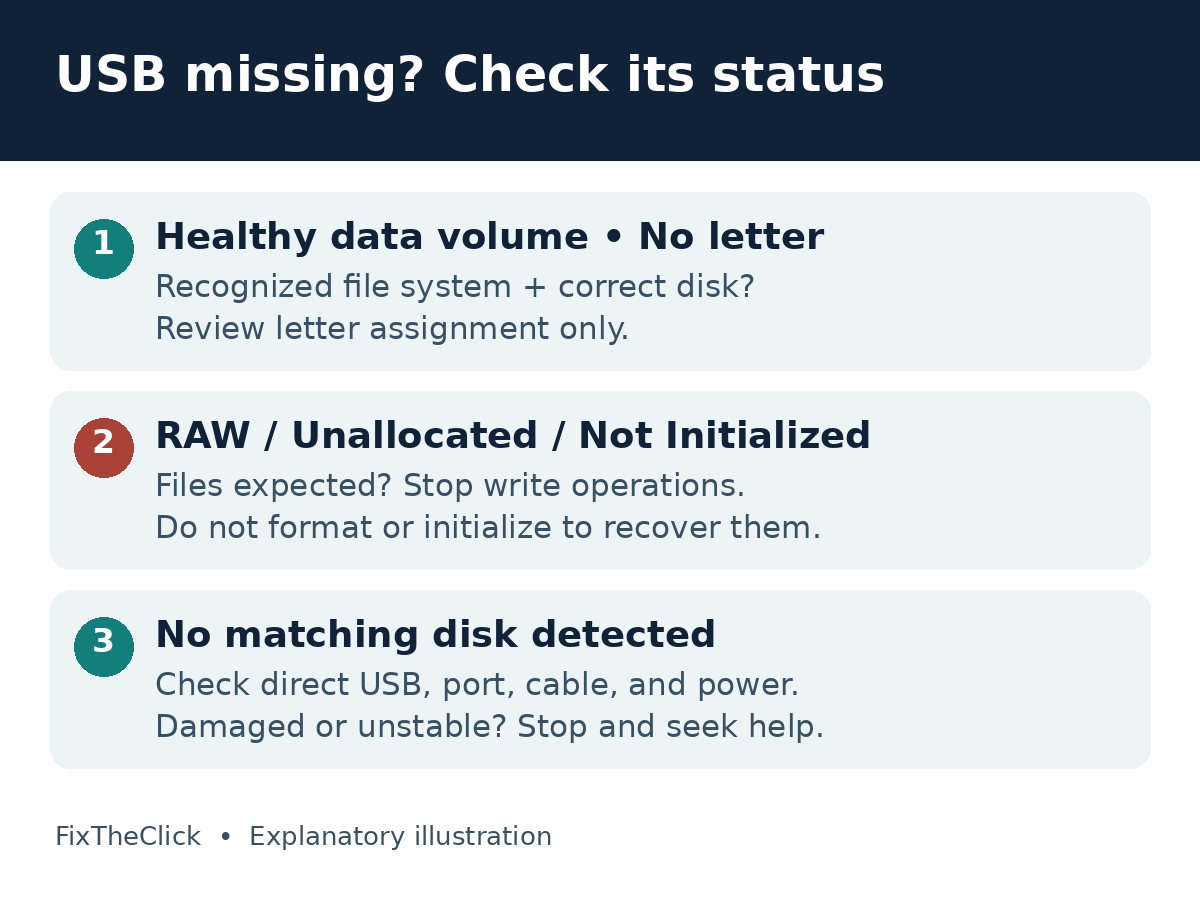
Write down the status and any recognized file system. Is there an existing volume? Does it already have a drive letter? Does Windows show RAW, Unallocated, or Not Initialized? If you cannot confidently identify the target, stop before changing anything.
| What you find | Next step |
|---|---|
| Recognized, healthy existing data volume; no letter | Review the limited drive-letter branch below |
| RAW, Unallocated, or Not Initialized; files expected | Stop write operations and seek data-preserving help |
| Drive appears with a letter, but files will not open | Record the exact error; do not format to test it |
| No matching disk appears | Continue connection and device-recognition checks |
Keep a screenshot or written note of these observations for support. Crop unrelated drive details and personal filenames before sharing it. These branches narrow the next action; they do not diagnose a particular failed component.
3. Add a letter only to a recognized existing data volume
This branch is for an identifiable, healthy data volume with a Windows-recognized file system and no drive letter. It is not a repair for RAW space, a missing partition, or an initialization prompt. Confirm that the volume does not contain Windows or installed applications, and protect accessible files before making changes.
Microsoft’s drive-letter instructions apply to Windows 11 and require suitable administrator permissions. On the correct volume, right-click and choose Change Drive Letter and Paths → Add. Select Assign the following drive letter, choose an available letter, and select OK. Review any confirmation before accepting it.
Return to File Explorer and check that the expected drive and folders appear. If they do, copy important files to a verified backup. A visible letter alone is not proof that every file is intact.
If the option is unavailable, stop this branch. Do not create a new volume to make the button appear. Never change EFI, Recovery, or system partitions, and do not change an existing application drive’s letter just to experiment. If the volume already has a letter, recording its error is more useful than repeatedly assigning another one.
4. Treat abnormal disk states as a data-protection problem
RAW, Unallocated, and Not Initialized do not mean “safe to erase.” When you expect existing files, a setup procedure for a new empty disk is the wrong next step. Preserve the drive’s current state and tell support which files need protecting.
Microsoft distinguishes preparing empty storage from troubleshooting storage containing data. Its Disk Management overview also warns that formatting destroys data on the selected partition. Do not use formatting, initialization, a new-volume wizard, or diskpart clean as a test of whether a missing drive will recover.
Keep the distinction practical: are you intentionally setting up a verified empty device, or trying to regain access to files that should already be there? This article addresses the second situation. If you are unsure whether a backup contains everything, treat the files as still needed.
5. If Windows cannot detect the drive at all
After direct connection and appropriate port/cable checks, inspect Device Manager for a related device and record any displayed error. Avoid uninstalling every USB controller or running a bulk repair script. The useful information is whether Windows detects this particular accessory, not how many unrelated entries can be removed.
A cautious comparison on another compatible PC can help narrow the issue, provided the drive is not damaged or behaving abnormally. Decline format or initialization prompts there too. Recognition on one computer and absence on another is a clue about the connection or PC; failure on both is not conclusive proof that recovery is impossible.
For persistent failure, give the drive maker or support the drive model, Windows version, connection path, exact Disk Management status, and the results of each comparison. Say explicitly that existing data must be preserved. On a managed work PC, ask IT before changing device settings or permissions.
Frequently asked questions
Should I click Format when Windows asks?
Not when you need files already on the drive. Cancel the prompt and identify the disk’s state first. A format request is not permission to erase it.
Will assigning a drive letter recover lost files?
It only addresses the limited case of a recognized existing volume missing its letter. It does not reconstruct a partition or guarantee file recovery.
Why does the drive light turn on but no folder appears?
Power and usable file access are different observations. Check whether the exact disk appears in Disk Management before choosing a next step.