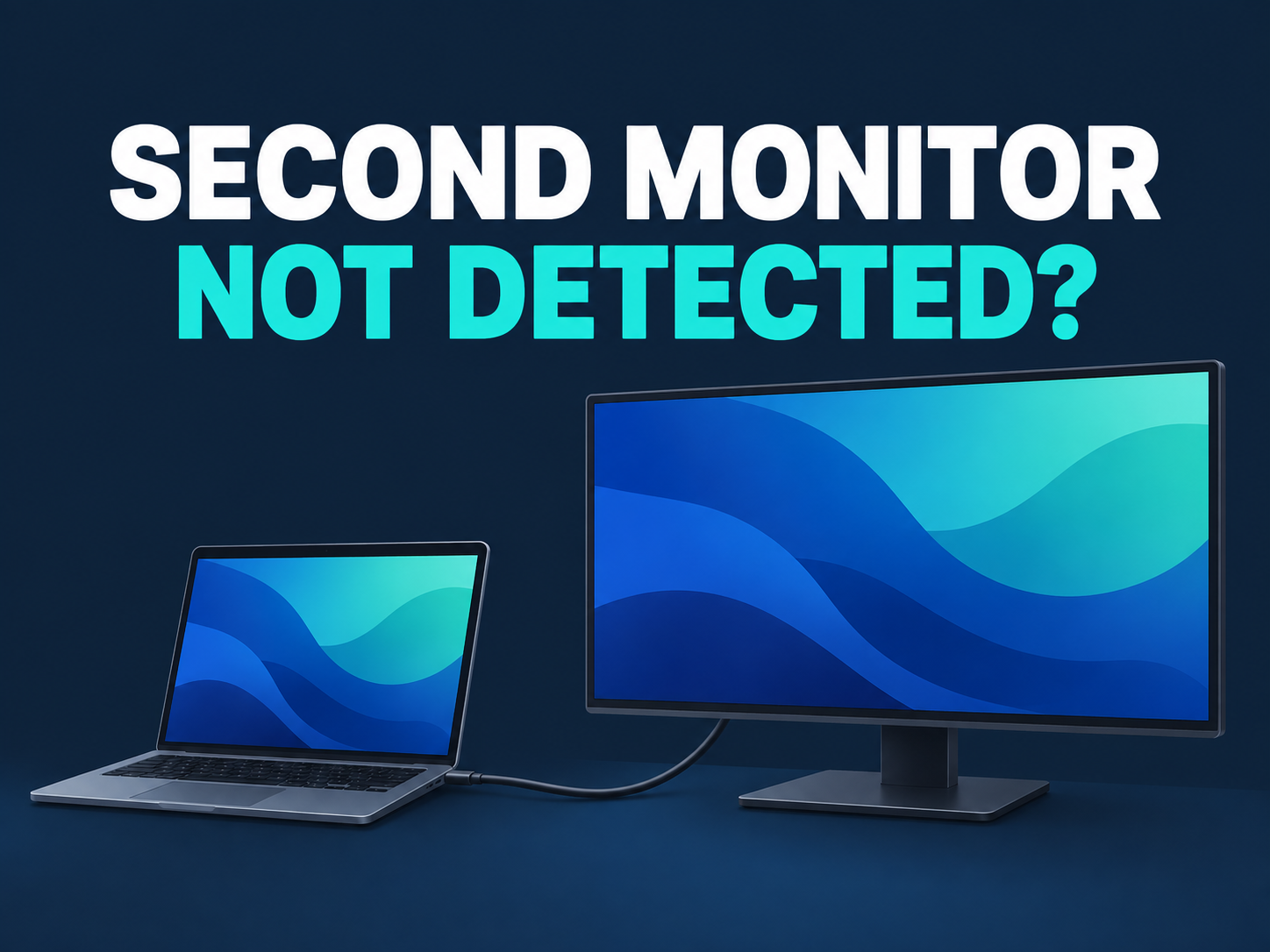
Second Monitor Not Detected in Windows 11? Check These Connections
You connected an external monitor to your Windows 11 laptop, but the monitor stays blank or Windows cannot find it. Start with the selected monitor input and the complete connection path—not a driver removal.
Quick answer: Confirm that the monitor is powered on and using the input your cable connects to. Press Windows + P and choose Extend or Duplicate, then check Display settings. If a hub or dock is involved, test a supported direct connection before investigating drivers.
This guide covers a wired external display. Wireless casting to a TV is a different setup. It also separates a brand-new connection from a previously working monitor that stopped after an update.
1. Identify What Is Missing
Write down the route you are actually using: laptop → cable → monitor, or laptop → dock/adapter → cable → monitor. Include the exact port at each end. “USB-C to the dock” leaves out whether that laptop port supports the dock’s video requirements.
| What you see | Start here |
|---|---|
| New setup has never displayed an image | Input, output mode, and connection compatibility. |
| Monitor shows No Signal | Selected input and the cable path. |
| Windows lists two displays, but the desktop is not where expected | Projection mode and display arrangement. |
| The same setup stopped immediately after an update | Basic connection checks, then the relevant driver branch. |
These are starting points, not hardware diagnoses. A blank monitor alone does not tell you whether the panel, cable, dock, or PC is responsible. Keep the laptop screen available while testing so you can see settings and restore a change.
2. Match the Monitor Input to the Cable
Use the monitor’s own controls to select the connected input. A cable in HDMI 2 will not provide a picture while the display is waiting on HDMI 1. The control may be labeled Input or Source; its location depends on the monitor.
Microsoft’s Surface display guidance explicitly describes matching the monitor’s input to the connected port. For other PCs, consult the monitor’s manual for its controls rather than borrowing a Surface-specific menu or reset procedure.
Check both cable ends without forcing connectors. If the monitor will not show even its own built-in menu, check its power and manufacturer’s troubleshooting instructions first. Windows projection settings cannot make an unpowered panel display that menu.
Keep notes such as “HDMI 1, direct connection, no picture.” They make the next comparison useful. Changing the input, cable, dock, and software at once can leave you unsure which change mattered.
3. Choose Extend or Duplicate, Then Ask Windows to Detect It
Press Windows + P. Choose Extend for extra desktop space or Duplicate to show the same content on both screens. PC screen only is not the mode for using the external monitor as a second workspace.
Next open Settings → System → Display → Multiple displays → Detect. This is the Windows 11 path in Microsoft’s multiple-monitor guide. If two displays appear, use Identify to match the numbered displays to the physical screens.
If Extend works but the pointer moves in the wrong direction, arrange the display tiles to match the monitors’ positions. That is a layout problem, not a failure to detect the monitor. Test by moving one window between screens.
If Detect still finds nothing, continue with the physical connection. Repeatedly pressing it cannot add video capability to an unsupported port.
4. Test Without the Dock or Hub
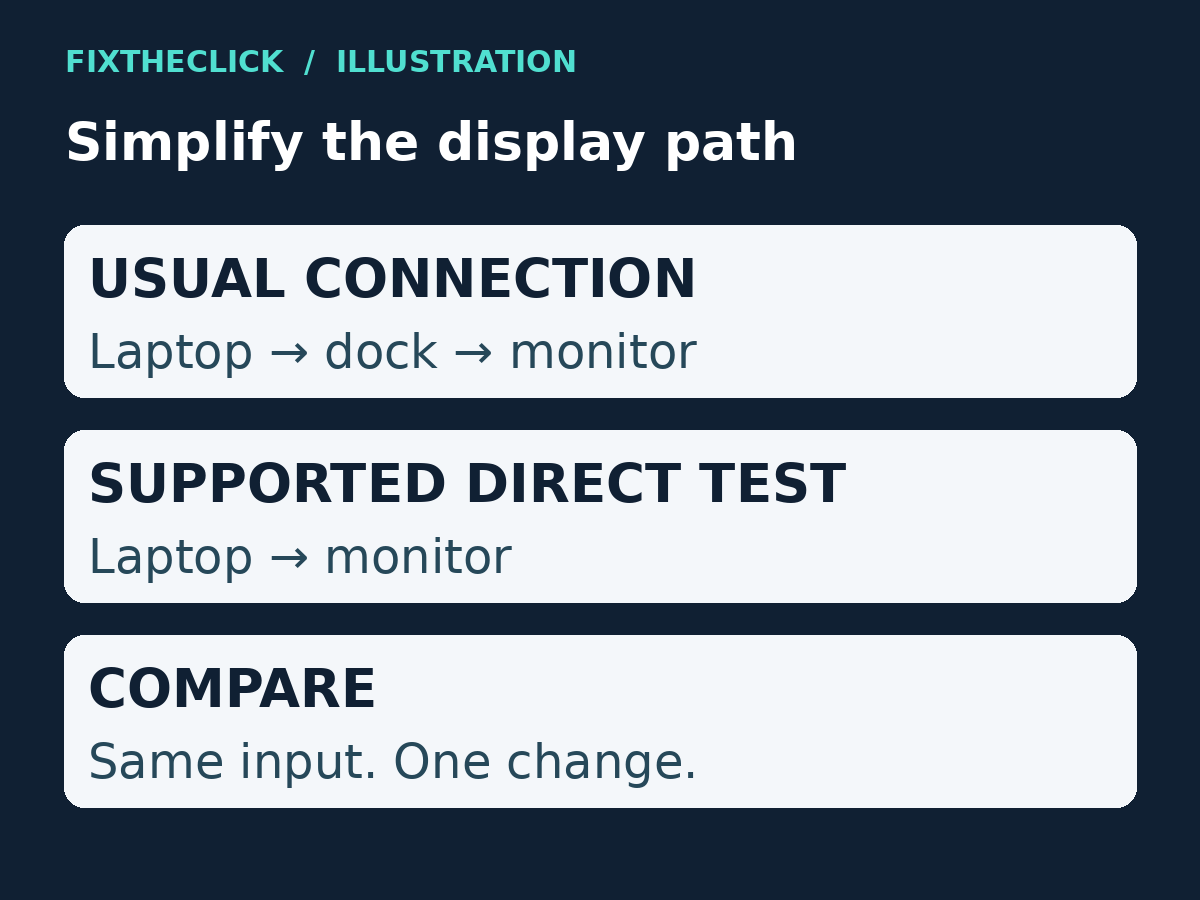
Microsoft’s external-monitor troubleshooting guide recommends disconnecting accessories that may interfere. Where your laptop and monitor support it, connect one display directly. Safely disconnect any storage attached to a dock before unplugging the dock.
If direct connection works, record that result. It narrows attention to the dock, adapter, its connection, or support limits; it does not prove the dock is broken. Check its exact model documentation before reinstalling software or replacing equipment.
If direct connection also fails, try another compatible cable or video output already available to you. Testing the monitor with another computer is another comparison. Change one item at a time and keep the selected monitor input aligned with the cable.
An HDMI splitter does not create two independent extended desktops. It duplicates a signal. A dock with multiple sockets also needs compatible PC, graphics, and display support; socket count alone is not a guarantee.
5. Check USB-C Video Support Before Changing Windows
A USB-C connector’s shape does not establish that the port carries video. Check the laptop’s exact port specification, the adapter or dock requirements, and the cable’s supported functions. A charging connection is not a successful display test.
Microsoft’s USB-C troubleshooting guide explains that the PC port, display connection, and cable must support the required features. For example, a DisplayPort Alternate Mode adapter needs a PC port that supports that mode. Use the manufacturer’s documentation for your particular combination.
If the laptop has several USB-C ports, do not assume they all provide identical capabilities. Use the port documented for the connection. There is no general Windows switch that adds a hardware feature the port lacks.
If the setup requires an adapter and no direct test is possible, say so when contacting support. That limitation is more useful than treating an unperformed test as evidence against the monitor.
6. Use the Update Branch Only When It Fits
Save your work and restart the PC once. If this exact setup stopped immediately after a display-driver update, Microsoft’s Device Manager driver guide includes rollback: open Device Manager → Display adapters, right-click the relevant adapter, then choose Properties → Driver → Roll Back Driver, if available.
On a work-managed PC, ask IT before driver changes. If you cannot identify the relevant adapter, or rollback is unavailable, use your PC manufacturer’s support route. Do not remove every display adapter to see what happens.
For routine pending Windows updates, Microsoft documents Settings → Windows Update → Check for updates. An update check is distinct from assuming that a recent update caused the failure. Keep the observed timing in your notes.
Frequently Asked Questions
Why does the monitor appear in Windows but remain blank?
Detection and a usable picture are different observations. Recheck projection mode, monitor input, and the actual connection. Tell support that Windows lists the display instead of describing it only as “not detected.”
Can I use these steps for a wireless Roku display?
Use the separate Windows 11 to Roku screen-mirroring guide for that case. Its wireless connection request is different from the wired monitor path covered here.
What information helps support narrow it down?
Collect the PC, monitor, and dock model names; ports and cable type; Windows version; whether it ever worked; and your direct-connection result. Include any exact monitor or Windows message. Do not call an untested component faulty.