Fire TV Audio Out of Sync? Fix Lip-Sync Delay Step by Step
Quick answer: If Fire TV audio is out of sync, first compare another title and another app, then identify which speakers are playing. On supported devices, use Settings > Display & Audio > Audio > AV Sync Tuning. Echo speakers configured as Alexa Home Theater use a separate Lip Sync Tuning control. Make a small adjustment and replay the same scene before changing anything else.
The dialogue is clear, but the actor’s mouth moves before—or after—the words arrive. Turning the volume up will not align them, and changing several audio settings at once makes it harder to tell what helped.
This guide is for audible sound that does not match the picture. It separates a problem with one program from a delay across your normal listening setup.
1. Find out whether the delay follows one title or every app
Replay a short scene with someone speaking on camera. Note whether the sound seems early or late. A dubbed program can be a poor comparison because the spoken language may not match the original mouth movements; choose another clear dialogue scene if necessary.
Try a different title in the same app, then something in a second installed app. Keep the speaker output unchanged during this comparison. If you change both the content and the speakers, you lose a useful point of reference.
If only one title is affected, check that service’s help or report the title before changing device-wide timing. If one app has the problem across titles, focus your next questions on that app. These comparisons narrow the search; they do not prove a single cause.
For an app that also closes, freezes at launch, or will not open, use our Fire TV app crashing guide. A stable app with only a timing mismatch does not automatically need its data erased.
2. Identify the speakers you are actually hearing
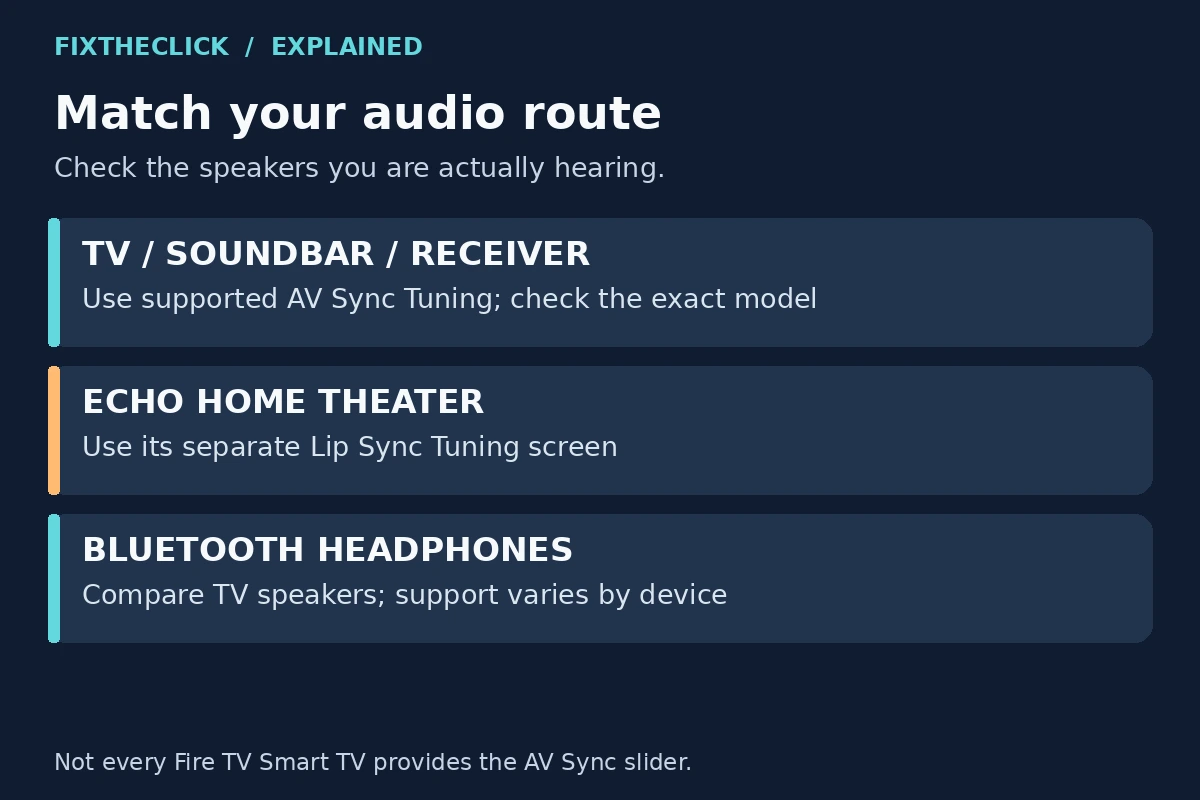
Check whether sound comes from the TV, a soundbar or receiver, Bluetooth headphones, or Echo speakers configured with Alexa Home Theater. Write down that route before looking for a tuning menu.
An ordinary soundbar is not automatically an Alexa Home Theater system. Likewise, selecting Bluetooth headphones does not make the Echo-specific instructions applicable. Use the branch that matches the configured output.
| Current output | Where to begin |
|---|---|
| TV speakers | Supported Fire TV AV Sync Tuning; exact TV guidance if unavailable |
| Soundbar or receiver | Compare TV speakers, then check supported tuning for the active path |
| Bluetooth headphones | Compare another output and check exact device support |
| Echo speakers in Alexa Home Theater | The separate Lip Sync Tuning control |
3. Use AV Sync Tuning where your device supports it
Amazon’s current audio-sync guide gives this path:
Settings > Display & Audio > Audio > AV Sync Tuning
Some interfaces label the display/audio section Display & Sounds. Use the label shown on your device. Amazon notes that the slider is not available on every Fire TV Smart TV; do not assume a missing menu is a malfunction.
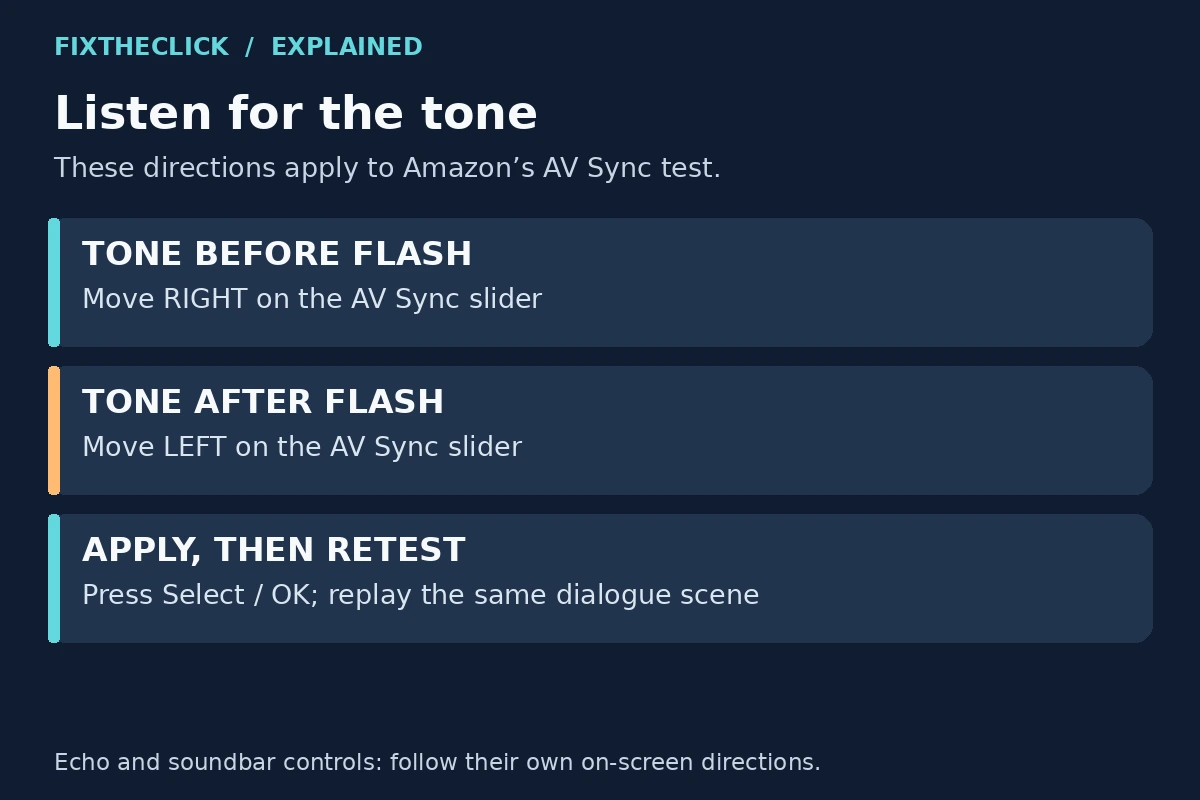
The test combines a bouncing ball, a flash, and a tone. They should coincide. Use the remote’s direction buttons to adjust:
Tone before the flash: move right.
Tone after the flash: move left.
Press Select or OK to apply, then check the test again.
These directions refer specifically to Amazon’s AV Sync test. They are not universal instructions for a soundbar’s separate delay control or the Echo tuning screen.
Before moving the slider, note its original position or displayed value. Adjust a little, apply, and compare again. Do not copy somebody else’s 100ms or 200ms setting; their audio path may differ from yours.
4. Retest real dialogue with your usual output selected
After the test looks aligned, replay the same dialogue scene you used at the start. Keep your usual speakers or headphones selected. A setting judged through TV speakers is not a reliable substitute for checking the soundbar you actually watch with.
Then compare a second title. If one adjustment helps the test but makes normal viewing worse, restore the original setting and note the result. That is useful diagnostic information, not a reason to keep moving the slider farther.
If the offset appears only after pausing, seeking, or switching content, record that sequence. Support can do more with “late after seeking in this app” than a general report that the television sounds wrong.
5. Use the separate Echo home theater controls
For Echo speakers already configured as an Alexa Home Theater setup, Amazon’s U.S. Home Theater guidance directs you to Lip Sync Tuning:
Settings > Display & Sounds > Alexa Home Theater > Lip Sync Tuning
Follow the on-screen instructions, then test normal playback again. Depending on the interface or region, the display section may read Display & Audio, and UK guidance uses Alexa Home Cinema. Those labels refer to the Echo setup, not a generic soundbar menu.
Keep the Echo system selected while evaluating the result. If you switch back to TV speakers for comparison, return to the Echo route before deciding whether its tuning helped. Do not apply the AV Sync slider’s left/right rule to a different screen unless that screen gives the same instruction.
6. Isolate a soundbar or receiver without replacing it
Temporarily select the television’s own speakers using its supported audio-output controls. Replay the same scene, then return to the external system. This is a comparison step; remember which output you need for everyday viewing.
If dialogue lines up through TV speakers but drifts through the soundbar, focus on that external path. It does not by itself prove that a cable or the soundbar is defective.
Look up the exact TV and audio-device models in their manufacturers’ documentation. Use any supported audio-delay or synchronization controls one at a time, recording the original values. Menu labels and whether a control can advance or only delay sound are model-specific.
Avoid adjusting the Fire TV, TV, and receiver together. Several corrections can stack, leaving you unsure which one changed the result. Restore a change that does not help before testing another control.
7. Treat Bluetooth as its own comparison
If the mismatch happens with Bluetooth headphones, compare the same scene through TV speakers. Keep track of whether the timing problem follows the headphones or remains on both outputs.
Check support guidance for the exact Fire TV and headphones before assuming an available slider can compensate for that wireless path. This guide cannot promise to eliminate Bluetooth latency on every combination of devices.
If a supported adjustment cannot align your regular listening setup, report the model pairing and comparison result to support. Buying another accessory before identifying the affected route turns a diagnostic problem into an unnecessary purchase.
8. If the tuning menu is missing or nothing stays aligned
Confirm the Fire TV model, software version, TV model, and active output. Built-in Fire TV televisions and external players do not all expose the same controls. Use manufacturer guidance for the device you have rather than forcing a menu from another operating system.
If every app is affected, give Amazon or the TV/audio manufacturer your comparison notes. If one service alone is affected, give that service the title, approximate scene, app version where shown, and whether the sound is early or late.
Do not start with a factory reset. Also avoid switching off Dolby or Atmos simply because someone reported success with a different system; format changes can alter the listening experience and require model-specific support.
If sound timing is fine and the actual problem is that the remote cannot change volume, use our Fire TV volume and power button guide. That is a control problem with a different troubleshooting path.
Frequently asked questions
Should I move the AV Sync slider left or right?
In Amazon’s ball-and-flash test, an early tone calls for a move right; a late tone calls for a move left. Apply with Select/OK and retest. Use the instructions on other manufacturers’ screens for their own controls.
Why does only one show look out of sync?
Compare another title before altering the whole setup. A title-specific result is worth reporting to the service, especially if other apps remain aligned through the same speakers.
Does a missing AV Sync menu mean my Fire TV is broken?
No. Availability varies. Check the exact model’s documentation and use the appropriate TV or Echo setup guidance instead of assuming every Fire TV has the same slider.
Keep one reference scene, one active output, and one change at a time. That gives you a clear way to judge progress without turning a lip-sync problem into a complete audio-system reconfiguration.