Fire TV Stuck on the Logo? What to Try Before a Factory Reset
Quick answer: If your Fire TV is stuck on the logo and never reaches Home, check the supplied power connection and allow time for startup. Amazon recommends leaving it powered on for 25 minutes or until the screen changes. If it stays stuck, check the external player’s HDMI connection before considering a factory reset, which removes account information and downloaded content.
The logo appears, so the television is showing something—but the menu never arrives. Repeatedly pressing Home or searching for an app’s cache menu will not help while the device is still trying to start.
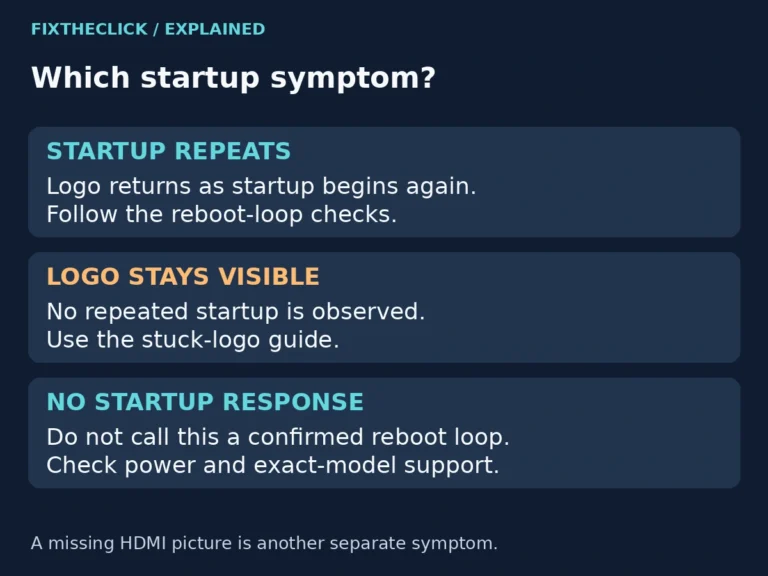
Start by watching what the screen does. A stationary logo, a repeating restart, and a television’s No Signal message need different troubleshooting paths.
Device scope: The external-player checks focus on Fire OS-based Fire TV Stick and Cube models. For a television with Fire TV built in, use the manufacturer’s power and reset instructions. Vega OS models may differ; do not assume that the remote reset command below applies without checking the exact model’s support page.
Is the logo frozen, or does the device keep restarting?
If the Fire TV logo disappears and comes back repeatedly, use our Fire TV keeps restarting guide. This article focuses on a logo that remains on-screen without reaching Home.
If the television says No Signal, begin with our Fire TV HDMI and No Signal checks. If Home works but a single streaming app freezes at its own logo, troubleshoot that installed app instead of treating the entire Fire TV as unable to boot.
This distinction also tells you which controls are available. A device stuck before Home cannot use Settings-based app fixes. If the screen later recovers, stop startup troubleshooting and check whether normal navigation and playback work.
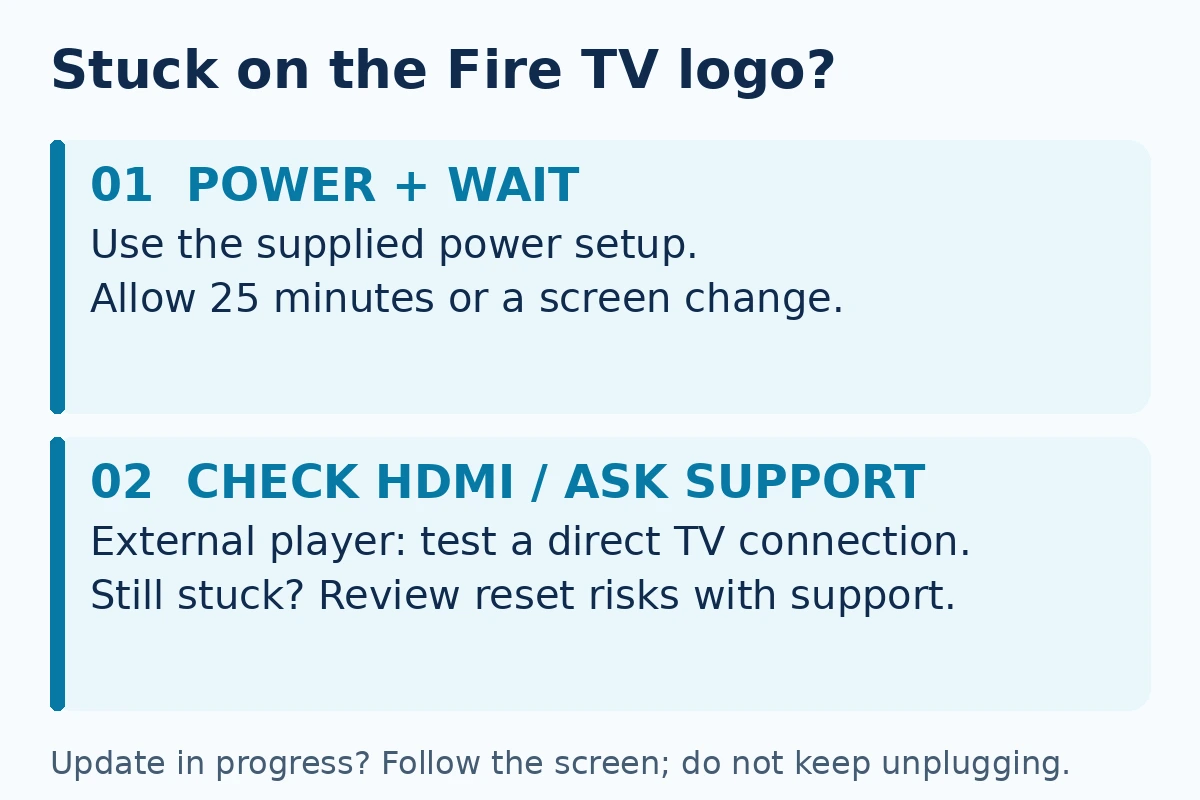
1. Give startup time, especially around an update
Amazon’s U.S. frozen-screen guidance includes leaving the device on for 25 minutes or until the screen changes. Time one observation period instead of guessing how long it has been.
That is a troubleshooting interval, not a guarantee that a frozen device will recover at minute 25. If the screen changes to an update or installation message, follow that message. Do not keep disconnecting power while it says an update is in progress.
Write down whether the logo is completely unchanged, whether an animation moves, and whether any update text appears. You do not have to diagnose firmware yourself; an accurate description is enough to make the next support conversation more useful.
2. Check the power setup for your particular device
For an external Fire TV player, use the power cord and adapter supplied for that model when available. Seat the connections securely and check the outlet. Amazon includes the supplied accessories in its startup troubleshooting because the player needs suitable power.
Do not assume that a TV USB port or another adapter caused the fault merely because you were using one. Returning to the intended power setup is a comparison test, not confirmation that a component has failed.
If an update is not actively installing and the waiting period has not helped, perform one normal power restart using the instructions for your model. Reconnect and observe startup rather than repeatedly cycling power in quick succession.
For a television with Fire TV built in, the TV itself is the device. Check its power connection and manufacturer’s restart guidance. There is no separate Fire TV Stick adapter to unplug unless you are actually using an external Stick.
3. Simplify the HDMI path on an external player
Only use these steps when a separate Fire TV player connects to the television through HDMI. They do not describe an internal connection you should attempt to access inside a Fire TV television.
Remove a hub or HDMI switch from the test path and connect the player directly to the TV. Select that input and watch whether the device now reaches Home. Change one connection at a time so a successful startup tells you something useful.
For a Fire TV Stick, test with and without its HDMI extender if the ports and available space allow it. Do not force the Stick into a cramped socket. A Cube or another player that uses a separate HDMI cable has a different physical setup; check that cable rather than looking for a cable the Stick does not use.
Amazon’s guidance also includes a high-speed HDMI cable where a separate cable is required. This is a compatibility check, not a reason to buy the most expensive cable or assume that a new cable will repair a startup fault.
4. Try another port or television when practical
Use another HDMI port and select its corresponding input. If possible, test the external Fire TV on a second compatible television with its intended power supply.
If it starts on the second display, the original HDMI path deserves closer attention. That result does not automatically identify the first television as broken: a port, switch, extender, or compatibility difference may be involved.
If the logo stays frozen on both displays, report that comparison to Amazon. Repeating the same test many more times is unlikely to provide better information. For an older display, check its manual for the HDCP compatibility Amazon mentions in its connection guidance.
5. Decide whether a factory reset is worth the disruption
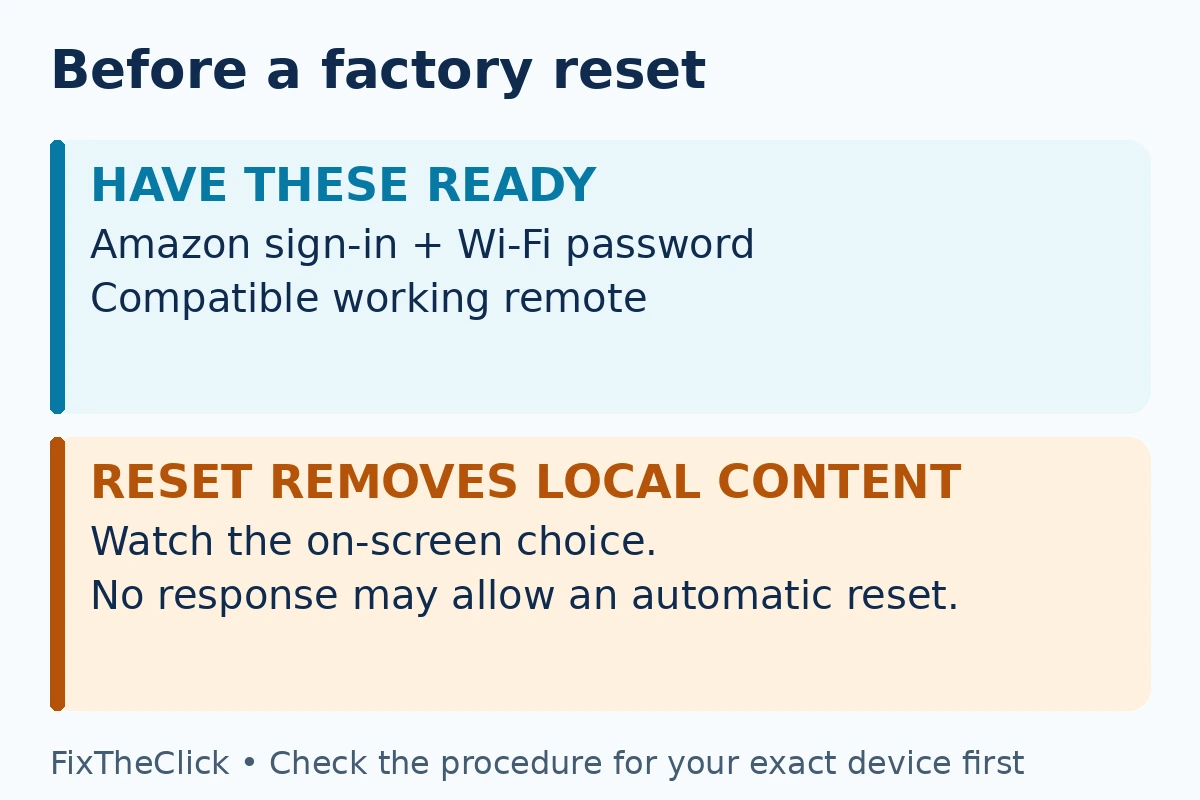
A factory reset is not a harmless diagnostic shortcut. Amazon warns that it removes account information and downloaded content, including downloaded in-app purchases. Be prepared to set up the device and obtain apps again.
Before considering it, have the Amazon account sign-in method, Wi-Fi password, and a compatible working remote available. Check that you can also sign back into important streaming services. If expandable storage is attached, follow the applicable safe-ejection guidance; ask support if you cannot do that from the frozen screen.
If a remote also appears unresponsive, that does not prove the remote caused the stalled startup. For a separate remote-power problem, our remote not working after new batteries guide can help. Avoid repeatedly pressing reset combinations while the device’s response is unclear.
The remote reset command needs special care
For devices covered by Amazon’s general Fire TV reset instructions, hold Back + the right side of the navigation circle for 10 seconds. This requests a device factory reset, not a physical-remote reset and not an ordinary restart.
Use that combination only after checking that the official reset procedure applies to your model and deciding that you accept the data loss. Watch the television and choose the appropriate on-screen option. Amazon warns that leaving the choice unanswered can allow the reset to proceed automatically after several more seconds.
Do not press the combination just to see whether anything happens. If no readable prompt appears or the remote cannot control it, stop and contact support rather than trying unverified recovery menus. Televisions and devices running different software may require their own documented procedure.
When to stop troubleshooting and contact support
Contact Amazon for an external Fire TV player, or the relevant TV manufacturer for a television with Fire TV built in, when startup still fails after the appropriate power, waiting, and connection checks.
Provide the exact model, whether the logo is stationary or repeating, how long you waited, any update message, and the power or HDMI comparisons you completed. A short phone video can help explain the behavior; keep account details out of anything you share publicly.
Do not open the device, install unofficial firmware, or assume replacement is necessary from the logo alone. If you have not established a safe, model-specific reset method, support is a reasonable next step before erasing anything.
Frequently asked questions
Should I clear an app’s cache when Fire TV is stuck on the logo?
You cannot reach that setting before Home loads. App-cache troubleshooting belongs to a device that starts normally but has trouble with an installed app.
Does waiting 25 minutes guarantee a fix?
No. It is Amazon’s observation step for startup troubleshooting. If an update message appears, follow it; if the logo remains stuck, use the next applicable connection check or contact support.
Will a factory reset repair a hardware problem?
It should not be treated as a repair for defective hardware or an unsuitable power connection. Check those external conditions first and weigh the setup burden before resetting.
The useful order is to identify the screen behavior, allow startup time, verify the appropriate power and HDMI connections, and make an informed decision about reset or support. Save Settings-based checks for when the device reaches Home.