Roku Low Power Warning? Fix “Insufficient Power” Before Resetting
Your Roku shows an insufficient-power message, or the light on the player flashes red while you are trying to watch something. Before changing settings, trace the cable that supplies power. A working HDMI picture does not tell you whether the USB power source is adequate.
This guide covers USB-powered Roku streaming players with that warning. A red light on a Roku TV, a remote, or another product needs that model’s own instructions.
Quick Answer
For a Roku low power warning, check the supplied USB cable and a power source supported by your exact player. Roku recommends trying another suitable TV USB port or a matching wall adapter. If there is no overheating warning or damage, disconnect power for 10 seconds before reconnecting. A solid-red light or overheating message belongs on the cooling branch instead.
1. Match the Warning Before Touching the Cables
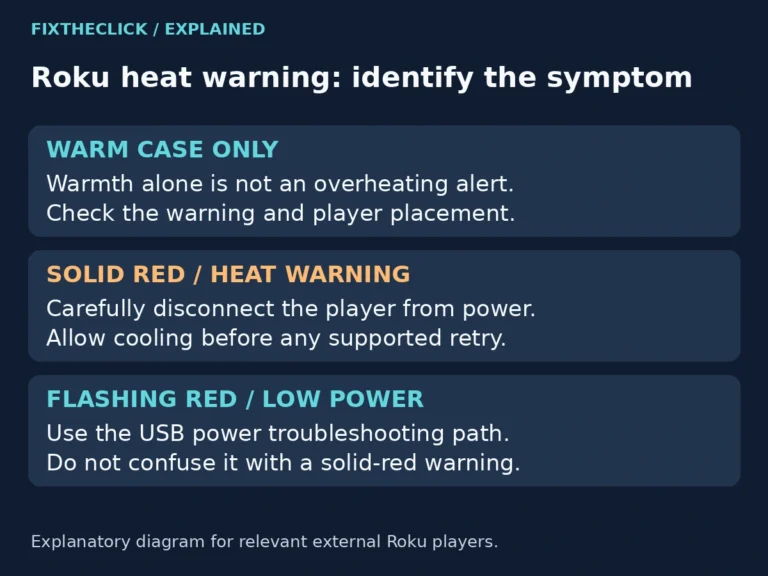
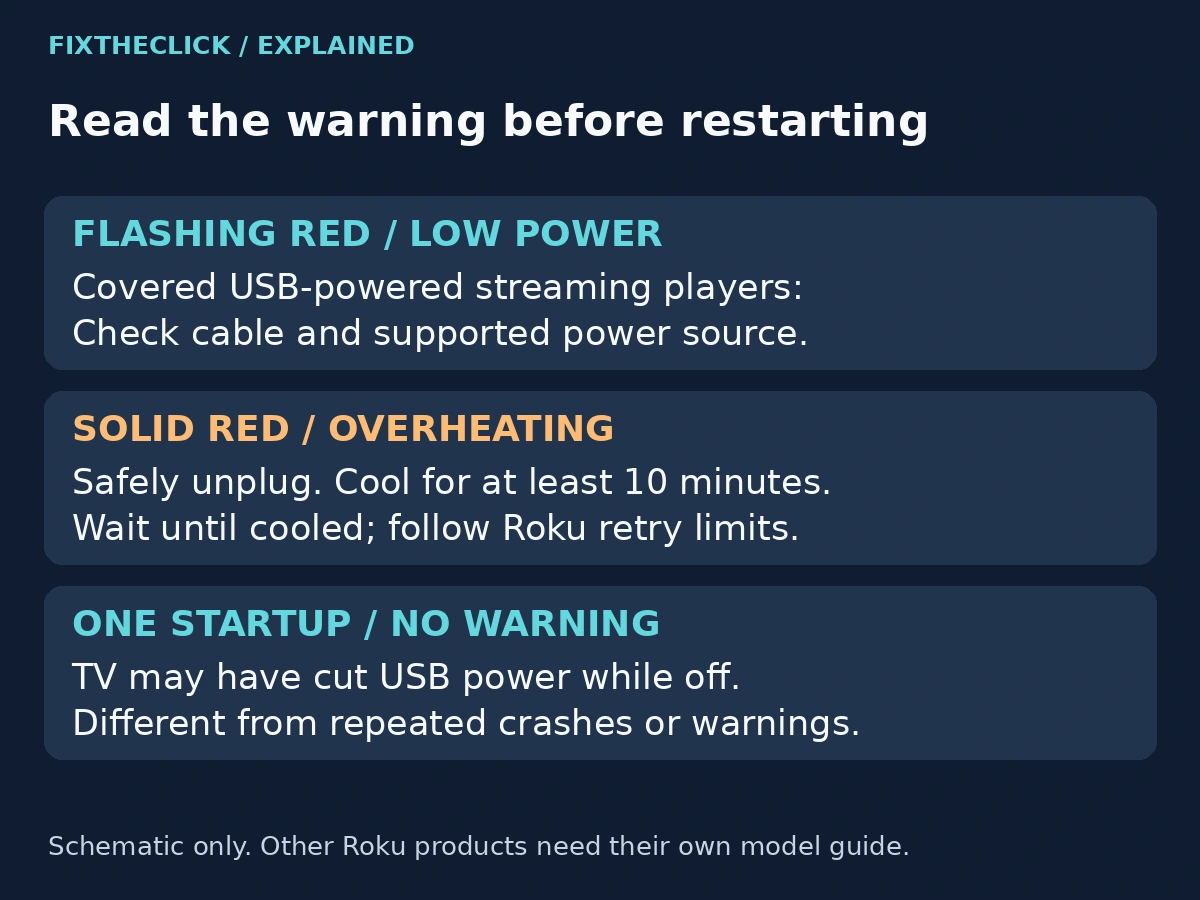
Read the message on the television and watch the player’s indicator long enough to distinguish flashing from steady light. Write down both observations. “Red light” alone leaves out the detail that changes your next action.
Roku’s low-power support guide distinguishes inadequate USB power from overheating on the players it covers. Use that distinction before deciding whether a restart is appropriate.
| What you see | First check |
|---|---|
| Low-power message or flashing red on a covered USB-powered player | USB cable and supported power source |
| Solid red or an overheating message | Unplug safely and follow the cooling guidance |
| One startup when the TV turns on, without a warning | Whether the TV had cut USB power |
| A different light on a TV or remote | That product’s model-specific documentation |
Do not keep applying the low-power steps if the warning changes to overheating. Likewise, a blank picture without a power message does not establish the same diagnosis. Identify the symptom you actually have rather than combining every display problem into one checklist.
2. Trace USB Power Separately From HDMI
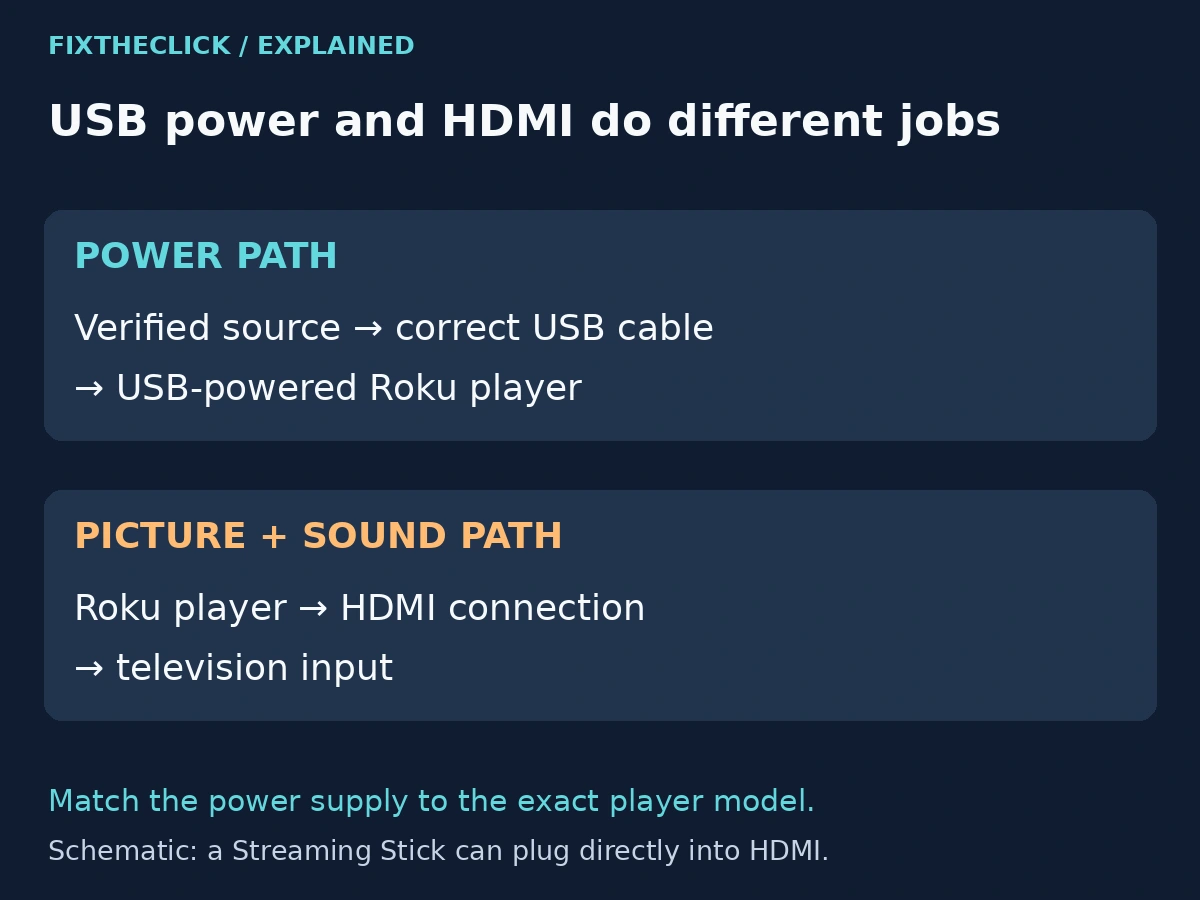
Find the player itself, then follow its connections. HDMI carries the picture and sound to the television; the USB connection supplies power on the players covered here. Changing the TV’s HDMI input does not change the USB port powering that player.
A Streaming Stick may plug directly into an HDMI socket. A small tabletop player may use a separate HDMI cable. In either arrangement, identify the power lead independently. Avoid pulling a cable just because it is the easiest one to reach behind the television.
Before disconnecting anything, note where each lead goes. If the setup is crowded, a private photo can help you restore the connections correctly. Keep account details or other personal information out of any photo you later send for support.
Inspect accessible cables and connectors for visible damage. Stop if a connector is broken, a cable is frayed, or there is unusual heat. Do not open the player, improvise a repair, or continue testing damaged parts.
3. Check the Cable and Supported Power Source
Start with the cable supplied for your player. If it has been replaced, compare the replacement with the exact model’s documentation instead of judging it only by whether the plug fits. Remove unnecessary USB extensions from the diagnostic setup where the model’s connection arrangement permits it.
Next, check where power comes from. Another appropriate USB port on the TV is one option in Roku’s guide; a matching wall power supply is another. Use the player’s label or model guide to verify the supply. This article does not provide one voltage or current rating for every Roku product.
If you already have the supplied wall adapter, test that supported arrangement. Do not assume that any spare phone charger is suitable, and never choose a higher-voltage adapter as a way to overcome a warning. If compatibility is unclear, identify the model before proceeding.
Change one part of the arrangement at a time. Record whether you changed the cable, the TV USB port, or the power source. That makes the result useful: you can tell support what removed the warning, or what made no difference.
4. Restart Once, Then Check the Result
For the non-overheating low-power case, Roku specifies a 10-second power disconnection before reconnecting. Use the supported cable and power source you just checked. Let the player start, then look for the same warning rather than immediately changing another setting.
This is a power restart, not a factory reset. Do not press a reset button or erase the device while trying to perform it. Account setup and app configuration are not the first things to investigate when the displayed warning concerns power delivery.
If the warning disappears, try normal playback and watch for its return. A successful startup is useful evidence, but it is not a promise that an intermittent problem is permanently resolved. If the message returns, note when: during startup, after a few minutes, or after the TV has been switched off and on.
If the warning remains on verified wall power, stop repeating the same cycle and move to support. Reboots that produce exactly the same result do not identify another cause.
5. Solid Red or an Overheating Message? Take the Cooling Branch
For this separate symptom, follow Roku’s overheating instructions. Carefully disconnect power; the unit may be hot. Allow at least 10 minutes and wait until it has cooled before the guided retry. Check placement so heat can escape, away from enclosed spaces, direct sunlight, and other hot equipment.
If the warning or solid-red indicator remains after reconnecting, unplug it immediately. Roku allows one further cooling-and-placement retry; if the condition persists, stop using the player and contact support. Ten minutes passing does not establish that a damaged device is safe.
Do not substitute the short low-power restart for this procedure. The two waiting periods address different observations. If you are unsure which warning appeared, keep the device disconnected while you check the wording and model guidance.
6. A Startup When the TV Turns On Can Be Different
Roku explains that TV-powered players can lose power when the television is switched off or enters standby. They then start again when power returns. The behavior depends on the television’s USB power handling.
A single startup after turning on the TV, followed by normal use without a warning, is different from an insufficient-power message or repeated crashes while watching. Tell support which pattern you see. Do not describe both simply as “Roku keeps restarting.”
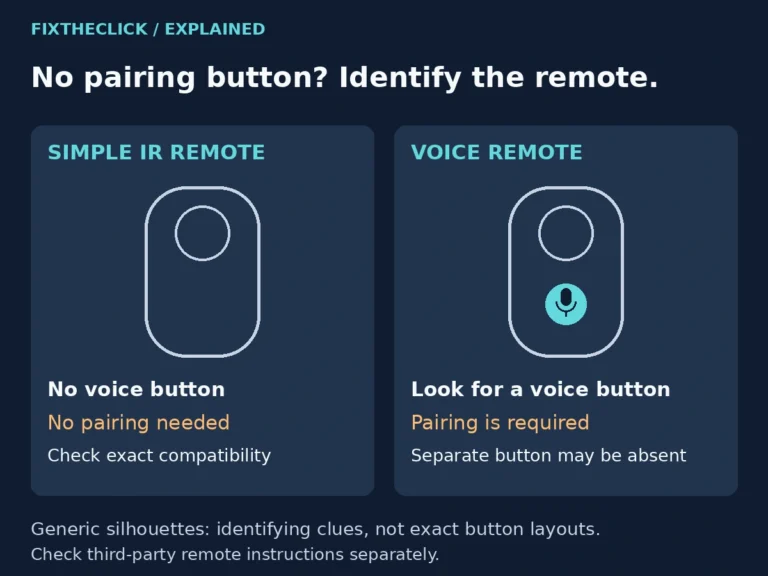
If power is stable and the remaining problem is an unresponsive remote, switch to our Roku remote identification guide. Pairing steps belong after the player can stay on; they do not repair an inadequate power source.
7. What to Give Roku Support
Collect the player model, exact warning, flashing or steady indicator behavior, cable in use, and whether power came from the TV or a verified wall adapter. Include what changed during the checks and whether any unusual heat or visible damage appeared.
Keep adapter-label details available for the support conversation, but do not post account credentials. If the warning persists on the supported wall-power arrangement, ask for the next model-specific step before trying more hardware or erasing settings.
Frequently Asked Questions
Does flashing red mean my Roku is broken?
Not by itself. On the USB-powered players covered by Roku’s guide, it can indicate inadequate power. Check the warning and supported power arrangement before drawing a hardware conclusion.
Should I factory-reset Roku for insufficient power?
No—not as the starting point. First investigate the supply and cable. A reset would add setup work without checking the thing the warning identifies.
Can I use any USB charger that fits?
Do not use connector fit as your compatibility check. Match the supply to the exact player’s documentation, especially if the original adapter is missing.