Roku Hotel Wi-Fi Login Not Appearing? Use Hotel & Dorm Connect
The hotel Wi-Fi works on your phone, but your Roku never reaches the page where you accept terms or sign in. You can see the network name, yet you still cannot start watching. Looking for a normal web browser on the TV is not the next step.
On a supported device, Roku’s Hotel & Dorm Connect handles that public-network authentication with help from a phone or computer. First, identify where the connection stopped: joining Wi-Fi, completing the venue’s web login, or opening a streaming app afterward.
Quick Answer
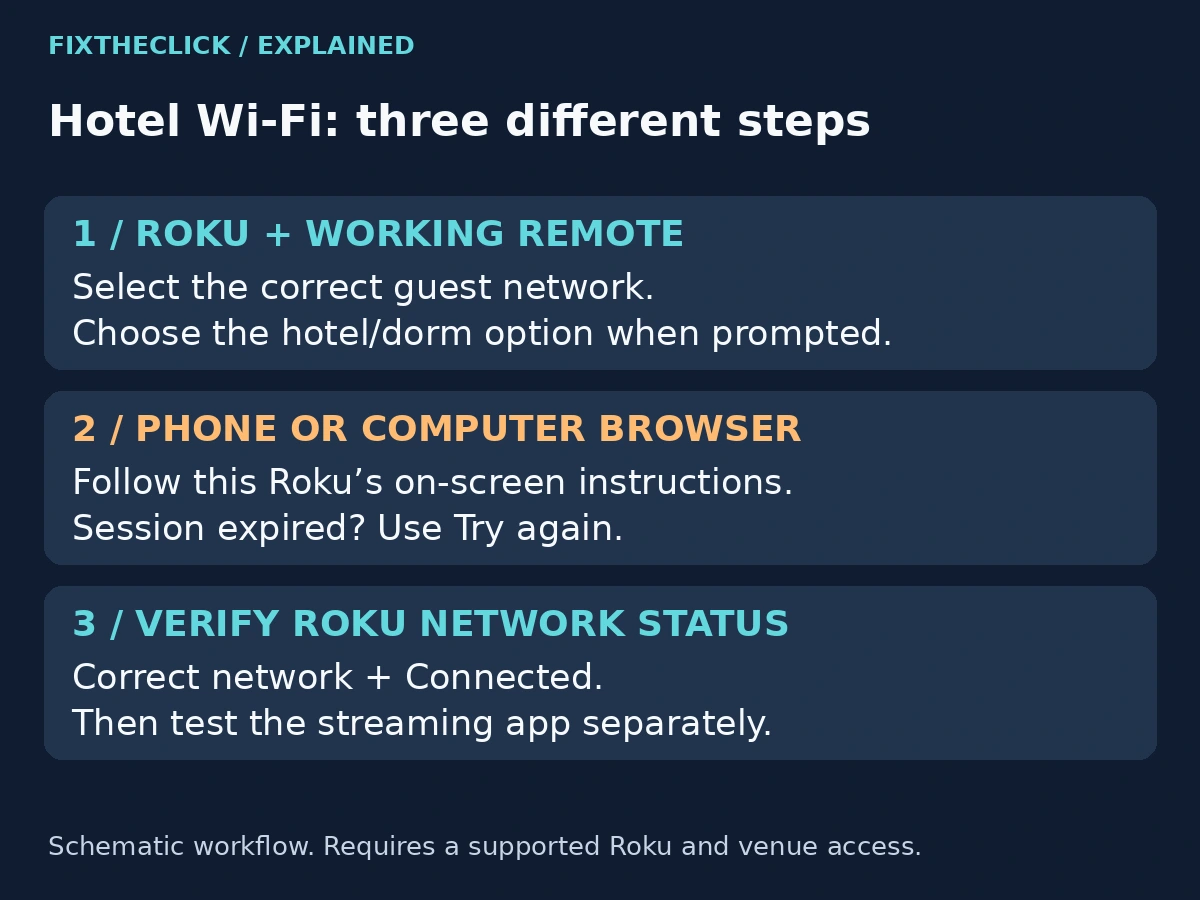
Use Hotel & Dorm Connect on a supported Roku. Open Settings → Network → Set up new wireless connection, choose the venue network, and select I am at a hotel or college dorm when prompted. Complete the TV’s instructions with your phone or computer. If the session expires, choose Try again. A missing prompt calls for a model and network check, not a factory reset.
1. Make Sure You Are Solving the Hotel Login Problem
A Wi-Fi password, a venue’s web authentication page, and your streaming-service account are different checkpoints. Being signed into Netflix or another app does not satisfy a hotel’s network sign-in requirement.
Use the last thing you can see as your starting point. If Roku cannot join the selected network at all, confirm the network name and access details with the property. If it joins but needs browser authentication, use the hotel/dorm flow. If Roku already reports Connected and one app rejects your account, stop repeating network setup.
| Where the process stops | What to check |
|---|---|
| The guest network is not listed | Confirm the correct network and scan again. |
| Wi-Fi credentials are rejected | Ask the property to confirm the required access details. |
| A browser sign-in is needed | Check Hotel & Dorm Connect support and follow the TV’s instructions. |
| Authentication expires | Start a fresh attempt with Try again. |
| Roku is connected, but one app fails | Investigate that app’s account, availability, or playback issue. |
This comparison narrows the problem; it does not diagnose the hotel’s infrastructure. A phone that already browses normally is a useful reference, but it does not prove that the Roku has completed its own authentication.
2. Check Compatibility and Prepare Before Traveling
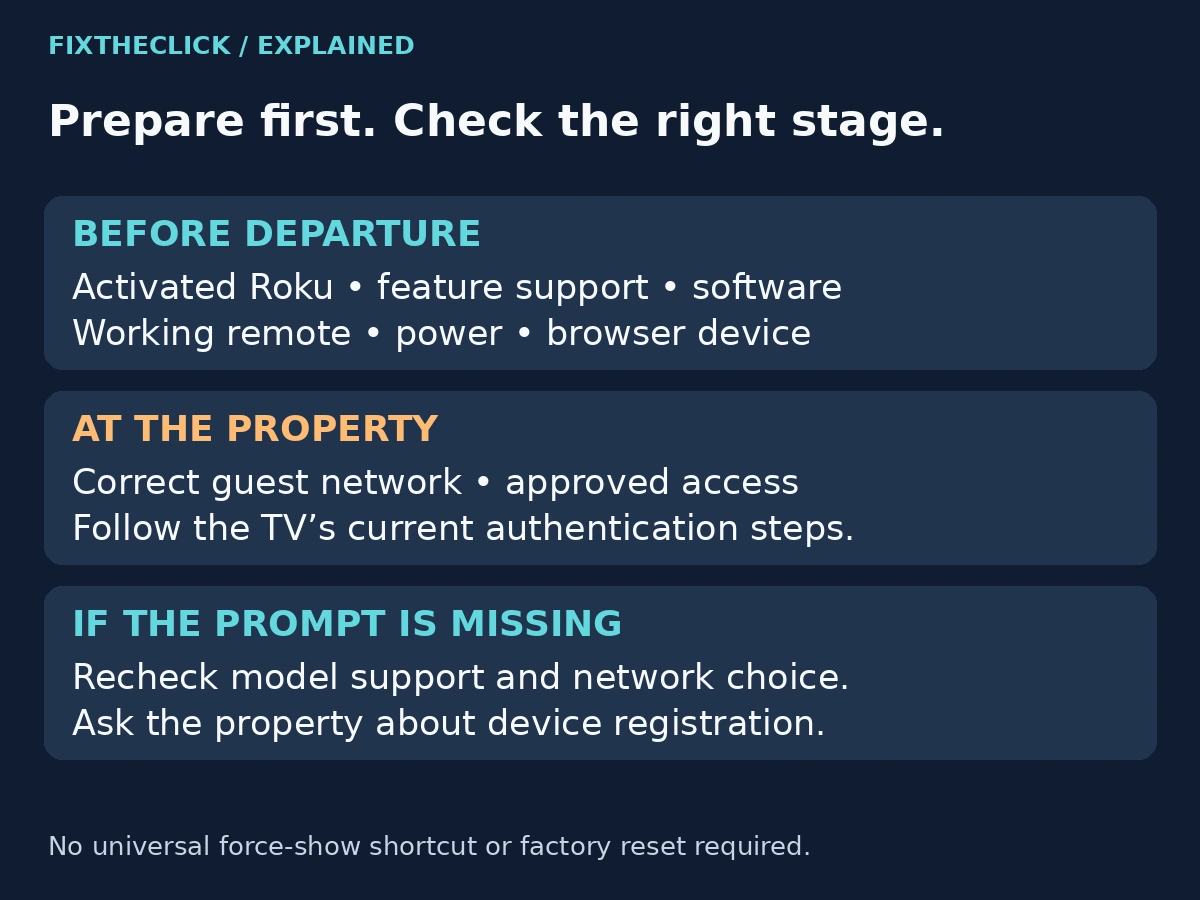
Roku’s official Hotel & Dorm Connect guide advises taking an activated device, its remote and power supply, plus a Wi-Fi-capable phone or computer with a browser. Reconnect a long-unused Roku at home and check for software updates before leaving.
Verify Hotel & Dorm Connect support for the exact device you plan to take. Roku links to its device comparison page, but do not infer support merely because a model appears in the current product lineup. If the feature is not listed for your model, ask Roku support before depending on it for the trip.
Make sure the remote actually controls the device before packing. If its pairing button is missing, use our Roku remote identification and pairing guide before leaving. The phone used for browser authentication serves a different role from a remote used to navigate Roku settings. Having one does not automatically replace the other during initial setup.
Bring the connections your specific player uses. A model with a separate HDMI cable needs that cable; a Streaming Stick does not use the same separate-cable arrangement. At the destination, confirm that you are allowed to connect your device to the available television.
3. Start the Connection From Roku’s Network Menu
Ask the property for the correct guest network, including whether streaming devices need separate registration. Select the approved network rather than guessing from similar names in the list.
With the Roku interface visible, use the Network route in the Quick Answer. Select the venue’s network, then choose the hotel or college dorm option when it appears. If you cannot see the network, use Scan again. Menu labels can vary by software version; follow your device’s actual connection screen.
Once the authentication instructions appear on the TV, keep that screen available. It provides the next steps for the second device. Do not substitute an old screenshot, a remembered temporary network name, or a password from another room or another Roku setup.
Read each prompt before switching between devices. Write down only the failure stage if you need help later; you do not need to publish a photograph containing guest access details to explain that the browser step failed.
4. If the Hotel or Dorm Option Never Appears
First confirm what “not appearing” means. Is the venue network missing from the list, does the Wi-Fi connection fail, or does the network connect without offering the expected authentication option? Those are different observations to report.
Recheck the receiving Roku model and feature support. Then confirm with the property that you selected the right network and that it is the one intended for devices requiring a web login. A different guest-access arrangement may require instructions from the venue.
Repeat the applicable official connection steps after correcting a confirmed mismatch. There is no verified universal shortcut in this guide to force the hotel prompt onto every Roku. Repeating the same selection indefinitely is not a substitute for finding out how the property registers streaming devices.
If it still does not appear, tell the property’s network support team that the Roku reaches the selected network but does not offer its hotel/dorm authentication flow. Ask whether they support that device type and what their approved registration process is. A factory reset does not establish feature support or change the venue’s access rules.
5. If the Phone or Browser Step Fails
Follow the instructions currently displayed by this Roku. The second device must complete the requested process for this attempt; opening an unrelated browser tab and finding that the phone has internet access is not the same check.
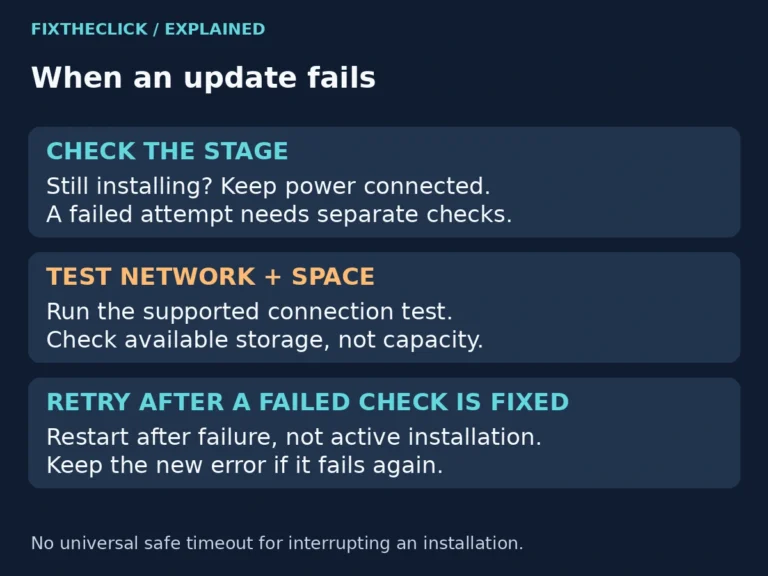
Roku gives you several minutes to authenticate. If the attempt times out, select Try again and use the newly displayed instructions. Avoid continuing an expired session while a new attempt is waiting on the television.
If the browser shows an error, note whether it appeared before the venue page opened, during sign-in, or after you submitted the required information. That detail helps separate a failed handoff from an access request that the property declined.
Ask venue support about any terms, registration, or payment step that you do not understand. Use their authorized process. Do not reset hotel networking equipment or change device identifiers to get around an access restriction.
6. Verify the Connection Before Troubleshooting an App
After successful authentication, Roku returns to Network. Confirm that the displayed network is the property’s network and that the status reads Connected. Then try the streaming app you intended to use.
Successful authentication does not guarantee every title will play. Roku notes that connection speed and content availability can differ while traveling. If one app displays an account or availability message, record that message and use the service’s official help rather than restarting hotel login immediately.
If the network status itself is no longer connected, return to the connection problem. If status remains connected and several apps struggle, ask the property about network performance before assuming the Roku is defective. Keep these checks separate from a subscription purchase or account change.
Frequently Asked Questions
Do I need to install a browser on Roku?
Not for the documented Hotel & Dorm Connect workflow. Authentication uses a compatible Roku with a separate phone or computer browser, following the instructions on the TV.
My phone is online. Why is Roku still waiting?
Your phone’s successful connection does not confirm the Roku’s authentication. Finish the process requested on the TV and check Roku’s own network status afterward.
Should I factory-reset Roku if the hotel login is missing?
That is not the starting point. Verify model support, the correct venue network, and the property’s registration requirements. Keep your activated setup intact while you identify the missing step.