Roku Remote Has No Pairing Button? Check Which Remote You Have
You have checked the back of the remote, opened the battery cover, and still cannot find a pairing button. Before you keep looking, check the front. Some Roku remotes never need pairing; others pair without a separate button.
The useful question is not where the button is hiding. It is whether you have a simple infrared remote or a compatible Roku voice remote.
Quick Answer
A Roku simple remote does not need pairing. Confirm that it matches your device, insert working batteries, and aim it at the receiver. For a supported Roku voice remote without a pairing button, put the Roku device into pairing mode, then hold Back + Home for about five seconds, until the status light flashes. Do not apply that combination to an unidentified third-party remote.
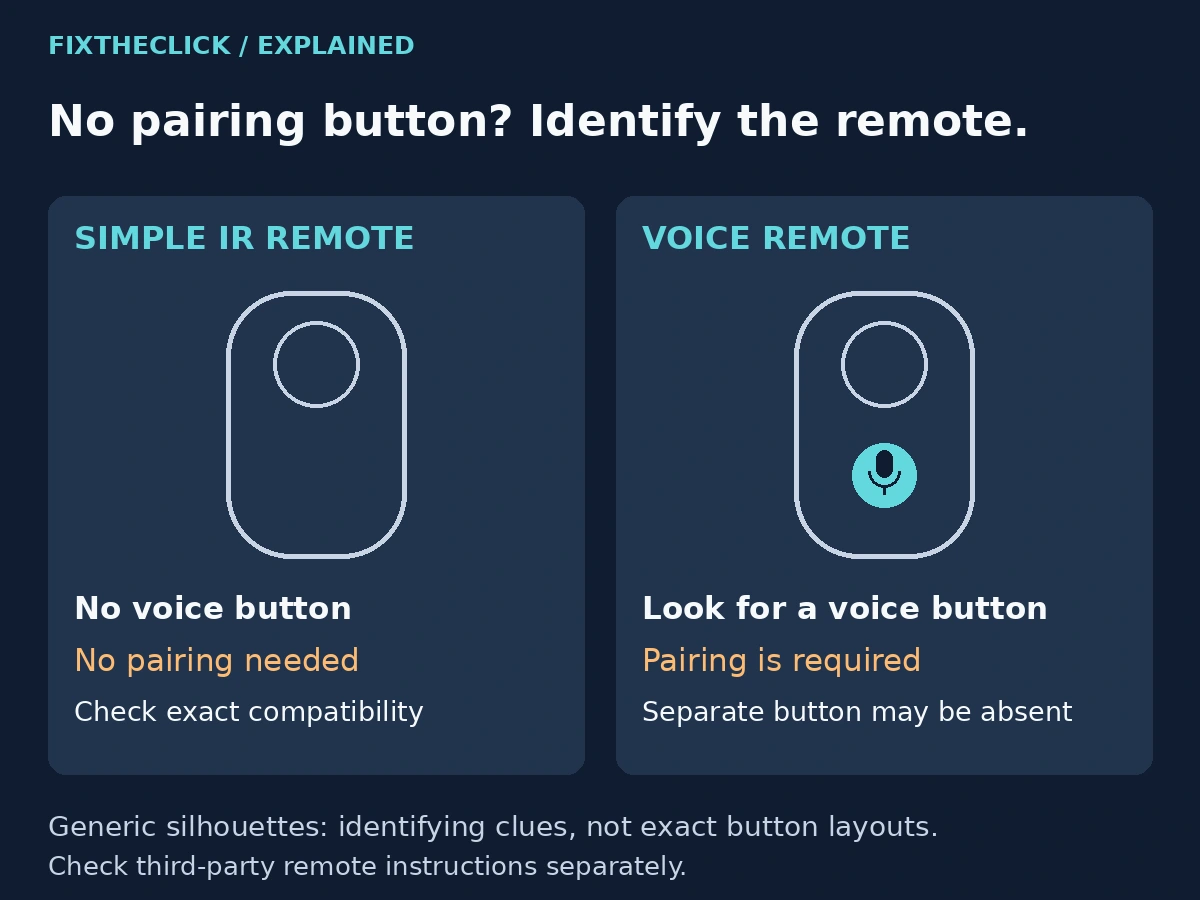
1. Identify the Remote Before Trying a Button Combination
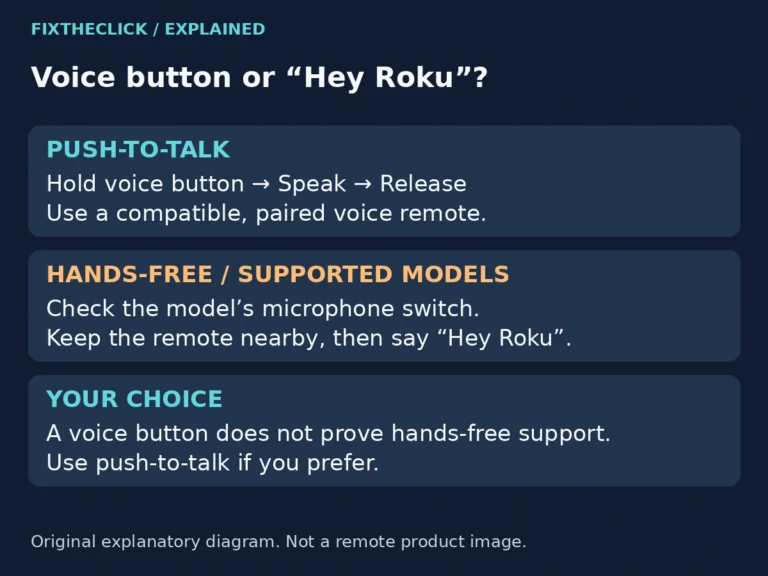
Look for a voice-control button, usually marked with a microphone or magnifying glass. Roku uses that as the identifying clue for its voice remotes. A simple remote has no voice button. See Roku’s remote identification and pairing guide if the controls are unfamiliar.
Use the model label or original documentation when the remote is a replacement from another manufacturer. A similar shape, a Roku-compatible listing, or a home-shaped button does not establish which pairing procedure it supports.
| What you have | What to do next |
|---|---|
| Simple IR remote | No pairing: check exact compatibility, batteries, and the signal path. |
| Voice remote without a pairing button | Prepare the Roku device, then use the supported Back + Home sequence. |
| Voice remote with a pairing button | Use that button according to the model’s instructions. |
| Unidentified third-party remote | Find its model guide before trying Roku button combinations. |
If someone handed you a spare remote, identify the receiving device too. Write down whether you are controlling a Roku TV, an external streaming player, or another Roku product. That small check can prevent repeated attempts with the wrong accessory.
2. Simple Remote? Skip the Pairing Screen
For an IR remote, searching for a pairing menu adds a step that does not solve the problem. Roku’s simple-remote setup instructions call for matching batteries and a direct, unobstructed path to the front of the receiving device.
Start with a short test: face the correct receiver from nearby and press a navigation button while watching the Roku interface. Move anything sitting in front of the receiver. If the player is tucked behind the TV, reconsider whether the remote can actually reach its front.
Keep the compatibility check specific. It is incorrect to say simple remotes work only with Roku TVs. Roku also documents a compatible simple remote in its Streambar SE setup guide. That example does not make every simple remote interchangeable with every player.
If the receiver remains unresponsive, record the remote and device models before replacing anything. The absence of a pairing button is expected on this branch; it is not evidence of a missing part.
3. Voice Remote? Prepare the Roku Device First
A remote can enter pairing mode while the player is not ready to accept it. Treat those as two separate steps.
If another remote works, or the official Roku mobile app already controls this device, open Settings → Remotes & devices → Add devices → Remote → Continue. This is the route in Roku’s current US pairing guide. Follow the wording your device displays if its software uses different labels.
Without a second working controller, the same guide provides a restart route: unplug the Roku player or TV from power, wait at least five seconds, and reconnect it. When the Home screen appears, start the voice remote’s pairing sequence. This is a power restart, not an instruction to erase the player.
Avoid a circular workaround: an app that has not found the Roku cannot open its settings for you. Choose the restart route when you cannot already control the interface, and keep the remote ready so you can complete the next step when the device starts.
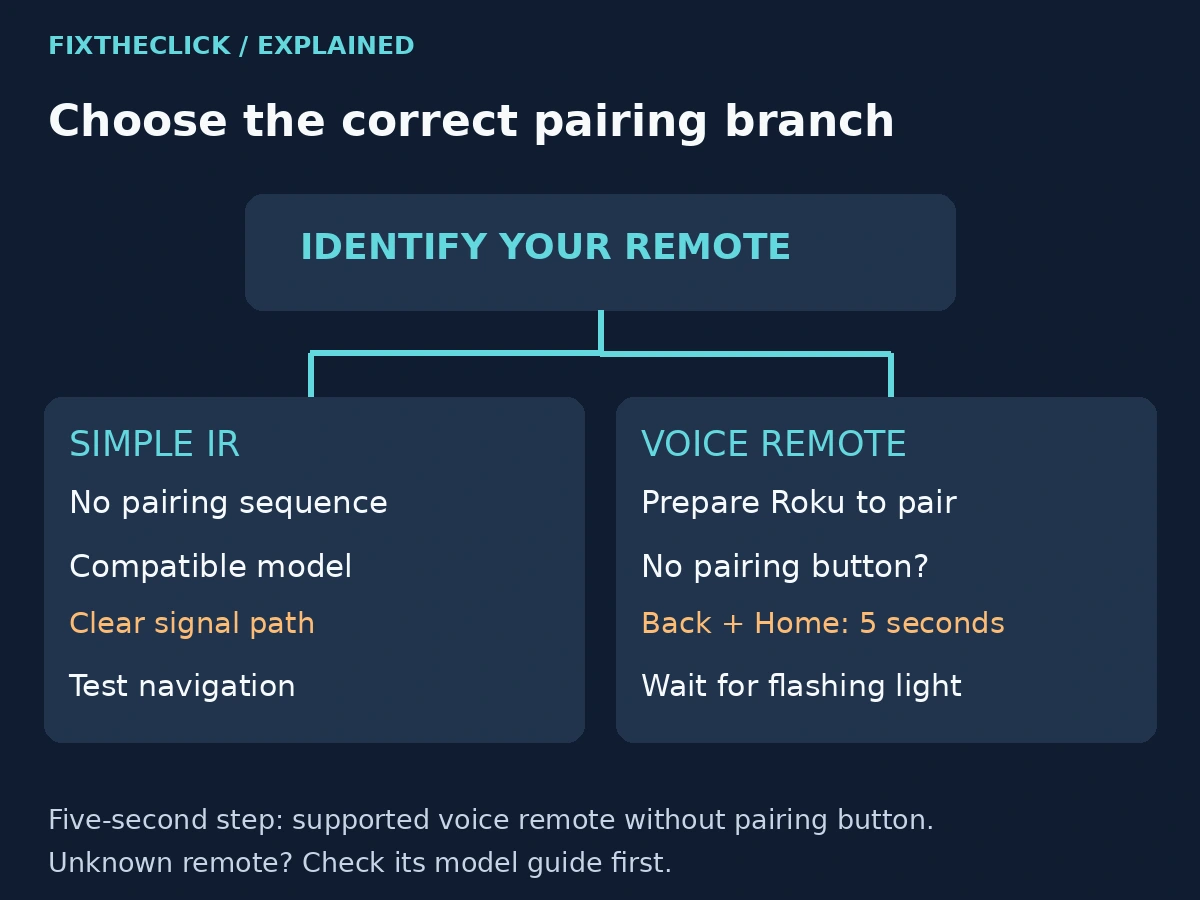
4. Pair the Supported Voice Remote Without a Button
Hold Back and Home together for about five seconds, until the remote’s status light flashes. Watch the TV for the pairing result. The device and remote need to be in pairing mode together; a flashing light alone does not confirm a completed connection.
After an on-screen success message, try moving through the Home screen. This checks the result you actually need: control of the Roku interface. Voice search and television volume controls are separate features, so avoid using only a TV power response as your pairing test.
If you later find a dedicated pairing button on a genuine Roku voice remote, use its supported procedure instead. Roku documents a five-second hold until the status light flashes for that route too. Do not keep alternating between both methods without checking which remote you have.
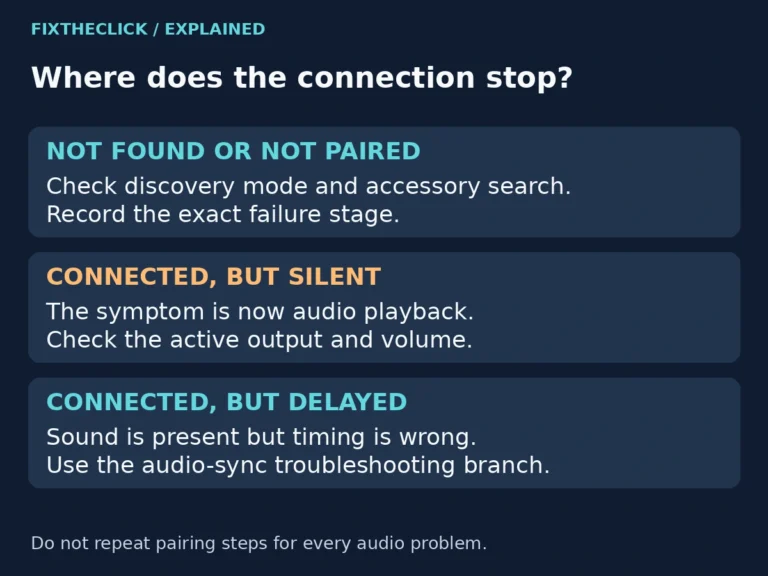
If pairing fails, note what happened: no light, a flashing light without an on-screen message, or an explicit failure message. Those observations are more useful for the next troubleshooting step than simply reporting that the remote has no button.
5. Do Not Confuse Five-Second Pairing With a Remote Restart
Roku’s remote troubleshooting guide also describes a 20-second restart procedure for rechargeable voice remotes. That is a different operation from the five-second pairing step.
For the rechargeable type covered by the guide, the restart uses its pairing button if present, or Back + Home if absent, followed by waiting for the light to stop flashing. Check the exact remote instructions before using that procedure. Do not extend a pairing hold just because nothing appeared on the TV immediately.
Battery-operated remotes have a separate restart procedure. There is no reason to transplant the rechargeable model’s instructions onto an unknown remote—or to factory-reset a working Roku player because a remote button is missing.
6. Use the Mobile App Only When It Can Already Reach Roku
The official app can provide temporary control, but installation alone does not connect it to the player. Roku’s mobile-app setup guide requires the phone and Roku on the same Wi-Fi network; the device must appear in the app before you select it.
If your Roku is still offline or has not joined the current network, do not assume the app can complete that initial connection. A functioning compatible physical remote remains especially useful during a new setup or a trip.
For unresolved pairing, give Roku support the player or TV model, remote model, whether the remote is rechargeable, and the exact stage where the attempt stops. Keep the issue narrow. Identifying the correct remote comes before buying another one or changing the player’s settings broadly.
Frequently Asked Questions
Can I pair a Roku simple remote without a pairing button?
It does not need to pair. Check that the remote is compatible with the receiver, then test batteries and a clear IR path. Repeating a voice-remote sequence will not turn it into a wireless voice remote.
Does Back + Home work on every Roku-compatible remote?
No. Use that sequence for the supported Roku voice remote without a dedicated pairing button. For third-party accessories, follow the manufacturer’s model-specific instructions.
Should I reset Roku because the pairing button is missing?
No. The missing button may be normal for that remote. Determine the type, prepare the receiving device if pairing is required, and confirm the result on screen before escalating.