Fire TV Won’t Find Bluetooth Headphones? Pairing Checks Before a Reset
Your headphones are on, the Fire TV is searching, and the list stays empty. It is tempting to reset everything, especially when the same headphones work with your phone. Start with the connection you are actually trying to make: a powered-on accessory may not yet be discoverable.
Quick Answer: Put the headphones into their manufacturer’s pairing mode, then search from the Fire TV accessory settings. Confirm the receiving device and supported models first. If the headphones reconnect to another device, follow their instructions to release that connection and retry. A missing accessory is not a reason to erase the whole Fire TV.
This guide covers headphones that are absent from the list or fail to pair. If they already connect but are silent or delayed, move to the appropriate audio checks rather than repeating discovery steps.
1. Identify the receiving device
Are you pairing with a Fire TV Stick or Cube, or with the television itself? A player connected through HDMI and the TV’s own Bluetooth settings are separate receivers. Open the settings for the device you intend to use.
Record both model names, including the headphone model rather than only its brand. Check their official support for the intended audio connection. A Bluetooth logo or version number alone does not establish that every feature works between two devices.
Do not apply an ordinary headphone walkthrough to every hearing aid or LE Audio accessory. Specialized devices may have a different supported route. There is also no universal promise about simultaneous listeners, codecs, or volume controls across all Fire TV products.
2. Separate discovery from playback problems
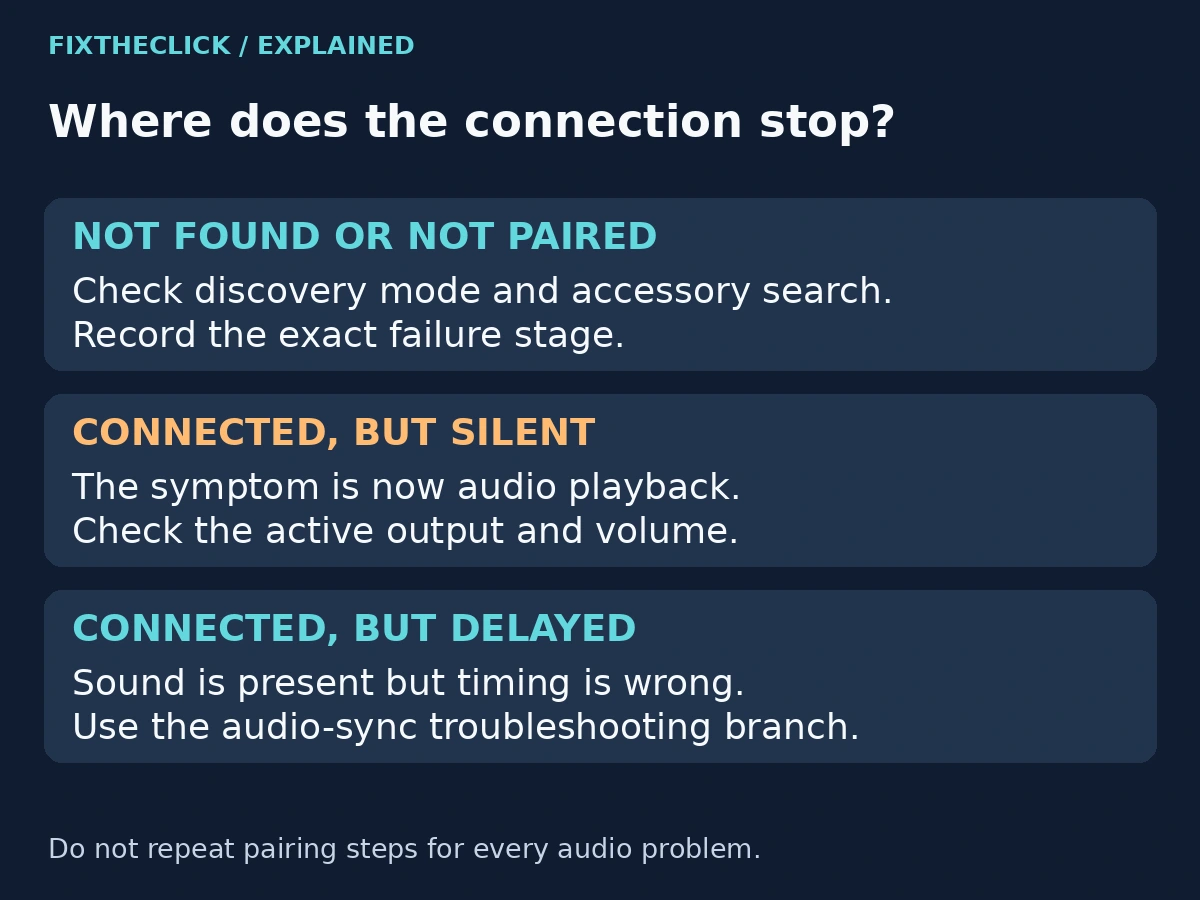
Watch where the process stops. Is the name missing entirely, does it appear but fail after selection, or does Fire TV report a connection? Those are different observations and should lead to different next steps.
| What you see | Next area to check |
|---|---|
| Headphones never appear | Pairing mode and the receiver’s search |
| Name appears but pairing fails | Existing connections and that accessory’s saved pairing |
| Connected, but no sound | Active audio output and volume |
| Connected, with delayed sound | Audio timing for the current output |
For the third branch, use our Fire TV no-sound guide. For delayed sound, use our Fire TV audio-sync guide with the usual audio output selected. Neither symptom requires this entire pairing sequence again.
3. Put the headphones into real pairing mode
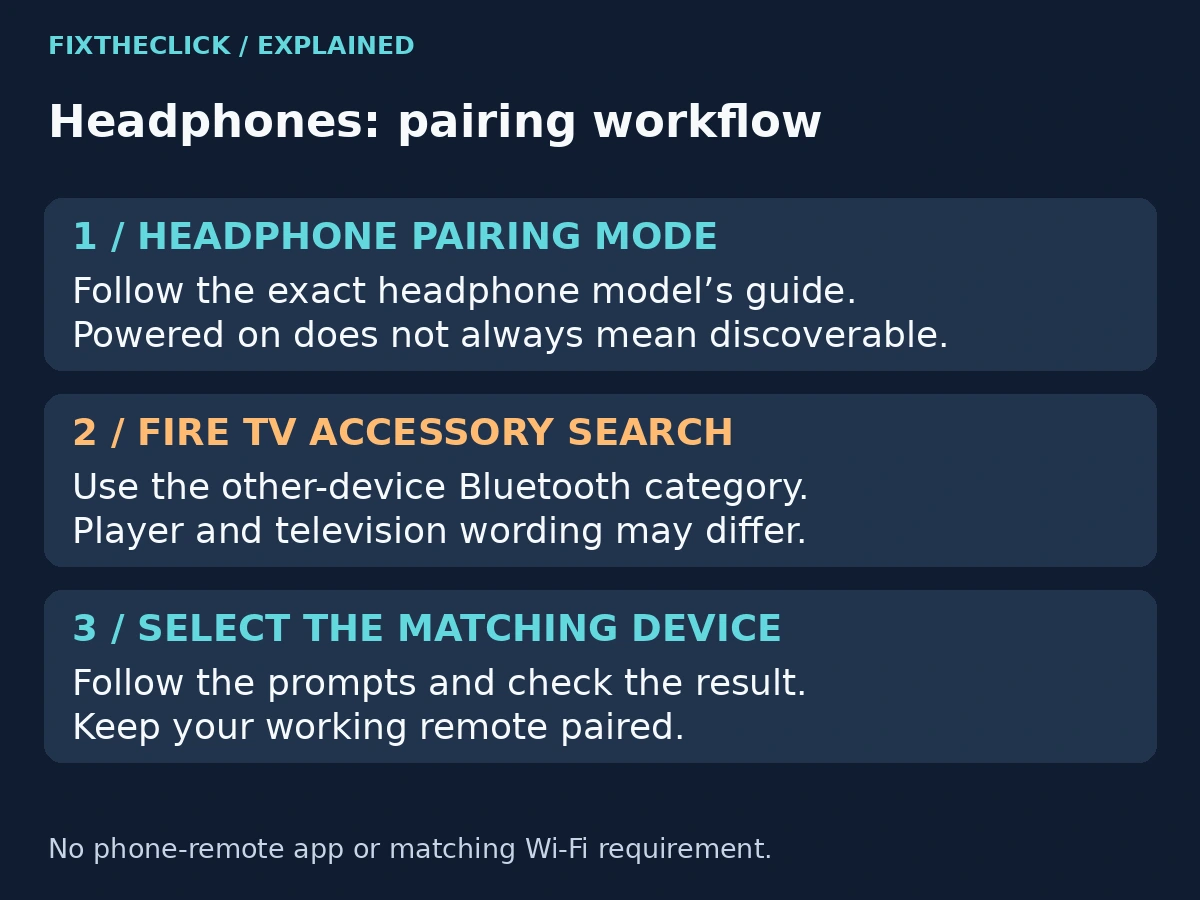
Use the instructions for the exact headphone model. Some products require a case control, others use a headphone button, and their indicators differ. This guide does not assign a universal button or a ten-second hold to all headphones.
Look for the manufacturer’s stated pairing indication. Simply hearing a power-on sound is not enough to establish discovery mode. If the indicator changes before Fire TV finds the accessory, consult the headphone instructions and restart the pairing attempt as directed.
Keep the headphones nearby and give them usable charge before the comparison. These are practical setup checks, not proof that distance or battery level caused the failure. Avoid changing several unrelated settings at the same time.
If the headphones immediately connect to your phone or laptop, check whether their instructions require disconnecting that link to pair another device. Release only the relevant connection. You do not need to disable every Bluetooth accessory in the house.
4. Search the correct Fire TV accessory category
Amazon’s Fire TV Stick guide gives Settings → Controllers and Bluetooth Devices → Other Devices → Add Bluetooth Device for Bluetooth headphones. Use the route supported by the model in front of you.
TCL’s Fire TV pairing guide uses the category Other Bluetooth Devices and tells readers to make the accessory discoverable before selecting it. That wording difference is why a single invented settings screenshot would be misleading.
Open the appropriate accessory search while the headphones are in pairing mode. Select the name matching your headphones and follow the displayed prompts. Do not choose the Amazon-remote or game-controller category simply because it also contains a pairing command.
If the model’s settings differ, stop at that mismatch and check its official instructions. A missing label does not justify a hidden-menu trick. Identify the supported path before deciding that the headphones or Fire TV are faulty.
5. If the name appears but pairing fails
Seeing the name is useful: the symptom has moved beyond an entirely empty search list. Note the message after selection and whether the headphones leave pairing mode or reconnect elsewhere.
If Fire TV already lists an old pairing for those headphones, inspect that accessory’s available options. Where your device offers unpairing or removal, remove only that saved headphone connection, then put the headphones back into pairing mode and search again.
Do not remove all saved accessories or unpair the remote you need to operate Fire TV. Keep a usable control method throughout the attempt. Exact removal prompts vary, so follow the visible instructions instead of an unrelated remote-reset button combination.
6. Restart the devices without erasing them
Turn the headphones off and on according to their manufacturer’s instructions, then enter pairing mode again. An ordinary restart and a factory reset are different actions; do not improvise a long button hold that might erase headphone settings.
For the Fire TV interface covered by Amazon’s restart guide, use Settings → My Fire TV → Restart. Follow exact-model guidance if a Fire TV television presents different options. After startup, reopen the accessory search.
Retry once with the same known setup and record the result. Repeating the same unsuccessful sequence without a new observation is unlikely to tell you what to investigate next. Keep the Fire TV’s account and app setup intact.
7. Use a comparison to narrow the problem
If available, check whether the headphones can enter pairing mode and connect to another supported device. Separately, see whether another compatible accessory appears in the Fire TV search. Use equipment you already have; this is not a request to buy a test device.
These comparisons narrow the affected combination. Success with a phone does not prove compatibility with every receiver, and another accessory appearing does not prove that the missing headphones are broken.
Record what each test actually showed: visible, selected, paired, or playing audio. Avoid reducing those different outcomes to “Bluetooth works.” Bluetooth discovery is also separate from the phone-remote app’s local-network search; matching Wi-Fi networks is not the headphone pairing requirement.
Frequently asked questions
Should I reset Fire TV to find one missing headset?
Start with model support, pairing mode, the correct accessory search, and targeted reconnection. Erasing the entire device is not a proportionate first response to one absent accessory.
Do I need the Fire TV phone app?
No phone-remote app is part of the headphone search route described here. Use the receiver’s supported accessory settings and a working way to control them.
What should I send support?
Provide both model names, software versions where accessible, the exact failure stage, any error wording, and your comparison results. Ask the relevant manufacturer about that combination before buying a transmitter or replacement headphones.