Fire TV Low Storage? Free Up Space Without a Factory Reset
Quick answer: If a Fire TV low storage warning blocks an install or update, review the apps you actually use before deleting anything. Clear temporary cache where available, consider supported offloading for apps you want to keep, and uninstall apps you no longer need. Check available space after each change. Save Clear Data for a deliberate app reset—not your first cleanup step.
You finally pick something to watch, then a storage warning interrupts the evening. Clearing one cache may buy some room, but the warning can return if the device is still holding apps nobody opens.
The useful question is not “What can I delete fastest?” It is “What can I remove without losing access to something I still use?” This guide helps you make that choice.
First, confirm that storage is the problem
Look for an explicit low-space warning or an install/update message that says there is not enough storage. A spinning video alone does not establish that the device is full. Storage, working memory, and internet connectivity are different things.
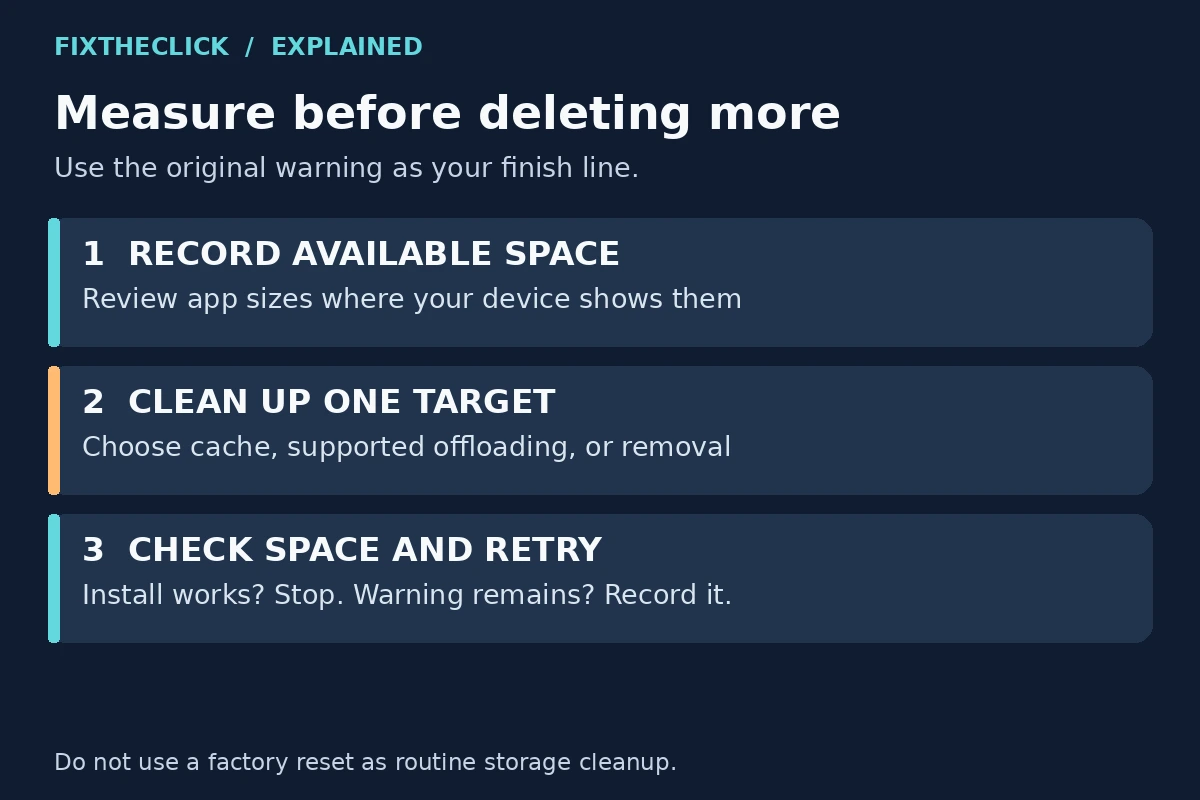
Write down the warning and the app involved. Where your device shows available storage, record that value before cleanup so you have something to compare afterward. Do not assume every Fire TV has the same capacity or needs one universal amount of free space.
Device scope: These steps use the app-management controls documented for supported Fire TV interfaces. Fire TV Stick, Cube, built-in televisions, and different operating systems can expose different options. Follow your exact model’s help when a control is missing.
1. Choose a cleanup target before choosing a button
Open Settings > Applications > Manage Installed Applications where available. Review app sizes and cache figures if the screen displays them. Start with an app you recognize and can explain why you are keeping or removing.
Think in three groups: apps used regularly, apps used occasionally, and apps no longer wanted. A large unused game may be a more useful cleanup target than a regularly used streaming app with a small cache. Let the sizes shown on your device guide that judgment.
Do not treat an unfamiliar system component as disposable. If you cannot identify an item or the interface does not offer removal, leave it alone and use the supported app controls.
2. Understand what each cleanup action changes
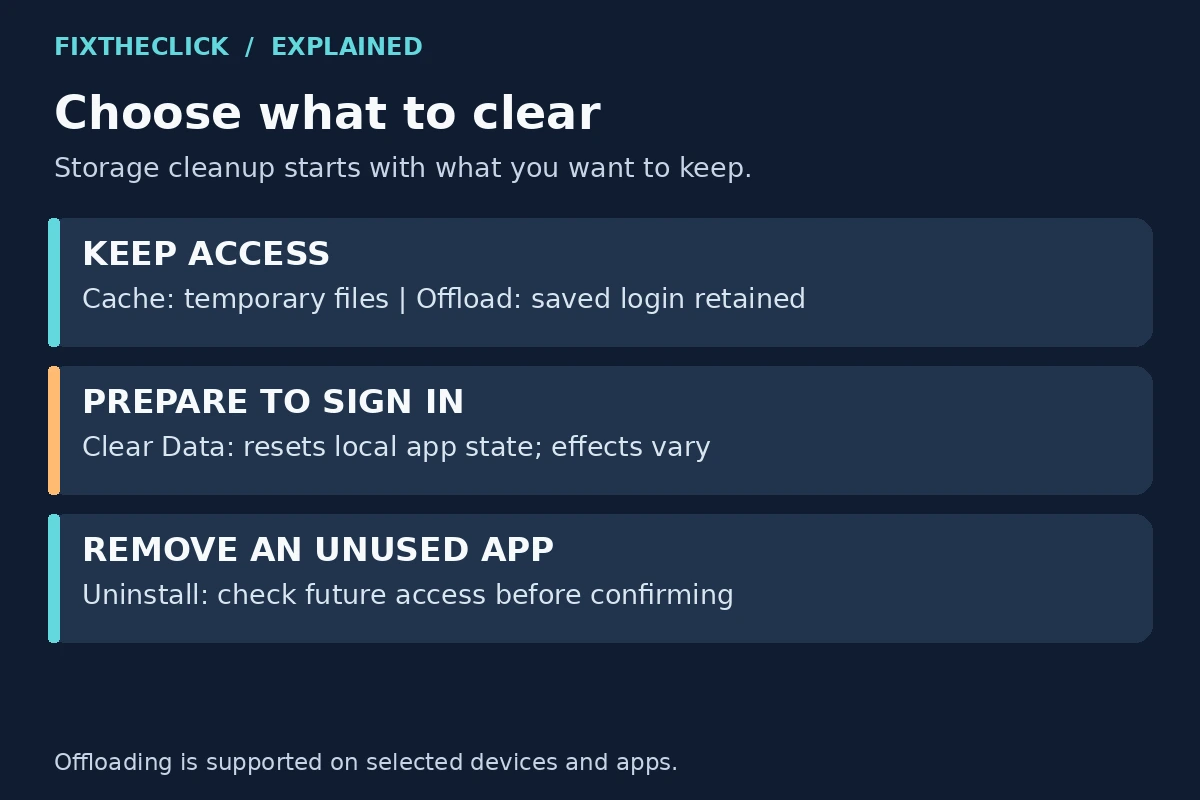
| Action | What you are choosing | What to prepare |
|---|---|---|
| Clear Cache | Remove temporary app files | Test space again; cache can grow back |
| Supported offloading | Remove an infrequently used app while retaining saved login details and preferences | Internet access to download it again |
| Clear Data | Reset the app’s local state | Sign-in or activation access; understand possible local-data loss |
| Uninstall | Remove an app you no longer want installed | Confirm you can obtain and activate it again if needed |
This is a decision guide, not a promise about a fixed amount of recovered space. An app’s displayed size does not tell you that every available action will release that entire amount.
If another household member uses an app, check with them before resetting or removing it. A saved activation can matter more than a small space saving, particularly when the account holder is not available to sign in again.
3. Clear cache, then measure the result
Amazon’s cache instructions place the controls under Settings > Applications > Manage Installed Applications. Select an app and choose Clear Cache if offered.
Some supported interfaces also show Clear all Application Caches. Use that option only if it appears on your device, and read its confirmation. If it is absent, use the individual app controls instead.
Our suggested order is to stop and check storage before considering Clear Data. The buttons serve different purposes; being next to each other does not make them one required cleanup sequence.
Temporary files can be recreated as you use an app. If the warning returns, compare the new storage reading with your earlier note. Repeatedly clearing a tiny cache may be less useful than removing something you genuinely do not use.
4. Use offloading for apps you want to keep available
Amazon describes Auto Offload as a low-storage feature that may offload unused apps after 60 days while retaining login information and preferences. A cloud icon marks an offloaded app, which needs downloading again before use. Internet access is required.
On supported interfaces, look under Settings > Applications > Auto Offload. For a manual choice, Amazon describes highlighting an app in Manage Installed Applications and pressing Menu; the New Fire TV Experience uses a press-and-hold of Select. Follow the displayed options rather than assuming every app can be offloaded.
Amazon excludes devices with Kids profiles set up, first- and second-generation Fire TV boxes, first- and second-generation Fire TV Sticks, and Fire TV Stick Basic Edition from the storage optimizer. Check the exact model if the feature is absent.
Offloading is a sensible candidate for an app you may want again but rarely open. It is less convenient when you need that app immediately and cannot download it. If redownloading fails because the device cannot reach the internet, use our Fire TV connected to Wi-Fi but no internet guide.
5. Uninstall apps you genuinely no longer use
If an app has no place in your current setup, removal may be the clearer choice. TCL’s official Fire TV instructions use Settings > Applications > Manage Installed Applications > [app] > Uninstall, followed by the confirmation shown on-screen.
Before confirming, make sure it is the intended app. If you might return to it, check that its official listing still supports your device and that you have the required sign-in or activation method. Do not assume a removed app will always remain available for reinstallation.
Removing an app is not a way to cancel its paid subscription. Handle billing separately with the service or subscription provider. Treat account access, subscription billing, and installation on this Fire TV as three separate decisions.
After removal finishes, check available storage again. Retry the install or update that originally failed before deleting another app. This keeps cleanup tied to the actual problem rather than turning it into a full-device clear-out.
6. Treat Clear Data as an app reset
Clear Data may remove an app’s saved session, preferences, or other local information. Its effects depend on the app. Prepare the account password, activation route, and any verification access you will need before using it.
For a storage warning, it is not automatically a better version of Clear Cache. Ask what local state you are intentionally resetting and whether you still need it. If you want to stop using the app entirely, consider the supported uninstall option instead.
If another person manages the streaming account, pause until they can help restore access. Do not trade a working login for an uncertain amount of space just because this button is easy to find.
7. Recheck the original failure before doing more
Return to the available-storage reading and compare it with your starting point. Then retry the same failed install or update. Keep the exact message if it changes; “not enough space” and “cannot connect” are different results.
If adequate space is confirmed but one installed app still closes or refuses to open, move to our Fire TV app crashing guide. That is an app-repair problem, not a reason to keep deleting unrelated content.
If the low-space warning persists and the displayed figures do not make sense, contact Amazon or the television manufacturer with the model, software version, warning, and before-and-after readings. Avoid a factory reset as routine cleanup; it creates a much bigger setup task before you know why the warning remains.
Frequently asked questions
Why does the warning return after I clear cache?
Cache can build again. Compare the amount recovered with the space the device still needs, and review unused apps instead of assuming the same small cleanup will permanently solve the warning.
Does the cloud icon mean the app is broken?
For an offloaded app, it indicates that the app needs downloading again. Confirm internet access and follow the supported download flow before treating it as an app failure.
What if my Fire TV has no Auto Offload option?
Use the manual cache and uninstall controls available on your model. A missing feature alone is not evidence of a defective device, and removing a Kids profile just to obtain the feature is not a necessary cleanup step.
Keep the apps you use, remove what you do not, and measure the result. Once the blocked installation succeeds, stop deleting and get back to watching.